How-to guide · how to insert a wardrobe block in autocad
How to insert a wardrobe block in AutoCAD
By Sumana Kumar · Published 13 Aug 2022 · Updated 14 Apr 2026
A wardrobe is usually the largest single piece of joinery in a bedroom plan, so placing it well in AutoCAD sets up the whole room — the bed position, the door swing, the circulation past the foot of the bed. The job comes down to inserting a scaled wardrobe block, snapping it square into its alcove or against a wall, and stretching the run to fit the available width. This guide covers all of that, plus the door-swing and layering details that make a joinery plan readable.
Wardrobe blocks come in a few flavours, and the workflow handles all of them: a freestanding hinged-door wardrobe, a sliding-door run, and a built-in wardrobe that fills an alcove wall to wall. Plan view is the one you reach for in layouts because it shows the carcass depth and the door-swing arcs that eat into the room. We will use a hinged-door wardrobe plan as the worked example.
Step 1 — Download the right wardrobe view
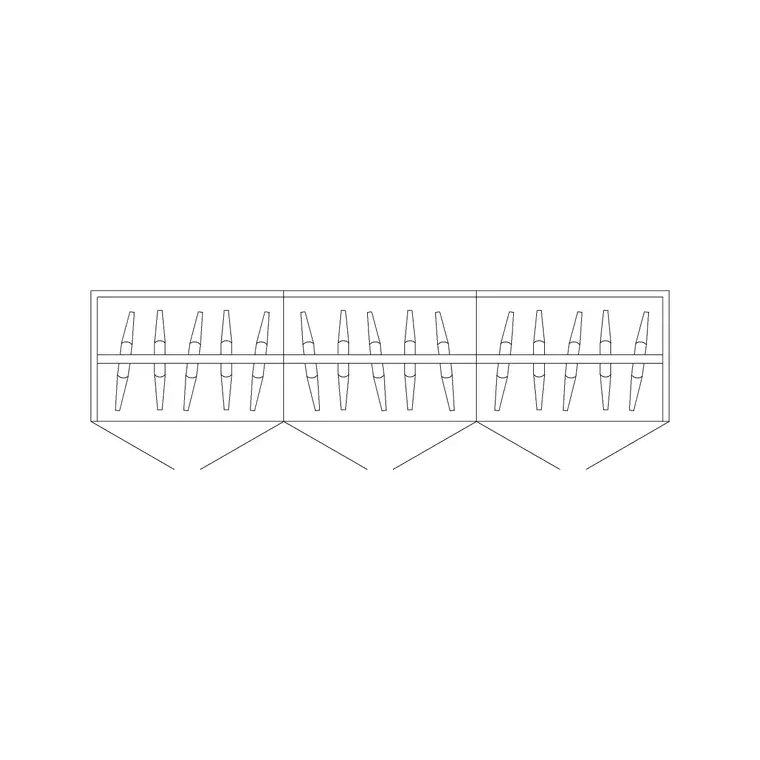
For a bedroom layout, download the plan view — the carcass seen from above with the door-swing arcs or the sliding-track line shown. Save it to a project library so it is reusable. The catalogue has two-, three-, four- and larger multi-door wardrobe plans drawn to scale and free for commercial use.
Open the block once to check how it is drawn: where the back of the carcass sits, whether the doors are shown open or as swing arcs, and where the insertion origin lies. The blocks here are drawn in millimetres, which matters for the next step.
Step 2 — Match units before inserting
Type UNITS and set the 'Insertion scale' to Millimeters so the block lands at true size. A wardrobe carcass is typically 550–650 mm deep, with single-door modules around 450–600 mm wide and full runs reaching 1800–3000 mm or more, so getting units right keeps those proportions correct against the room.
If your drawing is unitless, AutoCAD inserts raw geometry and you will scale by hand. Setting INSUNITS first lets AutoCAD rescale automatically and sidesteps the wardrobe-the-size-of-a-house mistake.
Step 3 — Run INSERT and place the wardrobe
Type INSERT (or I), or open the Blocks palette, browse to the wardrobe DWG and select it. Keep 'Specify On-screen' on for the insertion point, leave scale at 1 and rotation at 0, and click roughly where the wardrobe sits. It arrives as one block reference — carcass and door swings together.
If the wardrobe needs to run along a different wall, rotate it about its insertion point in 90-degree steps so the doors open into the room, not into the wall.
Step 4 — Snap it into the alcove and fit the length
Push the back of the carcass flush against the wall. Select the block, MOVE it with an object snap — grab a back corner and snap to the wall corner or line so there is no gap behind. For a built-in run that should fill an alcove wall to wall, you often need to fit the length: if the block is a stretchable dynamic block, use its grip to pull it to the alcove width; if it is a plain block, explode a copy and STRETCH the carcass, or array door modules to close the run.
Keep the door-swing arcs visible while you do this — they show whether a swung door will clash with the bed or with circulation, which is exactly the clearance a plan should reveal.
Step 5 — Put it on a joinery layer and mirror for the opposite wall
Move the wardrobe onto a joinery or fixtures layer — something like A-FURN-CASE — with its own colour and lineweight, so you can freeze joinery for a structural plan and thaw it for the fitted layout. Leaving it on layer 0 makes a clean print harder later.
When a room has matching wardrobes on opposite walls, MIRROR the first rather than re-inserting; it flips the carcass and door swings together and keeps the back on the wall. Once a run is finalised, WBLOCK the whole wardrobe-plus-doors as a reusable unit for the next bedroom.
Hinged, sliding and built-in — choosing the block
The kind of wardrobe you insert changes what the plan has to show. A hinged-door wardrobe needs its swing arcs because each door reaches out into the room, so you have to keep around 600 mm of clear floor in front for the doors to open and someone to stand. A sliding-door wardrobe has no swing, so it suits a tighter room or a spot at the foot of a bed where a hinged door would foul circulation — but the plan should still show the track line and which leaf slides over which.
A built-in wardrobe is the one you fit wall to wall in an alcove, so it reads as a filled rectangle with internal divisions rather than a freestanding carcass. Picking the right block up front saves rework: dropping a hinged-door block where a sliding wardrobe belongs leaves swing arcs eating into a walkway that, in reality, the design avoids entirely.
Common wardrobe placement mistakes
The recurring one is units: a wardrobe that inserts vast or tiny is an INSUNITS mismatch, solved in Step 2. The next is hiding the door-swing arcs or deleting them to 'clean up' the plan — those arcs are doing real work, showing where a door will foul the bed or a walkway, so keep them on the plan.
A third is a gap behind the carcass because the back was never snapped to the wall; always object-snap the back edge rather than dropping it close. Finally, when you stretch a built-in to fill an alcove, watch that the door modules still divide sensibly — three 600 mm doors read better than an odd remainder, so adjust module widths rather than leaving one stub panel.
Free download
Browse the full library — DWG & DXF, no signup.
Questions
Frequently asked
How do I fit a built-in wardrobe to an exact alcove width?+
If the block is a dynamic block, drag its width grip to the alcove. If it is a static block, STRETCH the carcass to length or array the door modules to close the run, keeping the back snapped to the wall.
Should the wardrobe plan show door swings?+
Yes. The swing arcs (or sliding-track line) show whether an open door clashes with the bed or circulation, which is the clearance a layout exists to reveal. Keep them on rather than deleting them to tidy the drawing.
My wardrobe inserted at the wrong size. How do I fix it?+
Set units first: type UNITS, set Insertion scale to Millimeters, and re-insert. Correct INSUNITS makes AutoCAD rescale the wardrobe to its true depth and width automatically.
How do I add a matching wardrobe on the opposite wall?+
Use MIRROR on the placed wardrobe rather than inserting again. It flips the carcass and door swings as one and keeps the back against the wall; just confirm the doors still open into the room.
Related downloads
Blocks for this guide
Popular blocks to download
Related categories
Related guides
How-to guide
How to Insert a Toilet / WC Block in AutoCAD
How to insert a toilet or WC block in AutoCAD — download the WC DWG, set units, run INSERT, set it on the soil-pipe wall and draw the clearance in front.
How-to guide
How to Insert a Wash Basin Block in AutoCAD
How to insert a wash basin block in AutoCAD — download the basin DWG, set units, run INSERT, place it near the WC and set the rim height in elevation.
How-to guide
How to Insert a Bathtub Block in AutoCAD
How to insert a bathtub block in AutoCAD — download the bath DWG, set units, run INSERT, fit it along the longest wall and align the tap end to the plumbing.