How-to guide · how to insert a kitchen sink block in autocad
How to insert a kitchen sink block in AutoCAD
By Sumana Kumar · Published 30 May 2024 · Updated 24 Mar 2026
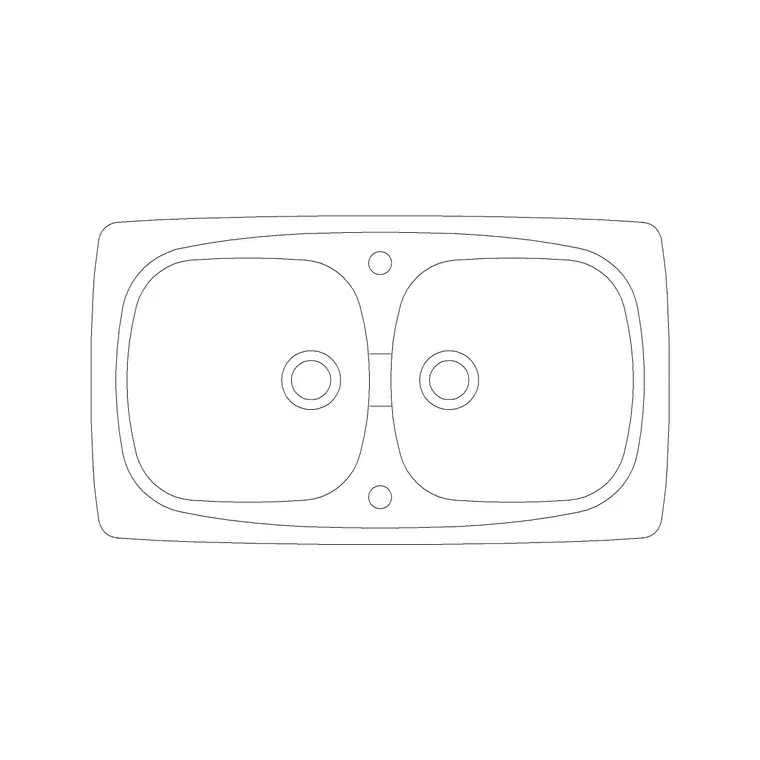
The kitchen sink is usually the first appliance you place in a kitchen layout, because its position is dictated by the plumbing and very often by a window above the worktop. Get the sink in the right spot and the rest of the run — drainer, dishwasher, base units — falls into place around it. This guide walks through inserting a kitchen sink CAD block in AutoCAD from download to final placement, then shows the snap and alignment tricks that keep the bowl centred in its cabinet.
We use a double-bowl sink with a drainer as the worked example because that is the most common kitchen sink and the one people most often need to centre over an 800–1000 mm base unit. The same steps apply to single-bowl, 1.5-bowl and Belfast sinks, so once you have placed one you can place any of them.
Step 1 — Download the right sink block
Start by downloading a kitchen sink block in DWG. Decide first whether you want a plan-view block — which is what you need for the kitchen layout — or an elevation block for a joinery drawing. For most layout work, the plan view is the file to grab, drawn from above so you can see both bowls, the tap holes and the drainer grooves.
Match the sink type to the cabinet it will sit in. A single bowl suits a 500–600 mm base unit, a double bowl needs an 800–1000 mm unit, and a 1.5-bowl sits between the two. Save the DWG into a project library folder so the block is reusable. The blocks here are drawn full size in millimetres, which matters for the next step.
Step 2 — Set insertion units before you insert
Type UNITS and confirm the 'Insertion scale' is set to Millimeters so the block lands at true size. This is the single most common thing that goes wrong: if your drawing's INSUNITS is Unitless or set to metres, a sink drawn in millimetres can arrive a thousand times too big or microscopically small.
With INSUNITS set to millimetres, AutoCAD automatically reconciles the block's units against the drawing's on insertion, so even a block drawn in different units rescales correctly. If your template is genuinely metric in metres, you can leave INSUNITS as metres and let AutoCAD do the conversion — what matters is that both the block and the drawing declare their units honestly.
Step 3 — Run INSERT and place the sink
Type INSERT (or I) and press Enter, or open the Blocks palette from the ribbon. Browse to the sink DWG, select it, and leave 'Specify On-screen' ticked for the insertion point so you can click the block into place. Leave scale at 1 and rotation at 0 for now — you will align it precisely in the next step.
Click roughly where the sink belongs on the worktop. The sink appears as a single block reference. Don't worry about it being slightly off; the point of inserting first and aligning second is that you can snap it exactly once it is in the drawing, which is more reliable than guessing the coordinates up front.
Step 4 — Centre the sink over its base cabinet
A sink looks wrong if it is not centred in its cabinet, and it reads as a setting-out error to anyone building from the drawing. The clean way to centre it is with the MOVE command using a midpoint-to-midpoint snap: start MOVE, pick the midpoint of the sink's front edge as the base point, then snap to the midpoint of the cabinet's front edge as the destination. The bowl now sits dead-centre in the unit.
If the sink is meant to align to a window rather than to the cabinet, snap its centreline to the centre of the window opening instead. Use the FROM modifier or a temporary construction line down the window centre to get the offset exactly right. Set the sink back about 50–60 mm from the front edge of the worktop so the tap has room behind the bowl.
Step 5 — Put it on a layer and add the tap
Move the sink onto a sanitary or plumbing layer — something like A-FLOR-SANR or P-FIXT — rather than leaving it on layer 0. A dedicated layer lets you produce a clean cabinet plan by freezing the fixtures, and gives the plumbing information its own colour and lineweight for coordination drawings.
If your block does not include the tap, insert a separate mixer-tap block behind the bowl, snapped to the tap-hole position. Keep the sink, the tap and the drainer logical: many drafters tag the sink block with an attribute carrying a fixture code so it can be pulled into a sanitary schedule later. When the kitchen run is finalised, you can WBLOCK the sink-plus-cabinet unit as a single reusable assembly.
Common pitfalls when placing a sink
Three problems recur. The first is the units mismatch from Step 2 — if the sink arrives the size of a swimming pool, the fix is almost always INSUNITS, not manual scaling. The second is placing the sink hard against the back wall with no gap; real worktops keep the bowl 50–60 mm forward of the front edge and leave room behind for the tap and the upstand, so a sink shoved to the wall reads as a clash.
The third is forgetting the drainer side. A drainer needs clear worktop beside the bowl, conventionally on the side away from the hob so wet dishes don't drip over the cooking zone. Check that the drainer doesn't run into the adjacent appliance. Finally, if you mirror a kitchen layout, remember that mirroring flips the bowl-and-drainer arrangement — sometimes that is exactly what you want, and sometimes it puts the drainer on the wrong side, so always sanity-check a mirrored sink.
Free download
Browse the full library — DWG & DXF, no signup.
Questions
Frequently asked
Why does my kitchen sink block come in the wrong size?+
That is a units mismatch. The block is drawn in millimetres but your drawing's insertion units differ. Type UNITS, set Insertion scale to Millimeters, then re-insert — AutoCAD will rescale the block to its true size automatically.
How do I centre a sink exactly in its base cabinet?+
Use MOVE with a midpoint snap: pick the midpoint of the sink's front edge as the base point, then snap to the midpoint of the cabinet's front edge. The sink lands centred. Keep it 50–60 mm forward of the worktop's back edge for the tap.
Should the sink go on the window side or anywhere?+
Sinks are conventionally placed under a window where one exists, both for the view and for natural light while washing up. If there is no window, position it for the plumbing and to give the drainer clear worktop on the side away from the hob.
Do I need a separate tap block?+
Sometimes. Many plan-view sink blocks already include the tap holes or a mixer symbol. If yours doesn't, insert a separate tap block snapped to the tap-hole position behind the bowl, and keep it on the same plumbing layer as the sink.
Related downloads
Blocks for this guide
Popular blocks to download
Related categories
Related guides
Curated pack
15 Free Kitchen Sink CAD Blocks — DWG & DXF in 2026
Download 15 free kitchen sink CAD blocks in DWG and DXF — single, double, 1.5-bowl, Belfast and corner sinks with drainers in plan. No signup needed.
Block landing
Free Kitchen Faucet / Mixer Tap CAD Block — DWG
Download free kitchen faucet and mixer tap CAD blocks in DWG and DXF — monobloc and pull-out mixers in plan and elevation. No signup, commercial OK.
Block landing
Free Kitchen Sink Unit CAD Block — DWG Download
Download free kitchen sink unit CAD blocks in DWG and DXF — single, double and 1.5-bowl sinks with drainers in plan and section. AutoCAD 2004+, no signup.