How-to guide · how to insert kitchen cabinet blocks in autocad
How to insert kitchen cabinet blocks in AutoCAD
By Saumyajit Maity · Published 12 Mar 2025 · Updated 21 Jan 2026
Cabinets are different from appliances: you don't place one, you build a run of them. Kitchen cabinetry is governed by a 600 mm module, so the skill is less about positioning a single block and more about arraying a modular unit cleanly along a wall, then closing the awkward end gap that never quite divides into 600. This guide covers inserting kitchen cabinet blocks in AutoCAD — base units, wall units and the section view — and assembling them into a continuous, believable run.
The worked example walks through a base-cabinet run with a matching wall-cabinet line above and a section through the units, because that combination is what you actually draw for a kitchen. The techniques — array, stretch, and layering base and wall units separately — carry across every kitchen you ever lay out.
Step 1 — Download base, wall and section blocks
Kitchen cabinets come as a small family of blocks, so download the ones the drawing needs. For a layout you want the base-unit plan (the 600 mm footprint seen from above) and the wall-unit plan (the shallower overhead cabinet). For a joinery drawing you also want the section, which cuts through a unit to show the carcass, shelves, worktop and plinth.
Standard sizes to look for: base units 600 mm wide and 600 mm deep with a 900 mm worktop height; wall units 600 mm or 300 mm wide and around 300 mm deep, hung to leave 450–600 mm clearance above the worktop. Save the blocks to a library folder; they are full size in millimetres.
Step 2 — Set units and place the first base unit
Confirm insertion units — type UNITS, set 'Insertion scale' to Millimeters — so a 600 mm cabinet lands at 600 mm. With INSUNITS correct, AutoCAD reconciles the block's units automatically.
Run INSERT, browse to the base-unit DWG, and place the first cabinet at one end of the run, snapping its back to the wall line and its side to the corner or the adjacent appliance. Use an endpoint snap so the unit seats exactly against the wall, with no gap and no overlap. This first cabinet is the anchor the rest of the run arrays from, so get it perfectly placed before you multiply it.
Step 3 — Array the run on the 600 mm module
Now multiply the cabinet along the wall. Use the ARRAY command — a rectangular array with one row, the spacing set to 600 mm (the module width), and the count set to fill the wall. AutoCAD lays down a clean line of identical base units snapped to the grid. A path array works too if the run follows an irregular line, but for a straight wall the rectangular array is simplest.
Alternatively, COPY the first unit with a 600 mm offset and repeat, or use the multiple-copy option to step it along. Whichever route you choose, the 600 mm module keeps every cabinet face flush and every joint landing on the grid, which is exactly how a real kitchen is set out.
Step 4 — Stretch the end unit to close the run
Walls rarely divide neatly into 600 mm increments, so you almost always finish with a gap smaller than a full module. There are two clean ways to close it. The tidy joinery solution is a filler panel: leave the modular units full size and add a narrow filler block in the gap, which is exactly what a fitter does on site. The pragmatic drawing solution is to STRETCH the end cabinet — select its end edge with a crossing window, then stretch it to the wall so the run reads as continuous.
If your cabinet block is a dynamic block, it may have a stretch grip that resizes it without exploding — pull the grip to the wall and the unit resizes cleanly. Avoid simply overlapping cabinets to fill the gap; an overlapped run looks wrong and miscounts in any schedule.
Step 5 — Add the wall cabinets and section on their own layers
Wall cabinets hang above the base units, so they belong on a separate layer — give them their own colour and lineweight so you can produce a base-cabinet plan and a wall-cabinet plan from the same drawing. Insert and array the wall units the same way, on the 600 mm module, but remember they are shallower than the base units, so their plan outline sits inside the base-unit line.
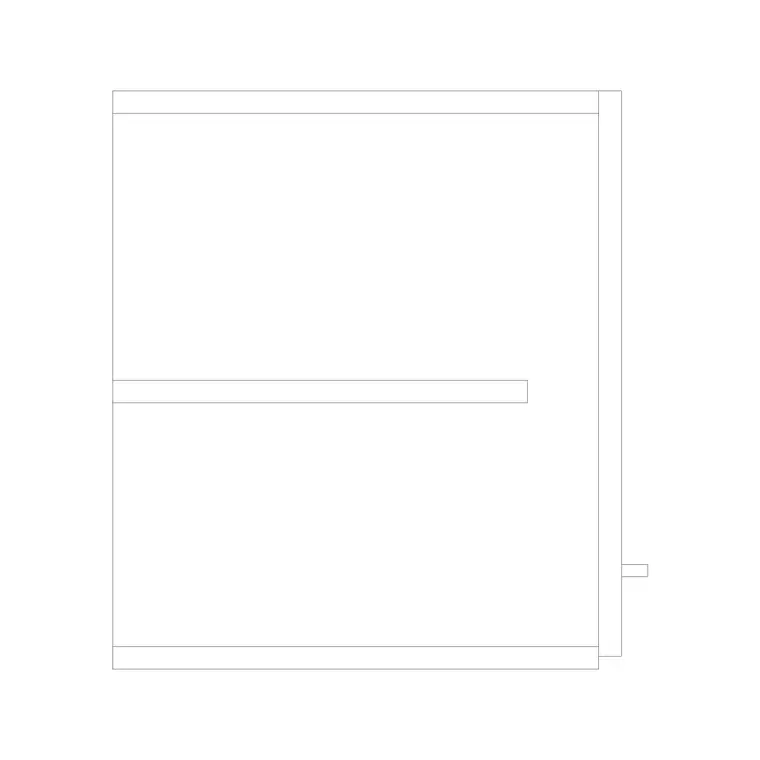
For the joinery drawing, place the section block where you cut through the run — typically through the sink or hob bay — to show the carcass, worktop, plinth and wall-unit relationship in one view. Keeping base units, wall units, worktops and the section on distinct layers means each drawing in the kitchen set reads cleanly without redrawing anything.
Pitfalls when building a cabinet run
First, the units mismatch — if the cabinets come in the wrong size, fix INSUNITS. Second, forcing the run to fit by overlapping units or leaving them slightly apart; the right answer to a non-modular wall is a filler panel or a single stretched end unit, not fudged spacing. Third, mixing base and wall cabinets on the same layer, which makes it impossible to produce the separate plans a kitchen set needs.
A subtler issue is corners. An internal corner can't take two full base units meeting at 90 degrees without them clashing — real kitchens use a corner unit or a blank panel to handle the dead space, so model the corner deliberately rather than running two cabinets into each other. And keep the worktop as its own outline over the base units; a worktop drawn as part of each cabinet block makes editing the run far harder later.
Free download
Browse the full library — DWG & DXF, no signup.
Questions
Frequently asked
What module are kitchen cabinets drawn on?+
The standard module is 600 mm wide, with 300 mm and other increments for narrower units. Base units are typically 600 mm deep at a 900 mm worktop height; wall units are shallower at around 300 mm deep. Arraying on the 600 mm grid keeps every joint on the module.
How do I fill the gap when a wall isn't a multiple of 600 mm?+
Use a filler panel block in the leftover gap, which is what a fitter does on site, or STRETCH the end cabinet to the wall so the run reads continuous. If the block is dynamic, pull its stretch grip. Avoid overlapping cabinets to fake a fit.
Should base and wall cabinets be on the same layer?+
No — put them on separate layers with their own colours. That lets you produce a base-cabinet plan and a wall-cabinet plan from the same drawing, and toggle the overhead units off when you only want to show the floor units.
How do I handle a corner in the cabinet run?+
An internal corner can't take two full base units meeting at 90 degrees without clashing. Use a dedicated corner unit or a blank panel to deal with the dead space, modelling the corner deliberately rather than running two cabinets into each other.
Related downloads
Blocks for this guide
Popular blocks to download
Related categories
Related guides
How-to guide
How to Draw a Kitchen Layout in AutoCAD
Draw a kitchen layout in AutoCAD — set the 600 mm module, fix sink and hob, lay cabinet runs, check the work triangle. Step-by-step with free kitchen blocks.
How-to guide
How to Insert a Kitchen Sink Block in AutoCAD
How to insert a kitchen sink block in AutoCAD — download the DWG, fix units, run INSERT, snap it to the cabinet run and centre the bowl under the window.
How-to guide
How to Insert a Stove / Cooktop Block in AutoCAD
How to insert a stove or cooktop block in AutoCAD — download the hob DWG, set units, run INSERT, centre it in the base unit and leave clearance to combustibles.