How-to guide · how to insert a gate block in autocad
How to insert a gate block in AutoCAD
By Sumana Kumar · Published 17 Sep 2024 · Updated 21 Mar 2026
A gate is the opening in a boundary — the break in a fence or wall where people and vehicles get in — so inserting one in AutoCAD is as much about fitting it to the gap and showing how it opens as about placing the block itself. This guide takes an entrance gate DWG from download to a properly fitted opening, with the swing or slide shown so the plan reveals the clearance the gate needs to operate. It covers pedestrian gates, double swing gates and sliding gates.
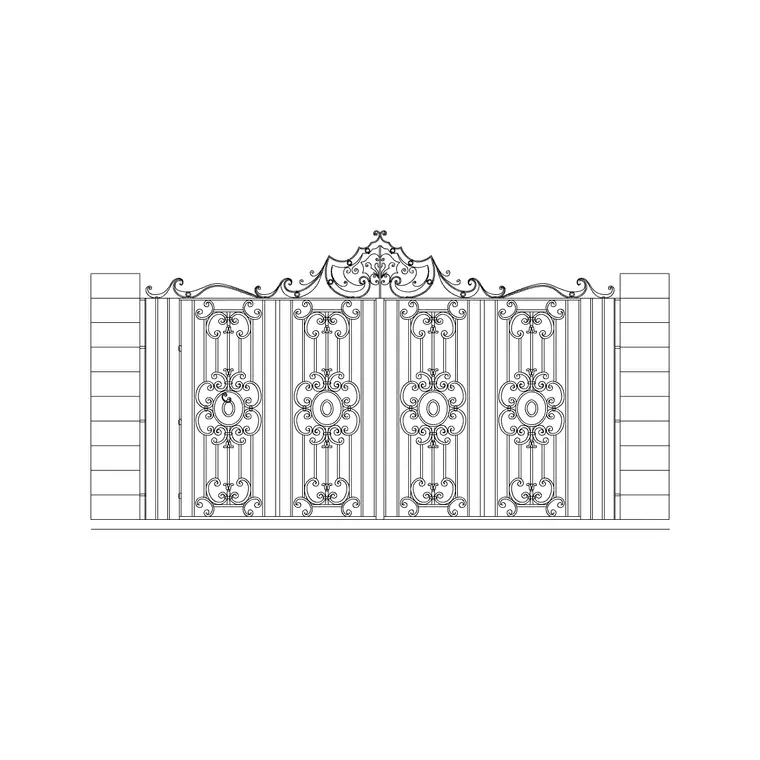
We will use a metal main entrance gate as the worked example, in plan for the site setting-out and in elevation for the street view. The catalogue carries metal main entrance gate blocks drawn to scale and free for commercial use. Because a gate sits in a fence or wall opening, the work is fitting it to the leaf width, snapping it to the boundary line and drawing the swing so circulation and clearance are honest.
Step 1 — Download the gate block
For a site plan, download the plan view — the gate leaves with the swing arcs (or the slide track) shown, which is what reveals the operating clearance. For a street elevation, grab the elevation, which shows the gate and its frame from the front. The outdoor category carries metal main entrance gates drawn to scale and free for commercial use.
Save it to a reusable library folder and open it once to read the leaf width and the hinge positions, since those govern how the gate fits the opening and which way it swings. The blocks here are drawn in millimetres.
Step 2 — Set units so the gate fits the opening
Type UNITS and set 'Insertion scale' to Millimeters. Gate widths vary by use — a pedestrian gate around 900–1200 mm, a single drive gate 3000–3600 mm, and a double or sliding vehicle gate 3500–5000 mm or more — so true units let the gate match the opening you have left in the fence or wall.
If the drawing is unitless the block inserts raw and you scale by hand. With INSUNITS set, AutoCAD rescales automatically and the gate arrives at its real width, ready to fit the gap.
Step 3 — Insert and fit it to the opening
Run INSERT (or I), or open the Blocks palette, browse to the gate and select it. Keep 'Specify On-screen' on for the insertion point, then snap the hinge side of the gate to one side of the opening you left in the fence run. Use an Endpoint snap on the opening jamb so the gate sits exactly in the gap, not overlapping a panel.
The gate comes in as one block reference. If the opening width differs from the block, fit it: a dynamic gate block may have a width grip you can drag to the opening, while a static block can be scaled in X to suit, or you adjust the opening to a standard leaf width so the gate sits cleanly.
Step 4 — Show the swing or slide
On the plan, the gate's swing arcs (or slide path) are doing real work — they show the floor area the gate sweeps through and therefore what must be kept clear. For a swing gate, make sure the arcs point the way the gate actually opens, usually into the property, and check nothing parks or plants in the swept area. For a sliding gate, show the track and the run-back length the gate needs alongside the opening, because that run-back has to be clear too.
Where a double gate meets in the middle, the two leaves each sweep half the opening, so confirm both arcs and the clear width when fully open against the vehicle or pedestrian route. The scaled block makes those clearance checks visual.
Step 5 — Layer the boundary and coordinate the fence
Move the gate onto the boundary or site layer — the same layer as the fence, such as SITE-BNDY or L-FENC — so the access reads as part of the boundary line and freezes and thaws with it. Keeping the gate off layer 0 keeps the site plan clean.
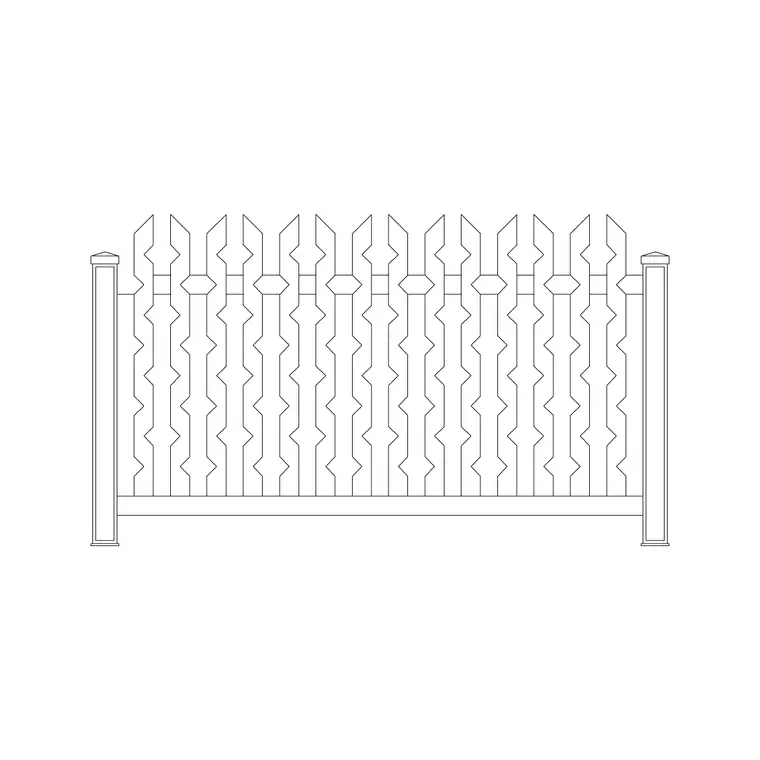
The gate and the fence work together: leave the opening in the arrayed fence run and drop the gate into it so the two coordinate on the same line. Once a typical entrance is drawn, WBLOCK the gate-plus-piers as a reusable unit for the next driveway, and tag it if you want it counted with the boundary items on a schedule.
Pitfalls when placing a gate
Units come first: a gate that lands tiny or vast is an INSUNITS mismatch from Step 2. The second pitfall is hiding the swing or slide — those arcs and track lines show the operating clearance, so keeping them on the plan is what stops a gate that fouls a wall, a parked car or a planting bed.
The third is a gate that does not match the opening; fit the leaf to the gap by stretching a dynamic block or adjusting the opening to a standard width rather than leaving an overlap or a gap. Finally, coordinate the gate with the fence on the same boundary layer, with the opening left in the fence run, so the access and the boundary read as one continuous line.
Free download
Browse the full library — DWG & DXF, no signup.
Questions
Frequently asked
How do I fit a gate to an opening that is a different width?+
If the gate is a dynamic block, drag its width grip to the opening. If it is static, scale it in X to the leaf width, or adjust the opening in the fence to a standard gate width so the gate sits cleanly between the jambs.
Should the gate plan show the swing?+
Yes. The swing arcs (or the slide track and run-back) show the floor area the gate needs to operate, so circulation, parking and planting can be kept clear. Make the arcs point the way the gate actually opens.
What is a typical gate width?+
A pedestrian gate is roughly 900–1200 mm, a single drive gate 3000–3600 mm, and a double or sliding vehicle gate 3500–5000 mm or more. Set units to millimetres so the gate matches the opening you have left.
How do the gate and fence work together?+
Leave a gap in the arrayed fence run where the gate goes, then insert the gate into that opening on the same boundary layer. The two coordinate on one continuous line so the access reads correctly on the plan.
Related downloads
Blocks for this guide
Popular blocks to download
Related categories
Related guides
How-to guide
How to Insert a Tree CAD Block in AutoCAD
Step-by-step guide to inserting a tree CAD block in AutoCAD — download the DWG, set units, use INSERT, scale and place it, then array trees across a site plan.
How-to guide
How to Insert a Tree Elevation Block in AutoCAD
Insert a tree elevation block in AutoCAD — download the side-view DWG, set units, run INSERT, sit it on the ground line, scale to mature height and layer it.
How-to guide
How to Insert a Palm Tree Block in AutoCAD
Insert a palm tree block in AutoCAD — download the plan or elevation DWG, set units, run INSERT, scale to mature height and array along a path.