How-to guide · how to insert a palm tree block in autocad
How to insert a palm tree block in AutoCAD
By Saumyajit Maity · Published 21 Jun 2024 · Updated 8 Jun 2026
Palms turn up everywhere from resort landscapes to boulevard planting, and they have a distinctive geometry — a tall slender trunk and a high feathered crown — that makes scaling and placement a little different from a broadleaf tree. Inserting a palm in AutoCAD is the familiar block workflow, but with palms the height and the trunk position carry most of the visual weight, so this guide pays particular attention to those. We will cover both the plan view for site layouts and the elevation view for street sections and presentation boards.
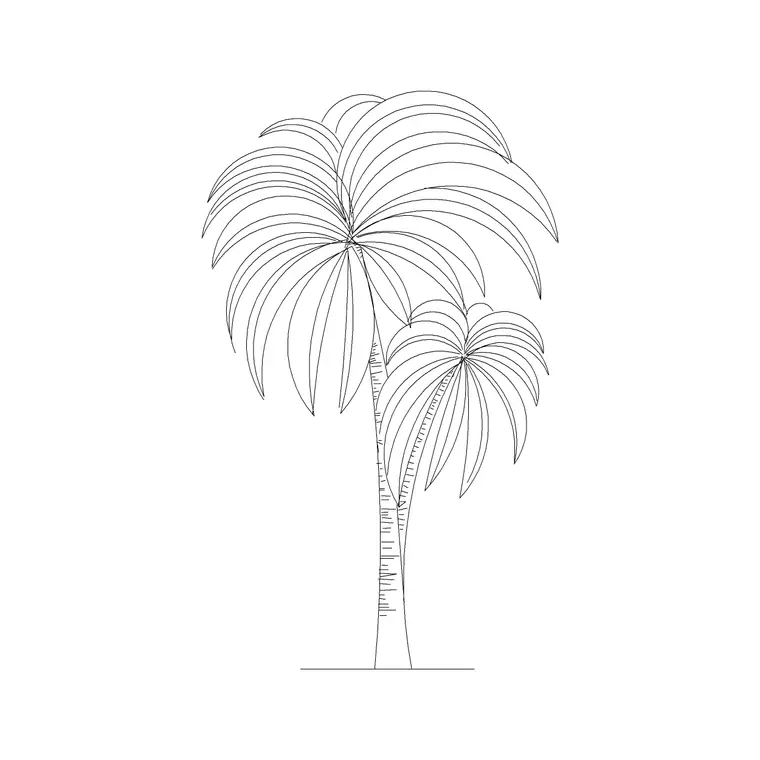
The steps below work for date palms, fan palms and tall coconut palms alike — the silhouette differs but the method does not. We will use an elevation palm as the worked example for the scaling steps, since the trunk-on-ground-line and mature-height checks are where palms most often go wrong, then array a row in plan for a boulevard.
Step 1 — Download the palm in the view you need
For a site or landscape plan, download the plan view — the fan of fronds seen from above. For a street section, building elevation or presentation board, download the elevation, which shows the tall trunk and high crown from the side. The trees-and-plants category carries palm plan and elevation blocks drawn to scale and free for commercial use.
Save the DWG to a reusable library folder and open it once to find the trunk base point — palms have a small footprint and a tall trunk, so the base is the reference you will snap to. The blocks here are drawn in millimetres.
Step 2 — Set units so the palm scales true
Type UNITS and set 'Insertion scale' to Millimeters. Palms span a wide height range — a low fan palm might read 2–4 m, a mature date palm 8–15 m, and a tall coconut palm more — so true units let you scale honestly against a building or a person for reference.
If the drawing is unitless, AutoCAD inserts the raw geometry and you scale by hand. With INSUNITS set, the palm arrives at its drawn height and you can scale from there to the mature size your design calls for.
Step 3 — Insert and place the trunk
Run INSERT (or I), or open the Blocks palette, browse to the palm block and select it. Keep 'Specify On-screen' on for the insertion point. For an elevation palm, snap the insertion to the ground line so the trunk base sits on grade; for a plan palm, click the planting point where the trunk centre belongs.
The palm comes in as a single block reference. Because the trunk is slender, place it precisely — in plan the small footprint means a careless click can leave it off the intended planting point, so use a snap to a planting grid or pavement joint where you can.
Step 4 — Scale the palm to mature height
Height is what sells a palm. For an elevation palm, run SCALE with the trunk base as the base point so the crown rises from the ground line as you scale; a boulevard date palm reading 10–12 m looks right against a low-rise frontage, while a 3 m fan palm suits a courtyard. For a plan palm, the scale controls the frond spread you array around the canopy.
Vary the height slightly between palms so a row does not look mechanical, and check the crown against the architecture — palms are deliberately tall and slender, so an under-scaled palm reads as a shrub and an over-scaled one dwarfs the building it is meant to frame.
Step 5 — Array a row and layer the planting
To line palms down a boulevard or driveway, use ARRAY — a path array along the road or path centreline for an even rhythm, or copy-and-place for a looser arrangement. Move them all onto a planting layer such as L-PLNT with its own colour and lineweight, so you can freeze the planting for a clean engineering plan and thaw it for the landscape sheet.
For natural-looking rows, vary scale and rotation a little between instances rather than leaving every palm identical. When a planting arrangement is settled, WBLOCK the row as a reusable unit so the next driveway or plaza starts from a tested layout instead of from scratch.
Palm-specific pitfalls
Units lead the list: a palm the size of a bollard or taller than a tower is an INSUNITS mismatch fixed in Step 2. The second pitfall is mixing views — a plan frond-fan dropped onto an elevation, or a side-view palm on a site plan, both read wrong, so match the view to the drawing.
The third, particular to palms, is under-scaling: because the trunk is slender people often draw palms too short, losing the tall elegance that is the whole point of a palm, so check the height against a person or door for reference. Finally, a dead-straight row of identical palms looks copied; for a formal avenue that may be intended, but for naturalistic planting vary height and spacing to break the pattern.
Free download
Browse the full library — DWG & DXF, no signup.
Questions
Frequently asked
Which palm view should I use — plan or elevation?+
Use the plan view (fronds from above) for site and landscape plans, and the elevation view (trunk and crown from the side) for street sections, building elevations and presentation boards.
How tall should a palm block be?+
Scale to the mature height of the species you are representing — roughly 2–4 m for a low fan palm, 8–15 m for a mature date palm, more for a tall coconut palm. Scale an elevation palm from the trunk base so it rises from the ground line.
How do I line palms evenly down a driveway?+
Use a path array (ARRAYPATH) along the driveway centreline and set the spacing, or copy and place them by hand for a looser look. Vary scale and rotation slightly so the row does not look stamped.
Why is my palm block the wrong size when inserted?+
It is a units mismatch. Type UNITS, set Insertion scale to Millimeters, and re-insert. With INSUNITS correct, AutoCAD rescales the palm to its drawn height automatically, ready for you to scale to maturity.
Related downloads
Blocks for this guide
Popular blocks to download
Related categories
Related guides
How-to guide
How to Insert a Tree CAD Block in AutoCAD
Step-by-step guide to inserting a tree CAD block in AutoCAD — download the DWG, set units, use INSERT, scale and place it, then array trees across a site plan.
How-to guide
How to Insert a Tree Elevation Block in AutoCAD
Insert a tree elevation block in AutoCAD — download the side-view DWG, set units, run INSERT, sit it on the ground line, scale to mature height and layer it.
How-to guide
How to Insert a Planter Pot Block in AutoCAD
Insert a planter pot block in AutoCAD — download the DWG, match units, run INSERT, place it on a terrace or entrance, array a run and layer the planting.