How-to guide · how to insert a tree elevation block in autocad
How to insert a tree elevation block in AutoCAD
By Sumana Kumar · Published 24 Aug 2022 · Updated 14 May 2026
An elevation tree is the side-on view you drop into a building elevation, a street section or a landscape presentation to give scale and soften the architecture. Unlike a plan tree, which is a canopy seen from above, an elevation tree shows trunk and crown from the side, so the two things that matter when you insert it are sitting the trunk base exactly on the ground line and scaling the crown to a believable mature height. This guide covers both, plus the layering and depth tricks that stop elevation trees from cluttering the building.
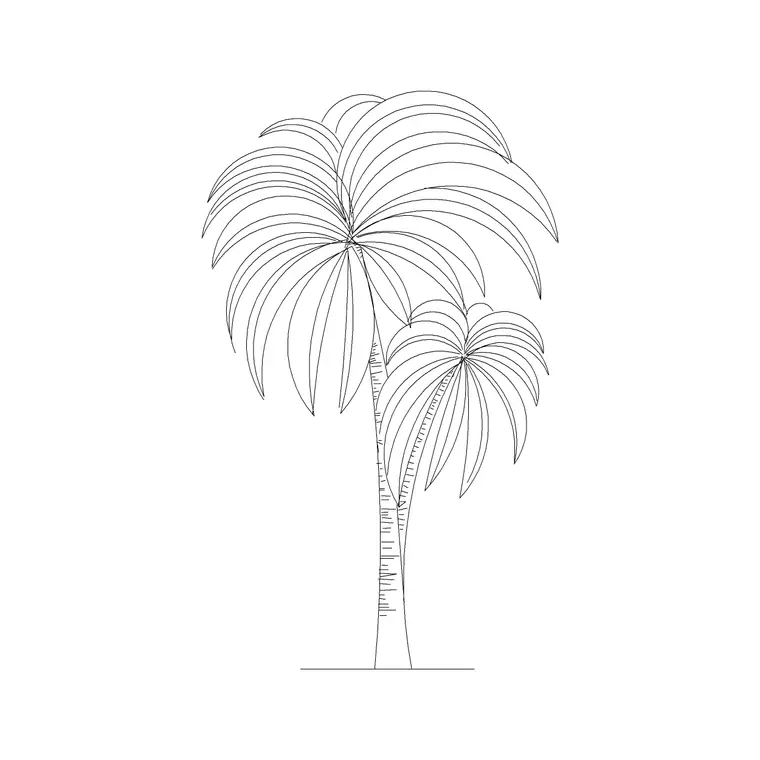
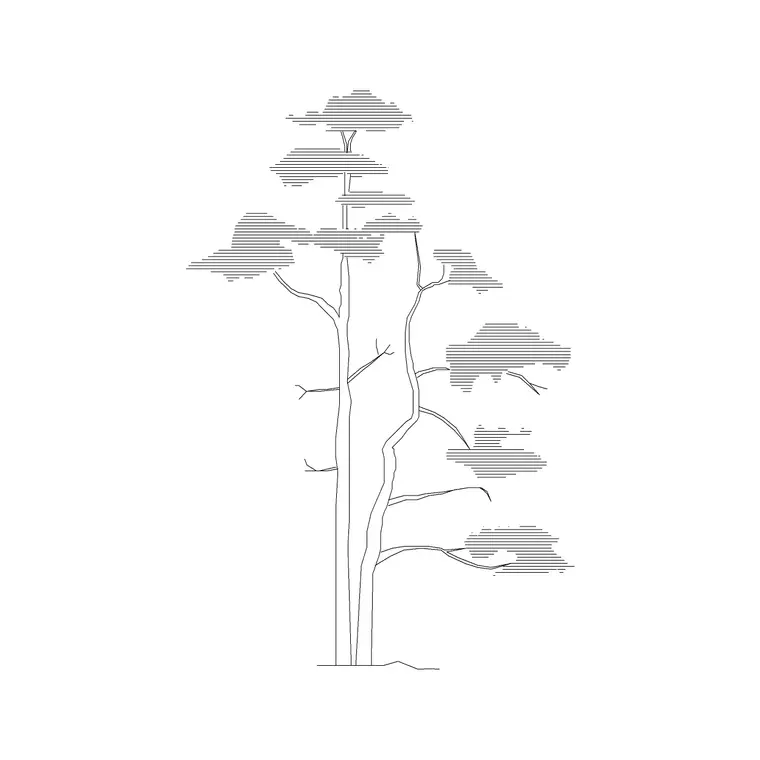
We will use a broadleaf or palm elevation block as the example because those are the side-view trees people most often add to an elevation. The same workflow handles conifers, shrubs and ornamental trees — only the silhouette and the height you scale to change. Because elevation trees are about proportion against a building, getting the height right against the floor levels is the whole game.
Step 1 — Download a tree elevation block
Pick the elevation (side) view, not the plan — you want the trunk-and-crown silhouette seen from the front, the way it reads against a building face. The trees-and-plants category has palm, pine and broadleaf elevations drawn to scale and free for commercial use.
Save it to a reusable library folder and open it once to find the trunk base point, since that is what you will sit on the ground line. The blocks here are drawn in millimetres, so a tree drawn at, say, 6 m tall is 6000 units high.
Step 2 — Set units to match the elevation
Type UNITS and set 'Insertion scale' to Millimeters so the tree arrives at true height against your building. With INSUNITS matched, AutoCAD rescales automatically and a tree drawn at one height lands correctly, ready to compare against the floor-to-floor dimensions already on your elevation.
If the drawing is unitless the block comes in raw and you scale by hand. Matching units first means the tree's height reads truthfully against the storey heights — which is the only reason to put a tree on an elevation in the first place.
Step 3 — Insert and sit the trunk on the ground line
Run INSERT (or I), or open the Blocks palette, browse to the elevation tree and select it. Keep 'Specify On-screen' on for the insertion point, then snap the insertion to the ground line of your elevation — use an Endpoint or Nearest snap on the existing finished-ground level so the trunk base sits exactly on grade, not floating above it or buried below.
The tree comes in as one block reference. If the block's origin is at the trunk base, the snap places it perfectly; if the origin is elsewhere, MOVE it by the trunk base afterwards onto the ground line.
Step 4 — Scale the crown to a mature height
Elevation trees earn their keep by giving scale, so the height has to be believable against the building. A small ornamental tree might read 3–4 m tall, a street tree 6–10 m, and a mature shade or palm considerably more. If the block is drawn at one height and you need another, run SCALE with the trunk base as the base point and key in the factor — base it at the trunk so the tree grows upward from the ground line, not away from it.
Vary the height a little between trees in a row so the elevation does not look stamped, and check the crown against window heads and parapets: a tree that swallows the whole facade usually wants scaling down, while a shrub-height stub against a three-storey block reads wrong.
Step 5 — Layer the trees and push them behind the building
Move the elevation trees onto a planting or landscape layer — something like L-PLNT-ELEV — with a light colour and a thin lineweight so they read as background, not as part of the building line. That also lets you freeze the planting for a clean technical elevation and thaw it for the presentation version.
For depth, draw foreground trees a touch heavier and background trees lighter, and where a tree overlaps the building you can either leave it in front for a softened presentation or TRIM the crown at the building outline so the architecture stays legible. Once you have a good row, copy it along the street, varying scale and spacing so the planting looks natural rather than arrayed.
Common mistakes with elevation trees
The first is using a plan tree by mistake — a canopy-from-above symbol pasted onto an elevation reads as a blob, so always grab the side view. The second is the trunk floating off the ground line or sinking below it; snap the base to grade every time. The third is units, as ever: a tree the height of a doorknob or taller than the building is an INSUNITS mismatch from Step 2.
A subtler one is letting the trees overpower the architecture — on a technical elevation the building is the subject, so keep the planting light and behind, and reserve heavy, detailed trees for presentation sheets. Finally, identical trees in a dead-straight row look obviously copied; vary height, spacing and a little of the silhouette to keep a street believable.
Free download
Browse the full library — DWG & DXF, no signup.
Questions
Frequently asked
What is the difference between a plan tree and an elevation tree?+
A plan tree is the canopy seen from above, used in site and floor plans. An elevation tree is the side view — trunk and crown from the front — used in building elevations, street sections and presentation drawings.
How do I sit the tree exactly on the ground line?+
Snap the insertion point to the finished-ground level with an Endpoint or Nearest object snap, using the trunk base as the reference. If the block's origin is not at the trunk base, MOVE it onto the ground line by that point afterwards.
How tall should an elevation tree be?+
Scale it to a believable mature height against the building — roughly 3–4 m for a small ornamental, 6–10 m for a street tree, more for a large shade tree or palm. Scale from the trunk base so it grows up from the ground line.
How do I stop trees cluttering a technical elevation?+
Put them on a light-coloured, thin-lineweight planting layer behind the building line, and trim or freeze them for the technical print. Reserve heavy, detailed elevation trees for presentation sheets.
Related downloads
Blocks for this guide
Popular blocks to download
Related categories
Related guides
How-to guide
How to Insert a Tree CAD Block in AutoCAD
Step-by-step guide to inserting a tree CAD block in AutoCAD — download the DWG, set units, use INSERT, scale and place it, then array trees across a site plan.
How-to guide
How to Insert a Palm Tree Block in AutoCAD
Insert a palm tree block in AutoCAD — download the plan or elevation DWG, set units, run INSERT, scale to mature height and array along a path.
How-to guide
How to Insert a Planter Pot Block in AutoCAD
Insert a planter pot block in AutoCAD — download the DWG, match units, run INSERT, place it on a terrace or entrance, array a run and layer the planting.