How-to guide · how to insert a fence block in autocad
How to insert a fence block in AutoCAD
By Sumana Kumar · Published 12 Jun 2026 · Updated 28 Jun 2026
A fence runs along a boundary, a garden edge or a car-park perimeter, and the trick to drawing it in AutoCAD is that a fence is really a repeated panel — you insert one bay and array it along the line rather than drawing every picket. This guide takes a fence panel block from download to a complete run, snapped to the boundary and arrayed at the right bay width, with the layering that keeps the boundary line clear on a site plan. It works for timber panel fences, iron railings and mesh fencing alike.
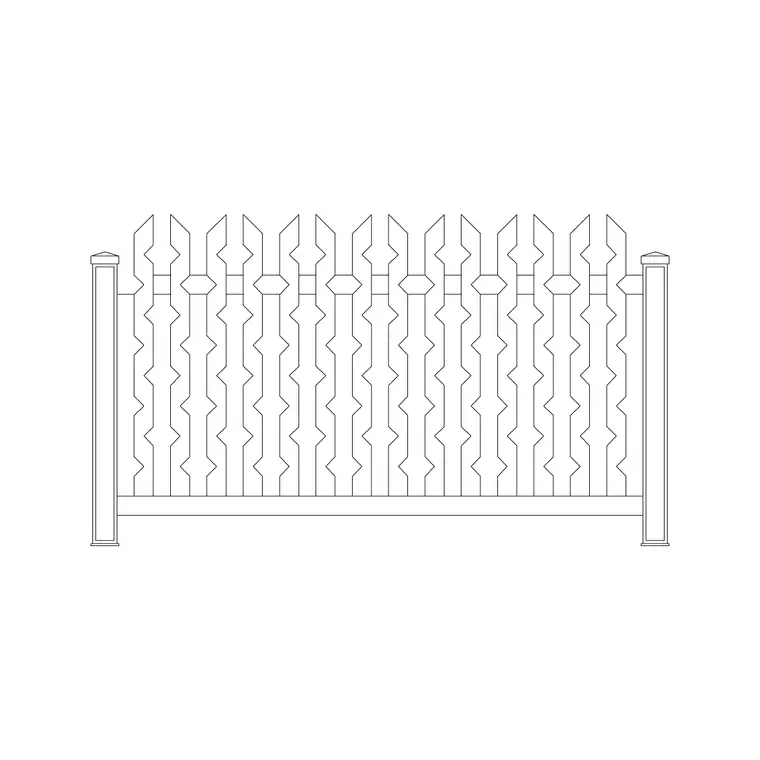
We will use an iron railing panel as the worked example, in elevation for the street view and in plan for the site layout. The catalogue carries iron fence blocks drawn to scale and free for commercial use. Because a fence is a linear, repeating element, getting one bay right and arraying it cleanly is what gives you a fence run that stays editable and correctly proportioned.
Step 1 — Download a fence panel block
For a street elevation or a presentation, download the elevation — a single bay of the fence seen from the front, with posts and infill. For a site plan, the fence often reduces to a line with posts marked, so a plan block or a simple line on the boundary layer may be all you need. The outdoor category carries iron fence blocks drawn to scale and free for commercial use.
Save it to a reusable library folder and open it once to read the bay width — the post-to-post module — because that pitch is what you array. The blocks here are drawn in millimetres.
Step 2 — Set units so the bay is true
Type UNITS and set 'Insertion scale' to Millimeters. Fence bays commonly sit in a 1800–3000 mm post-to-post range, and panel heights run roughly 900–2000 mm depending on whether it is a low garden railing or a tall security fence, so true units keep both the bay and the height correct.
If the drawing is unitless the block inserts raw and you scale by hand. With INSUNITS set, AutoCAD rescales automatically and one bay lands at its real width, ready to repeat.
Step 3 — Insert one bay on the boundary
Run INSERT (or I), or open the Blocks palette, browse to the fence panel and select it. Keep 'Specify On-screen' on for the insertion point, then snap the first post to the start of the boundary or fence line — an Endpoint snap on the boundary corner is ideal. For an elevation, sit the panel base on the ground line.
The bay comes in as one block reference. Rotate it about the start post so the panel runs along the boundary direction; aligning the first bay accurately to the line is what makes the array that follows sit straight.
Step 4 — Array the panels along the run
A fence is a repeated bay, so array it rather than copying by hand. Use ARRAY — a path array along the boundary or fence line, with the spacing set to the bay width so each panel butts post-to-post against the next. A path array follows changes in direction, so the fence turns corners and follows a curved boundary while keeping the bays even.
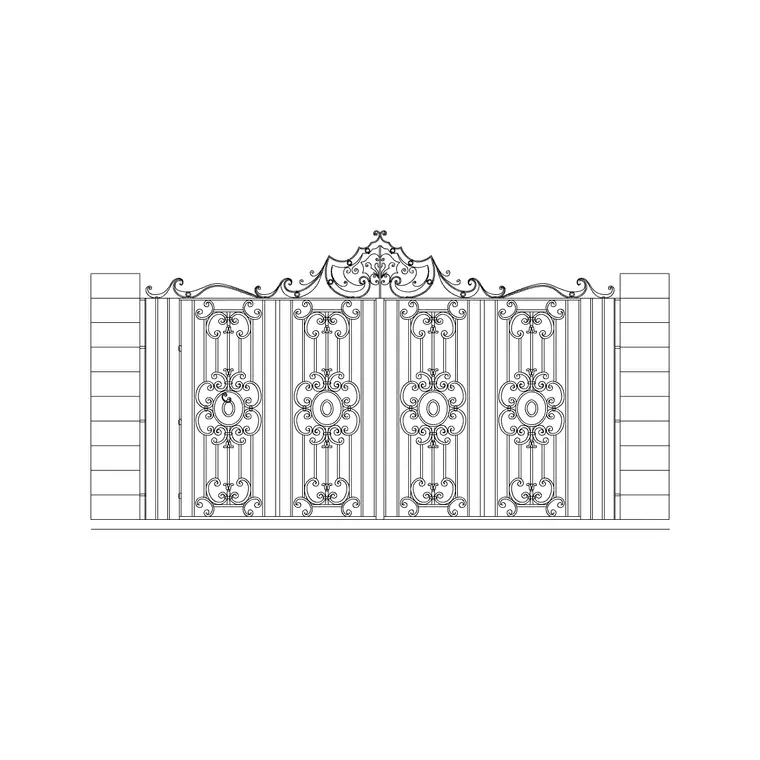
Where the run does not divide evenly into whole bays, you usually adjust by adding a short closing panel at one end rather than stretching every bay — real fences are built in standard panels with a made-to-fit bay to close. Leave a gap in the run where a gate goes, which you fill with a gate block on the same boundary line.
Step 5 — Layer the boundary and reuse the run
Move the fence onto a boundary or site layer — something like SITE-BNDY or L-FENC — with its own colour and lineweight, so the boundary reads clearly and can be frozen or thawed independently of the buildings and planting. Keeping the fence off layer 0 keeps a site plan legible.
Once a typical run is arrayed, WBLOCK a standard bay-plus-post as a reusable unit so the next boundary starts from a tested module. If you tag the fence with a length or panel-count attribute, you can read off how many panels the boundary needs, which is exactly what a fencing quote wants.
Common fence drawing mistakes
Units first: a fence bay that lands tiny or vast is an INSUNITS mismatch from Step 2. The second mistake is drawing every picket by hand instead of arraying a panel — that produces a fence that is painful to edit and slow to draw, when a path array does the whole run and stays adjustable.
The third is forcing the bays to stretch to fit an odd boundary length; real fences close with a made-to-fit panel, so add a short closing bay rather than distorting every panel. Finally, keep the fence on its own boundary layer and remember to leave the gate opening in the run, filled separately with a gate block, so the access reads correctly on the plan.
Free download
Browse the full library — DWG & DXF, no signup.
Questions
Frequently asked
How do I draw a long fence run without drawing every panel?+
Insert one bay as a block, then use a path array (ARRAYPATH) along the boundary line with the spacing set to the bay width. The panels repeat post-to-post and the array follows corners and curves, staying editable.
What is a typical fence bay width and height?+
Bays commonly run 1800–3000 mm post-to-post, with panel heights of roughly 900–2000 mm depending on whether it is a low garden railing or a tall security fence. Set units to millimetres so both come in true.
How do I handle a boundary that does not divide into whole panels?+
Add a short made-to-fit closing panel at one end rather than stretching every bay, which is how fences are actually built. Keep the standard bays at their true width and let the closing bay take up the remainder.
How do I leave room for a gate in a fence run?+
Leave a gap in the arrayed run where the gate goes, then drop a gate block onto the same boundary line to fill it. Keep both on the boundary layer so the access reads correctly on the plan.
Related downloads
Blocks for this guide
Popular blocks to download
Related categories
Related guides
How-to guide
How to Insert a Tree CAD Block in AutoCAD
Step-by-step guide to inserting a tree CAD block in AutoCAD — download the DWG, set units, use INSERT, scale and place it, then array trees across a site plan.
How-to guide
How to Insert a Tree Elevation Block in AutoCAD
Insert a tree elevation block in AutoCAD — download the side-view DWG, set units, run INSERT, sit it on the ground line, scale to mature height and layer it.
How-to guide
How to Insert a Palm Tree Block in AutoCAD
Insert a palm tree block in AutoCAD — download the plan or elevation DWG, set units, run INSERT, scale to mature height and array along a path.