How-to guide · how to insert a commode block in autocad
How to insert a commode block in AutoCAD
By Saumyajit Maity · Published 12 Jun 2022 · Updated 2 Jan 2026
A western commode, or WC, anchors almost every bathroom plan, and where you put it drives the rest of the layout — the door swing, the clearance in front, the run of plumbing behind. Inserting one in AutoCAD is straightforward once the block arrives at true size and its cistern sits flush to the wall. This guide takes a commode DWG from download to a properly placed, properly cleared fixture, with the layering that keeps a sanitaryware plan tidy.
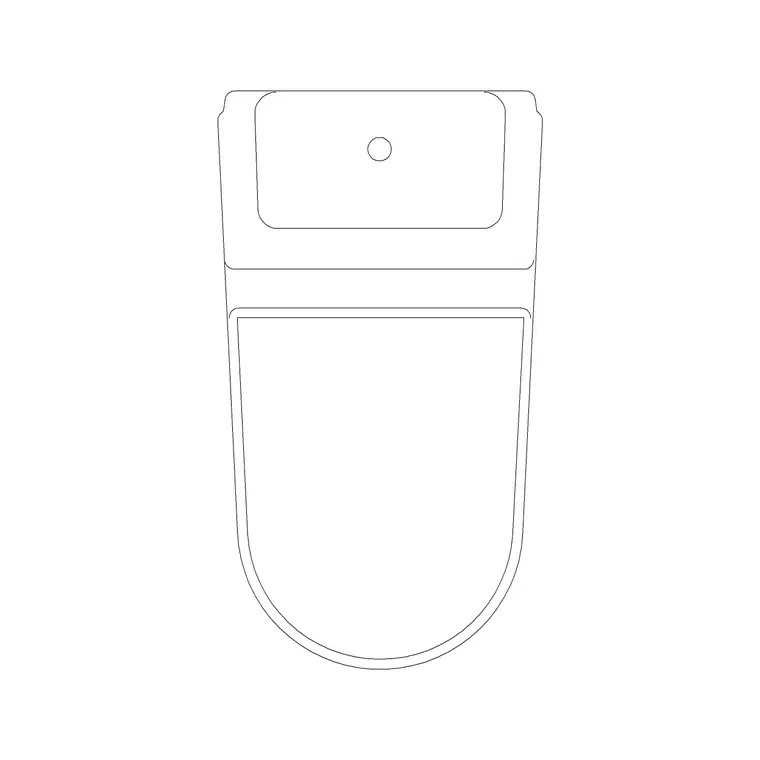
We will use a plan-view commode as the example because the plan is what governs space planning. A good commode block shows the pan outline, the seat, and the cistern at the back, so you can both align it to the wall and read the front clearance at a glance. The same steps apply to a wall-hung WC or a back-to-wall pan — only the cistern detail changes.
Step 1 — Download the commode DWG
Choose a plan-view commode for a floor plan; reach for an elevation or side view only when you are drawing an interior elevation of the bathroom. The bathroom category here has close-coupled, wall-hung and back-to-wall commodes drawn to scale, free for commercial use.
Save the file to a reusable library folder and open it once to see how it is built — note whether the insertion origin sits at the pan centre or at the cistern back, because that point determines how it snaps to the wall. The blocks here are drawn in millimetres.
Step 2 — Set units so it lands at real size
Type UNITS and set the 'Insertion scale' to Millimeters. A standard close-coupled commode footprint falls roughly in the 360–400 mm wide by 650–700 mm deep range, with the cistern adding depth at the back, so when units match, the block arrives at that true envelope and your clearances stay honest.
If the drawing is unitless, AutoCAD inserts the raw geometry and you will have to scale manually. Setting INSUNITS first means AutoCAD rescales automatically and you avoid the classic too-big or too-small block.
Step 3 — Insert the commode
Run INSERT (or I), or open the Blocks palette, browse to the commode DWG and select it. Keep 'Specify On-screen' ticked for the insertion point, leave scale at 1 and rotation at 0, then click roughly where the pan belongs. It arrives as one block reference — pan, seat and cistern moving together.
Because it is a single object, you can position the whole fixture, then fine-tune with MOVE and ROTATE rather than editing individual lines.
Step 4 — Snap the cistern to the wall and set clearance
The cistern must sit flush to the wall it backs onto. Select the block, MOVE it with an object snap — grab the cistern back midpoint and snap Perpendicular or Nearest onto the wall line. If the pan faces the wrong way, ROTATE about the insertion point in 90-degree steps until the seat opens into the room.
Now check the front clearance: a comfortable WC needs roughly 600 mm of clear floor in front of the pan and around 200 mm of side clearance to a wall or fixture either side. With the scaled block in place those become visual checks rather than calculations, which is the whole point of drawing to scale.
Step 5 — Layer it and reuse the WC-and-basin set
Move the commode onto a sanitaryware layer such as P-SANR with its own colour and lineweight, so you can freeze the fixtures for a structural print and thaw them for the fitted plan. Keeping it off layer 0 is what makes a clean services drawing possible later.
If you are repeating an ensuite or a stacked riser layout, build the commode, basin and any cubicle as a single block with WBLOCK and array it — but mirror with the MIRROR command rather than re-rotating when you flip a handed bathroom, so the cistern stays on the wall and the seat opening stays correct.
Coordinating the commode with the soil pipe
A commode is not just a shape on the floor — it connects to a soil stack, and the pan's outlet position drives where that stack runs. A close-coupled WC usually has either a back outlet that ties straight into the wall behind the cistern, or a bottom outlet that drops through the floor, and which one you draw affects the riser and the slab penetration below. Keeping the commode aligned to the wall that carries the stack means the plumbing run stays short and the pipework stacks cleanly floor to floor.
Where several bathrooms stack vertically — in an apartment block or a hotel — placing the commode the same way on every floor lets a single soil stack serve them all. That is another reason to insert the same block consistently rather than nudging each one by eye: a tidy, repeated commode position is what makes a sensible riser diagram possible later.
Pitfalls to watch for
The first trap is units: a commode that inserts the size of a room, or as a speck, is an INSUNITS mismatch — fix it in Step 2, not by eyeballing a scale. The second is forgetting the front clearance and butting the pan up against a door swing or the opposite wall, which makes the bathroom unusable in reality even if it looks fine on paper.
The third is orientation after a mirror: when you flip a handed bathroom it is easy to leave the cistern off the wall or the seat opening reversed, so check the cistern is still against brickwork after every MIRROR. Finally, keep the commode on its services layer so it never gets frozen accidentally with the furniture when you produce a sanitaryware-only sheet.
Free download
Browse the full library — DWG & DXF, no signup.
Questions
Frequently asked
How much clearance should I leave in front of a commode?+
Allow roughly 600 mm of clear floor in front of the pan for comfortable use, and about 200 mm to each side. Drop the scaled commode block in and check these gaps visually against the walls and door swing.
Why is my commode block the wrong size on insertion?+
It is a units mismatch. Type UNITS, set Insertion scale to Millimeters to match the block, and re-insert. Correct INSUNITS makes AutoCAD rescale the block to its true footprint automatically.
Plan or elevation — which commode block do I need?+
Use the plan view for floor layouts and clearance checks. Switch to an elevation or side-view block only when drawing the interior elevation of the bathroom or coordinating tiling and fixture heights.
How do I flip a commode for a handed bathroom?+
Use MIRROR rather than re-inserting. It flips the pan, seat and cistern together; just confirm afterwards that the cistern is still against the wall and the seat still opens into the room.
Related downloads
Blocks for this guide
Popular blocks to download
Related categories
Related guides
How-to guide
How to Insert a Toilet / WC Block in AutoCAD
How to insert a toilet or WC block in AutoCAD — download the WC DWG, set units, run INSERT, set it on the soil-pipe wall and draw the clearance in front.
How-to guide
How to Insert a Wash Basin Block in AutoCAD
How to insert a wash basin block in AutoCAD — download the basin DWG, set units, run INSERT, place it near the WC and set the rim height in elevation.
How-to guide
How to Insert a Bathtub Block in AutoCAD
How to insert a bathtub block in AutoCAD — download the bath DWG, set units, run INSERT, fit it along the longest wall and align the tap end to the plumbing.