How-to guide · how to insert a basin block in autocad
How to insert a basin block in AutoCAD
By Saumyajit Maity · Published 19 Nov 2023 · Updated 11 Jan 2026
A wash basin is one of the first fixtures most people draw into a bathroom or cloakroom plan, and getting it placed cleanly in AutoCAD is mostly about two things: matching units so the block arrives at real size, and snapping it square against the wall or vanity edge. This guide takes a downloaded basin DWG from file to finished placement, then covers the tidy-up habits — layering and mirroring — that make a sanitaryware plan easy to read.
Basins come in several forms, and the workflow is the same for all of them: a pedestal basin standing free against a wall, a wall-hung basin cantilevered off the brickwork, a semi-recessed or counter-top basin sitting in a vanity, and a small corner cloakroom basin. We will use a counter or pedestal basin as the worked example because those are the shapes people most often need to align precisely with a wall and a tap centre.
Step 1 — Download the basin DWG and note its view
Pick the basin that matches your drawing. For a layout you almost always want the plan view — the bowl seen from above, with the tap hole and the back edge that meets the wall. The bathroom category here carries circular, oval, rectangular and counter-mounted basins, all drawn to scale and free for commercial use.
Save the DWG into a project library folder so the block is reusable across drawings, and open it once on its own to see how it is drawn. Check where the back edge sits and whether the origin is at the bowl centre or the back wall line, because that point is what you will snap to in Step 4. The blocks here are drawn in millimetres.
Step 2 — Match your insertion units
Before inserting, type UNITS and confirm the 'Insertion scale' is set to Millimeters so AutoCAD knows the block's native unit. When INSUNITS agrees with the block, AutoCAD rescales automatically on insertion and the basin lands at its true footprint — typically somewhere in the 350–600 mm width band for a hand basin and up to around 700 mm for a larger vanity bowl.
If your template is unitless, AutoCAD inserts the raw geometry and you may need to scale by hand later. Setting units first is the single best way to avoid a basin that arrives the size of a bathtub or shrunk to a dot.
Step 3 — Run INSERT and bring the basin in
Type INSERT (or I) and press Enter, or open the Blocks palette from the ribbon. Browse to the basin DWG, select it, and keep 'Specify On-screen' ticked for the insertion point so you can place it by clicking. Leave scale at 1 and rotation at 0 for now — you will orient it against the wall in the next step.
Click OK, then click roughly where the basin belongs. It comes in as a single block reference, so the whole bowl, tap hole and back edge move together as one object you can nudge into place.
Step 4 — Snap the basin square to the wall
A basin should sit flush against the wall or hard against the vanity front, never floating. Use object snaps to do it accurately: with the block selected, grab the back-edge midpoint and use MOVE with a Nearest or Perpendicular snap onto the wall line. If the basin is rotated wrong, run ROTATE about its insertion point and key in 90 or 180 as needed so the tap side faces into the room.
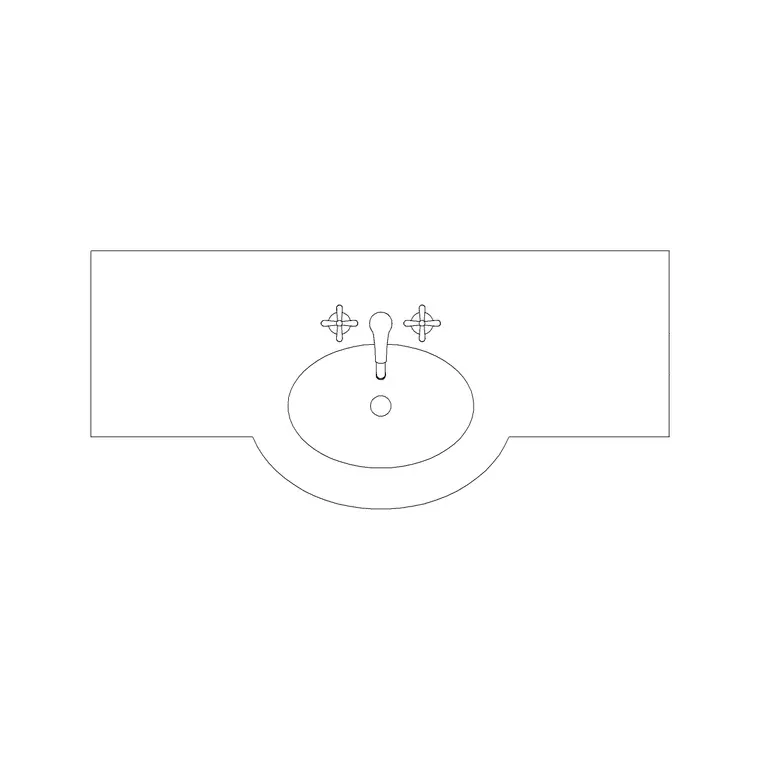
For a basin set into a counter, align its centre to the tap centreline you have already drawn, then trim or leave the vanity outline so the bowl reads as recessed. Standard basin projection from the wall is usually in the 300–450 mm range, which is worth checking against your circulation once it is placed.
Step 5 — Put it on a sanitaryware layer and mirror as needed
Move the basin onto a dedicated fixtures or sanitaryware layer — something like P-SANR — rather than leaving it on layer 0. Giving the sanitaryware its own colour and lineweight lets you freeze the fixtures for a clean structural plan and thaw them for the fully-fitted drawing, all from one file.
If you are laying out a mirror-image WC and basin for an adjacent unit, use the MIRROR command rather than re-inserting and re-rotating; it flips the bowl and tap hole together and keeps the back edge on the wall. When the basin position is finalised, you can copy the basin-plus-tap as a unit, or WBLOCK a complete vanity run for reuse on the next project.
Common mistakes when inserting a basin
The most frequent problem is a units mismatch — a basin that lands microscopic or enormous is almost always an INSUNITS issue, fixed by setting units in Step 2 rather than scaling by eye. The second is leaving the basin off-wall: snapping the back edge to the wall line, not just dropping it nearby, keeps the plan honest about clearances.
A third is layering the basin with the architecture so it cannot be toggled separately, which makes a clean services or structural print impossible. Finally, watch the tap-side orientation when you mirror a bathroom — it is easy to flip the bowl but leave the tap on the wrong side, so glance at the tap hole after every mirror.
Free download
Browse the full library — DWG & DXF, no signup.
Questions
Frequently asked
Which basin view should I insert for a floor plan?+
Use the plan view — the bowl seen from above with the back edge that meets the wall and the tap hole shown. Reserve the elevation or front view for interior elevations and joinery drawings of the vanity.
My basin came in tiny after inserting. What went wrong?+
That is a units mismatch. Type UNITS, set Insertion scale to Millimeters to match the block, then re-insert. With INSUNITS set correctly AutoCAD rescales the basin to its true size automatically.
How do I align a basin exactly to the wall?+
Select the block, then MOVE it using an object snap — grab the back-edge midpoint and snap Perpendicular or Nearest onto the wall line. Rotate about the insertion point first if the tap side is facing the wrong way.
Can I reuse a basin and tap together across drawings?+
Yes. Once placed, select the basin and its tap and run WBLOCK to write them out as a single DWG, or build a full vanity unit as one block. Re-inserting that file drops the whole assembly in one click.
Related downloads
Blocks for this guide

Related categories
Related guides
How-to guide
How to Insert a Toilet / WC Block in AutoCAD
How to insert a toilet or WC block in AutoCAD — download the WC DWG, set units, run INSERT, set it on the soil-pipe wall and draw the clearance in front.
How-to guide
How to Insert a Wash Basin Block in AutoCAD
How to insert a wash basin block in AutoCAD — download the basin DWG, set units, run INSERT, place it near the WC and set the rim height in elevation.
How-to guide
How to Insert a Bathtub Block in AutoCAD
How to insert a bathtub block in AutoCAD — download the bath DWG, set units, run INSERT, fit it along the longest wall and align the tap end to the plumbing.