How-to guide · how to insert a wall oven block in autocad
How to insert a wall oven block in AutoCAD
By Sumana Kumar · Published 11 Apr 2023 · Updated 13 Apr 2026
A wall oven is a built-in appliance, and that changes how you place its block. Unlike a freestanding cooker that just sits on the floor, a wall oven is housed inside a tall cabinet or a stack of units, so inserting it in AutoCAD means setting it into a cabinet opening rather than dropping it onto a floor line. The block has to register with the joinery, which makes alignment the crux of the job.
This guide covers inserting a wall oven CAD block in AutoCAD and seating it correctly within a tall unit. Wall ovens show up most in kitchen elevations — where you see the appliance door set into the cabinet front — and in plan as part of the tall-unit footprint. We will use a wall oven block as the worked example, including the common double-oven and oven-plus-microwave stacks.
Because a wall oven lives inside cabinetry, the drawing logic is about the relationship between appliance and cabinet opening. Get that right and the oven reads as genuinely built in; get it wrong and it floats unconvincingly in front of the units.
Pick the oven and the view
Wall oven blocks come as single ovens, double ovens, and combination stacks with a microwave or a warming drawer. Pick the configuration your kitchen actually specifies, because the height of the appliance — and therefore the height of the cabinet opening it needs — depends on it. A single oven and a double oven occupy very different slices of a tall unit.
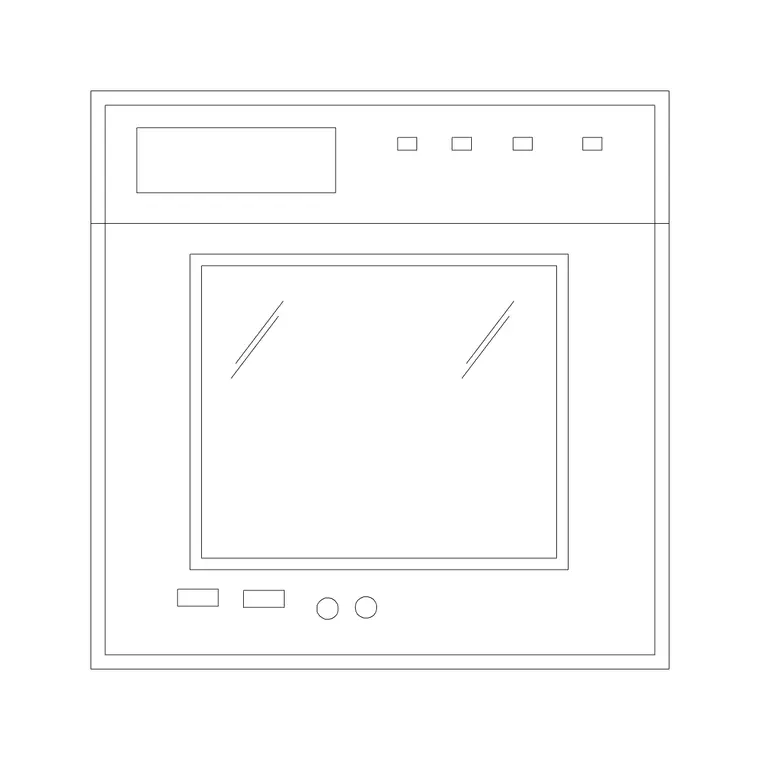
For a kitchen elevation, use the elevation block that shows the oven door and controls on the cabinet front. For a plan, the oven mostly reads as part of the tall-unit footprint. Most wall-oven work is elevation work, so the elevation block earns its keep.
Match units before inserting
These blocks are drawn full size in millimetres, so set insertion units to millimetres with UNITS before inserting. A built-in appliance has to fit a cabinet opening, and cabinet openings are dimensioned precisely, so the oven must be at true scale or it will not register with the joinery it is meant to sit in.
Check the inserted oven against the tall unit: the appliance should fill the intended portion of the cabinet front, not overhang it or rattle around inside it. If the proportions look wrong, suspect the units before you start moving the block around.
Insert and seat the oven in the tall unit
Run INSERT, browse to the wall oven DWG, and place it into the tall cabinet on your elevation. The reliable approach: snap the oven's frame to the cabinet opening it occupies, so the appliance door sits flush within the unit front rather than floating in front of it. The block's insertion point or a corner of its frame is your registration handle.
Wall ovens are typically set at a comfortable working height — the single oven or the lower oven of a double at a height that suits the user — so seat the appliance at the cabinet level the design calls for. The whole point of a built-in is that the appliance and the cabinet read as one assembly, so align them deliberately.
Align the opening and the cabinet around it
A wall oven needs a cabinet opening sized to it, with the surrounding tall-unit panels above and below. Once the oven is seated, make sure the cabinet drawing wraps it correctly: the unit's internal opening matches the appliance, and the filler panels, the plinth and any drawer or cupboard above the oven all line up.
If you are stacking an oven over a warming drawer or under a microwave, align the appliances into a single clean vertical run within the cabinet, with consistent reveals between them. A built-in stack reads as deliberate only when the appliances share a common centreline and even gaps.
Show it correctly in plan
In plan, a wall oven mostly disappears into the tall-unit footprint, because from above you see the cabinet, not the appliance face. Place the tall unit in the run of cabinetry and note the oven within it — often with a dashed or tagged indication — so the plan records which tall unit houses the oven.
Keep the tall unit aligned with the rest of the cabinet run so it reads as part of the kitchen, not an outlier. The plan's job is to locate the appliance within the joinery and confirm the tall unit fits the run; the elevation does the work of showing the oven itself.
Layer the appliance and finish
Put the wall oven on an appliance layer, distinct from the cabinetry layer, so you can plot the joinery alone or the joinery-with-appliances together. Keeping the appliance separate from the carcass means a change of oven model later does not disturb the cabinet drawing around it.
Finish by checking the install logic: the oven has a cabinet opening that fits, the surrounding panels and reveals are consistent, and in a stack the appliances share a centreline. Those checks are what separate a wall oven that reads as a real built-in from a block parked in front of a cabinet.
Free download
Browse the full library — DWG & DXF, no signup.
Questions
Frequently asked
How do I seat a wall oven in a tall unit in AutoCAD?+
Insert the oven on your kitchen elevation and snap its frame to the cabinet opening so the appliance door sits flush within the unit front, not floating ahead of it. Seat it at the working height the design calls for so the appliance and cabinet read as one built-in assembly.
What view is a wall oven block usually drawn in?+
Elevation, because a built-in oven is shown by its door and controls set into the cabinet front. In plan the oven mostly disappears into the tall-unit footprint, so the elevation block does most of the work.
What units should a wall oven block be inserted at?+
Millimetres. The blocks are drawn full size in millimetres, and a built-in appliance has to fit a precisely dimensioned cabinet opening, so set insertion units to millimetres with the UNITS command before inserting or the oven will not register with the joinery.
How do I draw an oven and microwave stacked in one cabinet?+
Seat each appliance in the tall unit on a shared vertical centreline with consistent reveals between them, so the stack reads as a single deliberate run. Pick the combination block (oven plus microwave or warming drawer) that matches the heights your tall unit provides.
Related downloads
Blocks for this guide
Popular blocks to download
Related categories
Related guides
How-to guide
How to Draw a Kitchen Layout in AutoCAD
Draw a kitchen layout in AutoCAD — set the 600 mm module, fix sink and hob, lay cabinet runs, check the work triangle. Step-by-step with free kitchen blocks.
How-to guide
How to Insert a Kitchen Sink Block in AutoCAD
How to insert a kitchen sink block in AutoCAD — download the DWG, fix units, run INSERT, snap it to the cabinet run and centre the bowl under the window.
How-to guide
How to Insert a Stove / Cooktop Block in AutoCAD
How to insert a stove or cooktop block in AutoCAD — download the hob DWG, set units, run INSERT, centre it in the base unit and leave clearance to combustibles.