How-to guide · how to array trees along a path in autocad
How to array trees along a path in AutoCAD
By Saumyajit Maity · Published 10 Dec 2024 · Updated 19 Jun 2026
An avenue of street trees, a row down a footpath, planting that hugs a curving driveway — these all come from one AutoCAD command: the path array. ARRAYPATH copies a single tree block evenly along any line, polyline, spline or arc, so once you have drawn the path, the planting follows it in seconds rather than being placed tree by tree.
This guide takes you from a tree block and a path to a finished, believable planting line. We will cover measure-versus-divide spacing, aligning the canopy to the curve, and the small tricks that stop a path array from looking mechanically stamped. The technique is identical whether your path is a straight road centreline or a meandering parkland walk.
Work through it once on a real centreline and the workflow sticks. After that, every avenue, hedge line and bollard run you ever draw is a thirty-second job instead of an afternoon of copy-and-paste.
Before you start: the path and the block
You need two things in the drawing. First, a path object: a line, polyline, arc, spline or the edge of a region. For street trees this is usually the road centreline or a setback line offset from the kerb. Draw or OFFSET that path now, and put it on a construction layer you can freeze later.
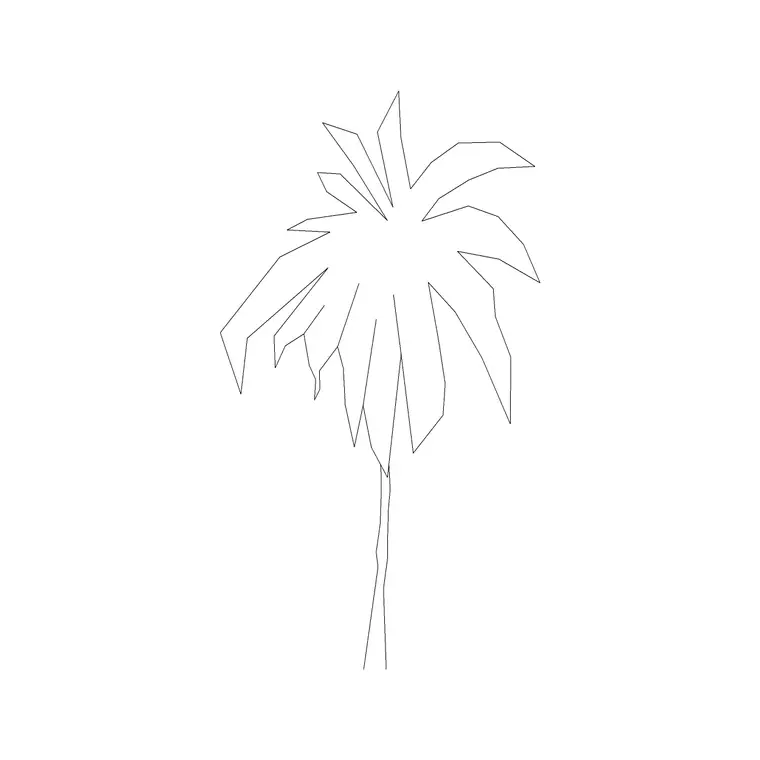
Second, a plan-view tree block inserted somewhere in the drawing. A path array works on a single source object, so insert one tree, scale it to the canopy size you want (a small ornamental might be 3–4 m across, a mature shade tree 8–12 m), and set its layer to your planting layer, commonly L-PLANT. The array will inherit whatever you have set up on that one tree, so get it right before you array.
Step 1 — Run ARRAYPATH and pick the items
Type ARRAYPATH and press Enter, or choose Path Array from the Modify panel's Array flyout. At the 'Select objects' prompt, click your tree block and press Enter. AutoCAD then asks you to 'Select path curve' — click the road centreline or planting line.
The moment you pick the path, AutoCAD throws a preview of trees along it and opens the contextual Array ribbon. Don't panic at the default spacing; it is almost never what you want. The ribbon and the command-line options are where you dial it in, which is the next step.
Step 2 — Choose Measure or Divide spacing
This is the decision that defines the row. On the Array ribbon, the 'Items' panel has a method toggle hidden in the command-line 'Method' option: Measure or Divide.
Measure (the default) places a tree every fixed distance — type a spacing such as 8000 for trees 8 m apart, and AutoCAD fits as many as the path length allows, leaving any remainder at the end. Use Measure when the species spacing matters more than hitting the ends exactly, which is the usual case for street planting.
Divide instead asks for a number of items and spreads them evenly so the first and last sit exactly at the path ends. Use Divide when you want, say, exactly seven trees along a formal walk with equal gaps. Set 'Item count' for Divide, or 'Between' (the gap) for Measure, in the ribbon's Items panel.
Step 3 — Align the trees to the path (or not)
On the Properties panel of the Array ribbon there is an 'Align Items' toggle. With it on, each tree rotates to follow the path's direction — useful for asymmetric blocks like an arrow or a directional symbol, but for a round tree canopy it rarely matters. With it off, every tree keeps its original rotation, which can look cleaner for symmetrical canopies.
There is also a 'Z Direction' option that keeps items upright on 3D paths; leave it on for flat site plans. If your trees end up tilting or facing oddly on a curved road, the Align toggle is the first thing to check.
Step 4 — Break the pattern so it looks planted, not printed
A raw path array reads as obviously machine-made: every tree identical, perfectly spaced. For formal civic avenues that is exactly right. For naturalistic or softer schemes, you want variation.
The cleanest way is to keep the array for spacing, then explode it (EXPLODE) into individual block references and nudge a few: rotate some by a random angle, scale a couple up or down by 10–15 percent, and shift one or two slightly off the line. Because they remain block references, you can do this fast with the Properties palette. Alternatively, build two or three tree blocks of different species and run separate, offset path arrays so the row alternates. The goal is a row that reads as designed planting, not a stamp repeated down a ruler.
Editing the array after the fact
Leave the array associative (the default) and you can change your mind without redoing it. Click any tree in the array to bring back the Array ribbon, then change the spacing, count or alignment and the whole row updates. Pull the triangular grips at the ends to extend or shorten the run along the path.
If you reshape the road centreline later, an associative path array re-flows to match — one of the strongest reasons to keep it associative until the layout is locked. When everything is final and you no longer need the parametric link, you can EXPLODE the array to get plain block references, which keeps the file simple and lets you hand-tune individual trees for the presentation drawing.
Common pitfalls with tree path arrays
Three things trip people up. First, units: if the trees arrive microscopic or gigantic the cause is almost always an INSUNITS mismatch on the source block, not the array — fix the block before arraying. Second, spacing measured in the wrong units: typing 8 instead of 8000 in a millimetre drawing gives you trees 8 mm apart, a green smear along the road. Third, canopy overlap: when you space trees at their trunk spacing but scale them to mature spread, neighbouring canopies will visually merge. That is realistic for a woodland edge but wrong for a formal avenue, so check the gap against your design intent and increase the spacing if the canopies collide.
A subtler issue is the path direction. Trees array from the path's start point to its end, so if a row begins or ends in the wrong place, reverse the path (select it, use the Properties palette or the REVERSE command) and the array flips to suit.
Free download
Browse the full library — DWG & DXF, no signup.
Questions
Frequently asked
What command arrays trees along a road in AutoCAD?+
ARRAYPATH (Path Array). Select the tree block, then pick the road centreline or planting line as the path, and set the spacing. AutoCAD distributes evenly-spaced copies of the tree along the curve, straight or curved.
How do I set a fixed spacing between street trees?+
Use the Measure method in the path array and enter the 'Between' distance — for example 8000 for trees 8 metres apart in a millimetre drawing. AutoCAD fits as many as the path length allows and leaves any remainder at the end.
How do I make the arrayed trees look natural instead of identical?+
Keep the array for spacing, then EXPLODE it into individual block references and vary a few — rotate some, scale others by 10–15 percent, and nudge one or two off the line. Or alternate two or three different tree species with offset arrays.
Can I array trees along a curved or winding path?+
Yes. ARRAYPATH works on any line, polyline, arc or spline, so a winding driveway or meandering walk works exactly like a straight road. Draw the curve, then array the tree block along it and set the spacing.
Related downloads
Blocks for this guide
Popular blocks to download
Related categories
Related guides
How-to guide
How to Insert a Tree CAD Block in AutoCAD
Step-by-step guide to inserting a tree CAD block in AutoCAD — download the DWG, set units, use INSERT, scale and place it, then array trees across a site plan.
Curated pack
Free Landscape & Tree DWG Pack — Plan & Elevation
A free landscape and tree DWG pack — trees, palms, shrubs and potted plants in plan and elevation for AutoCAD site plans. DWG and DXF, no signup, commercial-use OK.
Curated pack
Free Landscape CAD Block Pack — DWG & DXF
A free landscape CAD block pack in DWG and DXF — trees, shrubs, fences, paving, lighting and figures for AutoCAD landscape plans. No signup, commercial-use OK.