Room guide · training room cad blocks
Free training room CAD blocks for AutoCAD
By Sumana Kumar · Published 12 Mar 2025 · Updated 20 Feb 2026
A training room is the office space built to be reconfigured: the same room runs as classroom rows one day, clustered group tables the next, and a U-shape for a workshop after that. The plan's job is not one fixed arrangement but a floor that supports several, all aimed at a teaching wall with a clear instructor zone. This page collects free training room CAD blocks in DWG and DXF — light reconfigurable training tables, stacking chairs, a screen and teaching wall, planting and lighting — drawn to scale for AutoCAD 2004 or later, free for personal and commercial use with no signup or watermark.
The way to draw a training room is to fix the teaching wall and the instructor zone first, then design the seating as a flexible field aimed at it. Lay out one mode — classroom rows is the densest and the usual benchmark — to prove the room holds the headcount and the sightlines, then show it can re-form into clusters or a U-shape. Because every table and chair is a block reference, you can array a classroom grid, then regroup the same blocks into pods or a horseshoe to test each teaching mode without redrawing.
What a training room is for
A training room is the dedicated space for instruction — induction sessions, software training, workshops, seminars and certifications. It differs from a conference room in that the focus is one-to-many teaching rather than round-the-table discussion, and from a classroom in that it must flex between very different formats for different courses.
The people in it are an instructor at a teaching wall and a group of learners who need to see the screen, hear the instructor and, in many formats, work in small groups. Because the same room serves lecture, group-work and workshop formats, the furniture is light and movable and the plan is judged by how well it supports reconfiguration. A training room that only works in one layout is a half-finished room.
The teaching wall and reconfigurable seating
Fix the teaching wall first — the screen, whiteboard and the instructor's standing zone — because every seating mode aims at it. Keep that wall clear and give the instructor a generous zone in front of it to move and present, with a clear sightline to every learner.
Then design the seating as a flexible field, and prove it in the densest mode: classroom rows of tables facing the wall, with aisles that let learners reach seats and the instructor walk among them. Show the same tables regrouping into small clusters for group work, and into a U-shape or horseshoe that opens toward the teaching wall for discussion-led sessions. The constant across all modes is the front circulation zone at the teaching wall and a clear central or side aisle; design those once and let the tables re-form behind them.
Tables, chairs and the teaching wall fixtures
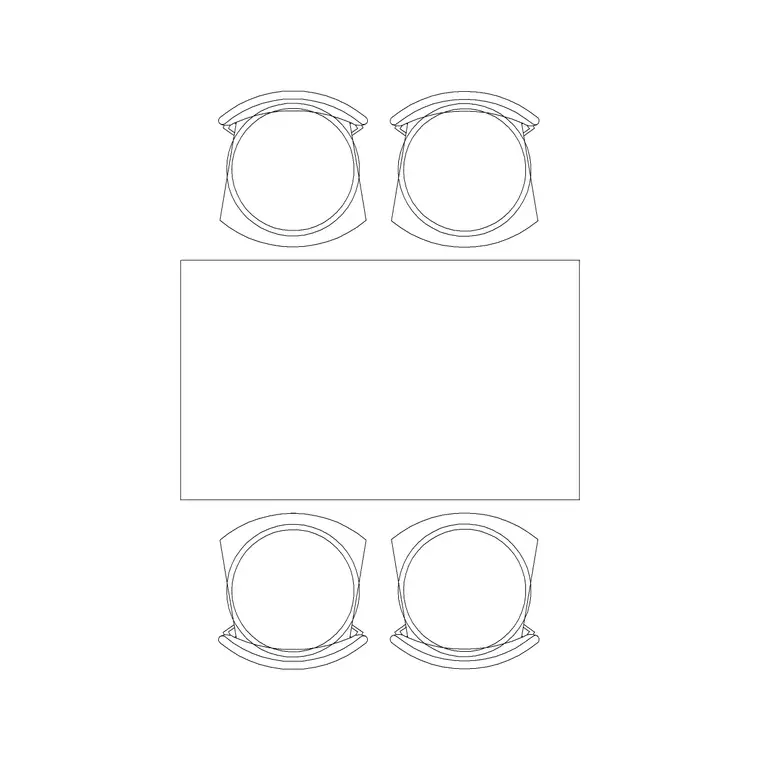
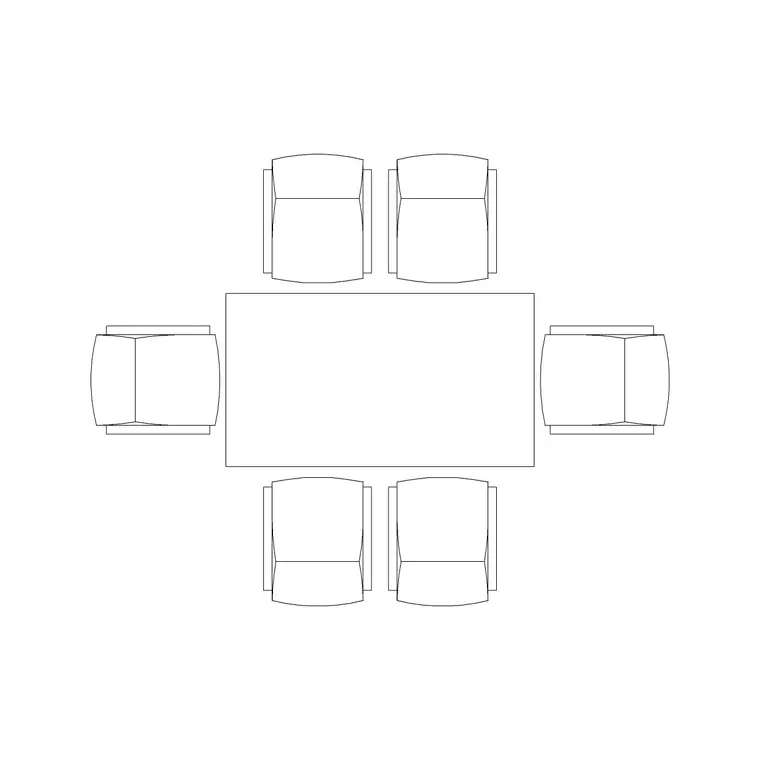
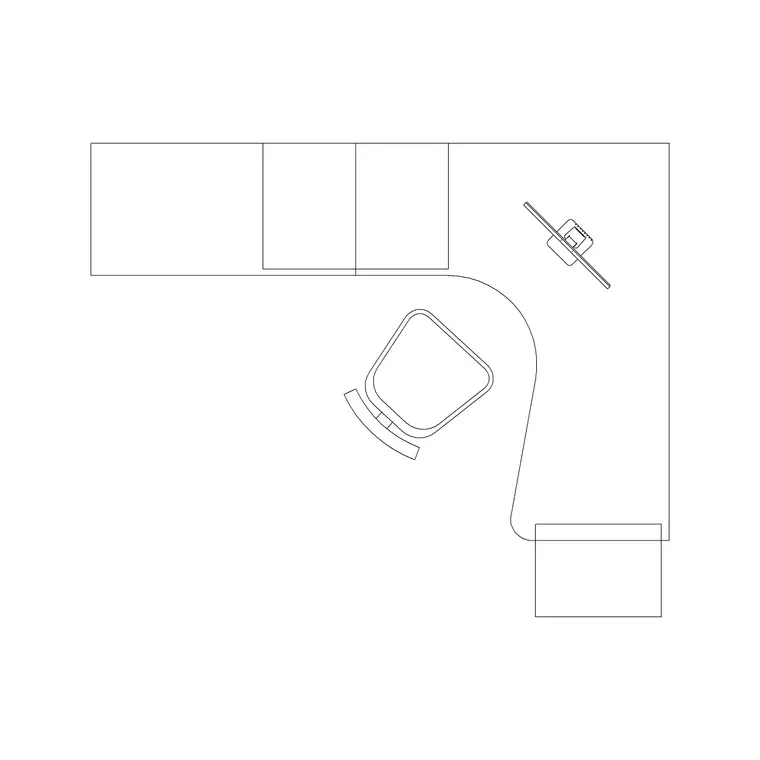
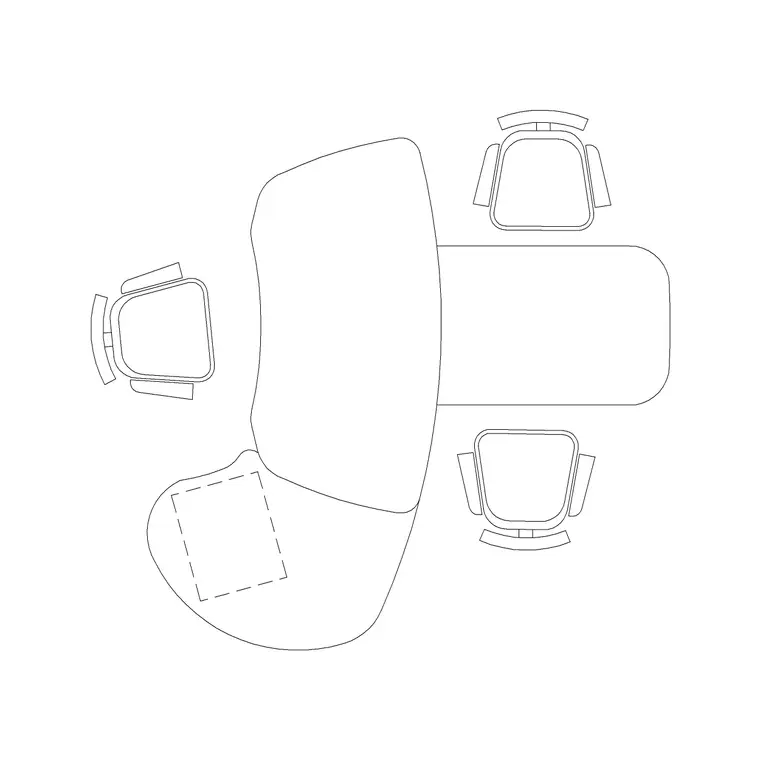
Use light, movable training tables that regroup easily. The 4P Table and 6P Rec Table work as cluster tables for group-work mode; a Long Workstation or run of narrow tables lines up cleanly for classroom rows; the Office Table and Curve Table give flexible shapes for a U-shape front. Pair them with the Chair block — in a real room these would be stacking chairs, but the plan block locates them the same way.
At the teaching wall, place the screen and keep an Art Frame or board to the side, an Indoor Plant softening a corner clear of the instructor zone, and a lighting layout that lets the instructor dim the screen wall while keeping the learners' tables lit — an even Ceiling Lamp grid over the seating with the option of Frisbi pendants for a softer workshop mode. Every piece is a block reference, so the same table and chair blocks array into rows, then regroup into pods or a horseshoe.
Dimensions and clearances to design around
Hold the figures as design-stage ranges to confirm against the furniture and the room's capacity brief. The instructor zone at the teaching wall is the first control: a generous front strip the instructor can move along with a clear view of every learner. The seating aisles are the second: a central or side aisle wide enough for the instructor to walk among learners and for a learner to reach a seat past others, sized to your accessibility standard on the main route.
Per-seat width along the training tables sets the classroom-mode capacity; the cluster and U-shape modes use the same tables at lower density, so size the room to the densest mode and the looser ones follow. Each learner needs a sightline to the screen that is neither too close at the front nor too far at the back. Draw the instructor zone, the aisles and the per-seat width as the controlling dimensions, then array the tables and verify each mode against the brief.
Assembling the training room in AutoCAD
Draw the shell and fix the teaching wall with the screen and the instructor zone in front of it. Mark the door so it does not open across the teaching wall or the instructor's sightline. Lay out the classroom mode first: array rows of training tables facing the wall with a central or side aisle, drop chairs, and confirm the headcount and every learner's sightline to the screen.
Then, on separate layout views or layers, show the same tables regrouped into small clusters and into a U-shape opening to the wall, to prove the room reconfigures. Add the corner planter and a side board as locator blocks, and lay the zoned lighting. Keep tables and chairs on a furniture layer, planting and boards on an accessories layer, and the pendants and downlights on a lighting layer so the FF&E schedule, the AV plan and the reflected ceiling plan each read on their own. Confirm the instructor can reach every learner along the aisles in each mode.
Common training room mistakes
The defining mistake is designing for one layout only — fixing heavy tables in classroom rows so the room cannot become clusters or a U-shape kills its versatility. Use light, movable tables and design the seating as a flexible field. The second is starving the front of the room, leaving the instructor no zone to present from or no sightline to the back rows; give the teaching wall a generous front strip.
Other traps: aisles too narrow for the instructor to walk among learners or for accessible reach; a door that opens across the teaching wall; and lighting that cannot be zoned, so the screen washes out because the front lights cannot dim independently. On the CAD side, prove the densest mode first, array then regroup the same blocks to test each format, and keep furniture, accessories and lighting on separate layers.
Free download
Browse the full library — DWG & DXF, no signup.
Questions
Frequently asked
What makes a training room different from a conference room?+
A training room is built for one-to-many instruction and for reconfiguration — the same room runs as classroom rows, group clusters or a U-shape for different courses. A conference room is a single fixed table for round-the-table discussion. The training room's furniture is light and movable and aimed at a teaching wall.
How do I design a reconfigurable training room layout?+
Fix the teaching wall and the instructor zone first, then design the seating as a flexible field aimed at it. Prove the densest mode — classroom rows — for headcount and sightlines, then show the same movable tables regrouping into clusters and a U-shape, keeping the front circulation zone and main aisle constant across all modes.
Which table blocks suit a training room?+
Light, movable tables that regroup easily: the 4P Table and 6P Rec Table as cluster tables, a Long Workstation or narrow table run for classroom rows, and the Office Table or Curve Table for a U-shape front. Pair them with chair blocks (stacking chairs in reality).
How should training room lighting work?+
In zones, so the instructor can dim the lights over the teaching wall to keep the screen readable while the learners' tables stay lit. An even grid over the seating plus the option of softer pendants for workshop mode gives that flexibility — keep the front lights on a separate switch.
Are the training room blocks free for commercial use?+
Yes. They download in DWG and DXF for AutoCAD 2004 or later, free for personal and commercial use with no signup or watermark.
Related downloads
Blocks for this guide
Related categories
Related guides
Room guide
Free Reception Lobby CAD Blocks — DWG Download
Download free reception lobby CAD blocks in DWG and DXF — reception desk, waiting sofas, planters and lighting in plan. AutoCAD 2004+, no signup.
Room guide
Free Conference Room CAD Blocks — DWG Download
Download free conference room CAD blocks in DWG and DXF — large conference tables, chairs, screens and lighting for layouts. AutoCAD 2004+, no signup.
Room guide
Free Meeting Room CAD Blocks — DWG Download
Download free meeting room CAD blocks in DWG and DXF — small meeting tables, chairs, screen and planter for compact layouts. AutoCAD 2004+, no signup.