Room guide · open plan office cad blocks
Free open-plan office CAD blocks for AutoCAD
By Sumana Kumar · Published 2 Jun 2026 · Updated 27 Jun 2026
An open-plan office is a layout problem before it is a furniture problem. The room is mostly one large floor that you fill with repeating workstation clusters, and the quality of the plan comes from the grid of desks and the aisles between them — not from any single block. This page collects free open-plan office CAD blocks in DWG and DXF — single workstations and 2-, 4-, 6- and 8-person clusters, long bench runs, task chairs and softening planters — drawn to scale for AutoCAD 2004 or later, free for personal and commercial use with no signup or watermark.
The reason to draw it from pre-built cluster blocks is speed and consistency. Instead of laying out hundreds of individual desks, you array a 4-person or 6-person workstation block across the floor on a regular module, then carve aisles, breakout pockets and circulation through it. Because each cluster is a block reference, raising the team count, rotating a run to follow the glazing line, or swapping a 4-person pod for a 6-person one is a single edit, and the rest of the floor holds its alignment.
What an open-plan office is for
An open-plan office houses the bulk of a company's desk-based staff in one shared room with no internal walls between teams. It trades acoustic privacy for density, flexibility and sightlines — managers can see their teams, teams can see each other, and the floor can be re-planned without moving partitions.
The people in it are doing focused individual work punctuated by quick conversations, so the plan has to balance two opposing needs: enough desks to hit the headcount, and enough relief — aisles, planting, breakout pockets — that the room does not feel like a call-centre. The workstation cluster is the unit you design with; the aisles, the daylight and the breakout edges are what make a grid of clusters habitable.
The desk grid and circulation
Lay out the open plan as a grid of workstation clusters separated by primary and secondary aisles. Primary aisles are the through-routes that connect entrances, cores and breakout zones and carry the most traffic; secondary aisles run between desk rows so people reach their seats. Align the cluster grid to the building's structural module and the glazing mullions so desks sit square to the windows and daylight reaches deep into the floor.
Orient runs so screens avoid direct window glare where you can, and keep the deepest desks within reach of daylight rather than buried in the core. Reserve the floor edges near the glazing for the densest desking and pull meeting rooms, stores and breakout pockets toward the core. The art of the plan is in the aisles: too few and the floor is a maze, too many and you waste lettable area, so test the route from every desk to the nearest exit and to the nearest breakout.
Workstation blocks and how to use them
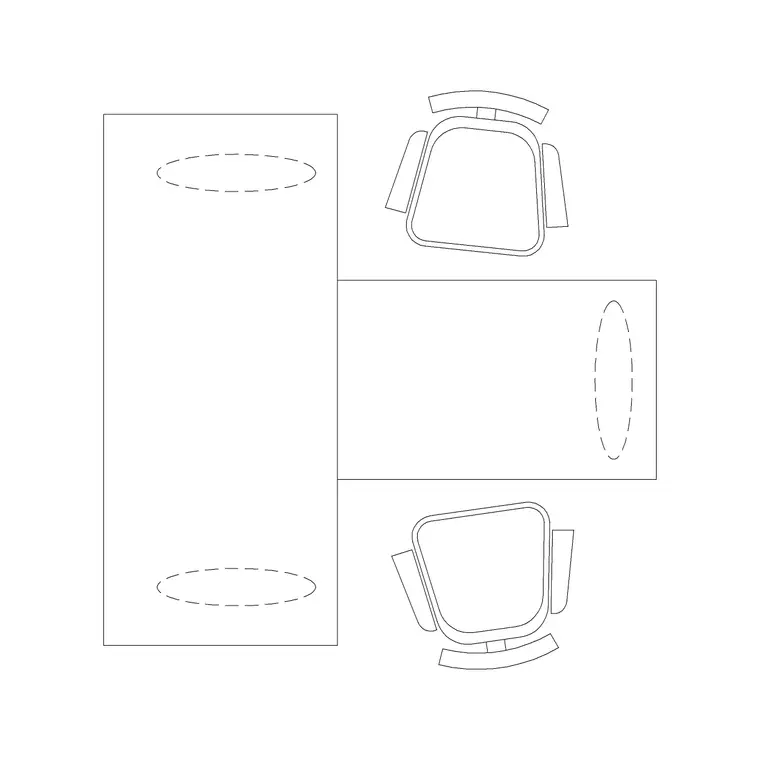
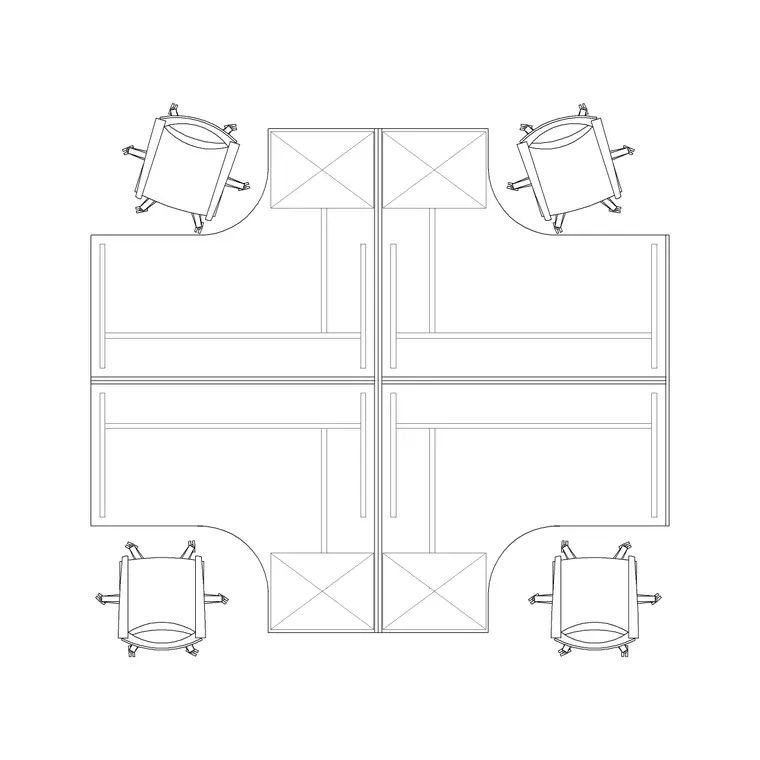
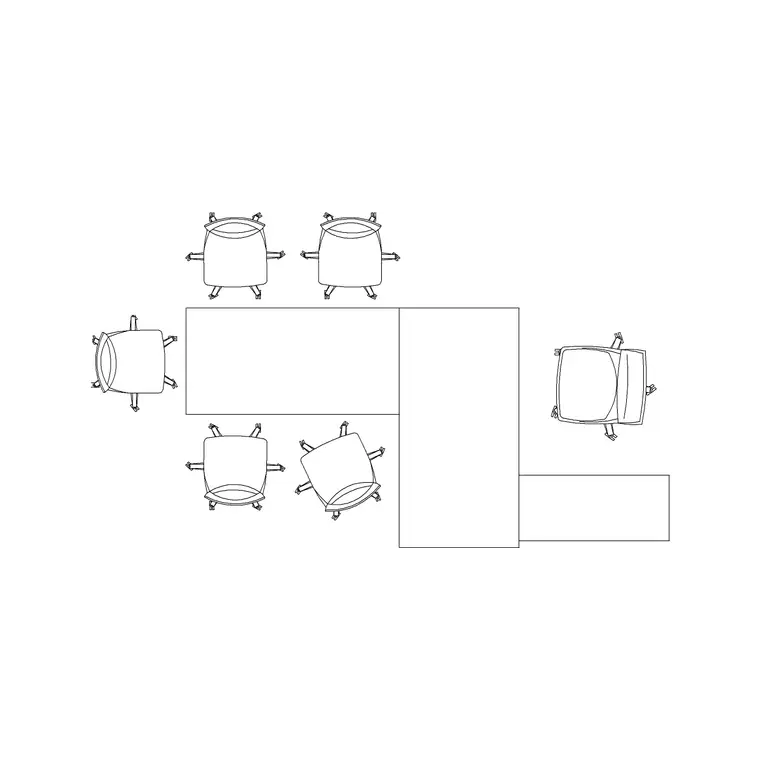
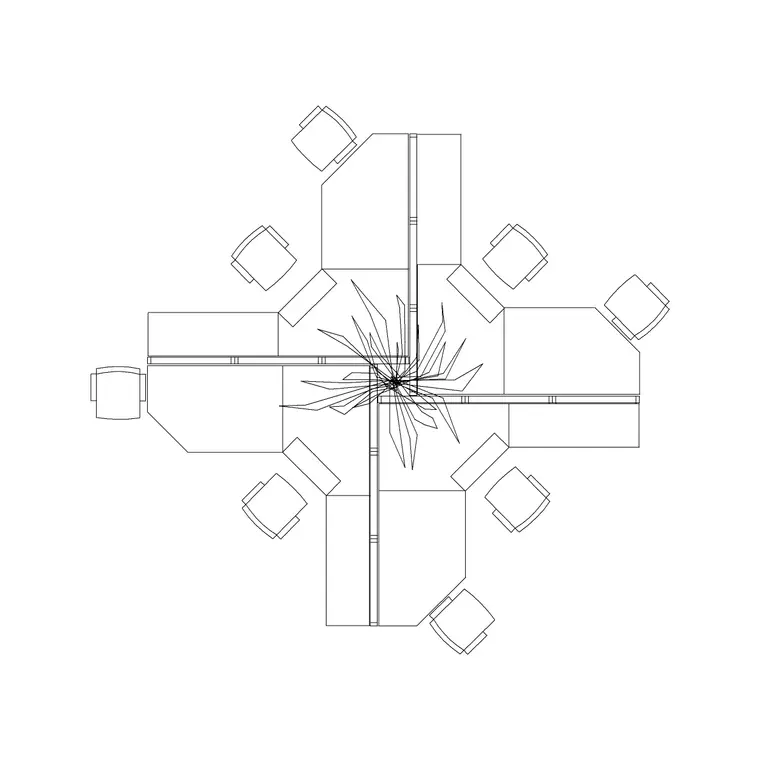
Build the floor from cluster blocks rather than single desks. The 2P Workstation suits small teams and edges; the 4P Workstation and 6P Workstation are the workhorses for a typical open floor; the 8 Workstation packs the densest zones. A Long Workstation or bench run lines a wall or a glazing edge cleanly, and the Modern Workstation, 5P Workstation and 3P Workstation give you odd-count pods to fill awkward bays. The 2 Workstation With Side Rack is useful where teams need adjacent storage.
Drop a Chair into each position from the chair block, and soften the grid with an Indoor Plant at cluster ends or aisle junctions to break up the desk lines and mark wayfinding. Keep the cluster blocks as block references so you can array them across the module, then explode only the one or two pods that need a custom edge. Because the clusters are pre-built, every desk in the building shares the same footprint, which makes the FF&E count and the power-and-data grid trivial to schedule.
Dimensions and clearances to design around
Hold every dimension as a design-stage range to confirm against the chosen furniture and your local workplace standard. Individual desk widths commonly fall in a band rather than a single number, and clusters multiply that footprint by the team size plus the shared circulation spine. The figures that govern the plan are the aisle widths and the chair pull-out behind each desk.
Leave enough clearance behind a seated person for the chair to push back and for someone to pass behind it without the seated worker moving — that combined zone is what sets the gap between back-to-back rows. Primary aisles need to carry two-way flow and meet accessibility width; secondary aisles can be tighter but must still let a person pass a seated colleague. Draw these as the controlling dimensions first, array the clusters to suit, and tighten each figure once the real desk product and the fire-egress strategy are fixed.
Assembling the open-plan layout in AutoCAD
Start by drawing the structural grid and the glazing line, because the desk module should lock to them. Insert one cluster block, align it to a structural bay, then array it along the bay direction to fill a zone. Repeat per zone, rotating runs so they follow the glazing where daylight matters.
Carve the primary aisles through the arrayed grid next, then the secondary aisles, deleting or nudging the clusters they cut through. Drop chairs and end-of-run planters, and place breakout pockets and meeting rooms against the core. Keep workstations and chairs on a furniture layer, planters on an accessories layer, and pendants or the lighting grid on a lighting layer so the power-and-data plan, the FF&E schedule and the reflected ceiling plan each read independently. Finish by checking egress: trace the route from the farthest desk to an exit and confirm no cluster blocks the path.
Common open-plan office mistakes
The biggest mistake is ignoring the structural and glazing grid, so desks sit skewed to the windows and the whole floor looks restless. Lock the cluster module to the building grid first. The second is starving the floor of aisles to chase desk count — a dense grid with no relief is unusable and often fails egress.
Other traps: burying the deepest desks far from any daylight; forgetting the chair pull-out so back-to-back rows actually overlap; and leaving no breakout or planting to break the monotony. On the CAD side, build from cluster blocks rather than copying single desks (it keeps the grid consistent and the schedule simple), array rather than copy-paste so spacing stays exact, and keep furniture, accessories and lighting on separate layers.
Free download
Browse the full library — DWG & DXF, no signup.
Questions
Frequently asked
Should I lay out an open-plan office from single desks or cluster blocks?+
Use cluster blocks. Arraying a 4-person or 6-person workstation across the structural module keeps every desk consistent, makes the FF&E and power-and-data schedules trivial, and lets you re-plan a whole zone with one edit instead of moving desks one by one.
How do I stop desks looking skewed to the windows?+
Lock the cluster grid to the building's structural module and the glazing mullions before you array anything. When the desk module follows the grid, runs sit square to the glazing and daylight reaches deep into the floor.
What clearance goes behind a seated worker?+
Enough for the chair to push back plus room for someone to pass behind without the seated person moving. That combined zone sets the gap between back-to-back rows — draw it as a controlling dimension and confirm it against your furniture and workplace standard.
Which workstation blocks are best for a dense floor?+
The 6P and 8 Workstation clusters pack the most desks per module, with Long Workstation bench runs lining glazing edges. Use 2P, 3P and 5P pods to fill odd bays so you never leave wasted floor.
Are the open-plan office blocks free to use commercially?+
Yes. They download in DWG and DXF for AutoCAD 2004 or later, free for personal and commercial use with no signup or watermark.
Related downloads
Blocks for this guide
Related categories
Related guides
Room guide
Free Reception Lobby CAD Blocks — DWG Download
Download free reception lobby CAD blocks in DWG and DXF — reception desk, waiting sofas, planters and lighting in plan. AutoCAD 2004+, no signup.
Room guide
Free Conference Room CAD Blocks — DWG Download
Download free conference room CAD blocks in DWG and DXF — large conference tables, chairs, screens and lighting for layouts. AutoCAD 2004+, no signup.
Room guide
Free Meeting Room CAD Blocks — DWG Download
Download free meeting room CAD blocks in DWG and DXF — small meeting tables, chairs, screen and planter for compact layouts. AutoCAD 2004+, no signup.