Block landing · office workstation cad block
Free office workstation CAD blocks in DWG and DXF
By Sumana Kumar · Published 4 May 2024 · Updated 7 May 2026
A workstation is the repeating module that fills an open-plan office, so a single good workstation block, arrayed across a floor, can populate a whole layout in seconds. This page collects free office workstation CAD blocks in DWG and DXF — individual workstations, four-person clusters and partitioned pods — drawn at true millimetre dimensions and ready to insert into AutoCAD 2004 or later. Everything is free for personal and commercial work, with no signup and no watermark.
Unlike a bare desk, a workstation block bundles the worktop with its screens, storage and sometimes a return into one coordinated unit. That makes it the right block when you are setting a density, testing how many people a floorplate carries, and checking the circulation between back-to-back rows — the calculations that govern whether an open-plan fit-out works.
What a workstation block bundles
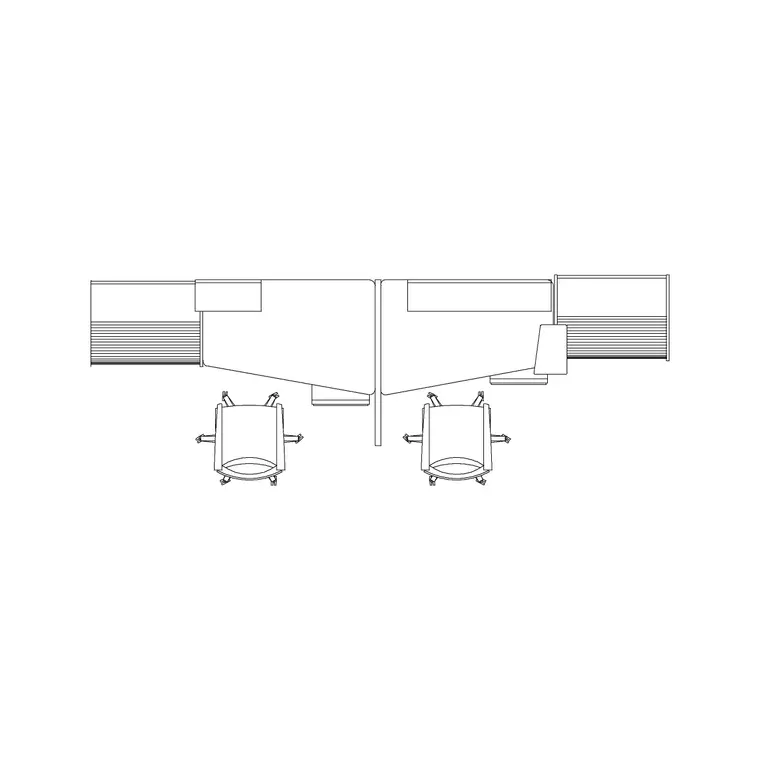
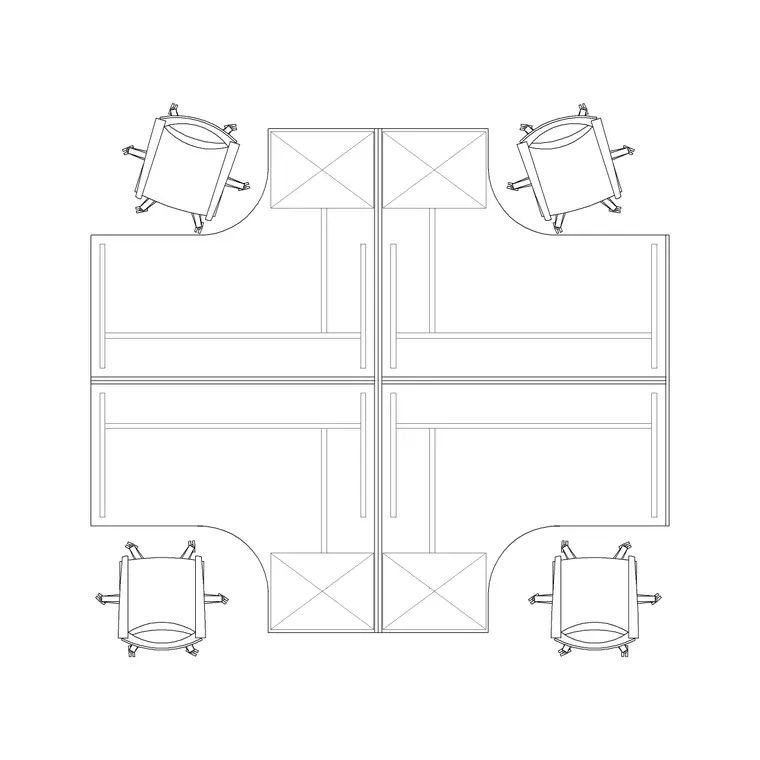
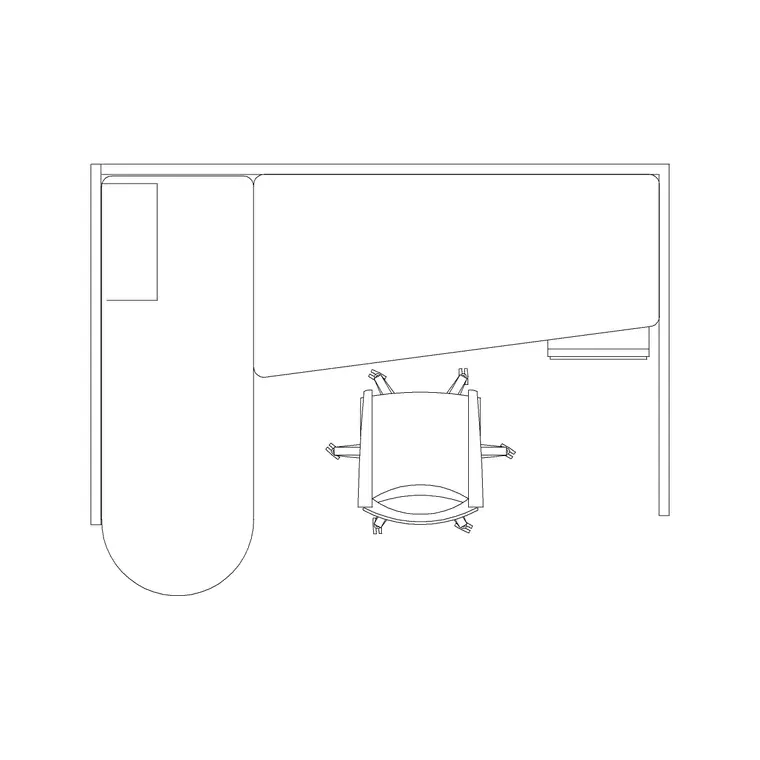
Where a desk block is just a worktop, a workstation block is a small system. A typical block here carries the work surface, a pedestal or storage unit, the desktop screens or dividers between users, and often a chair drawn in place. A four-person workstation joins four of those into a back-to-back, side-by-side cluster sharing a central spine for power and data.
That bundling is the point: the cluster is what you array, not the individual desk. Because the screens and storage are drawn in, the block shows the true occupied envelope of a team, which is what you need to set a believable desk density rather than an optimistic one.
Single, cluster and partitioned variants
Three kinds of workstation block cover most layouts. A single workstation is the unit for sparse or perimeter seating. A four-person cluster packs a team into a tidy 2-by-2 footprint and is the workhorse of dense open-plan floors. A partitioned workstation adds screens or low walls around each user for acoustic and visual privacy, which suits focus-heavy teams and call environments.
The workstation-with-partition block in particular is useful when you need to show the divider heights and the privacy zone, not just the desks. Keep all three as scaled blocks on a furniture layer and you can swap densities across a floor by deleting one family and arraying in another.
Typical workstation dimensions and density
Design around these ranges. A single workstation footprint commonly runs 1400–1800 mm wide by 700–800 mm deep for the worktop, with the whole occupied module — desk plus chair pull-out — closer to 1600 by 1400 mm. A four-person cluster typically lands around 2800–3600 mm square depending on worktop size and whether it carries returns.
For circulation, allow at least 700–1000 mm of clear aisle behind a seated row, and a primary route through the floor of 1200–1500 mm. Dropping the scaled cluster onto the plan turns desk-count and density from a spreadsheet estimate into something you can see and measure directly on the drawing.
How to insert and tile workstations
Workstation blocks are drawn full size in millimetres, so insert at scale 1 in a millimetre drawing, or set INSUNITS to millimetres and let AutoCAD rescale on insertion. Pick an insertion point at a corner of the cluster so it snaps to your planning grid.
To fill a floor, use a rectangular ARRAY of the cluster at a fixed pitch that builds in your circulation gaps — that way the aisles come out right automatically. Because every cluster references the same block definition, a later change to the desk size or screen height ripples through every pod at once, which is exactly why workstations are drawn as blocks rather than loose lines.
Where workstation blocks are used
Workstation blocks are the backbone of open-plan office layouts, call centres, co-working floors, agency studios and back-office admin areas. They are also where space planners and corporate real-estate teams test occupancy: how many desks a floor holds at a given density, and how that changes if you move from individual desks to benching.
Pair workstation blocks with chair, partition and cabin blocks from the office category to build a complete floor, then split layers to produce a furniture plan and a separate power-and-data plan — the spine of a workstation cluster is exactly where the floor boxes and cable management go, so coordinating the two from the same blocks keeps them aligned.
Workstations and the power-and-data layer
A workstation is never just furniture — it is a services node. Each user needs power, data and increasingly USB-C and dual screens, and all of that has to reach the desk without trailing leads across a walkway. That is why the central spine of a cluster matters: it is the route the cabling takes, and the position of the floor box or the in-desk power module is set by where the spine lands.
Keeping the workstation as a scaled block lets you snap the floor-box symbols to the spine and dimension them off the building grid, so the small-power layout matches the furniture layout exactly. When the furniture and the services come from the same set of blocks, you avoid the classic clash where the floor boxes were set out to one grid and the desks to another, and the electrician arrives to find every socket landing under a pedestal.
Free download
Browse the full library — DWG & DXF, no signup.
Questions
Frequently asked
What's the difference between a desk and a workstation block?+
A desk block is just the worktop. A workstation block bundles the worktop with screens, storage and often a chair into one coordinated module, and a cluster joins several into a team pod — which is what you array across an open-plan floor.
Do the workstation blocks come as four-person clusters?+
Yes. Alongside single workstations, the set includes four-person clusters that join four desks into a back-to-back, side-by-side footprint sharing a central services spine — the standard open-plan module.
Are the workstation CAD blocks free for commercial use?+
Yes. Every block downloads free in DWG and DXF with no signup, no watermark and no attribution requirement, and they are cleared for commercial project use.
What units are the workstation blocks drawn in?+
Full size in millimetres. Insert at scale 1 in a millimetre drawing, or set INSUNITS to millimetres so AutoCAD rescales automatically if your template uses different insertion units.
Related downloads
Blocks for this guide
Related categories
Related guides
Block landing
Free Office Chair CAD Blocks — DWG Download
Download free office chair CAD blocks in DWG and DXF — task chairs, swivel chairs and executive seats drawn in plan and elevation, AutoCAD 2004+, no signup.
Block landing
Free Lighting Fixtures CAD Blocks — DWG Download
Download free lighting fixtures CAD blocks in DWG and DXF — chandeliers, wall lights, downlights and pendants in plan and elevation for AutoCAD.
Block landing
Free Office Desk CAD Blocks — DWG Download
Free office desk CAD blocks in DWG and DXF — straight desks and desk-with-chair units in plan and elevation for AutoCAD. No signup, commercial OK.