Block landing · office chair dwg block
Free office chair DWG blocks for AutoCAD
By Sumana Kumar · Published 22 Nov 2024 · Updated 24 May 2026
The office chair is the single most-arrayed block in any commercial layout. You repeat it down a bench run, ring it around a meeting table and scatter it through a breakout zone — which is exactly why it pays to start from a clean, true-scale block rather than an oval that only looks like a chair. This page gathers free office chair DWG blocks: task chairs and swivel chairs drawn in plan and elevation at real millimetre dimensions, ready to insert into AutoCAD 2004 or later. Every file is free for personal and commercial work, no signup, no watermark.
What makes a chair block useful is the base, not the seat. The five-star swivel base is what actually governs clearance under a desk and around a table, so these blocks are drawn to that real envelope. Drop one in and you can immediately read whether the chair tucks under the worktop and whether two chairs back-to-back leave a person room to pass.
Why the base matters more than the seat
It is tempting to draw an office chair as a simple rounded rectangle, but that hides the measurement that matters. A task chair's five-star base, with castors, sweeps a roughly 600–700 mm diameter circle — wider than the seat itself — and that swept circle is what collides with desk legs, table pedestals and neighbouring chairs.
The blocks here draw the base footprint properly, so the clearance you read on the plan is the clearance you will actually get. The seat and backrest sit on top of that base on their own layer, so you can simplify the symbol for a small-scale plan or keep the detail for a presentation drawing without losing the all-important base envelope.
Plan view and elevation: when to use each
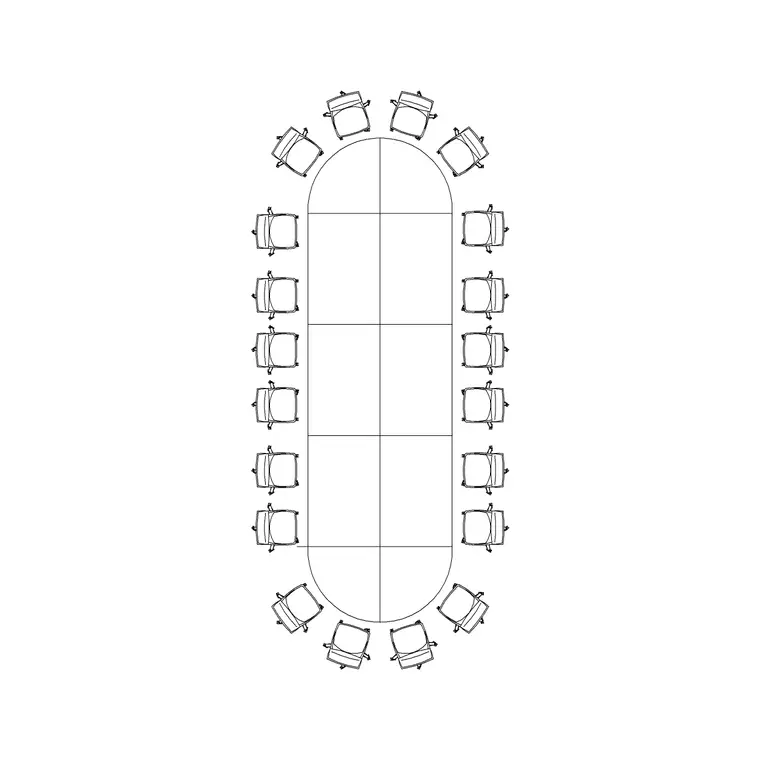
For space planning you almost always work in plan: the chair seen from above, arrayed around a table or repeated down a desk run. The plan block is what you ring around a conference table or mirror across a bench, and keeping the chairs on their own layer lets you toggle them off to show just the desking grid.
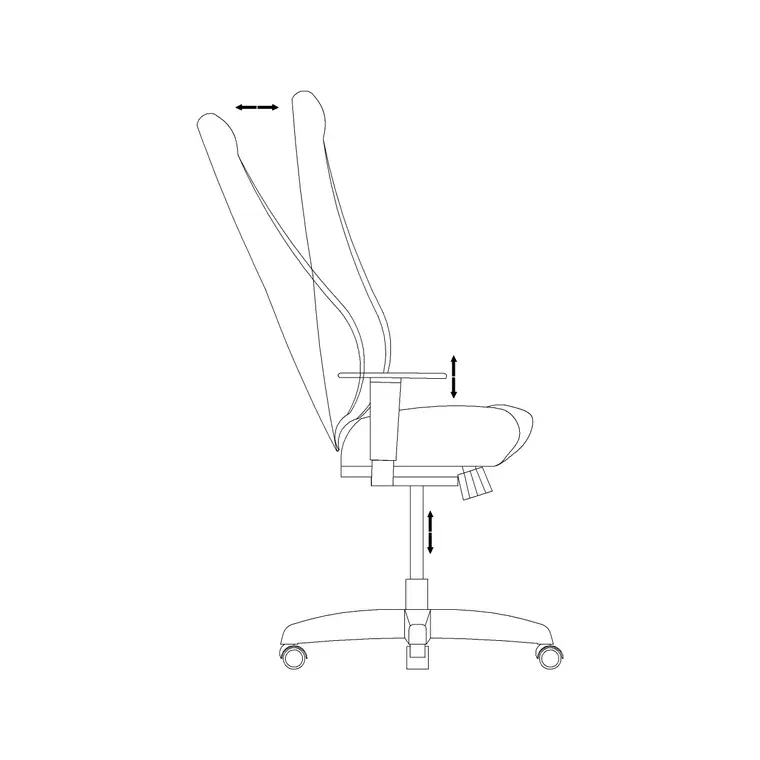
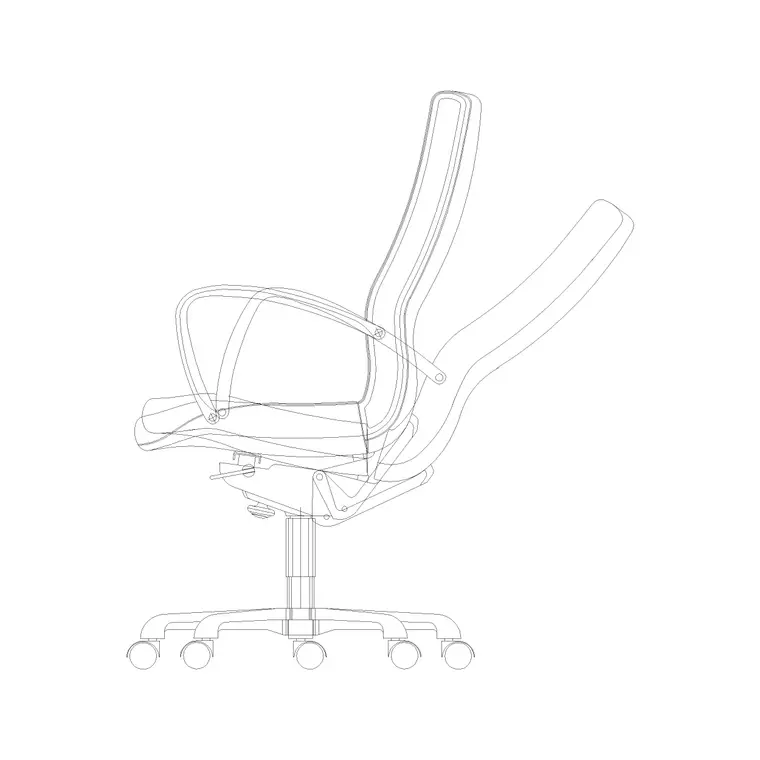
The elevation, or side view, comes into play for interior elevations, sections and presentation drawings. A side-view office chair drawn at its real seat and backrest heights lets you show a seated working posture against a desk in elevation. Many of these downloads carry both views in one DWG, so you insert whichever the drawing needs and freeze the other.
Office chair dimensions to design around
Reach for these ranges when checking a layout. Seat height: 420–520 mm, adjustable. Seat width: 460–510 mm. Overall width across the armrests: 600–680 mm. Swivel base diameter: 600–700 mm. Backrest top: 800–950 mm from the floor for a mid-back task chair, taller for a high-back.
For circulation, leave at least 900 mm behind a seated chair so a person can push back and stand, and 1200 mm where that space is also a walkway. Around a meeting table, allow about 600–750 mm of table edge per chair so people are not jostling elbows. A true-scale chair block turns each of these from arithmetic into a visual check.
How to insert, rotate and array the chair
These chair blocks are drawn full size in millimetres. Insert at scale 1 in a millimetre drawing, 0.001 in a metre drawing, or set INSUNITS to millimetres so AutoCAD rescales automatically on insertion. Pick the insertion point at the centre of the seat — that makes rotating the chair to face a desk or table predictable, because it spins about its own centre.
To place chairs around a round table, a polar ARRAY about the table centre spaces them evenly in one move. Down a straight bench, a rectangular array at the desk pitch does the same. Because each chair is one block reference, copying it is cheap and a later edit to the definition updates every instance at once.
Where office chair blocks are used
Office chair blocks appear across the whole drawing set: open-plan and cellular offices, meeting and conference rooms, reception areas, training rooms, libraries, home studies and co-working floors. They are the finishing layer that makes a furniture plan read as occupied rather than empty.
Pair them with the desk, workstation, conference-table and reception blocks in the office category to build a complete seating layer, then put every chair on a dedicated furniture layer. That one habit lets you produce a clean structural plan by freezing the seating and a fully furnished plan by thawing it — from the same drawing, with no duplicate geometry.
Keeping a tidy seating layer for schedules
A small discipline pays off across a whole project: put every office chair on its own furniture layer rather than leaving it on layer 0, and give the seating its own colour and lineweight. That alone lets you switch between a structural plan and a furnished plan instantly, and keeps the chairs from cluttering a services drawing where they do not belong.
If you tag each chair block with a simple attribute — a type code, say — you can extract a furniture schedule straight from the drawing, which is exactly the count a procurement or FF&E spreadsheet wants. And when a workstation layout is settled, you can WBLOCK a desk-plus-chair as a single reusable unit and array that down a floor, so you are placing furnished workstations rather than chasing chairs around afterwards.
Free download
Browse the full library — DWG & DXF, no signup.
Questions
Frequently asked
Do these chair blocks include both plan and elevation views?+
Many do. Where a chair ships multiple views they are in the same DWG, so you insert the one you need and freeze or explode the others. The views available are listed on each block's download page.
Why draw the chair base rather than just the seat?+
Because the five-star swivel base sweeps a wider circle than the seat — roughly 600–700 mm diameter — and that swept footprint is what governs clearance under desks and around tables. Drawing it keeps your spacing honest.
Are the office chair DWG blocks free to use?+
Yes. Every chair block downloads free in DWG and DXF with no signup, no watermark and no attribution requirement, and they are cleared for commercial project use.
How do I space chairs evenly around a round table?+
Use a polar array (ARRAYPOLAR) about the table centre. Select the chair block, set the table centre as the array centre, and enter the number of chairs — AutoCAD distributes them evenly in one operation.
Related downloads
Blocks for this guide
Related categories
Related guides
Block landing
Free Office Chair CAD Blocks — DWG Download
Download free office chair CAD blocks in DWG and DXF — task chairs, swivel chairs and executive seats drawn in plan and elevation, AutoCAD 2004+, no signup.
Block landing
Free Lighting Fixtures CAD Blocks — DWG Download
Download free lighting fixtures CAD blocks in DWG and DXF — chandeliers, wall lights, downlights and pendants in plan and elevation for AutoCAD.
Block landing
Free Office Desk CAD Blocks — DWG Download
Free office desk CAD blocks in DWG and DXF — straight desks and desk-with-chair units in plan and elevation for AutoCAD. No signup, commercial OK.