Block landing · office partition cad block
Free office cabin partition CAD blocks for AutoCAD
By Sumana Kumar · Published 20 Feb 2023 · Updated 9 Jan 2026
Partitions are what turn an open floorplate into a working office — they divide the space into cabins, meeting rooms and workstation pods, and they carry the doors, glazing and acoustic separation that make a layout function. A good set of partition blocks lets you draw those divisions consistently rather than redrawing wall lines by hand. This page collects free office cabin and partition CAD blocks in DWG and DXF — desktop screens, glazed partitions and full-height cabin enclosures, including workstations drawn with their partitions in place — for AutoCAD 2004 or later. Free for personal and commercial use, no signup, no watermark.
Use these to subdivide an open floor into cabins and rooms, to add privacy screens between workstations, and to set out the glazed partition lines that define a modern office. Because the partitions are drawn to scale with their thickness shown, you can read the real wall positions and check that the rooms they form hold the furniture and circulation they need.
Screens, glazed partitions and full-height cabins
Office partitions span a range from low to full height, and the set covers the spread. Desktop screens are low dividers between workstations — typically 350–1200 mm above the worktop — that give visual and acoustic separation without enclosing the space. Glazed partitions are floor-to-ceiling glass walls that create meeting rooms and cabins while keeping the floor feeling open. Full-height solid or part-glazed partitions form private offices and acoustically separate rooms.
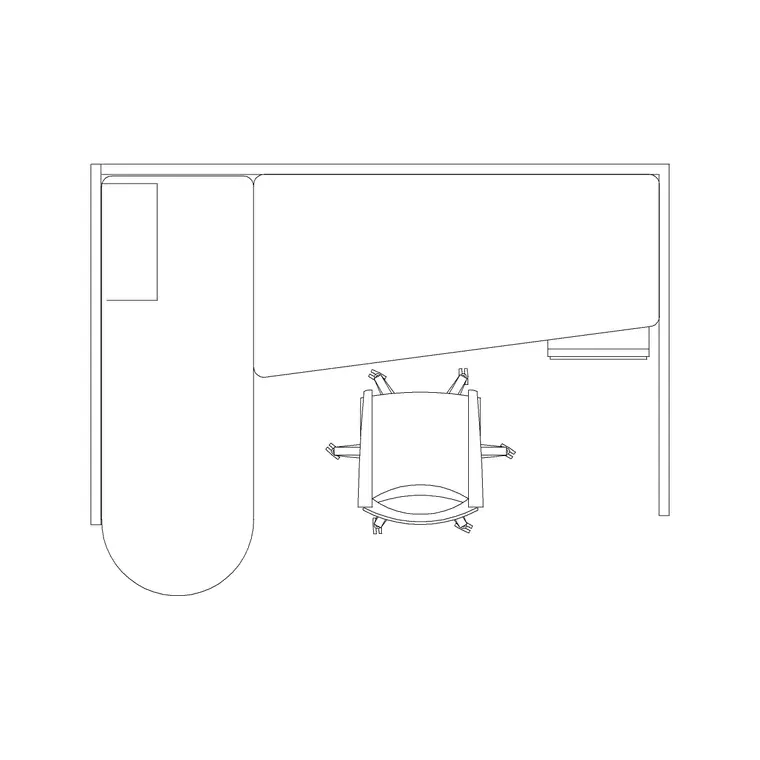
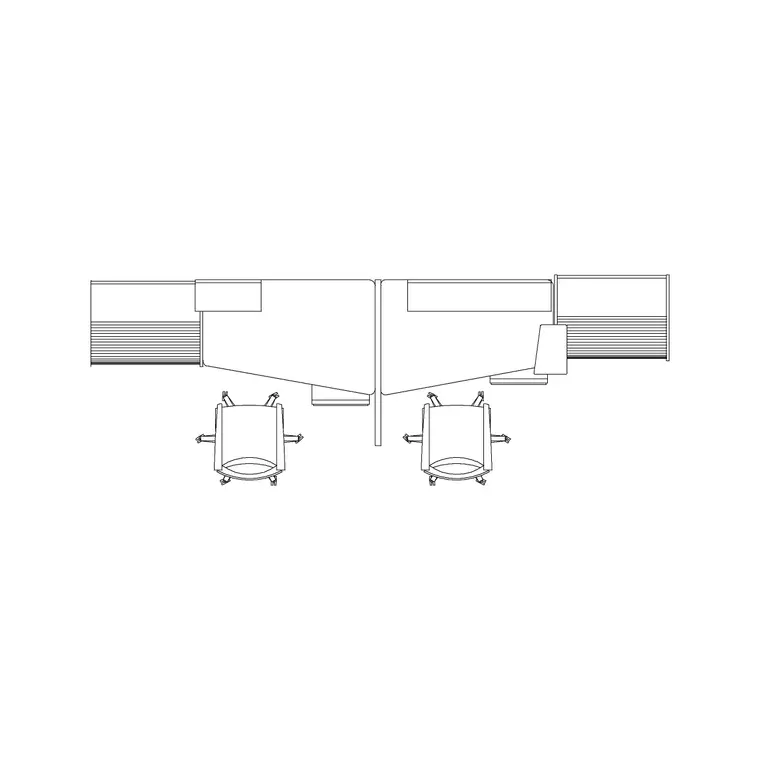
Knowing which to draw is half the layout decision. The workstation-with-partition block here shows the screens in place around a desk, so you can read the partitioned pod as one unit. The standalone partition lines let you build glazed meeting rooms and cabins of any size.
Partition thickness and what to draw
A partition is a wall, so it has thickness, and drawing it to its real thickness is what keeps a layout honest. Typical partition build-ups: a frameless glass partition reads as a thin line around 10–12 mm of glass plus framing; a stud-and-board partition is commonly 75–100 mm thick; an acoustic or fire-rated partition can be thicker still with a double-board build-up.
Drawing the partition with its true thickness, rather than as a single line, matters because that thickness eats into the room and shifts the setting-out. The blocks and partition conventions here let you draw the partition with its real footprint, so the meeting room or cabin you form has the internal dimension you intended once the wall thickness is accounted for.
Cabin sizes and the furniture they hold
A partition only works if the room it forms holds its furniture, so size cabins around their contents. A single private office or director's cabin commonly runs 9–14 square metres to hold a manager desk, a chair, visitor seating and circulation. A small meeting room needs 10–16 square metres for a six-person table with pull-out clearance. A focus or phone booth can be as little as 2–3 square metres.
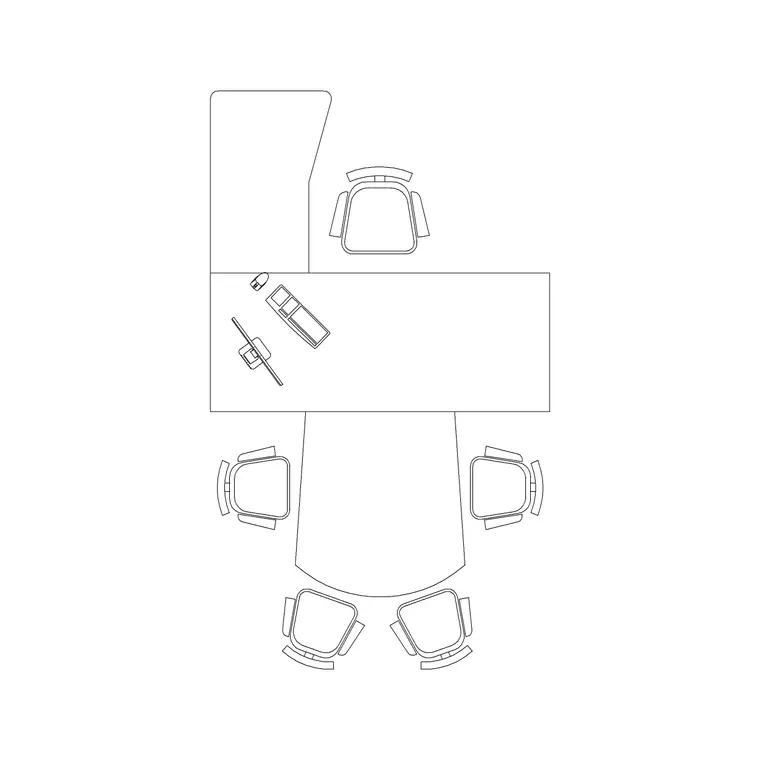
The trick is to draw the furniture first, or at least know its footprint, then set the partition lines to enclose it with the clearances it needs. Because the partitions and the office furniture are all scaled blocks, you can drop the desk and chair in, then run the partition around them, and immediately see whether the cabin works.
How to insert and set out partitions
The partition and cabin blocks are drawn full size in millimetres. Insert at scale 1 in a millimetre drawing, 0.001 in a metre drawing, or set INSUNITS to millimetres so AutoCAD rescales on insertion. Snap partition lines to your structural grid where you can, because partitions usually want to land on or relate to the building grid and the ceiling tile module.
Draw or insert the partition runs on a dedicated partition layer, set the door openings, and keep the glazing on its own layer so you can show a glazing line or a partition-only plan. For the workstation-with-partition block, insert it as a unit and array it where you want repeated partitioned pods, then trim the shared screens between adjacent pods.
Where cabin and partition blocks are used
Cabin and partition blocks are used to plan the whole subdivision of an office: private offices and director's cabins, glazed meeting and conference rooms, huddle pods, phone and focus booths, reception enclosures and the screens between open-plan workstations. They are the layer that turns a furniture plan into an actual room layout.
Pair them with the desk, workstation, manager-table, meeting-table and reception blocks in the office category. The furniture sets the room sizes, the partitions form the rooms, and the electrical blocks follow — together they let you draw a complete office fit-out, from the open-plan desking to the enclosed cabins and the glazed boardroom, from one consistent, free block library.
Open plan, cellular and the partition layer
Almost every office layout is a negotiation between open plan and cellular space, and the partition layer is where that negotiation is drawn. Too few partitions and the floor is open but lacks the meeting rooms and quiet space people need; too many and it becomes a warren of small rooms that wastes the floorplate and blocks the daylight. Working from scaled partition blocks lets you test that balance directly — add a glazed meeting room here, a row of focus booths there, and read immediately what it does to the open-plan capacity and the circulation.
Keeping the partitions on their own layer, separate from the structural walls and the furniture, is what makes that testing fast. You can produce a clean shell-and-core plan by freezing the partitions, a partitioned plan by thawing them, and a partition-setting-out drawing that the fit-out contractor builds from — all from the same file. Coordinate the partition lines with the ceiling grid, the lighting and the small-power so that doors, switches and glazing all relate sensibly, and the office that gets built matches the one you drew.
Free download
Browse the full library — DWG & DXF, no signup.
Questions
Frequently asked
What types of office partition do the blocks cover?+
Low desktop screens between workstations, floor-to-ceiling glazed partitions for meeting rooms and cabins, and full-height solid or part-glazed partitions for private offices — plus workstations drawn with their partitions already in place.
Should I draw partitions with their real thickness?+
Yes. A partition is a wall with thickness — from around 10–12 mm for frameless glass to 75–100 mm or more for a stud partition — and drawing that thickness keeps the room's internal dimensions and setting-out honest.
Are the partition CAD blocks free for commercial use?+
Yes. Every block downloads free in DWG and DXF with no signup, no watermark and no attribution requirement, and they are cleared for commercial project use.
What scale are the cabin and partition blocks drawn at?+
Full size in millimetres. Insert at scale 1 in a millimetre drawing, or set INSUNITS to millimetres so AutoCAD rescales automatically if your template uses different insertion units.
Related downloads
Blocks for this guide
Related categories
Related guides
Block landing
Free Office Chair CAD Blocks — DWG Download
Download free office chair CAD blocks in DWG and DXF — task chairs, swivel chairs and executive seats drawn in plan and elevation, AutoCAD 2004+, no signup.
Block landing
Free Lighting Fixtures CAD Blocks — DWG Download
Download free lighting fixtures CAD blocks in DWG and DXF — chandeliers, wall lights, downlights and pendants in plan and elevation for AutoCAD.
Block landing
Free Office Desk CAD Blocks — DWG Download
Free office desk CAD blocks in DWG and DXF — straight desks and desk-with-chair units in plan and elevation for AutoCAD. No signup, commercial OK.