Block landing · manager chair cad block
Free manager chair CAD blocks for AutoCAD
By Saumyajit Maity · Published 4 Mar 2023 · Updated 20 Jan 2026
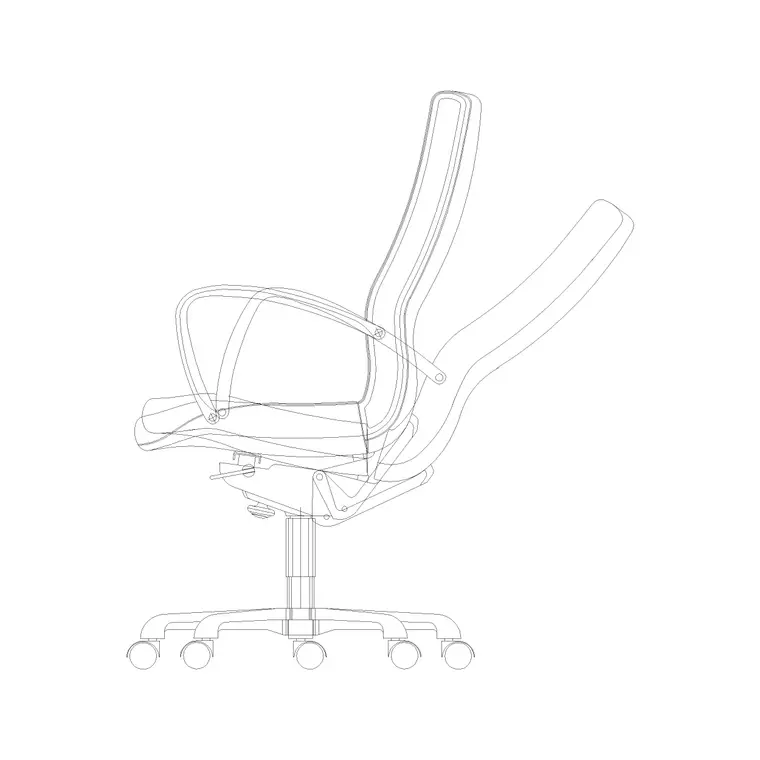
A manager chair — the high-back executive swivel that sits behind a director's desk — is drawn a little differently from a general task chair, and it is worth keeping a dedicated block for it. It is bulkier, taller in the backrest, and almost always paired with a larger desk, so the clearances and the elevation read differently. This page collects free manager chair CAD blocks in DWG and DXF, drawn in plan and side elevation at true millimetre dimensions, ready to insert into AutoCAD 2004 or later. Free for personal and commercial work, no signup, no watermark.
Use these in private offices, executive suites, cabins and boardroom head positions. Because the high-back profile and the wider base are drawn to scale, you can check that the chair clears the desk return and that the elevation sits correctly against a credenza or a panelled wall behind it.
How a manager chair differs from a task chair
On a plan, a manager chair and a task chair can look similar, but the differences matter. The executive chair is generally wider across the arms, carries a larger swivel base, and is paired with a deeper manager desk — so the occupied footprint is bigger and the clearance behind it needs more room. In elevation the difference is obvious: the high backrest rises well above a task chair's, often to headrest height.
Keeping a separate manager-chair block, rather than rescaling a task chair, means those proportions stay right. The side-elevation blocks here are especially useful because the executive chair is so often shown in section or elevation against the desk, the credenza and the wall behind.
Plan and side elevation included
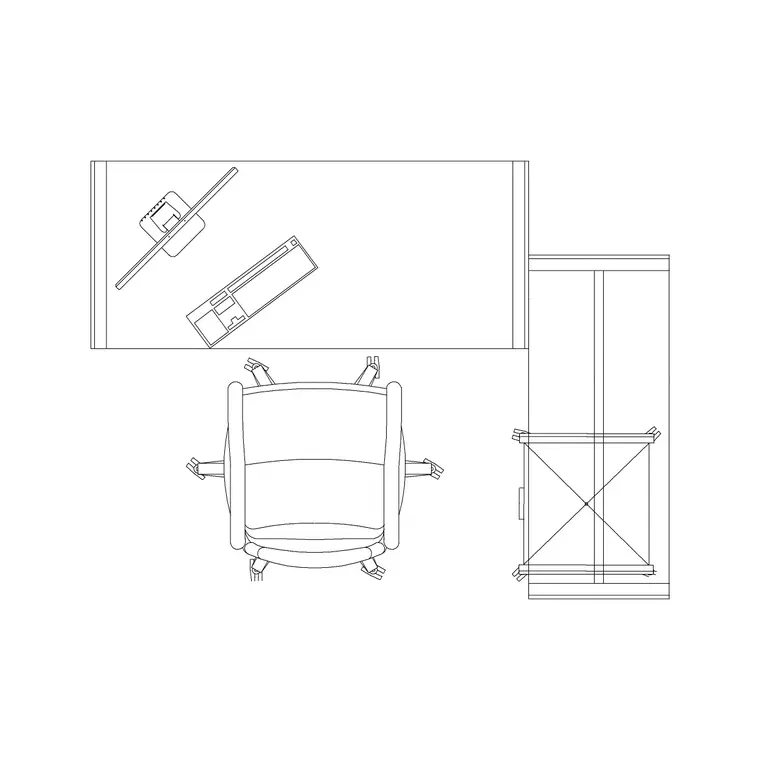
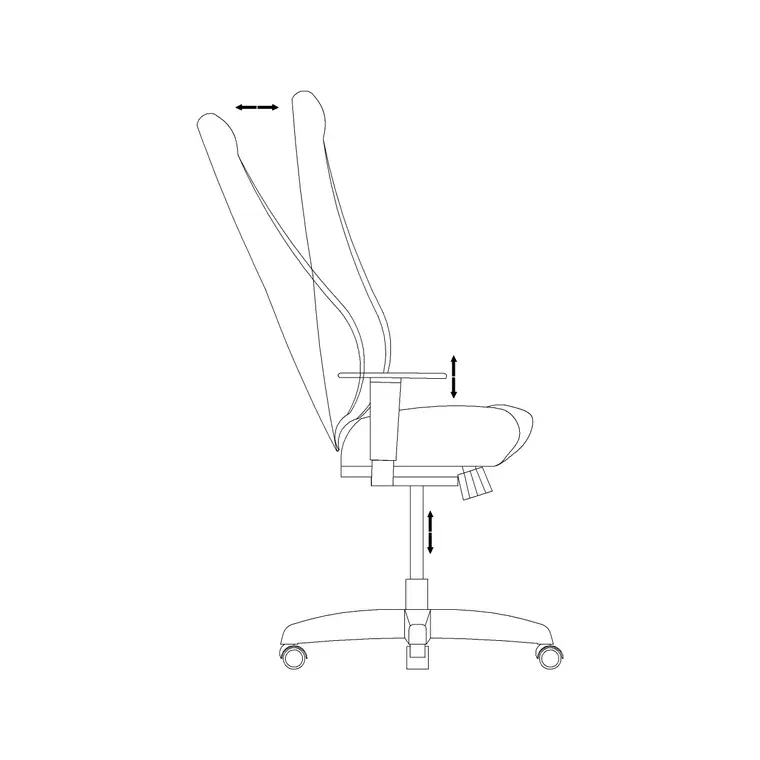
These manager chair downloads typically lead with a plan view for the layout and a side elevation for the interior drawing. The plan gives you the base footprint to check clearance behind a director's desk; the side elevation gives you the seat height, the high backrest and often a headrest line so the chair sits believably against the furniture behind it.
The side view is the one you reach for most with an executive chair, because private offices and boardrooms are so often presented as interior elevations. Where both views ship in one DWG, you insert the plan for the floor layout and the elevation for the wall, and freeze whichever you are not using.
Manager chair dimensions to design around
Design around these ranges. Seat height: 450–530 mm, adjustable. Overall width across the arms: 650–720 mm, a touch wider than a task chair. Swivel base diameter: 650–720 mm. Backrest top: typically 1100–1300 mm from the floor for a high-back executive chair, often with a headrest taking the very top higher.
Because the chair is bigger and the desk it serves is deeper, allow a generous clearance behind it — around 1000–1200 mm — so the occupant can push back and swing the chair without hitting a credenza or bookcase. A scaled block makes that comfortable executive clearance easy to draw rather than estimate.
How to insert and place behind a desk
The manager chair blocks are drawn full size in millimetres. Insert at scale 1 in a millimetre drawing, 0.001 in a metre drawing, or set INSUNITS to millimetres so AutoCAD rescales on insertion. Pick the insertion point at the centre of the seat so the chair rotates predictably about its own centre when you turn it to face the desk.
Position it behind the manager desk first, check the push-back clearance to the wall or credenza behind, then bring in the visitor chairs on the other side. For the elevation drawing, insert the side-view block at the desk position so the seat tucks under the worktop line and the backrest reads against the wall.
Where manager chair blocks are used
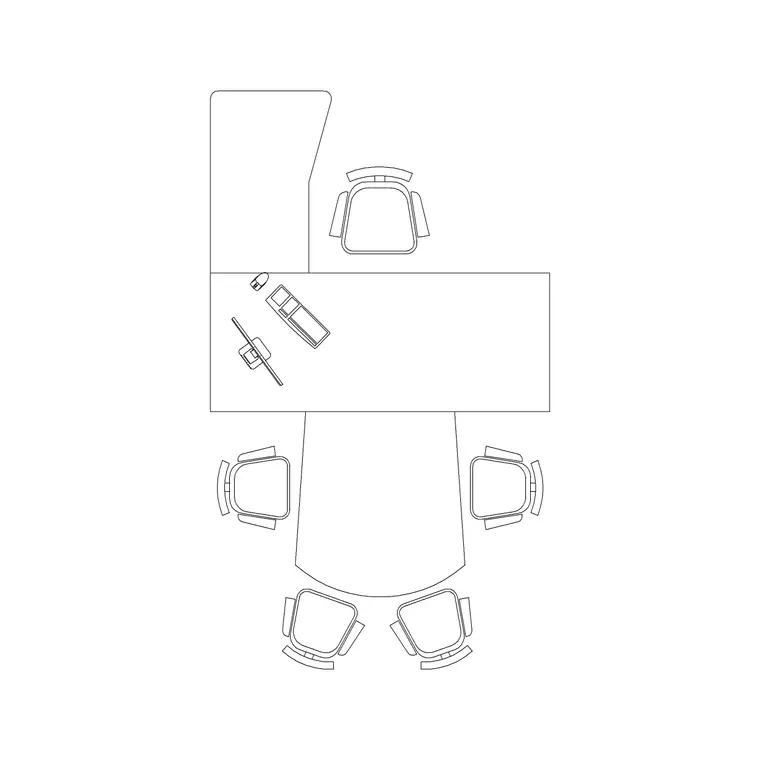
Manager chair blocks belong in private offices, executive suites, director's cabins, MD and CEO offices, and the head positions of a boardroom table. They signal seniority in a layout, so they are also useful in presentation drawings where you want to read at a glance which is the principal seat.
Pair them with the manager-table and executive-desk blocks, the conference-table blocks and the cabin-partition blocks in the office category to assemble a complete executive office — desk, chair, meeting setting and the partition that encloses it — from one consistent, free block library.
Drawing the executive office in elevation
Executive and director's offices are presented in interior elevation far more often than a general open-plan floor is, because the finish, the panelling and the furniture quality are part of the brief. That is where the side-elevation manager chair really earns its place: it lets you show the chair, the desk and the credenza or feature wall behind as a single coordinated elevation rather than guessing the seated heights.
Draw the desk in elevation first, then drop the side-view chair so the seat sits at the right height under the worktop and the high backrest reads against the wall. Keep the chair on its own layer so you can produce a clean elevation of just the joinery and millwork when you need it, and a furnished elevation when you are presenting the room. Because the block is true-scale, the headrest height, the arm line and the base all land where they really would, which is exactly what makes an executive-office elevation convincing.
Free download
Browse the full library — DWG & DXF, no signup.
Questions
Frequently asked
How is a manager chair block different from an office chair block?+
An executive manager chair is wider across the arms, has a larger swivel base and a much taller, high-back profile reaching headrest height. It pairs with a deeper desk, so its footprint and the clearance behind it are bigger — which is why it has its own block.
Do the manager chair blocks include a side elevation?+
Yes. The downloads typically include a plan view for the layout and a side elevation for interior drawings, since executive offices are so often presented in elevation against the desk and the wall behind.
Are the manager chair CAD blocks free for commercial use?+
Yes. Every block downloads free in DWG and DXF with no signup, no watermark and no attribution requirement, and they are cleared for commercial project use.
What scale are the manager chair blocks drawn at?+
Full size in millimetres. Insert at scale 1 in a millimetre drawing, or set INSUNITS to millimetres so AutoCAD rescales automatically if your template uses different insertion units.
Related downloads
Blocks for this guide
Related categories
Related guides
Block landing
Free Office Chair CAD Blocks — DWG Download
Download free office chair CAD blocks in DWG and DXF — task chairs, swivel chairs and executive seats drawn in plan and elevation, AutoCAD 2004+, no signup.
Block landing
Free Lighting Fixtures CAD Blocks — DWG Download
Download free lighting fixtures CAD blocks in DWG and DXF — chandeliers, wall lights, downlights and pendants in plan and elevation for AutoCAD.
Block landing
Free Office Desk CAD Blocks — DWG Download
Free office desk CAD blocks in DWG and DXF — straight desks and desk-with-chair units in plan and elevation for AutoCAD. No signup, commercial OK.