Block landing · garden fence cad block
Free garden fence CAD blocks in DWG and DXF
By Sumana Kumar · Published 6 Sep 2024 · Updated 23 Jun 2026
A garden fence is the line that defines a property, screens a boundary and frames every external-works drawing, so a clean fence CAD block earns its place in any landscape or site library. This page collects free garden fence CAD blocks in DWG and DXF — close-board timber fences, panel fences, slatted contemporary screens and post-and-rail boundaries — drawn at true millimetre dimensions and ready to insert into AutoCAD 2004 or later. Every file is free for personal and commercial work, with no signup, no watermark and no attribution required.
Use these blocks to draw the boundary on a site plan, build a garden elevation, or detail a typical fence run for a planning or building-control submission. Because a fence reads mostly as a repeating module — a post, a panel, a post — drawing it as a scaled block lets you array a whole run along a boundary in seconds rather than copying posts one at a time.
What a garden fence block actually contains
On a site plan a fence is usually just a line on the boundary, but a useful fence block carries more than that single line. The plan view should show the post centres and the panel thickness, because the post footprint is what you set out on site and what a contractor digs for. A typical close-board or panel fence runs on posts at roughly 1.8–2.0 m centres, so drawing the module to that spacing keeps your boundary honest.
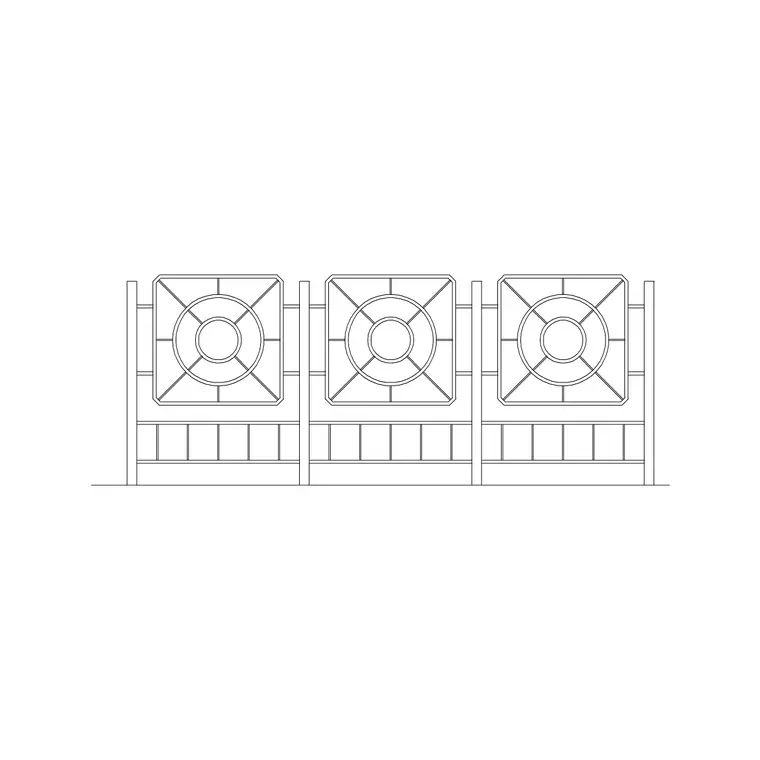
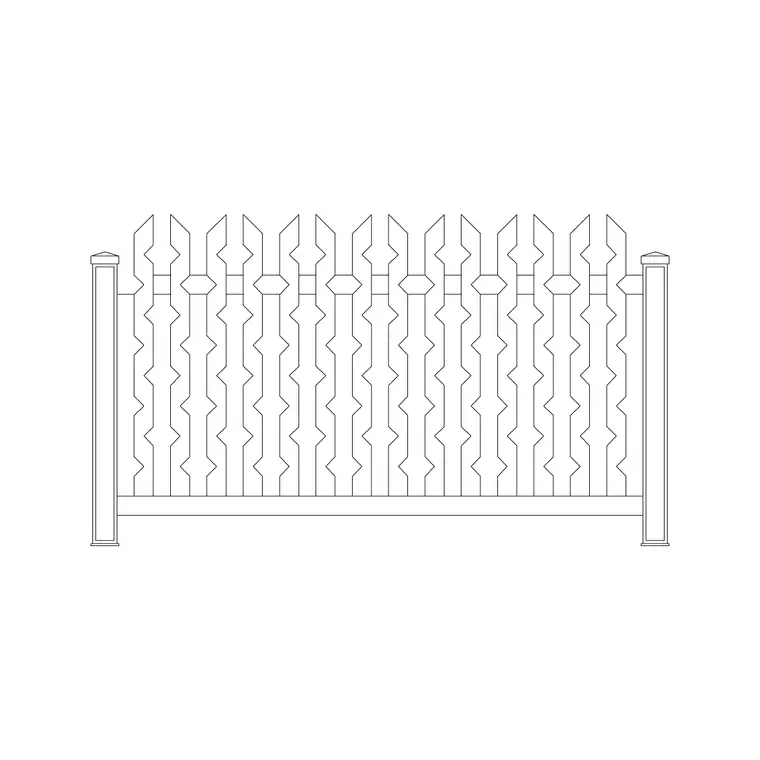
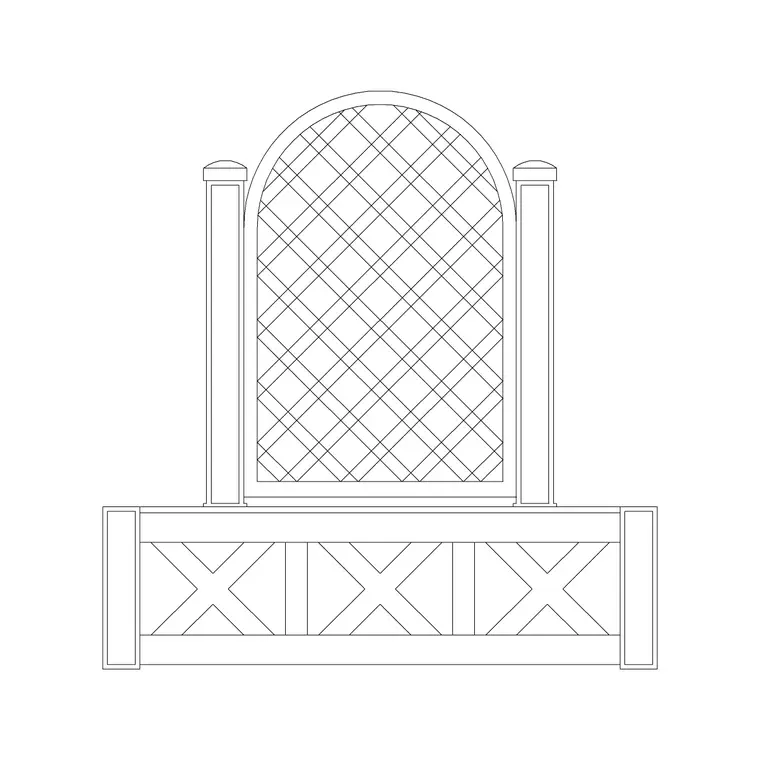
The elevation is where a fence block really matters. It shows the post, the panel infill — vertical boards, horizontal slats, trellis tops — the gravel board at the base and the cap rail along the top. Those parts are drawn on sensible layers so you can recolour the timber, freeze the trellis or swap the infill style without redrawing the posts. The contemporary slatted versions here keep each slat as editable geometry so you can tune the gap-to-slat ratio to the screening you want.
Plan, elevation and where each view earns its keep
For setting out a boundary you work in plan: the fence is a line of posts following the property line, and the plan block is what you array along it. Keep the fence on its own boundary or external-works layer so you can show the plot edge cleanly and dimension the offset from the boundary to the fence centreline.
The elevation block is what you reach for in a garden design presentation, a streetscape, or a planning elevation that has to prove a 2 m boundary height. A side or section view is occasionally useful where the fence sits on a retaining wall or a sloping garden and you need to show the stepped panels. Many downloads here ship plan and elevation in the same DWG, so a single file covers both the boundary setting-out and the face-on drawing.
Typical fence heights and spacings to design around
Reach for these figures when you draw a boundary. Domestic rear-garden fence height: commonly 1.8 m, which is the usual permitted-development limit in many regions before planning permission is triggered. Front-boundary fence: often kept to around 1.0 m where it adjoins a highway. Post centres: 1.8–2.0 m for panel fencing. Gravel board: 150–300 mm tall at the base to keep timber off the ground. Post size: roughly 100 × 100 mm timber or a slimmer steel post for contemporary systems.
These are typical ranges, not fixed specs — local planning rules and the chosen fence system govern the real numbers, so always check the height limit for the boundary you are drawing. The blocks are drawn full size so you can stretch a panel or re-space the posts to match the system you are specifying.
How to insert and array the fence block
These fence blocks are drawn in millimetres. In a millimetre drawing, insert at scale 1 and the fence lands at real size; in a metre template insert at 0.001, or set INSUNITS to millimetres so AutoCAD rescales automatically on insertion. Run INSERT (or drag the DWG from a tool palette), pick the insertion point at a post centre, and rotate to align with the boundary.
To build a full run, the fastest route is ARRAY: a path array along the boundary polyline, or a rectangular array for a straight run, spaced at the post-centre dimension. Because each panel is a block reference, a later edit to the panel definition updates every bay at once — change the slat spacing once and the whole boundary follows. Where the boundary turns a corner, drop a single post block at the change of direction and let the panels meet it.
Where garden fence blocks are used
Fence blocks appear across landscape and architectural drawing sets: site and boundary plans, garden designs, planning elevations, streetscapes, and external-works details. Landscape architects use them to define plot edges and screening; architects add them to site plans to show context and security lines; planners and homeowners use them to demonstrate boundary heights in applications.
Pair the fence blocks with the gates, paving and planting categories to build a complete garden boundary — fence run, an entrance gate, a paved path and a planted bed — from one consistent, free block library. The same panel that defines a rear boundary can carry through to a detailed elevation that shows the contractor exactly how the fence is built.
Keeping the boundary on the right layer
A small layering habit keeps an external-works drawing readable. Put the fence on a dedicated boundary or external-works layer rather than leaving it on layer 0, give it its own colour and a slightly heavier lineweight, and the plot edge reads clearly against the building and the paving. Freeze that layer and you get a clean site plan; thaw it and the boundary returns — from one drawing, with no duplicate geometry.
If you tag each fence run with a simple attribute — a length, a type code, a height — you can extract a boundary schedule straight from the drawing, which is exactly the kind of quantity a fencing contractor or a cost plan wants. When a run is finalised, WBLOCK a typical bay so the panel becomes a reusable library item for the next garden you draw.
Free download
Browse the full library — DWG & DXF, no signup.
Questions
Frequently asked
Are these garden fence CAD blocks free to use commercially?+
Yes. Every fence block downloads free in DWG and, where available, DXF, with no signup, no watermark and no attribution requirement, and they are cleared for commercial project use.
Do the fence blocks include both plan and elevation views?+
Many do. Where a block ships multiple views they are in the same DWG, so you can insert the boundary plan or the face-on elevation as needed. The views available are listed on each block's download page.
What height are the garden fence blocks drawn at?+
They are drawn full size in millimetres, typically around a 1.8 m domestic boundary height. Because they are at true scale you can stretch a panel or re-space posts to match the system and the height limit for your boundary.
How do I draw a long fence run quickly?+
Insert one panel block, then use ARRAY — a path array along the boundary polyline or a rectangular array for a straight run — spaced at the post-centre dimension, usually 1.8–2.0 m. Editing the panel definition then updates every bay.
Related downloads
Blocks for this guide
Related categories
Related guides
Block landing
Free Wrought-Iron Gate CAD Blocks — DWG
Download free wrought-iron and metal gate CAD blocks in DWG and DXF — ornamental garden gates in elevation and plan with swing arcs. No signup.
Block landing
Free Main Entrance Gate CAD Blocks — DWG
Download free main entrance gate CAD blocks in DWG and DXF — driveway, sliding and double-swing gates drawn in elevation and plan with swing arcs. No signup.
Block landing
Free Garden Swing CAD Blocks — DWG Download
Download free garden swing CAD blocks in DWG and DXF — A-frame swing seats and hanging swing chairs drawn in plan and elevation. No signup, commercial-use OK.