Block landing · planter cad block
Free flower bed and planter box CAD blocks
By Sumana Kumar · Published 16 Oct 2024 · Updated 15 Jan 2026
A flower bed or planter box is where the soft landscape meets the hard, and it is one of the most useful blocks for giving a paved scheme structure, screening and greenery. This page collects free flower bed and planter box CAD blocks in DWG and DXF — raised timber and masonry planters, planter troughs, freestanding pots and planted-bed outlines — drawn at true millimetre dimensions and ready to insert into AutoCAD 2004 or later. Everything is free for personal and commercial work, with no signup and no watermark.
Use these blocks to draw planted beds along a boundary, raised planters on a terrace or roof garden, and planter troughs that divide or screen a space. A planter works in both plan and elevation: the plan footprint sets out where the bed sits and how much of the paving it takes, while the elevation shows the planter height and the planting that rises above it.
What a flower bed or planter block contains
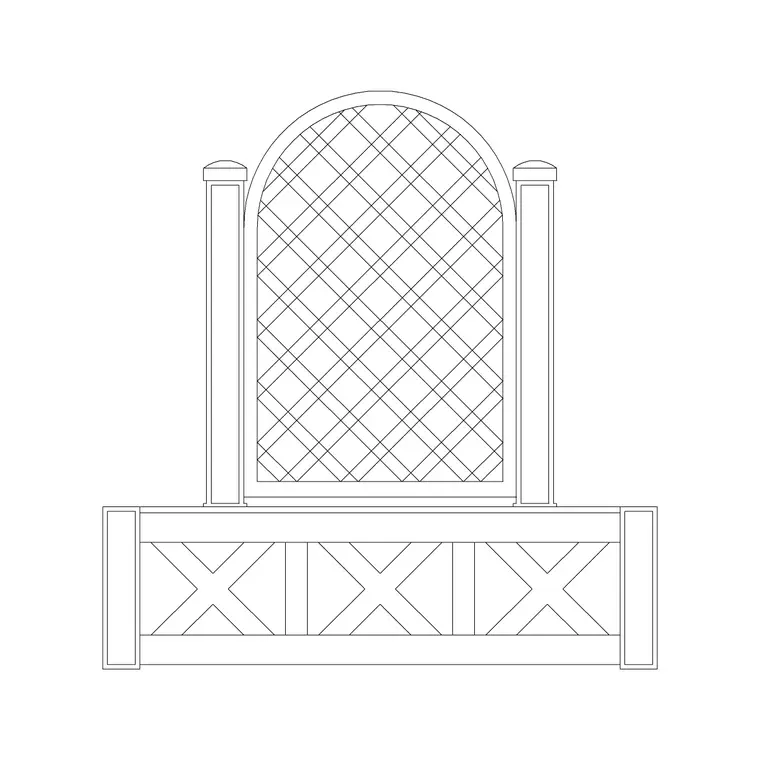
The set spans the range from a planted ground bed to a built raised planter. A flower-bed outline draws the edge of a planted area in plan, often with a planting hatch or a symbol indicating the soft landscape inside it. A raised planter draws the box — timber, masonry or metal — in plan footprint and in elevation with its height, and frequently with a planting symbol rising above the rim. Planter troughs and freestanding pots draw the smaller modular containers used on terraces and balconies.
Each is editable geometry on sensible layers so you can recolour the planter, change the planting symbol, or freeze the soft landscape for a clean hard-landscape plan. The raised-planter blocks carry the height in elevation, which matters when a planter doubles as a low seat edge or a screen. Because each planter is a single block reference, you can array a row of troughs, mirror a bed, and copy a planter where the same module repeats.
Plan for the footprint, elevation for the height
For laying out a scheme you work in plan: the bed or planter seen from above, set out against the paving, the boundary and the circulation, with the planted area shown as a hatch or symbol. The plan block is what you place to claim the soft-landscape footprint and to check the bed sits where it should relative to paths and seating. A planted bed reads as the green counterpoint to the paving, so its plan footprint shapes the whole composition.
The elevation matters when the planter is raised. Drawing it face-on shows the planter height — a low edging planter, a knee-high raised bed, or a tall screen planter — and the planting rising above it. That height is what tells you whether a planter screens a view, doubles as informal seating at around seat height, or simply edges a path. Many blocks ship both views, so one download covers both the footprint and the raised profile.
Typical planter dimensions to design around
Use these ranges as a starting point. A raised planter for shrubs and perennials is commonly 300–600 mm deep in soil, with the box rising to around 450–600 mm where it doubles as a low seat edge, or taller for a screen. A planter trough is often 200–400 mm wide and as long as the run requires. A freestanding pot ranges from a small 300 mm container up to a large 600–800 mm statement pot.
A ground-level flower bed has no built height — its plan footprint and the planting depth are what you set out. For a planter that screens, the height plus the planting can reach 1.5 m or more. These are typical figures, not fixed specifications — the planting and the brief drive the real numbers, and the soil depth needs to suit what is planted. The blocks are drawn full size so you can size the planter to the bed and the planting it has to carry.
How to insert and place the planter
These planter blocks are drawn in millimetres. Insert at scale 1 in a millimetre drawing, 0.001 in a metre template, or set INSUNITS to millimetres so AutoCAD rescales on insertion. Run INSERT or drag the DWG onto the drawing, pick the insertion point at a corner or the centre of the footprint, and rotate the planter to align with the bed, the boundary or the terrace edge.
For a planted bed, place the outline and add the planting hatch on its own layer so you can produce a clean hard-landscape plan by freezing the soft landscape. For a row of troughs, array the planter along the edge it screens or divides. Keep the planters and beds on a planting or soft-landscape layer, separate from the paving and the structure, so each drawing in the set reads cleanly and the green elements can be toggled independently.
Where flower bed and planter blocks are used
Planter blocks appear across landscape and external-living drawings: garden and courtyard designs, terraces and roof gardens, balconies, public realm and streetscape planting, and café and retail frontages. Landscape architects use them to set out planted beds and raised planters and to balance soft and hard landscape; architects add them to terrace and entrance drawings to show greenery and screening; urban designers use planter troughs to define space and guide movement in public areas.
Pair the planter with the fence, paving, seating and tree categories to build a complete external scene — a paved terrace edged with raised planters, a boundary fence, outdoor seating and planted beds. Because the planting is what softens and gives life to a hard-landscape scheme, a well-placed bed or planter is often what makes the drawing read as a designed space rather than a paved yard.
Planters as structure, screening and seating
A planter does more than hold plants — in a designed scheme it shapes space, and the scaled block lets you use it that way. A raised planter at around seat height can double as informal perch seating along its edge, so drawing it to scale lets you check that secondary use. A tall planter with planting above can screen a view, hide a bin store or buffer a boundary, and the elevation is where you confirm the combined height of planter plus planting does the screening job. A run of troughs can divide a large terrace into rooms or guide people along a route.
The soft-and-hard balance is the design idea the planter carries. Place the beds and planters to break up an expanse of paving, frame the seating, mark the entrance and edge the circulation, and the paved scheme reads as composed rather than empty. Keeping the planting on its own layer means one drawing produces the hard-landscape plan, the planting plan and the furnished presentation simply by controlling what is visible. Drawn this way, the planter is a structural element of the layout — and the same scaled block carries from the concept sketch through to the setting-out the contractor builds the planter from.
Free download
Browse the full library — DWG & DXF, no signup.
Questions
Frequently asked
What's the difference between a flower bed and a planter block?+
A flower bed is a ground-level planted area drawn as an outline with a planting symbol, with no built height. A planter or planter box is a raised container — timber, masonry or metal — drawn with its height in elevation. Both are covered in the set.
Are the flower bed and planter CAD blocks free for commercial use?+
Yes. Every planter and bed block downloads free in DWG and, where available, DXF, with no signup, no watermark and no attribution requirement, and they are cleared for commercial project use.
How deep should a raised planter be?+
A raised planter for shrubs and perennials is commonly 300–600 mm deep in soil, with the box rising to around 450–600 mm where it doubles as a low seat edge, or taller for a screen. The soil depth should suit what is planted; the scaled block lets you size it.
What scale are the planter blocks drawn at?+
Full size in millimetres, in plan and, for raised planters, elevation. Insert at scale 1 in a millimetre drawing, or set INSUNITS to millimetres so AutoCAD rescales automatically. You can size the planter to the bed and planting it carries.
Related downloads
Blocks for this guide
Related categories
Related guides
Block landing
Free Garden Fence CAD Blocks — DWG & DXF
Download free garden fence CAD blocks in DWG and DXF — timber, panel and contemporary boundary fences drawn in plan and elevation, AutoCAD 2004+, no signup.
Block landing
Free Wrought-Iron Gate CAD Blocks — DWG
Download free wrought-iron and metal gate CAD blocks in DWG and DXF — ornamental garden gates in elevation and plan with swing arcs. No signup.
Block landing
Free Main Entrance Gate CAD Blocks — DWG
Download free main entrance gate CAD blocks in DWG and DXF — driveway, sliding and double-swing gates drawn in elevation and plan with swing arcs. No signup.