Curated pack · dxf blocks for cnc routing
Free DXF blocks for CNC routing in AutoCAD
By Sumana Kumar · Published 15 Feb 2024 · Updated 11 Apr 2026
A CNC router follows a 2D path, and DXF is the format that gets that path out of CAD and into the machine's CAM software. This pack gathers blocks that suit routing work — decorative silhouettes like trees and figures, repeating patterns like paving, and furniture profiles you can cut from sheet material — supplied as clean DXF where available so they import into CAM with minimum cleanup. Everything is drawn to real millimetre dimensions and is free for personal and commercial use with no watermark.
DXF is the lingua franca of 2D machining: almost every router CAM package — from hobby tools to industrial controllers — reads it, and it preserves the precise geometry a cutter needs to follow. The work, as anyone who has run a router knows, is in the preparation: making sure every cut profile is a closed, single, clean polyline at the right size, with no stray duplicate lines or tiny gaps that confuse the toolpath.
This pack and the notes below help you start from usable geometry and prepare it properly, so a decorative panel, a furniture part or a repeating pattern goes from drawing to cut path without a fight. Always proof your toolpaths and run a test cut before committing expensive material.
What's in the CNC routing pack
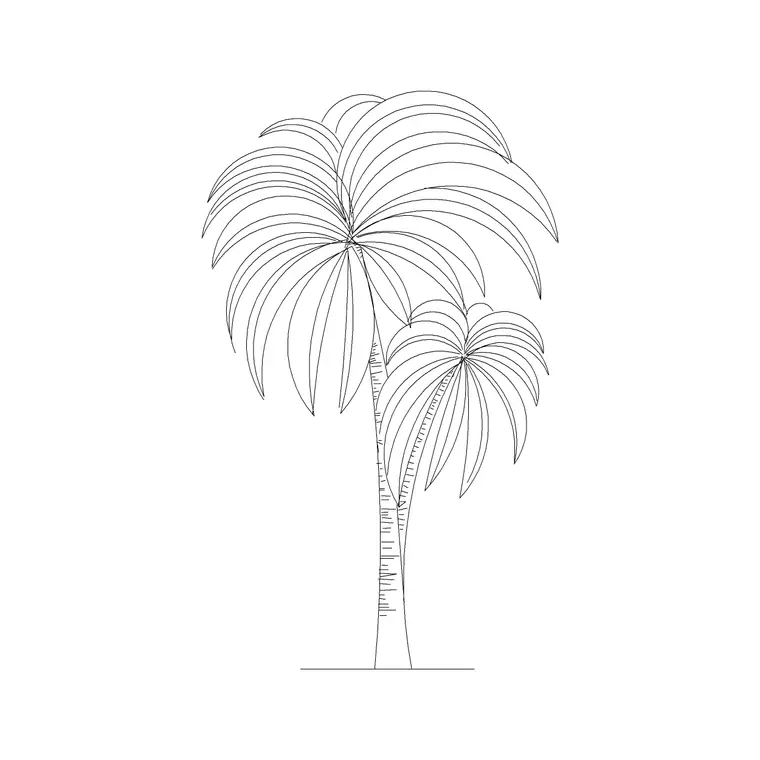
The set leans on blocks whose outlines make good routing profiles. Tree and palm silhouettes work as decorative cut-outs for screens, signage and garden panels. Human figures suit silhouette art, signage and feature panels. Paving and geometric blocks give you repeating patterns for engraved or cut surfaces. Furniture profiles can be adapted into flat-pack parts cut from sheet stock.
These are drawing blocks, not pre-tooled cut files, so treat them as the starting geometry. The value is a clean, correctly-scaled outline you prepare for routing, rather than a raw sketch you have to redraw from scratch. Supplied in DWG, and DXF where available, for direct import into CAM.
Preparing a profile for the router
A router toolpath needs closed, continuous geometry. After importing a block, run OVERKILL to remove duplicate and overlapping lines, then use PEDIT or JOIN to weld the outline into a single closed polyline — open gaps are the number-one cause of a toolpath that won't generate. Explode the block first if you need to edit its underlying geometry, but re-join the result into clean polylines before export.
Decide which lines are cuts and which are engraving, and put them on separate layers or give them clear colours, because CAM software assigns toolpaths by layer or colour. A tree silhouette, for instance, might have an outer profile cut and inner veins engraved — separate those before you export the DXF.
Units, scale and material
Units are critical for machining because the router cuts exactly what the file says. These blocks are drawn in millimetres; confirm your CAM package is set to millimetres on import, or the profile will arrive ten or a thousand times wrong. Scale the profile to the real part size you want before export — a decorative tree panel might be a few hundred millimetres, a furniture part the size of a sheet — using SCALE about a known base point.
Check the profile against your sheet material and cutter. Internal corners can't be cut sharper than the router bit's radius, so a 6 mm bit leaves a 3 mm radius in every inside corner; account for that in fitting parts. Leave enough material between nested profiles for tabs that hold parts in place during the cut.
Exporting clean DXF for CAM
Export with SAVEAS or DXFOUT to a DXF version your CAM software accepts — older AutoCAD DXF (R12/2000) is the most universally compatible for 2D routing and strips out 3D and proxy data the machine doesn't need. Before exporting, purge unused layers and blocks (PURGE) so the file is lean, and zoom to the geometry to confirm nothing stray is hiding off to the side.
After export, open the DXF fresh or preview it in your CAM software and check three things: the geometry is closed, the size is right, and there are no duplicate overlapping paths. Catching a problem here costs seconds; catching it after a ruined cut costs material and time.
Per-item notes for routing
- Tree and palm silhouettes: good for decorative screens, signage and garden panels; separate the outer cut profile from any internal engraving onto different layers. - Human figures: suit silhouette signage and feature panels; simplify busy outlines so the toolpath isn't chasing tiny detail the bit can't resolve. - Paving and geometric blocks: ideal for repeating engraved or cut patterns; check the pattern tiles cleanly and that line junctions are properly joined. - Furniture profiles: adapt into flat-pack parts; account for the bit radius at internal corners and add tabs between nested parts.
Who uses DXF for routing
Makers and small fabricators cut signage, decorative panels and furniture parts on desktop and shop routers; joiners and shopfitters route bespoke components; sign-makers and artists cut silhouettes and lettering. A free, licence-clear DXF source suits all of them because it removes the cost and licensing friction of sourcing cut-ready geometry.
Always remember these are drawing blocks you prepare, not certified cut files — proof every toolpath in your CAM software and run a test cut in scrap before committing good material. Because the blocks are free for commercial use, parts you cut and sell carry no licensing question.
Free download
Browse the full library — DWG & DXF, no signup.
Questions
Frequently asked
Are these ready-to-cut CNC files?+
No — they are clean 2D drawing blocks you prepare for routing. Import the DXF, weld the outline into closed polylines, separate cut and engrave layers, scale to the real part size, then generate toolpaths in your CAM software and test-cut in scrap first.
What DXF version should I export for a router?+
An older AutoCAD DXF such as R12 or 2000 is the most universally compatible for 2D routing. It strips 3D and proxy data the machine doesn't need and imports cleanly into almost every CAM package.
Why won't my toolpath generate from the profile?+
Almost always because the outline isn't closed. Run OVERKILL to remove duplicate lines, then PEDIT or JOIN to weld the geometry into a single closed polyline. Open gaps and overlapping segments are the usual culprits.
Can I sell parts I cut from these blocks?+
Yes. Every block is free for commercial use with no attribution, so signage, panels and furniture parts you route and sell carry no licensing question. Just verify your toolpaths and test-cut before committing material.
Related downloads
Blocks for this guide



Related categories
Related guides
Curated pack
Free CAD Blocks for Rendering Pack — DWG & DXF
Free CAD blocks for rendering — scale people, trees, furniture and paving in DWG/DXF to populate plans before you take them into a render engine. No signup.
Curated pack
Free CAD Blocks for Floor Plans Pack — DWG
Free CAD blocks for floor plans — plan-view furniture, scale figures and paving in DWG/DXF to furnish any AutoCAD layout fast. No signup, commercial use OK.
Curated pack
Free CAD Blocks for Elevation Drawings Pack — DWG
Free CAD blocks for elevation drawings — trees, scale figures and entourage in DWG/DXF to dress facades and street elevations in AutoCAD. No signup.