Curated pack · cad blocks for rendering
Free CAD blocks for rendering work in DWG and DXF
By Sumana Kumar · Published 20 Feb 2025 · Updated 30 Mar 2026
When a drawing is heading for a render — whether you push it into 3ds Max, Lumion, Enscape, SketchUp or a hand-finished overlay — the geometry you start from decides how convincing the final image feels. This pack collects the 2D CAD blocks that earn their keep at that stage: scale human figures that give a scene its sense of size, trees and planting that break up hard architecture, furniture that tells the viewer what a room is for, and paving that grounds the whole composition. Everything is drawn to real millimetre dimensions, downloads in DWG (DXF where available), and is free for commercial project work with no watermark or attribution.
These are not render assets in themselves — they are the accurate 2D footprints and elevations you place in AutoCAD so the base drawing reads correctly before extrusion, before you bring in 3D entourage, or before you trace over a clean linework export. Used this way, a CAD block library is the quiet backbone of a good visualisation: it keeps proportions honest, it makes scale legible, and it stops the classic render mistake of a sofa that swallows the room or a street tree the size of a lamppost.
Think of the pack as the dressing layer that sits between your architecture and your render pipeline. Drop the blocks in, check they sit at believable sizes against the building, and you have a layout that any downstream tool — or any illustrator working over the export — can trust.
What's in the rendering pack
The set leans on the four block types that do the most work in a pre-render layout. Human figures in plan give you instant scale and let you test sightlines and circulation; a render reads as 'real' the moment a viewer can measure the space against a person. Trees and planting in elevation soften facades and fill the middle ground of an exterior shot. Furniture in plan tells the story of each room — a sofa group says lounge, a desk run says office — and paving blocks lay down the ground plane that everything else stands on.
Each block is single-purpose and cleanly drawn, so you can recolour, freeze or explode it without untangling stray geometry. That matters at render time, because a messy block that imports as fifty loose lines is a block you will end up redrawing.
How to stage a drawing for rendering
Work the layout in passes. First place your scale figures at the key viewpoints — the entrance, the focal room, the terrace — so you can judge whether the eye level and the spaces feel right. Then bring in trees along the boundary and in any courtyard or street, varying their size so the planting doesn't read as stamped. Add furniture room by room, keeping each room's pieces on a sensible layer. Finally lay the paving across external areas to set the ground plane.
Keep every entourage type on its own layer (people, planting, furniture, paving). When you export to your render tool you can then bring through only the layers you need, or switch a whole category off if the render engine will supply its own 3D version of it.
Plan blocks vs elevation blocks for renders
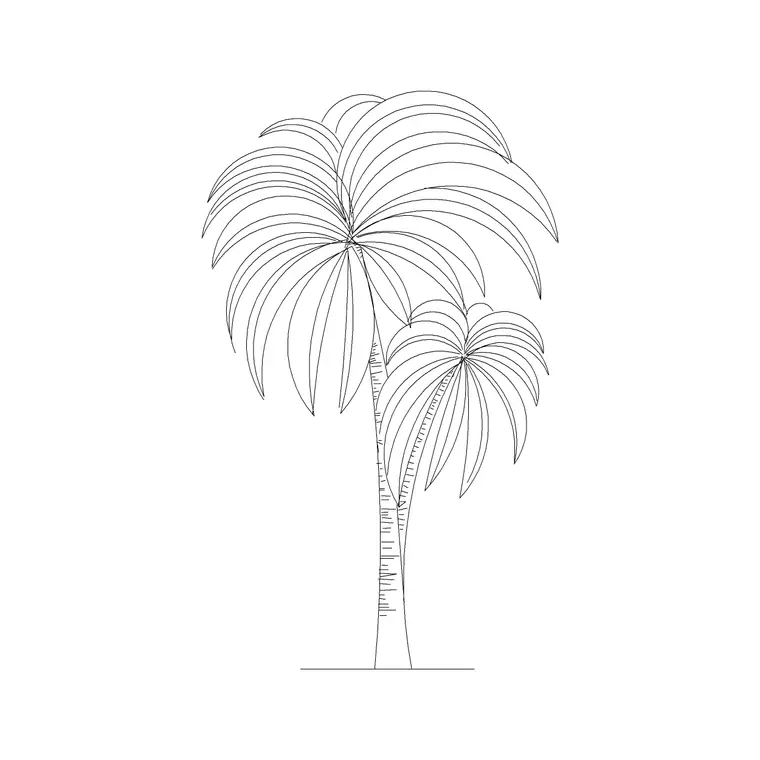
For top-down work — site plans, axonometric base drawings, and anything you will extrude — plan-view blocks are what you place. The human-figure plan block and the furniture plan block array cleanly across a floor and read correctly from above. For a flat elevation render or a street section that you intend to colour up, elevation blocks earn their place: a palm or broadleaf tree in elevation breaks the skyline, and a side-view figure sets the storey height.
Many visualisers use both in the same project: plan blocks to build and check the layout, elevation blocks to dress the orthographic views they will paint over. Because the downloads here are licence-clear, the same figure or tree can carry from the working plan straight into the presentation elevation.
Keeping scale honest before you extrude
The single most common render failure is bad scale, and it almost always starts in the 2D base. Insert blocks at the right insertion units — these are drawn in millimetres, so a millimetre drawing takes them at scale 1 — and resist the urge to nudge a figure 'a bit bigger' to fill a gap. A standing adult occupies a footprint of roughly 450–550 mm across the shoulders in plan and stands somewhere around 1700–1850 mm in elevation; if your figure block is wildly off those ranges against the architecture, the render will betray it.
Use the scale figures as your ruler. Stand one next to a door, a worktop, a balustrade, and check the relationship looks right. Fix it in the 2D layout and every downstream view inherits the correction.
Per-item notes for render dressing
- Human figures (plan): place them where the camera will look first; a person in the foreground gives a render its sense of depth and size. Vary pose and orientation so a crowd doesn't read as cloned. - Trees and palms (elevation): use these to break a flat facade and to fill the middle distance of an exterior. Mix two or three sizes so the planting feels grown rather than placed. - Sofa and furniture (plan): a furniture group is the fastest way to communicate a room's function in a quick render; keep it on a furniture layer so you can produce a clean shell when you need one. - Paving (plan): lay paving across terraces, paths and forecourts to define the ground plane; in a render it reads as the surface texture everything else sits on.
From CAD layout to render pipeline
Once the 2D dressing is right, your route into a render tool is short. Extruders like Enscape and Lumion read the AutoCAD layers directly, so a tidy, layered drawing arrives organised rather than as a single soup of lines. If you are tracing over a clean linework export for an illustrated render, the same blocks give you accurate guide geometry to paint against. And if you are building 3D from the plan, the 2D footprints define exactly where the modelled furniture, trees and figures go.
Because each block is reusable and free, build yourself a small render-dressing library: a few figures, a couple of trees, a sofa group and a paving fill you trust. Drop that set into every new project and the slow part of staging a render — getting believable entourage at the right scale — is already done.
Free download
Browse the full library — DWG & DXF, no signup.
Questions
Frequently asked
Can I use these CAD blocks directly in a render engine?+
They are 2D DWG/DXF blocks meant to set up the layout in AutoCAD before rendering. Tools like Enscape, Lumion and SketchUp read the linework or layers to place 3D entourage; for flat or illustrated renders you trace and colour over the same accurate geometry.
Why do scale figures matter so much for renders?+
A person is the ruler a viewer uses to read a space. Place accurate scale figures and the render feels believable; get them too big or too small and even good lighting won't fix the sense that the room is the wrong size.
Are the blocks free for commercial visualisation work?+
Yes. Every block downloads free in DWG, and DXF where available, with no signup, no watermark and no attribution required, including for paid client renders and competition imagery.
Should I use plan or elevation blocks for rendering?+
Use plan blocks for top-down layouts and anything you will extrude, and elevation blocks for flat elevations and street sections you intend to colour up. Many projects use both from the same library.
Related downloads
Blocks for this guide



Related categories
Related guides
Curated pack
Free CAD Blocks for Floor Plans Pack — DWG
Free CAD blocks for floor plans — plan-view furniture, scale figures and paving in DWG/DXF to furnish any AutoCAD layout fast. No signup, commercial use OK.
Curated pack
Free CAD Blocks for Elevation Drawings Pack — DWG
Free CAD blocks for elevation drawings — trees, scale figures and entourage in DWG/DXF to dress facades and street elevations in AutoCAD. No signup.
Curated pack
Free CAD Blocks for Section Drawings Pack — DWG
Free CAD blocks for section drawings — scale figures, furniture and trees in DWG/DXF to populate building sections in AutoCAD. No signup, commercial OK.