Block landing · dining chair cad block
Free dining chair CAD blocks in DWG and DXF
By Saumyajit Maity · Published 13 Jul 2024 · Updated 25 Jan 2026
The dining chair is the seat you repeat most around a table, so a clean, correctly-scaled dining chair CAD block earns its keep every time you set out a dining room, a restaurant cover or a café layout. This page collects free dining chair CAD blocks in DWG and DXF — armless side chairs, carver chairs with arms, upholstered and timber-frame variants — each drawn at true millimetre dimensions and ready to insert straight into AutoCAD 2004 or later. Every file is free for personal and commercial work, with no signup, no watermark and no credit required.
Use these blocks to array seats around a four-, six- or eight-cover table, set out a restaurant floor, or detail a residential dining nook. Because the chairs are drawn to scale, the moment they land you can see whether the table can actually seat the covers you planned and whether someone can pull a chair back without hitting the wall behind.
What a dining chair block should show
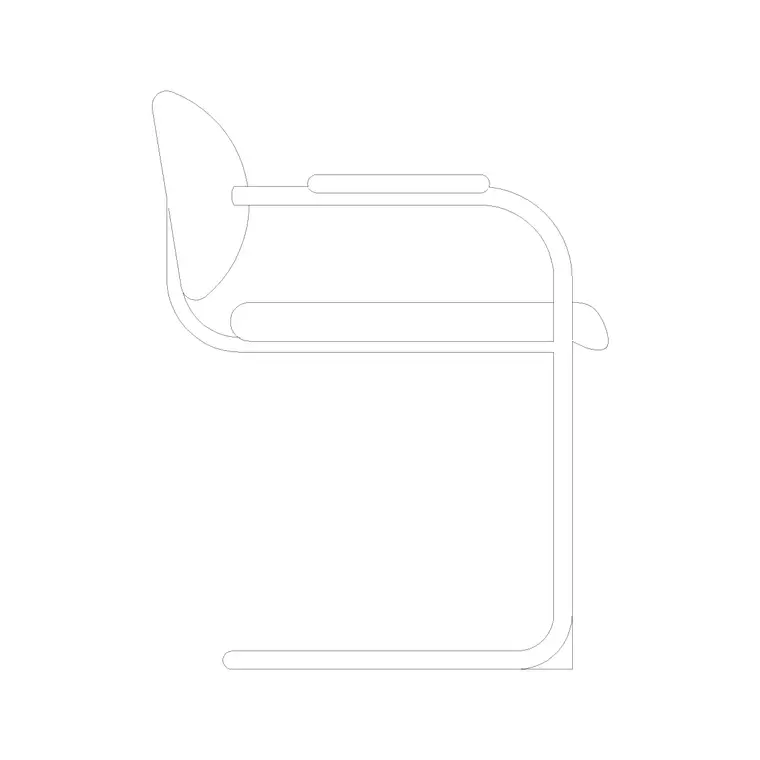
A dining chair is a deceptively simple block, but the useful version shows more than a square. The plan view needs the seat outline plus the backrest so you can read which way the chair faces around the table — orientation matters when you mirror a setting across a long table. If it is a carver (a chair with arms, usually at the head of the table), the plan should show the arm footprint, because arms are what stop a chair tucking fully under the table.
The elevation carries the seat height and the backrest height, and that is where a dining chair differs sharply from a lounge seat: the seat sits high and upright for eating at a table, not low and reclined. Drawing the chair to that upright posture keeps your dining elevations honest, and keeping the backrest, seat and legs on sensible layers lets you recolour or simplify the chair for a small-scale plan.
Plan view for table layouts, elevation for the dining set
For space planning you work almost entirely in plan: the chair footprint seen from above, arrayed around a table and checked against the wall and circulation behind it. The plan block is what you copy down both long sides of a banquet table or rotate around a round table. Keep the chairs on their own layer so you can switch them off and show just the table grid when you are setting out a restaurant.
Elevation and side-view blocks come into play for the dining set drawing, interior elevations and presentation boards — a side-view dining chair shows the seated posture next to a table elevation, and a front elevation shows the backrest detail face-on. Many of the downloads here ship both views in one DWG, so you insert whichever the drawing needs and freeze the rest.
Typical dining chair dimensions to design around
Reach for these figures when you are checking a cover. Seat height: 450–480 mm (fixed, not adjustable like an office chair). Seat width: 400–500 mm. Seat depth: 400–480 mm. Overall depth front-to-back: 500–600 mm. A carver with arms runs 550–650 mm wide. Backrest top height: 850–1000 mm from the floor for a standard chair, taller for a high-back dining chair.
The number that governs the layout, though, is the space behind the chair. Allow at least 600 mm from the table edge to a wall so a person can sit, and 900–1000 mm where someone also needs to walk behind a seated diner. Drop a scaled dining chair block in and you can see those activity zones rather than calculate them — which is exactly what a tight restaurant plan needs.
How to insert and array the block
These dining chair blocks are drawn in millimetres. If your drawing is in millimetres, insert at scale 1 and the chair lands at real size; in a metre template insert at 0.001, or set INSUNITS to millimetres so AutoCAD rescales on insertion and you avoid the classic 'chair the size of the room' mistake.
Use INSERT (or drag the DWG from a tool palette), pick the centre of the seat as the insertion point, and rotate the chair to face the table. To seat a long table, the ARRAY command does the repetitive work — a rectangular array down each side, or a polar array around a round table set to the number of covers. Vary nothing here: dining chairs should read as a matched set, so identical instances are exactly what you want.
Where dining chair blocks are used
Dining chair blocks turn up across residential and hospitality drawing sets: house and apartment dining rooms, open-plan kitchen-diners, restaurants, cafés, hotel breakfast rooms, function suites and canteens. Pair them with the dining-table, sofa and sideboard blocks in the furniture category to build a complete living-and-dining furniture layer in minutes.
Because they are free and licence-clear, they suit student schemes, competition boards and quick concept plans where you need believable seating without licensing fuss. The same block carries from an early layout sketch through to a coordinated FF&E drawing, so you are not redrawing the seating each time the scheme moves on.
Counting covers straight from the layout
A small habit turns a dining layout into useful data. Keep every dining chair as a block reference on a dedicated furniture layer, and the drawing becomes a live count of covers — select the chair block, run a quick count, and you know how many diners the room seats. For a restaurant that number is the whole point of the plan: it drives the cover count, the kitchen capacity and the revenue model, so having it fall straight out of the drawing rather than a hand tally is worth the discipline.
If you tag each chair with a simple attribute — a table number, say — you can extract a seating schedule directly from the drawing. When a layout is settled, WBLOCK a finished setting — table plus its chairs — as a single reusable unit and array that whole setting across a function room, so a 200-cover banquet plan is a few clicks rather than an afternoon of copying.
Free download
Browse the full library — DWG & DXF, no signup.
Questions
Frequently asked
Are these dining chair CAD blocks really free?+
Yes. Every dining chair block on this page downloads free in DWG and, where available, DXF. There is no signup, no watermark and no attribution requirement, and they are cleared for commercial project use.
What's the difference between a side chair and a carver block?+
A side chair is armless and slots fully under the table — it is the seat you repeat down the sides. A carver has arms, sits a little wider, and usually goes at the head of the table. The arms stop it tucking fully under, so the carver block has a larger footprint to allow for.
What scale are the dining chair blocks drawn at?+
They are drawn full size in millimetres. Insert at scale 1 in a millimetre drawing, 0.001 in a metre drawing, or set INSUNITS to millimetres so AutoCAD rescales automatically when you insert.
How much space do I leave behind a dining chair?+
Allow at least 600 mm from the table edge to a wall so a diner can sit and rise, and 900–1000 mm where someone also needs to walk behind a seated person. Placing the scaled block makes that clearance easy to draw and check.
Related downloads
Blocks for this guide

Popular blocks to download
Related categories
Related guides
Block landing
Free Office Chair CAD Blocks — DWG Download
Download free office chair CAD blocks in DWG and DXF — task chairs, swivel chairs and executive seats drawn in plan and elevation, AutoCAD 2004+, no signup.
Block landing
Free Bar Table CAD Blocks — DWG Download
Download free bar table CAD blocks in DWG and DXF — round, square and rectangular high bar tables in plan and elevation for AutoCAD. No signup, commercial-use OK.
Block landing
Free Restaurant Table CAD Blocks — DWG Download
Download free restaurant table CAD blocks in DWG and DXF — 2, 4 and 6 cover tables with chairs drawn in plan and elevation for AutoCAD. No signup, commercial-use OK.