Block landing · cornice cad block
Free cornice moulding CAD blocks for AutoCAD
By Sumana Kumar · Published 10 Oct 2022 · Updated 4 May 2026
A cornice is the moulding that turns the junction between wall and ceiling, or wall and roof, into something deliberate, and it is drawn as a profile section rather than in plan or elevation. This page collects free cornice moulding CAD blocks in DWG — interior ceiling cornices, external eaves cornices and the crowning cornice of a classical entablature — drawn as section profiles for AutoCAD 2004 or later, free for personal and commercial use with no signup or watermark.
A cornice profile is a small but exact drawing: a sequence of mouldings — cyma, ovolo, cavetto, fillet, dentils — that catches light and casts shadow in a specific way. Reproducing that sequence by hand for every detail drawing is slow and error-prone, so a ready-drawn profile that you can drop into a section and run along a path is one of the genuinely time-saving blocks for anyone doing traditional or classical detailing.
Why a cornice is drawn in section
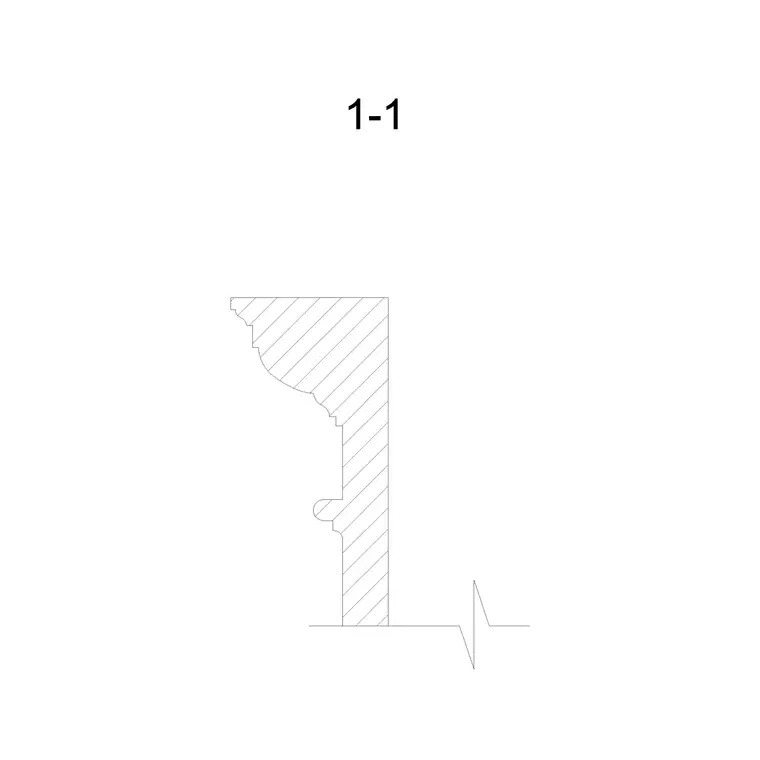
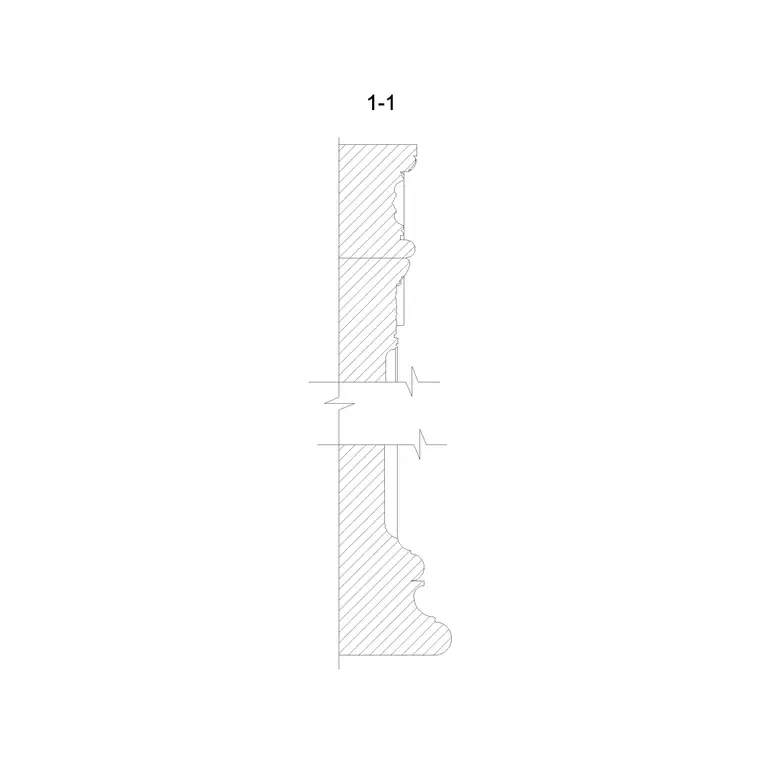
Unlike a column or a chair, a cornice is essentially a profile extruded along a wall, so the drawing that matters is the section cut through it. The section shows the exact sequence of curves and flats — the projection out from the wall, the height up the wall, and every moulding member in between. That profile is what a plasterer, a joiner or a stone mason actually works to.
A good cornice block therefore is a clean closed profile drawn at true size, with the back face that meets the wall and the top that meets the ceiling clearly set out. From that single section you can generate the run: in 3D you sweep the profile along a path, and in 2D you simply place the section at each detail callout. Because it is a closed profile, it also hatches cleanly to show the material.
Interior, eaves and classical cornices
Cornices fall into a few families. An interior ceiling cornice (often called coving or crown moulding) softens the wall-to-ceiling junction in a room and ranges from a simple cavetto to an elaborate enriched profile with dentils and modillions. An external eaves cornice crowns a wall where the roof oversails, throwing rainwater clear of the face. The classical cornice is the top member of an entablature, sitting above the frieze and architrave and crowning a colonnade.
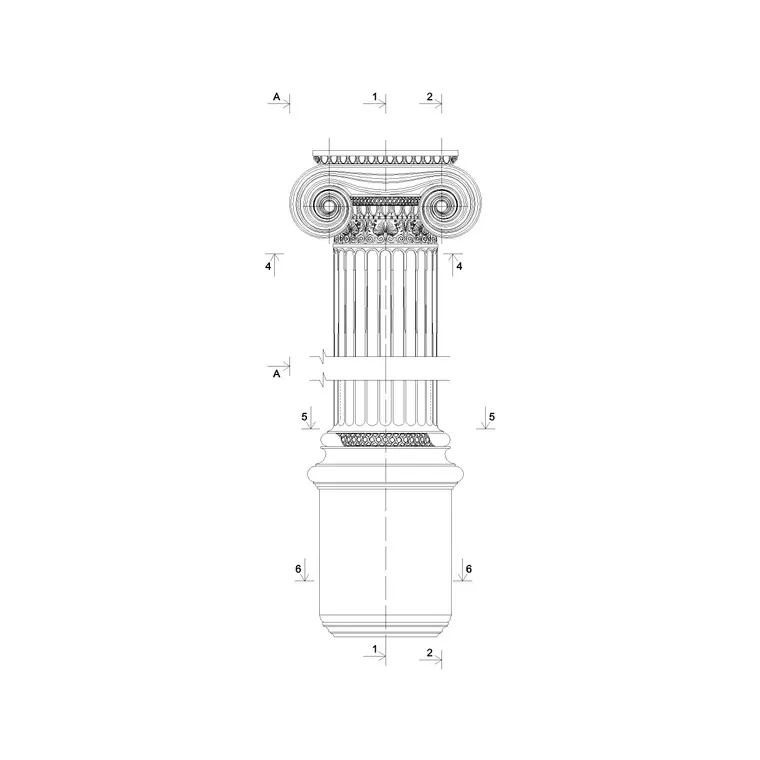
The Greek temple wall cornice block in the other category is an example of that last family, detailed to sit above the Greek orders. Interior cornices tend to be lighter and are placed at the top of a room section; entablature cornices are heavier and project further, because they are reading from a distance against the sky.
Typical cornice sizes to design around
Cornices are proportioned to the room or the order rather than to a fixed dimension, so design around projection and height. An interior cornice in an ordinary room might project and drop roughly 75–150 mm on each face; a grand room or a double-height hall carries a deeper cornice, 200 mm or more, so it reads at the greater viewing distance. A classical entablature cornice is sized off the column diameter below it and projects boldly to cast a strong shadow line.
The rule of thumb is that a cornice should grow with the height of the space: a deep cornice in a low room overwhelms it, and a shallow cornice in a tall room disappears. Because the profile block is drawn to scale, you can place it in the room section and judge that proportion by eye against the wall height, then swap to a deeper or lighter profile as needed.
How to use the cornice profile
The cornice profiles are drawn full size in millimetres. Insert at scale 1 in a millimetre drawing, 0.001 in a metre template, or set INSUNITS to millimetres so AutoCAD rescales on insertion. Place the section so its wall face aligns with your wall line and its top with the ceiling, then hatch the closed profile to show plaster, timber or stone.
For a 2D detail that is all you need. To model the run in 3D, use SWEEP with the cornice profile as the section and the room perimeter (or a single wall) as the path, mitring the internal and external corners. Keep the cornice on a dedicated trim or moulding layer so you can show or hide it independently of the structural section, and so a clean shell drawing and a fully detailed section both come from the same file.
Where cornice blocks are used
Cornice profiles appear in interior section details, room elevations and reflected ceiling plans (as a callout to the section), in external wall sections at the eaves, and in classical facade details above a colonnade. Restoration and heritage work leans on them heavily, because matching an existing profile is a core part of repair drawings.
Pair the cornice blocks with the skirting detail block to set out the top and bottom trim of a room from one consistent library, and with the column and arch blocks to crown a classical order. Because the profiles are free and licence-clear, they suit a quick interior concept section as readily as a measured profile drawing of an existing cornice to be matched.
Building a library of profiles
Cornice work rewards a tidy profile library more than almost any other detail, because a practice tends to reuse a handful of favourite profiles across many jobs. WBLOCK each cornice section out as its own DWG, named by style and size, and you build a palette you can drop into any detail in seconds — a far better workflow than re-tracing a moulding from a supplier's catalogue each time.
It also helps to keep the profiles as clean, closed polylines so they hatch and sweep reliably; an open or self-crossing profile fails to fill and breaks a 3D sweep. If you need to adapt a profile — to deepen an interior cornice for a taller room, say — edit the polyline once and re-WBLOCK it under a new name rather than stretching it non-uniformly, which would distort the delicate balance of the mouldings. Over a few projects this library of correct, ready-to-place profiles becomes one of the quiet time-savers of traditional detailing.
Free download
Browse the full library — DWG & DXF, no signup.
Questions
Frequently asked
Why are cornices drawn as sections rather than plans?+
A cornice is a profile run along a wall, so the section cut through it shows the moulding sequence — the projection, the height and every curve and flat — which is exactly what a plasterer, joiner or mason works to. That profile is the useful drawing.
Can I use a cornice profile to model the run in 3D?+
Yes. Use SWEEP with the cornice profile as the section and the room perimeter or wall line as the path, mitring the corners. The same closed profile that you place in a 2D detail drives the 3D sweep.
Are the cornice CAD blocks free for commercial use?+
Yes. Every cornice profile downloads free in DWG with no signup, no watermark and no attribution requirement, and is cleared for commercial project use.
How big should an interior cornice be?+
Size the cornice to the room height — a shallower profile projecting and dropping around 75–150 mm suits an ordinary room, while a tall or grand room carries a deeper cornice of 200 mm or more so it reads at the greater viewing distance.
Related downloads
Blocks for this guide
Related categories
Related guides
Block landing
Free Classical Column CAD Blocks — DWG Download
Download free classical column CAD blocks in DWG — shaft, capital and base drawn in elevation and plan for AutoCAD. No signup, free for commercial use.
Block landing
Free Greek & Ionic Column CAD Blocks — DWG
Free Greek and Ionic column CAD blocks in DWG — fluted shafts and volute capitals drawn in elevation for AutoCAD. No signup, free for commercial use.
Block landing
Free Decorative Arch CAD Blocks — DWG Download
Download free decorative arch CAD blocks in DWG — round, segmental and classical archways drawn in elevation for AutoCAD. No signup, free for commercial use.