Curated pack · cad blocks for sketchup import
Free CAD blocks to import into SketchUp
By Saumyajit Maity · Published 22 Apr 2024 · Updated 24 Mar 2026
SketchUp builds 3D models fast, and the quickest way to start an accurate one is to import a 2D CAD plan and pull it up into the third dimension. This pack gathers blocks that import cleanly into SketchUp — furniture footprints to trace into 3D pieces, scale figures and trees to dress a model, and paving patterns to lay across surfaces — drawn to real millimetre dimensions and supplied in DWG (DXF where available), free for personal and commercial use with no watermark.
The relationship between CAD and SketchUp is complementary. CAD gives you precise, scaled 2D geometry; SketchUp turns it into massing and form you can present and walk through. Importing a clean DWG plan as the floor of a model means you push-pull walls up from accurate lines rather than eyeballing dimensions, and dropping in 2D furniture footprints gives you exact positions to model or place components against.
The notes below cover the practical import path — units, importing DWG as edges, cleaning up the result, and using the geometry as a base or a tracing guide — so a CAD block becomes a useful starting point for a SketchUp model rather than a tangle of stray edges.
What's in the SketchUp-import pack
The set covers blocks that serve a SketchUp model well. Furniture footprints give you exact plan positions to model 3D pieces over or to place components against. Scale figures import as 2D entourage to set the model's scale and can be matched to SketchUp's own 3D people. Trees and planting provide the plan layout for where 3D vegetation goes. Paving patterns import as surface geometry you can apply as a face or trace for a texture boundary.
These are 2D CAD blocks, so they import as edges and faces, not finished 3D models. The value is accurate, scaled base geometry that makes the 3D modelling fast and correct, rather than a sketch you'd have to measure and redraw inside SketchUp.
Importing DWG into SketchUp
Use File > Import, choose the DWG/DXF type, and open the Options before importing to set the units — these blocks are in millimetres, so choose millimetres (or 'Model Units' if your model is set up in millimetres). Getting units right here is the difference between a plan that lands at real size and one that's a thousand times off. After import, the CAD geometry arrives as edges grouped together.
Immediately make the import a component or group (SketchUp usually groups it on import) so it stays separate from the geometry you'll build, and place it on the ground plane. From there you can trace over it or push-pull faces directly off the imported edges.
Cleaning up imported geometry
CAD imports often bring tiny gaps, stray segments and unhealed faces into SketchUp. Before you build, explode the import group and check that closed shapes actually form faces — if a room outline doesn't fill with a face, there's a gap to close by retracing one edge. For complex imports, a cleanup extension that welds edges and removes duplicates saves a lot of manual tidying.
Keep the imported plan on its own layer/tag so you can hide it once you've built the 3D model on top, then delete it when it's no longer needed as a guide. Working over a hidden but available base keeps your model tidy while preserving the accurate reference.
From plan to massing
The classic SketchUp workflow is to import a CAD floor plan, trace the wall lines into faces, and push-pull them up to storey height — a few hundred millimetres for a kerb, a couple of metres for a wall, whatever the design calls for. Because the plan came in at true scale, the massing is correct by construction, and you can stack storeys by copying the floor up by the floor-to-floor height.
Drop the 2D furniture footprints in as position guides, then either model the pieces in 3D or place SketchUp components on those exact spots. Use the figures to sanity-check eye level and room scale as the model grows. The CAD base keeps the whole model honest while SketchUp does the fast 3D work.
Per-item notes for SketchUp import
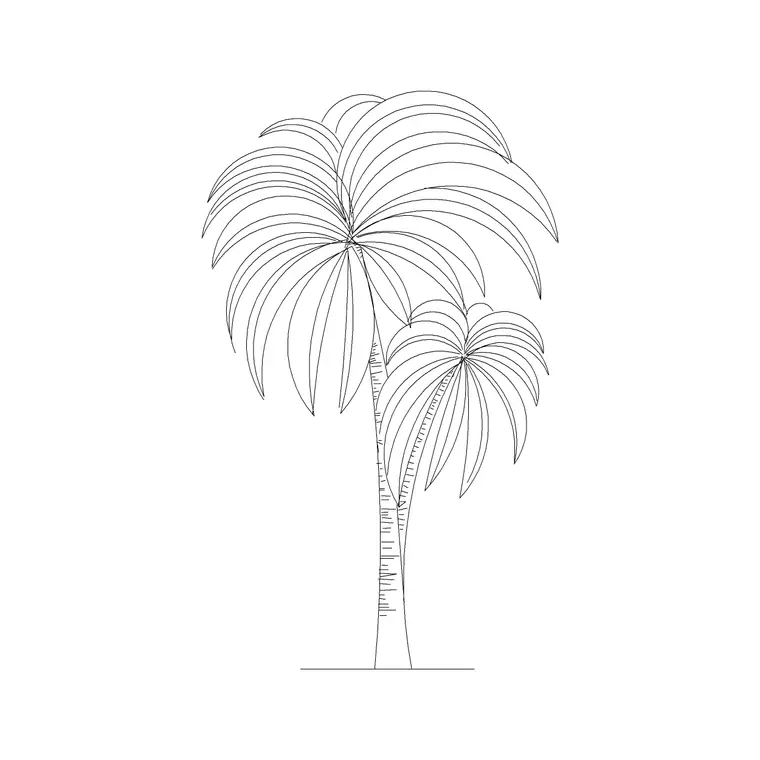
- Sofa and furniture (plan): import as exact position guides; model 3D pieces over the footprint or place components on the spots, so furniture sits where the plan says. - Scale figures (plan/elevation): import as 2D entourage to set scale; match to SketchUp's 3D figures or keep flat for quick dressing. - Trees and palms: use the plan layout to position 3D vegetation; the elevation version helps line up tree heights in views. - Paving (plan): import as surface geometry to apply a face or texture across terraces and paths; trace the repeat for accurate paving boundaries.
Who imports CAD into SketchUp
SketchUp users across architecture, interiors and landscape import CAD plans to model fast and accurately; students use it to turn studio plans into massing models; designers use it to present schemes in 3D from a precise base. A free, licence-clear DWG source suits all of them because it provides accurate base geometry without the cost or licensing friction of buying plans.
Keep the import disciplined — set units, group the import, clean up gaps, work on a separate tag — and a CAD block becomes a clean foundation for a SketchUp model. Because the blocks are free for commercial use, models you build from them for paid work carry no licensing question.
Free download
Browse the full library — DWG & DXF, no signup.
Questions
Frequently asked
Will a DWG import as a finished 3D model in SketchUp?+
No — DWG blocks import as 2D edges and faces. You use them as an accurate base: trace and push-pull a plan into massing, or drop furniture footprints in as position guides to model or place 3D components against.
How do I stop the import coming in the wrong size?+
Set the units in the Import Options before importing. The blocks are in millimetres, so choose millimetres or your model units. A wrong scale on import is almost always a units setting, not a problem with the block.
Why don't my imported shapes form faces?+
CAD imports often have tiny gaps or stray segments that stop SketchUp healing a face. Explode the import, check closed outlines fill, and retrace any edge where a gap remains. A cleanup extension that welds edges helps on complex imports.
Can I use SketchUp models built from these blocks commercially?+
Yes. Every block is free for commercial use with no attribution, so any SketchUp model you base on or dress with them and use on client work carries no licensing question.
Related downloads
Blocks for this guide



Related categories
Related guides
Curated pack
Free CAD Blocks for Rendering Pack — DWG & DXF
Free CAD blocks for rendering — scale people, trees, furniture and paving in DWG/DXF to populate plans before you take them into a render engine. No signup.
Curated pack
Free CAD Blocks for Floor Plans Pack — DWG
Free CAD blocks for floor plans — plan-view furniture, scale figures and paving in DWG/DXF to furnish any AutoCAD layout fast. No signup, commercial use OK.
Curated pack
Free CAD Blocks for Elevation Drawings Pack — DWG
Free CAD blocks for elevation drawings — trees, scale figures and entourage in DWG/DXF to dress facades and street elevations in AutoCAD. No signup.