Curated pack · cad blocks for revit families
Free CAD blocks to import into Revit families
By Saumyajit Maity · Published 29 Jun 2024 · Updated 17 Apr 2026
Revit is a parametric modeller, but it still happily imports DWG geometry, and a clean 2D CAD block is often the fastest starting point for a detail component, a symbolic plan symbol, or the base linework of a custom family. This pack gathers blocks that import well into Revit — furniture footprints, scale figures, trees and paving patterns — drawn to real millimetre dimensions and supplied in DWG (DXF where available), free for personal and commercial use with no watermark.
There is an important distinction to be clear about: these are 2D CAD blocks, not native Revit families. You can't drag a DWG into a project and have it behave like a parametric family. What you can do is import the geometry into the Family Editor and use it as the basis of a 2D detail component or annotation symbol, or as accurate reference linework to trace native Revit lines and extrusions over. Used that way, a CAD library saves you drawing common symbols from scratch.
The notes below cover the practical import workflow — getting units right, importing into the Family Editor rather than the project, and converting imported lines into Revit's own symbolic and model lines — so a DWG block becomes a clean, reusable Revit asset.
What's in the Revit-import pack
The set covers blocks that translate usefully into Revit assets. Furniture footprints become the basis of 2D detail components or the plan symbols for furniture families. Scale figures import as entourage symbols or as reference for a planar people family. Trees and planting give you the 2D symbol behind a planting family or a site detail component. Paving patterns import as the basis of a fill or a detail component for hardscape.
Remember these are 2D blocks: they give you accurate plan or elevation linework, not parametric 3D geometry. The win is starting a Revit family or detail component from correct, scaled geometry rather than tracing from scratch. Supplied in DWG, and DXF where available, for import via Revit's Link or Import CAD tools.
Import into the family, not the project
The cardinal rule of bringing CAD into Revit is to import into a family, not directly into the project. Open the appropriate family template in the Family Editor — a generic model or detail component template for 2D symbols — and use Import CAD (not Link, for geometry you intend to convert) to bring the DWG in. This keeps the project model clean and prevents the imported CAD layers from polluting your project's object styles and line patterns.
Position the import on the family's origin so the resulting component inserts predictably. Lock or pin the import while you trace over it so it can't shift, then delete it once you've rebuilt the geometry natively.
Getting units and scale right on import
Units matter as much in Revit as in any CAD exchange. These blocks are drawn in millimetres; in the Import CAD dialog set the import units to millimetres (or 'Auto-Detect' and verify), or the geometry arrives at the wrong scale. Check the result against a known dimension — measure a door, a sofa, a figure — before you build anything on top of it.
If the import lands enormous or tiny, it's almost always a units mismatch on import, not a problem with the block. Undo, re-import with the correct units, and re-check. Getting this right once at import saves rescaling every family you build from the block.
Converting CAD lines to Revit geometry
Imported CAD is dumb geometry — it won't tag, schedule or behave parametrically. To make a proper Revit asset, trace native Revit lines over it. In a detail component or annotation family, use Symbolic Lines or filled regions to redraw the symbol; in a model family, use Model Lines, extrusions and the parametric tools. The CAD import is your accurate guide, the native Revit geometry is the deliverable.
Where you only need a quick 2D symbol and don't need it to schedule, you can leave the import in place as a detail component, but converting to native lines gives you control over lineweight, visibility and graphic style that an embedded CAD import never offers. Once traced, delete the import to keep the family lean.
Per-item notes for Revit import
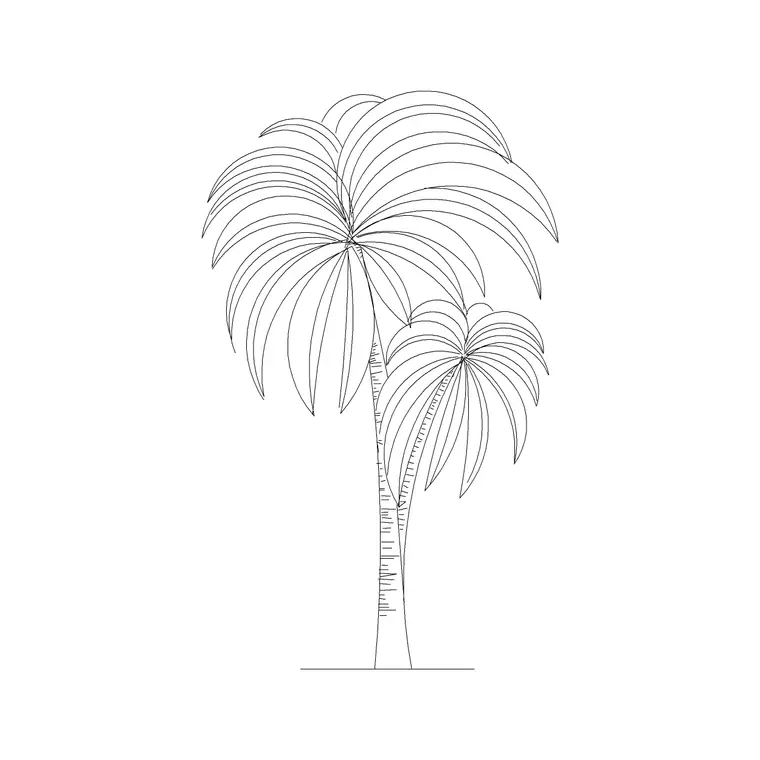
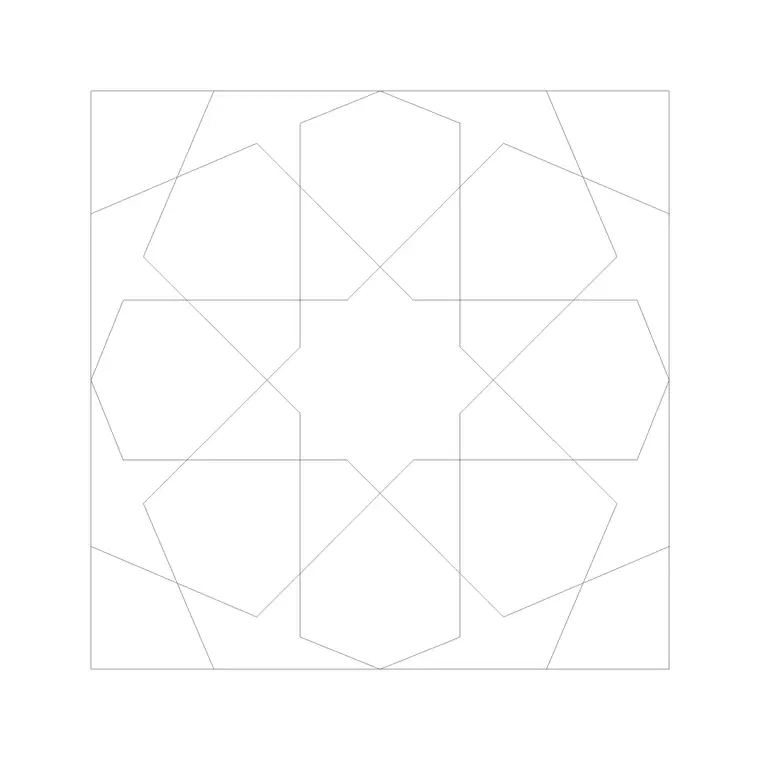
- Sofa and furniture (plan): trace into a furniture detail component or the plan symbol of a furniture family; the footprint gives you accurate clearances to build the family around. - Scale figures (plan/elevation): import as the basis of an entourage symbol or a planar people family; convert to symbolic lines so the figure controls its own visibility. - Trees and palms: use as the 2D symbol behind a planting family or a site detail component; the elevation version suits site sections. - Paving (plan): import as the basis of a hardscape detail component or as reference for a model pattern; trace the repeat into a Revit fill.
Who imports CAD into Revit
Revit users at every level import CAD: architects bringing in legacy DWG details, technicians building custom families faster, and students learning to make detail components from reference geometry. A free, licence-clear DWG source suits all of them because it provides accurate base linework without the time cost of drawing every symbol from scratch.
Keep the workflow disciplined — import into families, set units, trace native geometry, delete the import — and a CAD block becomes a clean Revit asset rather than a source of bloat. Because the blocks are free for commercial use, families you build from them and use on paid projects carry no licensing question.
Free download
Browse the full library — DWG & DXF, no signup.
Questions
Frequently asked
Are these native Revit families?+
No — they are 2D CAD blocks in DWG/DXF. You import them into the Revit Family Editor as accurate reference geometry, then trace native symbolic or model lines over them to build a proper, schedulable family or detail component.
Should I import the DWG into my project or a family?+
Always into a family, not the project. Importing CAD directly into a project pollutes its object styles and line patterns. Open the right family template, Import CAD onto the origin, trace native geometry, then delete the import.
Why does the import come in the wrong size?+
It's a units mismatch. The blocks are in millimetres, so set the import units to millimetres in the Import CAD dialog. Undo, re-import with the correct units, and verify against a known dimension before building on top of it.
Can I use families built from these blocks on paid work?+
Yes. Every block is free for commercial use with no attribution, so any Revit family or detail component you build from them and use on client projects carries no licensing question.
Related downloads
Blocks for this guide


Related categories
Related guides
Curated pack
Free CAD Blocks for Rendering Pack — DWG & DXF
Free CAD blocks for rendering — scale people, trees, furniture and paving in DWG/DXF to populate plans before you take them into a render engine. No signup.
Curated pack
Free CAD Blocks for Floor Plans Pack — DWG
Free CAD blocks for floor plans — plan-view furniture, scale figures and paving in DWG/DXF to furnish any AutoCAD layout fast. No signup, commercial use OK.
Curated pack
Free CAD Blocks for Elevation Drawings Pack — DWG
Free CAD blocks for elevation drawings — trees, scale figures and entourage in DWG/DXF to dress facades and street elevations in AutoCAD. No signup.