Block landing · football cad block dwg
Free football CAD block in DWG
By Saumyajit Maity · Published 25 Apr 2024 · Updated 3 Apr 2026
A football CAD block is the small sports prop that signals a space is meant for play. It is a stitched soccer ball drawn with the familiar panel pattern, ready to drop into a gym, sports hall, changing-room, children's bedroom or retail sports display. This page offers it as a free DWG you can insert into AutoCAD and open in any compatible viewer.
The block is free for personal and commercial work, with no signup, no watermark and no attribution. It is a styling and equipment-context prop rather than a structural element, so it lives on the accessories layer of a drawing and helps an interior or display elevation communicate its purpose at a glance.
What the football block shows
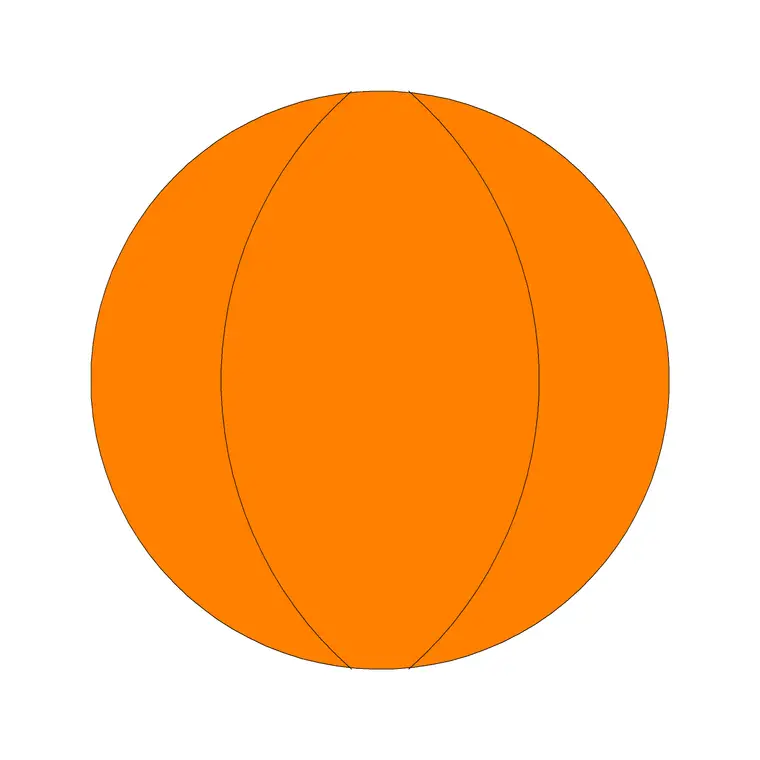
The block is a circular ball drawn with the classic pentagon-and-hexagon panel pattern that reads unmistakably as a football. The panel line work is what distinguishes it from a plain circle, so even at small sizes on a sheet the viewer recognises it as a sports ball rather than a generic disc.
It is essentially a single-view object — a ball looks much the same from any angle — so the same block works whether you treat it as a plan symbol on a sports-court layout or an elevation prop on a shelf or floor. That versatility is why a ball block is handy across very different drawing types.
Typical sizing to design around
A standard adult football is roughly 215–225 mm in diameter (the familiar size-5 ball), with smaller sizes for junior play running down toward 175–200 mm. Treat those as a range and scale the block to the age group or sport you are illustrating.
Because a ball is a simple round object, scaling is straightforward: run SCALE from the centre point so it grows evenly. If you need a basketball, volleyball or other ball instead, the related sports blocks in the library follow the same simple round geometry at their own diameters.
Where a football block is used
Reach for it in sports-hall and gymnasium layouts, school and college PE drawings, changing-room and equipment-store plans, children's-bedroom and playroom interiors, and retail sports-shop display elevations. In a landscape drawing it can mark a five-a-side or kickabout area on a site plan.
Used sparingly, a ball or two communicates 'this is a sports space' far more efficiently than a note. Combine it with the basketball and other equipment blocks to dress a multi-sport hall or a sports-shop wall convincingly.
How to insert and scale the block
The DWG is drawn full size in millimetres. Insert at scale 1 in a millimetre drawing, 0.001 in a metre template, or set INSUNITS to millimetres so AutoCAD rescales on insertion. Run INSERT, browse to the file and pick the centre of the ball as the insertion point.
Place it on the floor line of an elevation, on a shelf, or as a plan marker, then SCALE from the centre if you need a different ball size. Because it inserts as a single block reference, copying a few balls into a storage rack or a display takes seconds. If you prefer to set the size as you place it rather than scaling afterward, type the X and Y scale into the INSERT dialog before you pick the insertion point, and the ball lands at the right diameter first time. Holding the centre as the base point throughout keeps the panel pattern symmetrical no matter how far you scale it up or down.
Plan symbol versus elevation prop
On a court or site plan, the ball acts as a small symbol that labels an activity zone — a kickabout lawn, a sports area, a play zone — without needing a text note. In an interior elevation it is a prop: a ball on a shelf in a sports shop, in a child's room, or in an equipment store.
Keep the use consistent within a sheet. If you are using it as a plan symbol, keep all such symbols at one scale; if it is an elevation prop, scale it realistically against the furniture it sits on. Mixing the two scales on one drawing reads as a mistake.
Layering and reuse
Put sports props on a dedicated equipment or accessories layer so you can freeze them for a clean technical drawing and thaw them for a furnished or merchandised presentation. Giving them their own colour keeps them from competing with dimensions and structural lines.
When you assemble a sports-shop shelf or an equipment-store rack — footballs, basketballs, boxes — select the group and WBLOCK it as one reusable display. That single block then dresses the next sports or retail project in one insertion.
File format, compatibility and licensing
The football downloads as a native DWG, the universal CAD format, so there is no conversion before you insert it. It opens in current AutoCAD and AutoCAD LT, in BricsCAD and DraftSight, and in free online DWG viewers for a quick check. A DXF version, where offered, covers any tool that prefers that interchange format.
The licence is intentionally unrestrictive: free for personal and commercial use, no signup, no watermark and no attribution. That suits the wide range of drawings a sports ball appears in — school and council sports-hall sets, retail fit-outs, residential interiors and landscape site plans — none of which need the friction of usage tracking. Edit or recolour the panel pattern freely; the output is cleared for any project.
Free download
Browse the full library — DWG & DXF, no signup.
Questions
Frequently asked
Is the football CAD block free for commercial use?+
Yes. It is a free DWG download with no signup, no watermark and no attribution, cleared for commercial project drawings.
What size is the football drawn at?+
It is drawn at a realistic full-size ball diameter, but you can SCALE it from the centre to match a junior ball or any display size you need. Treat the diameter as an adjustable range.
Can I use the same block in plan and in elevation?+
Yes. A ball reads the same from any angle, so the block works as a plan-view activity symbol or as an elevation prop on a shelf or floor.
Does it open in free DWG viewers and AutoCAD LT?+
Yes. The file targets AutoCAD 2004 and later, opening in AutoCAD, AutoCAD LT, BricsCAD, DraftSight and free online DWG viewers.
Related downloads
Blocks for this guide

Popular blocks to download
Related categories
Related guides
Block landing
Free Classical Column CAD Blocks — DWG Download
Download free classical column CAD blocks in DWG — shaft, capital and base drawn in elevation and plan for AutoCAD. No signup, free for commercial use.
Block landing
Free Greek & Ionic Column CAD Blocks — DWG
Free Greek and Ionic column CAD blocks in DWG — fluted shafts and volute capitals drawn in elevation for AutoCAD. No signup, free for commercial use.
Block landing
Free Decorative Arch CAD Blocks — DWG Download
Download free decorative arch CAD blocks in DWG — round, segmental and classical archways drawn in elevation for AutoCAD. No signup, free for commercial use.