Block landing · floor tile pattern cad block
Free floor tile pattern CAD block in DWG
By Saumyajit Maity · Published 3 Mar 2026 · Updated 14 May 2026
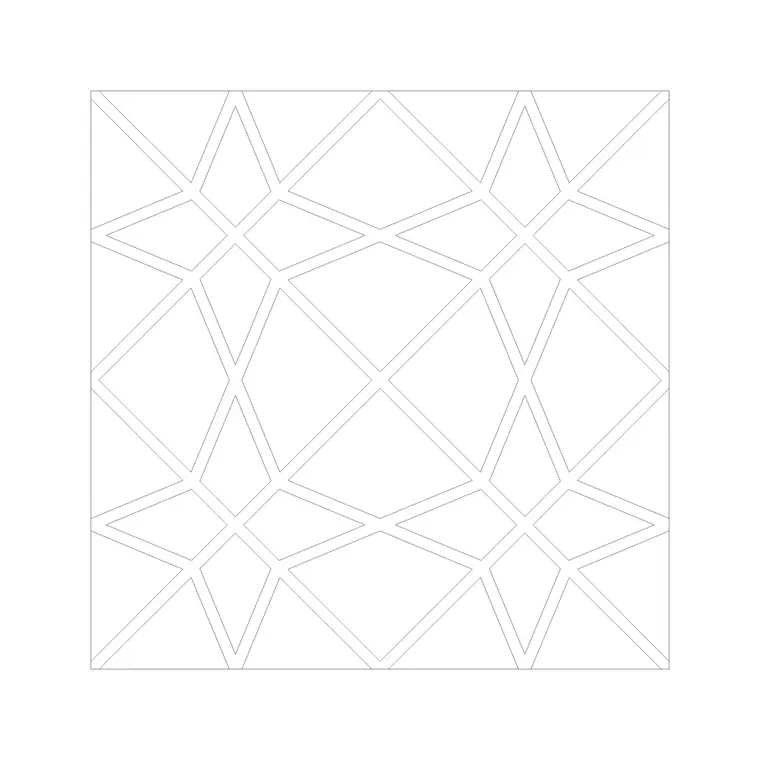
A floor tile pattern is one of those things you draw on almost every interior plan and finish drawing, yet it is fiddly to set out cleanly every time. A ready-made floor tile pattern CAD block fixes that: a tileable grid of tiles with their joints, drawn to scale, that you drop into a room and align to the right starting point. This page offers one free in DWG, drawn in plan.
The block represents the tiles and the grout joints as line work at a believable tile module, so it reads correctly when you scale it into a real room and helps you check that the layout starts and ends sensibly rather than on a sliver. Use it on floor finishes plans, bathroom and kitchen layouts and setting-out drawings, and crosslink to the paving category when an external surface needs the same treatment. It is free for personal and commercial use, with no signup or watermark.
What a floor tile block contains
A floor tile pattern is a regular grid of square or rectangular tiles separated by grout joints. The CAD block captures both the tile outlines and the joint lines, because on a setting-out drawing the joint positions are what the tiler reads — where the first full tile lands, where the cuts fall against the walls, and how the joints relate to door openings and fixtures.
The download is a flat 2D plan tile carrying the grid and joints on their own layer. As vector line work it scales and prints cleanly, and you can recolour or thin the joints for a screened finishes plan or keep them bold for a setting-out drawing. A starting-corner snap point lets you align the grid deliberately rather than letting it float.
Grid, brick offset and diagonal layouts
Floor tiles are laid several ways. A straight grid aligns every joint in both directions and is the cleanest, most common layout. A brick or half offset staggers each row like running bond and suits rectangular and plank tiles. A diagonal layout turns the whole grid forty-five degrees to the walls for a more dynamic look, at the cost of more edge cuts.
The layout you choose changes both the look and the cutting. A straight grid set out from a focal joint line looks deliberate; a diagonal grid hides a room that is slightly out of square but wastes more tile at the edges. Rotate or offset the inserted block to set the layout before you fill the room.
Typical tile sizes to design around
Floor tiles come in a wide range, from small mosaic and 100 mm units up through the common 300 mm and 600 mm squares to large-format tiles and rectangular plank formats. The grout joint is usually a few millimetres wide. The right module is a design decision: larger tiles read calmer and have fewer joints, smaller tiles suit wet areas and detailed spaces.
Treat these as design-around ranges and confirm the specified tile before relying on a fill for set-out. The block is drawn to a believable module so that, scaled into a real room, the tile count and the edge cuts read sensibly and you can judge whether to shift the starting point to avoid awkward slivers.
How to insert and set out the tiling
The block is in millimetres. Insert at scale 1 in a millimetre drawing, 0.001 in metres, or set INSUNITS so AutoCAD rescales automatically. Use INSERT and snap the block's starting corner to your chosen set-out point — typically the centre of the room or a key threshold, so cuts balance on opposite walls.
Fill the room with ARRAYRECT and trim the tiles to the wall line, or build a custom hatch from one exploded tile to keep the file light on large floors. Clip the pattern to the room boundary, and draw the perimeter cut tiles so the plan shows the real edge condition rather than a grid running under the walls. Adjust the start point until the cuts look balanced — that single move is what separates a considered tiling plan from a default one.
Where floor tile patterns are used
Tile patterns appear on interior floor finishes plans, bathroom and kitchen layouts, retail and hospitality fit-outs, lobby and circulation drawings, and any setting-out drawing where the tiler needs to know exactly where the joints fall. They also feature on presentation plans where the floor finish helps communicate the character of a space.
Pair the pattern with sanitaryware, kitchen and furniture blocks so the tiles read around the fixtures, and switch to a different module or a feature inlay to mark thresholds and changes of use. On a finishes plan, a tile grid turns a blank floor into a buildable, costable surface.
Layering and setting-out discipline
Put the pattern on a dedicated floor-finishes layer, keep tiles and joints separable if the file allows, and use the starting-corner snap so the grid is anchored rather than floating. That lets you produce a bold setting-out drawing and a screened finishes plan from the same geometry.
If a project uses several finishes — one tile in the bathroom, another in the kitchen, a feature inlay at the entrance — clear layer names let you change any one without disturbing the others. Recording the set-out point and the first-tile position on the drawing means the tiler reproduces your balanced layout on site instead of starting from an arbitrary corner.
Free download
Browse the full library — DWG & DXF, no signup.
Questions
Frequently asked
Is the floor tile pattern block free for commercial use?+
Yes. It downloads free in DWG with no signup, no watermark and no attribution requirement, and it is cleared for commercial project work.
How do I set out the tiling so the cuts look balanced?+
Snap the block's starting corner to a focal point — usually the centre of the room or a key threshold — then check the cuts on opposite walls. Shift the start point until the perimeter cuts are roughly equal and avoid thin slivers.
Can I use it for a diagonal tile layout?+
Yes. Rotate the inserted block forty-five degrees to the walls before you fill the room. A diagonal layout hides a room that is slightly out of square but produces more edge cuts, so check the waste.
Should I array the tiles or hatch them?+
Array with ARRAYRECT when the tiler needs every joint for set-out on a normal room; convert to a custom hatch on large floors to keep the file light. Both approaches start from this single tile and joint module.
Related downloads
Blocks for this guide

Related categories
Related guides
Block landing
Free Garden Fence CAD Blocks — DWG & DXF
Download free garden fence CAD blocks in DWG and DXF — timber, panel and contemporary boundary fences drawn in plan and elevation, AutoCAD 2004+, no signup.
Block landing
Free Wrought-Iron Gate CAD Blocks — DWG
Download free wrought-iron and metal gate CAD blocks in DWG and DXF — ornamental garden gates in elevation and plan with swing arcs. No signup.
Block landing
Free Main Entrance Gate CAD Blocks — DWG
Download free main entrance gate CAD blocks in DWG and DXF — driveway, sliding and double-swing gates drawn in elevation and plan with swing arcs. No signup.