Block landing · electric grill cad block dwg
Electric grill CAD blocks for kitchen worktops
By Saumyajit Maity · Published 21 Jun 2025 · Updated 26 Mar 2026
An electric grill or griddle is a worktop appliance that earns extra worktop space and a nearby socket, so it is worth placing to scale on a kitchen plan. Whether it is a small panini press at home or a flat-top griddle in a kitchenette, a scaled block lets you reserve the counter it needs and dress an elevation convincingly. This page collects free electric grill CAD blocks in DWG, drawn at true millimetre size for AutoCAD 2004 or later.
You will find contact grills, panini presses and flat griddle plates here, in plan and elevation, ready to drop onto a worktop. Every file is free for personal and commercial use, with no signup and no watermark. Use the grill with the toaster, kettle and hob blocks in the kitchen category to build a worktop that reflects how the kitchen is actually used.
What an electric grill block represents
An electric grill CAD block is a countertop cooking appliance symbol — the plate or hinged contact plates seen from above in plan, and the body with the lid and controls in elevation. It is a loose, plug-in appliance rather than a built-in one, so its purpose on a drawing is to reserve worktop and confirm a socket is nearby, not to drive a setting-out dimension.
Because a grill gets hot and needs clearance for the lid to open and steam to escape, placing it to scale also helps you keep it clear of a wall cabinet directly above and away from anything that should not sit beside a heat source. That is the kind of practical clearance a plan can confirm at a glance.
Grill types and views included
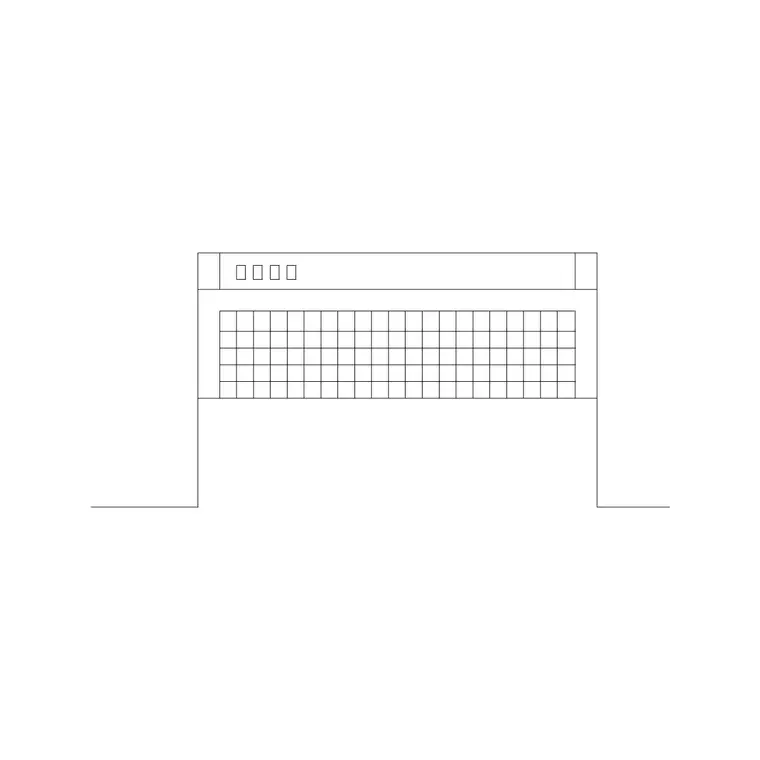
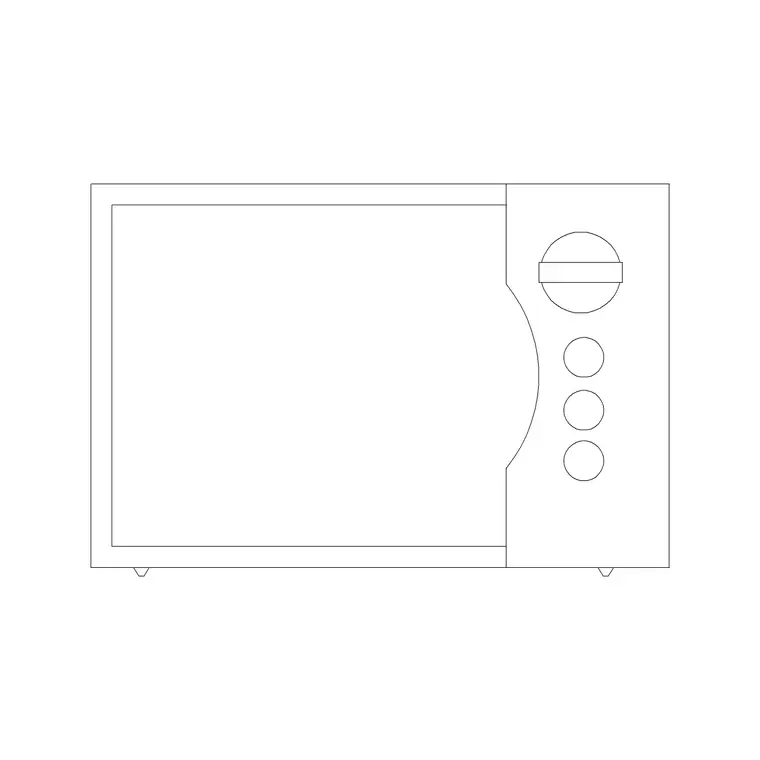
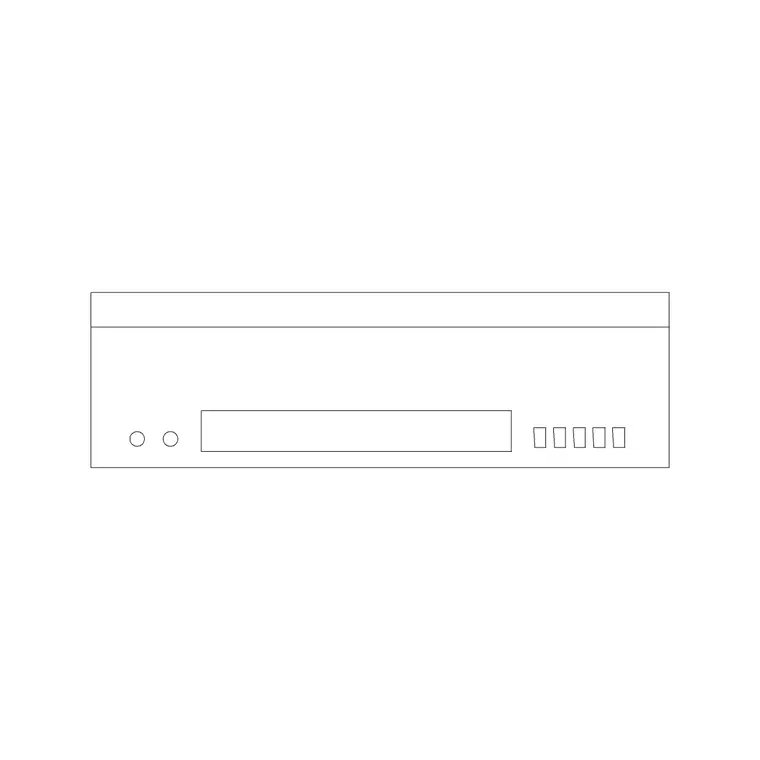
The downloads cover the common worktop grills: a hinged contact grill or panini press, and a flat griddle plate. Each ships a plan footprint — the rectangular plate seen from above — and an elevation showing the body, the hinged lid and the control dial or light.
Use the plan to reserve worktop space and check clearance to the wall cabinet above; use the elevation to show the appliance on a kitchen wall face-on. Where both views ship in one file they sit in the same DWG, so you can insert the one you need and freeze the other. The geometry is kept clean on sensible layers so it matches the rest of your worktop-appliance set.
Typical grill sizing to design around
Use these as planning ranges. A domestic contact grill or panini press is often around a 250–350 mm wide by 300–400 mm deep footprint when closed, standing maybe 120–180 mm tall closed and roughly double that with the lid open. A larger flat griddle can run wider. Commercial countertop griddles are bigger again, so scale to the actual unit class.
Models differ, so do not letter an exact dimension from a block. The point is the order of size and the lid-open clearance: a grill needs the lid to lift fully, so show enough free space above and behind it on the drawing. Getting that envelope right is what stops a grill being specified into a spot where it cannot actually open under a wall cabinet.
How to insert and place the grill
The blocks are drawn full size in millimetres. Insert at scale 1 in a millimetre drawing, 0.001 in a metre drawing, or set INSUNITS to millimetres so AutoCAD rescales on insertion. Run INSERT or drag the DWG in, pick a point on the worktop, and rotate to face the room in elevation or sit square to the run in plan.
Keep the grill on the worktop-appliance layer, separate from the cabinet carcass, so you can freeze the loose appliances for a clean joinery plan and thaw them for a furnished view. As a block reference it can be copied along a counter, and editing the block definition updates every instance, which keeps your appliance set consistent across the drawing.
Where electric grill blocks are used
Electric grill blocks appear in residential kitchen plans and elevations, apartment and studio fit-outs, office and gym kitchenettes, and in cafe or snack-bar counter drawings where a flat-top or panini station has to be shown to scale. They signal a hot-snack zone and remind you to allow a heat-tolerant worktop and a nearby socket.
For presentation work, a grill adds realism to a counter; for coordination, it flags heat and ventilation near a wall cabinet. Combine the grill with the toaster, kettle and coffee maker to dress a worktop, or with the commercial hob and hood blocks where the grill is part of a small catering setup.
Allowing for heat, steam and lid clearance
A grill is one of the worktop appliances where clearance actually matters, so the scaled block earns its place. Keep the lid-open envelope clear of the wall cabinet above, leave room behind for steam and the cord, and avoid placing heat-sensitive items immediately beside it. A plan and elevation drawn to scale make all three easy to confirm before anything is built.
If the grill is part of a repeating layout — a row of identical panini stations in a cafe, say — array the scaled block along the counter so the spacing and the lid clearances stay consistent. Settling that envelope on the drawing keeps the appliance usable in practice, not just present on paper.
Free download
Browse the full library — DWG & DXF, no signup.
Questions
Frequently asked
Is the electric grill CAD block free to download?+
Yes. The electric grill blocks here download free in DWG, with no signup, no watermark and no attribution required, and are cleared for personal and commercial project use.
Do you have both contact grills and flat griddles?+
Yes. The downloads cover hinged contact grills or panini presses and flat griddle plates. Where several types or views ship in one file they share a DWG so you insert the one you need.
How do I show the lid-open clearance?+
Use the elevation or a plan note to reserve the lid-open envelope above and behind the appliance. Keep that space clear of the wall cabinet so the grill can actually open where it is placed.
What scale are the grill blocks drawn at?+
Full size in millimetres. Insert at scale 1 in a millimetre drawing, 0.001 in a metre drawing, or set INSUNITS to millimetres so AutoCAD rescales them on insertion.
Related downloads
Blocks for this guide
Related categories
Related guides
Block landing
Free Bathroom Fixtures CAD Blocks — DWG Download
Download free bathroom fixtures CAD blocks in DWG and DXF — toilets, wash basins, bathtubs, showers and vanities drawn in plan and elevation. No signup, commercial OK.
Block landing
Free Gas Stove / Cooktop CAD Blocks — DWG
Free gas stove and cooktop CAD blocks in DWG and DXF — drawn in plan and elevation at true kitchen-module sizes for AutoCAD 2004+. No signup, commercial-use OK.
Block landing
Single Burner Hob CAD Block — Free DWG
Free single burner hob CAD blocks in DWG and DXF for compact kitchens and studios — plan and elevation, true sizing for AutoCAD 2004+. No signup, commercial OK.