Block landing · decorative garden fence cad block
Free decorative garden fence CAD block in DWG and DXF
By Saumyajit Maity · Published 3 Oct 2024 · Updated 6 May 2026
A decorative garden fence is less about security and more about character — a patterned screen, a lattice panel, a scalloped picket line or an ornamental run that frames a planting bed or marks a soft boundary inside a garden. This page offers a free decorative garden fence CAD block in DWG and DXF so you can place that character into a landscape drawing without redrawing the pattern by hand. It is free for personal and commercial use, with no signup, no watermark and no credit required.
Decorative fencing is worth keeping as a block precisely because the detail is repetitive: the lattice diagonals, the picket profile or the panel infill repeat down the run, and that is exactly the kind of geometry you do not want to draw twice. Drop the panel into a garden plan to mark a bed edge or a screen, or into an elevation to show the pattern, and the block keeps the rhythm consistent.
Because it is licence-clear, the same design carries from a concept garden sketch to a planting plan and on into a landscape tender drawing.
What makes a fence block 'decorative'
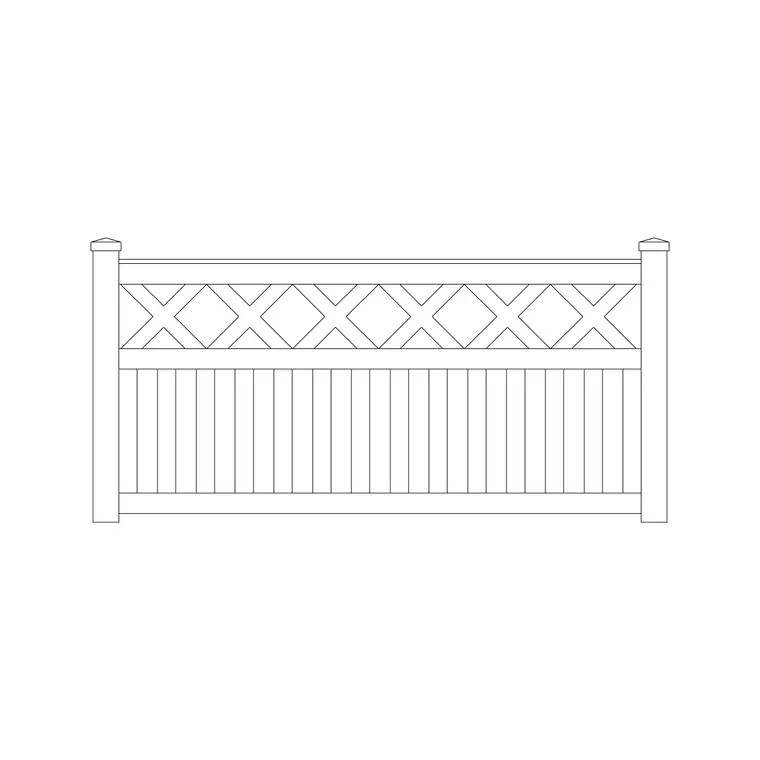
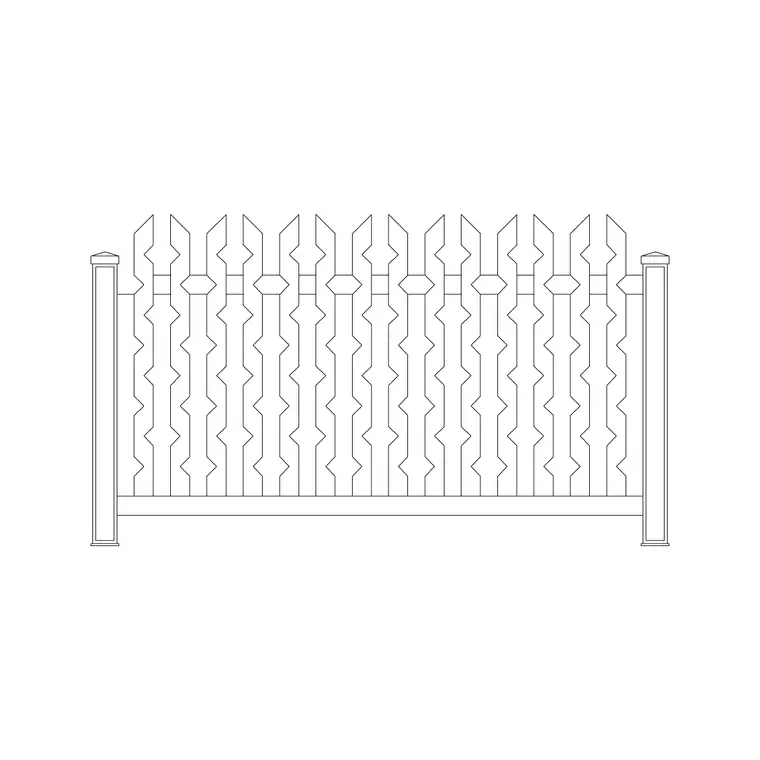
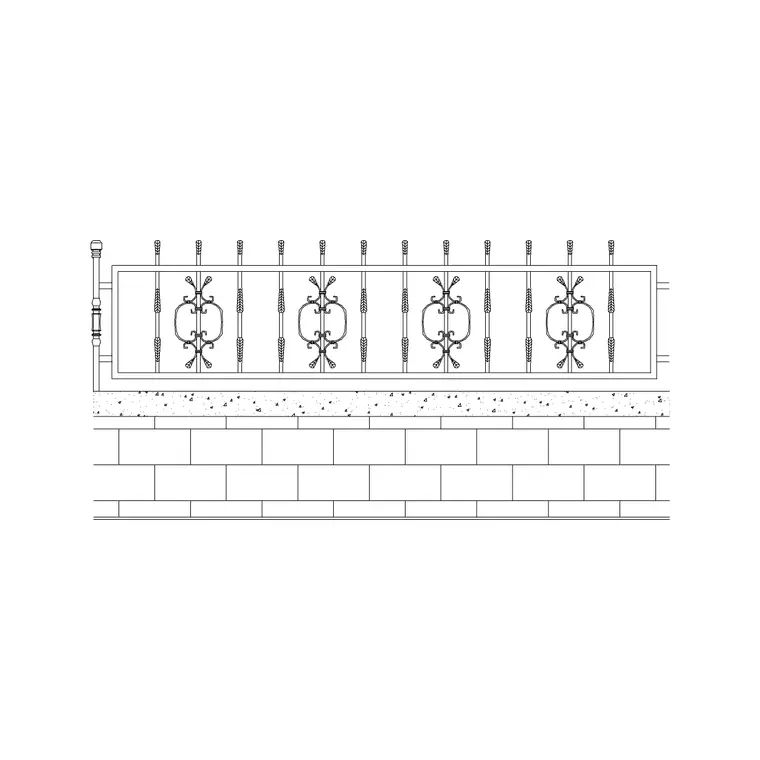
A decorative garden fence block carries an infill pattern rather than a plain board or picket run: crossed lattice, trellis squares, scalloped or shaped picket tops, ornamental panels or a feature post detail. The panel is drawn so the pattern reads at landscape scale and so you can pick the pattern, the frame and the posts apart on separate layers.
Garden screens like this are usually lighter and lower than a security boundary — a typical decorative or trellis panel sits around 900–1800 mm tall, with posts at roughly 1.8–2.4 m centres. Because the panel is a block, swapping a lattice infill for a scalloped picket changes every placed bay at once.
Plan use vs elevation pattern
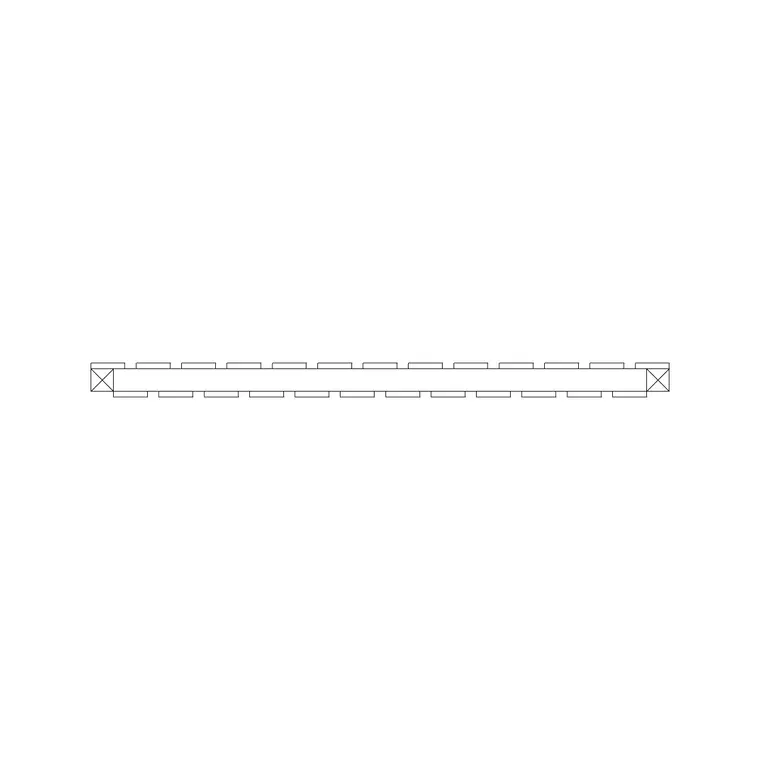
In a garden plan, a decorative fence often draws as a light patterned line that signals 'open screen' rather than a solid boundary — a dashed or ticked line is enough to read as see-through trellis. That line is what you use to divide a garden into rooms, edge a vegetable plot or screen a seating area.
The elevation is where the decoration shows: the lattice diagonals, the picket profile, the post caps and any trellis arch over a gate. Decorative fencing is frequently drawn in elevation for planning and presentation views because the pattern is the whole point. Set the screen out in plan first, then raise the elevation from the same post centres.
Typical decorative fence sizes
Use these as planning ranges. A low ornamental edging or scalloped picket run sits around 450–900 mm; a trellis or lattice garden screen around 1200–1800 mm; a trellis topper added to a solid fence can lift the total to 2000 mm or more. Posts commonly sit at 1.8–2.4 m centres to suit a standard decorative panel.
These are sketching ranges, not a spec — the panel system, the timber or metal section and any local height rule set the real figures. The block lets you test how the pattern and proportion sit in the garden before you commit to a particular product.
Inserting and repeating the panel
The block is drawn full size in millimetres: insert at scale 1 in a millimetre drawing, 0.001 in a metre drawing, or set INSUNITS to millimetres so AutoCAD rescales automatically. Snap the insertion point to a post centre and step the panel along the screen line.
For a straight run, place one panel and use a measured COPY or rectangular ARRAY at the post spacing so the pattern lines up. Decorative screens often turn corners and frame openings, so place those special bays individually — a corner post, an arched gate panel or a stepped end — rather than forcing them into the array.
Where decorative garden fencing is used
Ornamental fencing appears as garden-room dividers, vegetable-plot and herb-bed edging, screening to seating and dining areas, trellis backdrops for climbers, feature panels at a front garden, and decorative balustrade-style runs along a terrace. Pair it with the pergola, planter, gate and paving blocks in the outdoor set to compose a complete garden layout.
The file is licence-clear, so it suits landscape concept boards, planting plans, planning submissions and student schemes alike, carrying the same decorative panel through every stage without a redraw.
Layering and counting decorative panels
Put the decorative fence on its own landscape or hardscape layer rather than layer 0 so you can fade it on a planting plan or emphasise it on a hardscape layout from the same geometry. Give the pattern, the frame and the posts distinct layers so a presentation elevation can show the lattice in full while a working plan shows only the screen line.
Tag each panel as a block and an attribute extraction returns a quick count of decorative bays and posts straight from the drawing. That matters on a garden scheme that mixes several screen types — a lattice run here, a scalloped picket line there — because the take-off can then separate them by pattern, giving the contractor an honest quantity of each panel type rather than one lumped length of decorative fencing.
Free download
Browse the full library — DWG & DXF, no signup.
Questions
Frequently asked
Is the decorative garden fence block free for commercial use?+
Yes. It downloads free in DWG and, where available, DXF, with no signup, no watermark and no attribution clause, cleared for commercial project work.
Can I swap the lattice pattern for a different infill?+
Yes. The infill pattern, frame and posts sit on separate layers, so editing the panel definition once changes the pattern across every bay you have placed.
Is it drawn for plan or elevation use?+
Both. The panel sets out in plan as a light screen line and raises a patterned elevation from the same post centres, so plan and elevation stay aligned.
What scale should I insert it at?+
Full size in millimetres. Insert at scale 1 in a millimetre drawing, 0.001 in a metre drawing, or set INSUNITS to millimetres for automatic rescaling on insertion.
Which CAD programs open the file?+
The DWG targets AutoCAD 2004 and later and opens in current AutoCAD, AutoCAD LT, BricsCAD, DraftSight and free online DWG viewers.
Related downloads
Blocks for this guide
Related categories
Related guides
Block landing
Free Bar Table CAD Blocks — DWG Download
Download free bar table CAD blocks in DWG and DXF — round, square and rectangular high bar tables in plan and elevation for AutoCAD. No signup, commercial-use OK.
Block landing
Free Restaurant Table CAD Blocks — DWG Download
Download free restaurant table CAD blocks in DWG and DXF — 2, 4 and 6 cover tables with chairs drawn in plan and elevation for AutoCAD. No signup, commercial-use OK.
Block landing
Free Restaurant Chair CAD Blocks — DWG Download
Download free restaurant chair CAD blocks in DWG and DXF — dining, cafe and side chairs plus baby high chairs in plan and elevation. No signup, commercial-use OK.