Block landing · classical column elevation cad block dwg
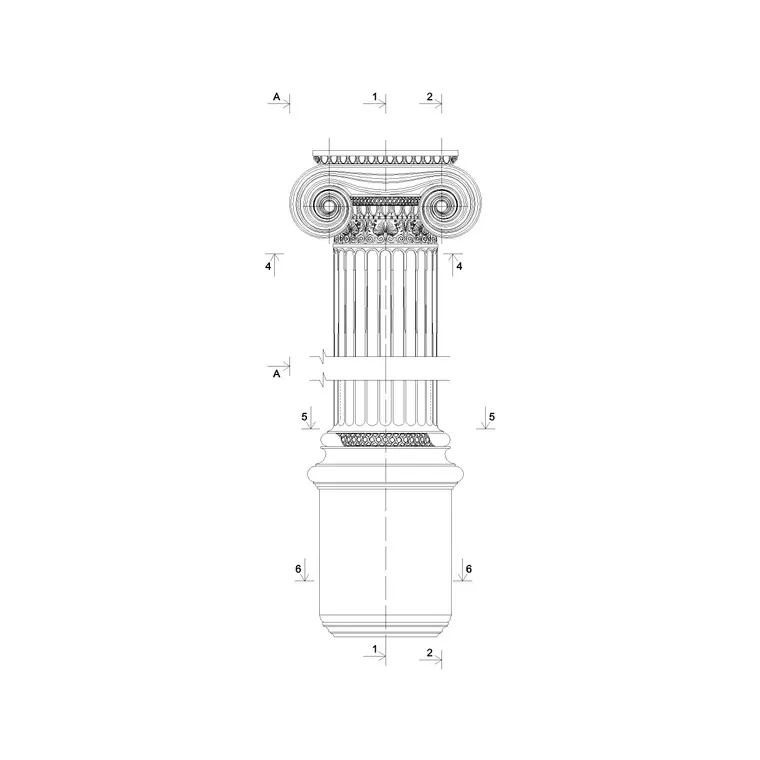
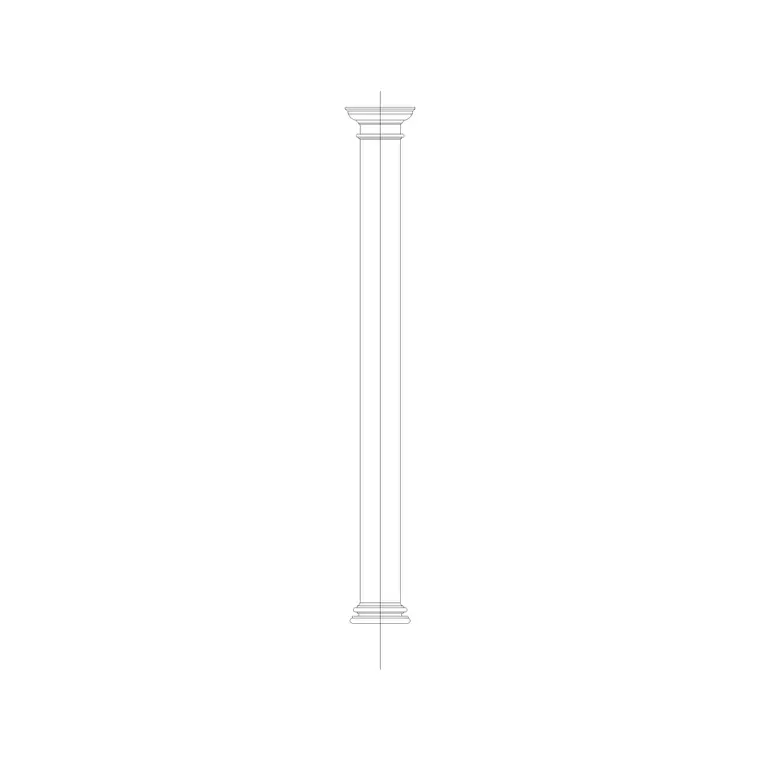
Classical column elevation CAD block in DWG
By Saumyajit Maity · Published 2 Feb 2022 · Updated 26 Mar 2026
A classical column elevation CAD block gives you the whole order seen face-on in one drawing — the moulded base, the tapering shaft and the carved capital — so you can drop a believable column onto a facade or portico without redrawing every flute and astragal by hand. This page hosts a free classical column elevation block in DWG, drawn full-size in millimetres and ready to insert into AutoCAD 2004 or any later release. It is free for personal and commercial work, with no signup, no watermark and no attribution line to carry.
The elevation view is the one you reach for when the column reads against a wall: front entrances, colonnades, temple-style porticos, garden follies and restoration drawings of period buildings. Because the block is to scale, it lets you set the column rhythm, check the spacing against door and window openings, and line the capital up with an entablature the moment it lands on the sheet.
What this column elevation block is
The block is a front elevation of a single classical column, drawn as a 2D line drawing rather than a solid. From the floor up it carries the plinth and torus of the base, the entasis (the slight outward swell) of the shaft, the vertical flutes if the order is fluted, the necking, and the capital — Doric, Ionic or Corinthian depending on the variant you pick. Everything is closed polyline geometry, so you can hatch the shaft, offset a mortar joint or trim the capital to suit your own entablature.
Because it is an elevation and not a render, it suits technical sheets: setting-out drawings, facade studies, heritage record drawings and presentation elevations. You are getting clean vector linework you can edit, not a flattened image.
Views and what is included
This download is the elevation — the column seen straight on from the front, the view that shows the full height proportion from base to capital. Use it whenever you are drawing a wall face, a portico or a colonnade in elevation.
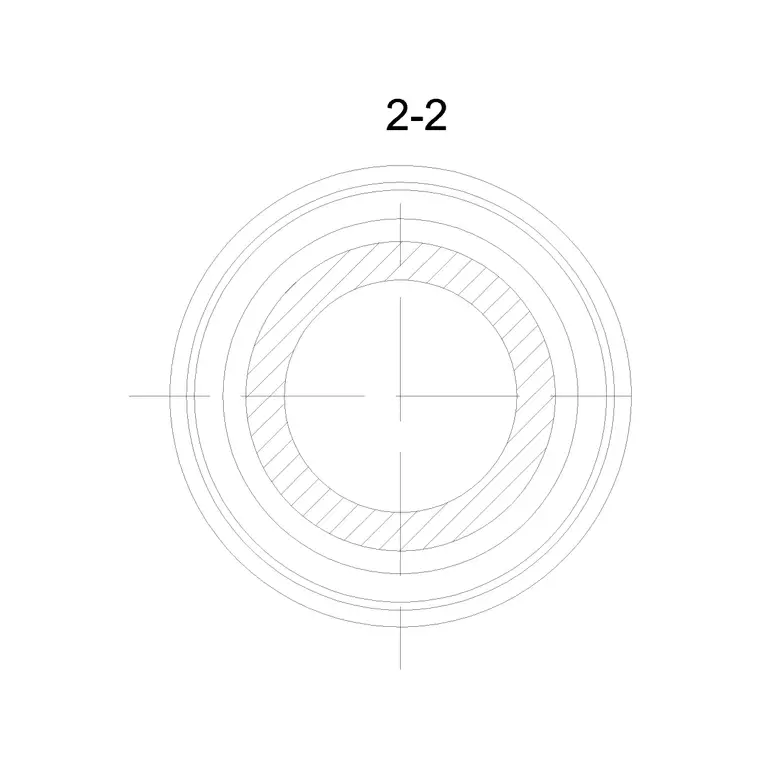
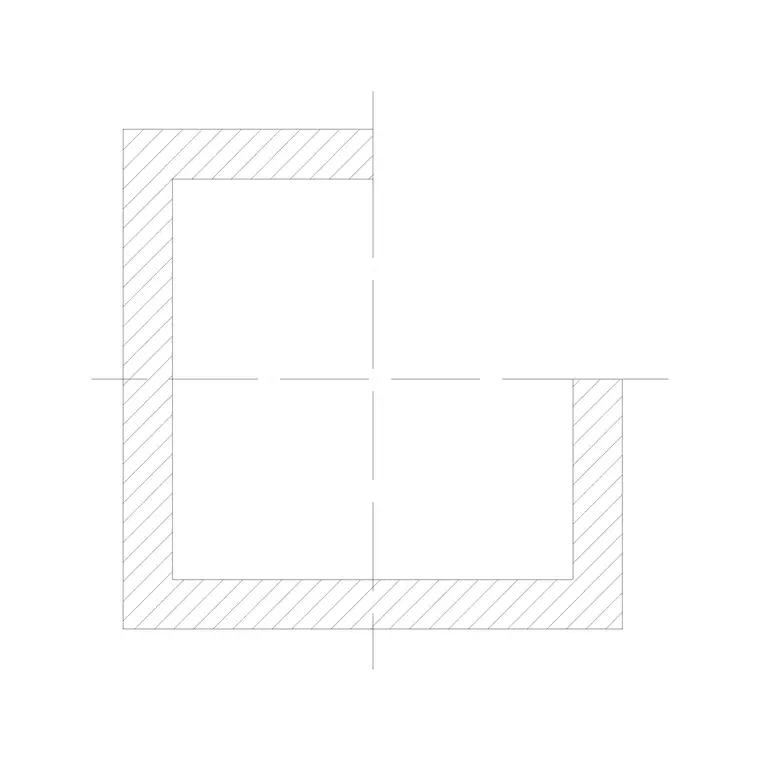
For the same column in other orientations, pair it with a round column plan block (the circular footprint you array along a colonnade) and a column cross section if you need to show the shaft's profile cut through. Many people build a small column library this way: one elevation, one plan, one section, all on the same setting-out so the three views agree. The entablature and cornice details that usually sit above the capital live in their own related blocks so you can mix and match the order with the crowning mouldings you actually want.
Typical sizing to design around
Classical columns are proportioned, not fixed, so scale rather than absolute size is what matters. The shaft height is usually expressed as a number of lower diameters: a Doric column runs around 7–8 diameters tall, Ionic around 9, and Corinthian around 10, before you add base and capital. So if your shaft is 600 mm across at the bottom, an Ionic version stands roughly 5.4 m to the top of the shaft as a starting point.
When you insert the block, decide the lower shaft diameter first and scale the whole column to it — the base, capital and flute spacing then follow automatically because they were drawn in proportion. Domestic porch columns often sit in the 200–350 mm diameter range; a temple-scale portico column can pass 900 mm. Treat these as ranges to design within, and confirm the exact size against your own setting-out and any structural core inside the column.
How to insert and scale it in AutoCAD
The block is drawn in millimetres. In a millimetre drawing, insert at scale 1 and it lands at the size it was drawn; to resize, give the INSERT dialog an X and Y scale or run SCALE afterwards from the base centre. If you work in metres, insert at 0.001; in an imperial template, set INSUNITS to millimetres so AutoCAD rescales on the way in.
Type INSERT (or I), browse to the DWG, pick the base centreline at floor level as the insertion point, and place it on the column setting-out line. Keep the column on its own layer — something like A-COLS — so you can freeze the order while you work on the wall behind it, then thaw it for the presentation sheet. To repeat a colonnade, ARRAY the block at your bay spacing rather than copying by eye; the rhythm reads far cleaner when the centres are exact.
Where a column elevation gets used
Front-of-house architecture is the obvious home: classical and neo-classical house fronts, civic buildings, banks, churches and memorials, plus the porches and porticos that quote those styles. Interior designers use the same block for panelled rooms, fireplace surrounds with engaged columns, and grand staircases. Landscape and garden designers reach for it on pergolas, gazebos, pavilions and follies.
It is equally useful in heritage and survey work, where you are recording an existing facade and need a clean, proportioned column to measure against. Students and competition entrants like it because it is licence-clear, so a portico can go on a board without any sourcing worry. Pair it with arch, cornice and entablature blocks from the same family to assemble a complete classical facade quickly.
Editing the order to suit your drawing
Because the geometry is editable polylines, you are not stuck with the order as drawn. Need a plainer shaft? Delete the flutes and you have a smooth column. Want a different capital? Trim at the necking and swap in the Corinthian or composite capital from a sibling block, keeping the same shaft. The base mouldings can be simplified for a small-scale plan or enriched for a 1:20 detail.
If you will reuse your edited version, run BEDIT to change the block definition once so every placed instance updates together, or WBLOCK the finished column out to your own library. Keep the flutes, shaft outline and capital on sensible sub-layers within the block and you can recolour or thin the linework for different drawing scales without ever redrawing the column.
Free download
Browse the full library — DWG & DXF, no signup.
Questions
Frequently asked
Is this classical column elevation block free for commercial use?+
Yes. It downloads free in DWG with no signup, no watermark and no attribution requirement, and it is cleared for use on commercial projects as well as personal and student work.
Which classical order does the elevation show?+
The download specifies its order on the block page — typically a Doric, Ionic or Corinthian variant. Because the geometry is editable linework, you can also swap the capital or remove the flutes to convert one order toward another.
What scale is the column drawn at?+
It is drawn full size in millimetres. Insert at scale 1 in a millimetre drawing, set the lower shaft diameter you need with an INSERT scale factor, and the base, capital and flutes rescale in proportion because they were drawn that way.
Can I show the same column in plan as well?+
Yes — pair this elevation with a round column plan block for the footprint and a column cross section for the shaft profile. Setting all three on the same column centreline keeps the views consistent across your sheet.
Related downloads
Blocks for this guide
Related categories
Related guides
Block landing
Free Classical Column CAD Blocks — DWG Download
Download free classical column CAD blocks in DWG — shaft, capital and base drawn in elevation and plan for AutoCAD. No signup, free for commercial use.
Block landing
Free Greek & Ionic Column CAD Blocks — DWG
Free Greek and Ionic column CAD blocks in DWG — fluted shafts and volute capitals drawn in elevation for AutoCAD. No signup, free for commercial use.
Block landing
Free Decorative Arch CAD Blocks — DWG Download
Download free decorative arch CAD blocks in DWG — round, segmental and classical archways drawn in elevation for AutoCAD. No signup, free for commercial use.