Block landing · cement planter pot cad block
Free cement planter pot CAD block in DWG and DXF
By Sumana Kumar · Published 18 Apr 2022 · Updated 11 May 2026
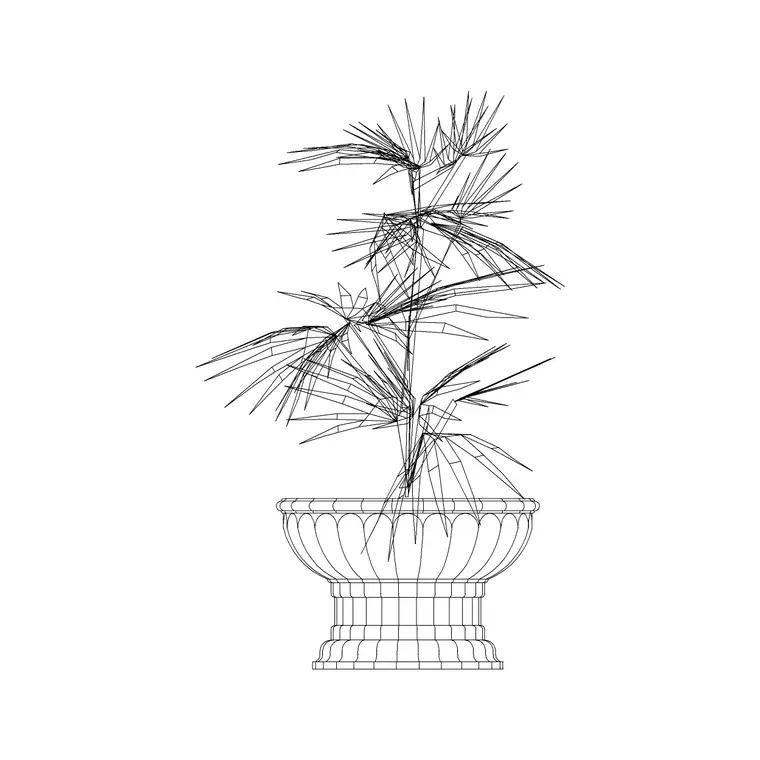
A cement planter pot is a workhorse of contemporary interiors and landscapes, and a ready-made cement planter CAD block saves you drawing its solid, chunky profile every time a scheme calls for greenery. This page offers a free cement planter pot CAD block in DWG and DXF, drawn with the heavy, straight-sided look of a cast-concrete vessel so it reads correctly against a sofa, a façade or a terrace edge. It is free for personal and commercial work, with no signup, watermark or attribution.
A cement-finish planter suits modern, brutalist and industrial schemes where a lighter ceramic pot would look out of place. Designers drop it into lobbies, courtyards, rooftop terraces and retail interiors, and because it is drawn to scale you can immediately judge whether it crowds a walkway or balances a large planting bed.
What a cement planter block looks like
The defining trait of a cement planter block is mass: thick walls, a wide flat rim and a square or cylindrical body that sits squarely on the floor. Unlike a delicate carved pot, the cement version is drawn with simple, bold linework that signals a heavy cast vessel. The elevation shows the straight or gently tapered sides and the substantial rim; the plan shows the footprint and wall thickness.
The block is built on a single layer as clean geometry, so you can recolour it to a concrete grey, copy it along a planting line, or explode it to edit the profile for a custom size. If the block includes the plant, that foliage usually sits on its own sub-layer so you can keep or drop it.
Views included and where each helps
The elevation is the view that carries the cement planter's character — the heavy rim and solid sides — so reach for it on interior elevations, façade drawings and presentation boards where the pot needs to read as concrete. The plan footprint is what you use on the floor layout: it shows how much floor the planter consumes and where it sits relative to circulation and furniture.
For a terrace or courtyard plan you will mostly work in plan, arraying planters along an edge or a grid. Many downloads carry both the plan and elevation in one DWG, so you can build the layout and the matching elevation from a single file.
Typical cement planter dimensions
Treat these as ranges rather than exact specs. A floor-standing cement planter for an interior commonly sits in the 350–600 mm width and 400–700 mm height band, with the chunky wall thickness that gives it its cast look. Large landscape and rooftop planters scale up well beyond that, sometimes a metre or more across for structural tree pits or terrace dividers.
The figures that matter for layout are the footprint width and the rim height: the footprint governs floor clearance, and the rim height governs how the planting reads against a seat or a balustrade. Confirm the size against the plant it carries — a small succulent and a multi-stem shrub want very different vessel volumes.
How to insert and scale the planter
The cement planter block is drawn full size in millimetres. In a millimetre drawing, INSERT it at scale 1 for real size; in a metre template insert at 0.001; in an imperial drawing set INSUNITS to millimetres so AutoCAD rescales it automatically on insertion. That prevents the common units mismatch where a planter arrives microscopic or building-sized.
Pick the centre of the footprint as the insertion point so the planter snaps neatly onto a planting position, then copy or array it. Because each planter is a single block reference, a row of identical pots along a terrace edge is a quick array, and a later size change to the block definition flows to every instance.
Where cement planter blocks are used
Cement planters feature in modern lobbies and reception areas, rooftop and podium terraces, courtyards and entrance plazas, retail and showroom interiors, and outdoor seating areas where a heavy pot doubles as a subtle barrier. Pair the cement planter with the carved pot, cone-shape pot and hanging planter blocks in the accessories category to vary the planting vocabulary across a scheme.
Because the file is free and licence-clear, it suits landscape and interior student projects, competition boards and fast concept plans. The same block carries from an early massing study to a detailed terrace drawing without redrawing the vessel.
Layering and reuse tips
Put planters on a dedicated planting or fittings layer so you can freeze them for a clean technical plan and thaw them for a furnished presentation. If the block carries foliage, keep the plant on a separate sub-layer so you can show the pot empty in a setting-out drawing and planted in the render.
For a terrace with a repeated planter rhythm, define the planter once and array it along the edge; editing the master definition then updates the whole run. When a scheme mixes pot styles, a small library of named blocks — cement, carved, cone, hanging — lets you swap one for another without disturbing the layout, which keeps late design changes painless.
Free download
Browse the full library — DWG & DXF, no signup.
Questions
Frequently asked
Is the cement planter CAD block free for commercial projects?+
Yes. It downloads free in DWG and, where available, DXF, with no signup, watermark or attribution, and is cleared for paid client work.
What sizes does a cement planter come in?+
Interior floor planters commonly sit in the 350–600 mm width and 400–700 mm height range, while landscape planters scale up to a metre or more. Confirm the size against the plant the vessel needs to hold.
Does the block include the plant?+
Where foliage is included it usually sits on its own sub-layer, so you can show the pot empty in a setting-out drawing or planted in a presentation. Check the download page for what each file contains.
Will it open in older AutoCAD and free viewers?+
Yes. The DWG targets AutoCAD 2004 and later, so it opens in AutoCAD, AutoCAD LT, BricsCAD, DraftSight and free DWG viewers.
Related downloads
Blocks for this guide


Related categories
Related guides
Block landing
Wine Rack CAD Block DWG — Free Download
Download a free wine rack CAD block in DWG and DXF — bottle storage drawn in plan and elevation for kitchens, bars and cellars. AutoCAD 2004+, no signup.
Block landing
Wine Glass CAD Block DWG — Free Download
Download a free wine glass CAD block in DWG and DXF — red and burgundy stemware in elevation and plan for bar and table settings. AutoCAD 2004+, no signup.
Block landing
Carved Planter Pot CAD Block DWG — Free
Download a free carved planter pot CAD block in DWG and DXF — decorative carved-finish planter in plan and elevation for interiors and entrances. AutoCAD 2004+.