Block landing · calculator cad block dwg
Free calculator CAD block in DWG
By Saumyajit Maity · Published 30 Dec 2022 · Updated 22 May 2026
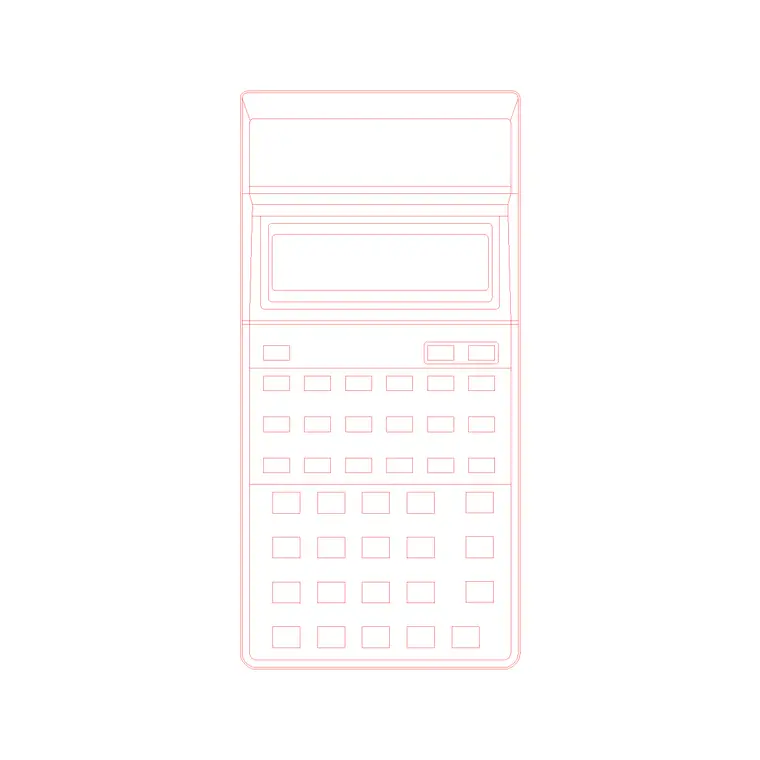
A calculator CAD block is a small office prop — a handheld or desk calculator with its button grid and display — that dresses a working desk and signals an office, study or accounting space. It is the kind of detail that turns a bare desk in a furniture layout into a workstation that reads as occupied. This page offers it as a free DWG, ready for AutoCAD and any compatible viewer.
The block is free for personal and commercial drawings, with no signup, no watermark and no attribution. It belongs to the accessories or styling layer, alongside the pen, book and spectacles props you add once the furniture is placed. Small as it is, a calculator on a desk gives an office elevation a quietly authentic working feel.
What the calculator block shows
The block is a top-view calculator: a rectangular body with the grid of buttons and the display strip along the top. That button grid is the detail that makes it unmistakable — without it the shape would just be a small rectangle. Drawn from above, it sits flat on a desk like the real object.
It is essentially a top-view prop, suited to plan and styled desk views where you look down on the work surface. The flat footprint is what you place on the desk outline, and because it is a single block reference you can rotate it to any angle to look casually set down.
Typical sizing to design around
A pocket calculator is commonly somewhere around 70–90 mm wide and 120–150 mm long, while a desktop printing or accounting calculator is larger, perhaps 180–210 mm long. Treat those as ranges and scale the block to whether you are showing a handheld or a desk model.
Because it is small relative to a desk, place it where it reads at plot scale — near the front edge of the work surface or beside a keyboard. SCALE from the centre if you need a desktop-sized model. On a busy desk vignette, keep it as one element among several rather than the focal point.
Where a calculator block is used
Use it in office and home-office desk layouts, accounting and finance-room drawings, study and home-study elevations, bank and counter layouts, and retail till or cash-desk drawings. Anywhere a workstation needs to read as occupied, a calculator on the desk does the job.
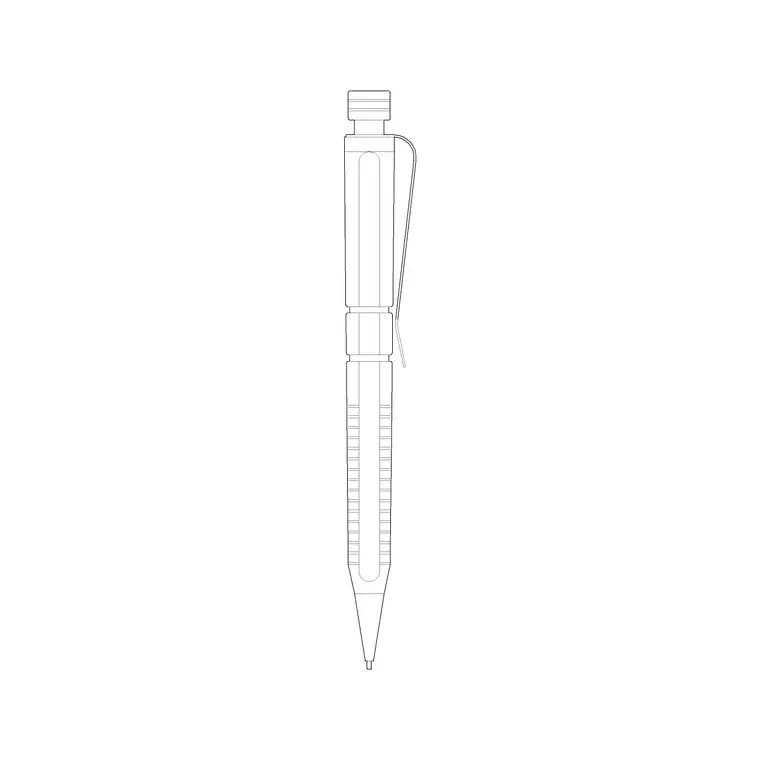
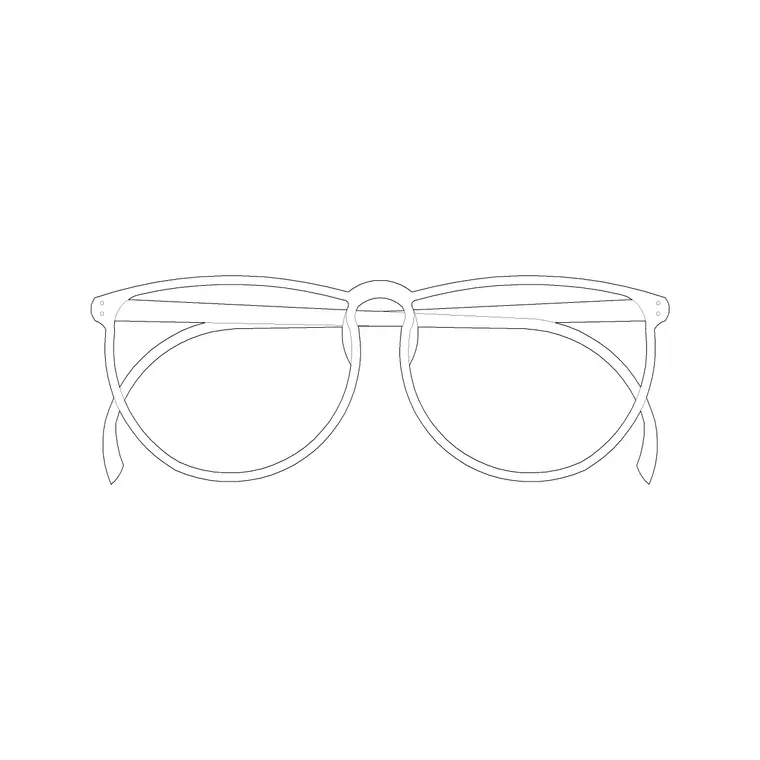
It pairs naturally with the pen, book, spectacles and other office props in the same library. A monitor, a keyboard, a pen and a calculator together turn a generic desk into a believable working station in a furniture, fixtures and equipment drawing.
How to insert and place the block
The DWG is drawn full size in millimetres. Insert at scale 1 in a millimetre drawing, 0.001 in a metre template, or set INSUNITS to millimetres so AutoCAD rescales on insertion. Run INSERT, browse to the file and pick the centre of the calculator as the insertion point.
Place it on the desk surface near the front edge or beside the other desk props, and rotate it a few degrees so it looks set down rather than aligned to the grid. Because it inserts as a single block reference, you can copy it to other desks across a floor in seconds.
Building a workstation vignette
A calculator on its own is a small touch; it earns its keep as part of a workstation group. Combine it with a monitor, keyboard, pen, book and spectacles to dress a desk so the office elevation reads as in use. Arrange the items as someone would actually leave them rather than in a neat row.
Keep the desk props on a styling layer so you can freeze them for a clean furniture plan and thaw them for the dressed presentation. When a workstation vignette works, WBLOCK the desk plus its props as one reusable unit and array it down an open-plan floor in seconds.
Layering and reuse
Put desk accessories like the calculator on a dedicated accessories layer, separate from the furniture geometry. That separation lets you issue both a technical furniture plan and a dressed presentation from one drawing without maintaining duplicates.
Giving the accessories their own colour and lineweight keeps them from competing with desk dimensions and circulation notes. On the final sheet, the calculator and its companions then read as the styling they were meant to be, not as clutter over the technical information.
File format, compatibility and licensing
The calculator comes as a native DWG, so the desk prop inserts directly with no conversion. It opens in current AutoCAD and AutoCAD LT, in BricsCAD and DraftSight, and in free online DWG viewers for a quick preview. A DXF version, where supplied, covers any package that reads that interchange format more cleanly than DWG.
The licence asks nothing of you: free for personal and commercial use, no signup, no watermark and no attribution. An office layout, an accounting-room drawing or a retail cash-desk elevation can all use it without usage limits. You can edit the button grid, recolour the body or scale the block from a pocket model to a desktop accounting machine, and the result is cleared for any project drawing.
Free download
Browse the full library — DWG & DXF, no signup.
Questions
Frequently asked
Is the calculator CAD block free for commercial use?+
Yes. It is a free DWG download with no signup, no watermark and no attribution, cleared for commercial project drawings.
What view is the calculator drawn in?+
It is a top-view desk prop — a rectangular body with the button grid and display — designed to lie flat on a desk surface in plan and styled desk views.
How big should the calculator be?+
A pocket model is commonly around 70–90 mm wide; a desktop accounting model is larger. Scale the block from the centre to suit, treating dimensions as adjustable ranges.
Will it open in free viewers and AutoCAD LT?+
Yes. The DWG targets AutoCAD 2004 and later, opening in AutoCAD, AutoCAD LT, BricsCAD, DraftSight and free online DWG viewers.
Related downloads
Blocks for this guide
Related categories
Related guides
Block landing
Free Classical Column CAD Blocks — DWG Download
Download free classical column CAD blocks in DWG — shaft, capital and base drawn in elevation and plan for AutoCAD. No signup, free for commercial use.
Block landing
Free Greek & Ionic Column CAD Blocks — DWG
Free Greek and Ionic column CAD blocks in DWG — fluted shafts and volute capitals drawn in elevation for AutoCAD. No signup, free for commercial use.
Block landing
Free Decorative Arch CAD Blocks — DWG Download
Download free decorative arch CAD blocks in DWG — round, segmental and classical archways drawn in elevation for AutoCAD. No signup, free for commercial use.