Block landing · cable cubby socket cad block dwg
Cable cubby socket CAD block in DWG and DXF
By Sumana Kumar · Published 25 Feb 2024 · Updated 20 Jan 2026
A cable cubby is the recessed power and data module that lives in the surface of a meeting or conference table, bringing sockets and connectivity up to the desktop without trailing leads to the wall. As floors go more flexible and tables carry more technology, the cable cubby has become a standard fixture, and this CAD block lets you show it where it belongs. It is drawn at true millimetre dimensions, ready for AutoCAD 2004 or later, and free for personal and commercial work with no signup and no watermark.
The point of this block is to put power and data on the table itself, not just on the wall. A cable cubby — sometimes flush, sometimes a flip-up or pop-up module — needs a cut-out in the worktop and a route for cabling down through the table base or floor. Drawing it to scale lets you show that cut-out, coordinate it with the table's structure and AV, and prove that connectivity reaches the centre of the room rather than stopping at the perimeter.
What a cable cubby block contains
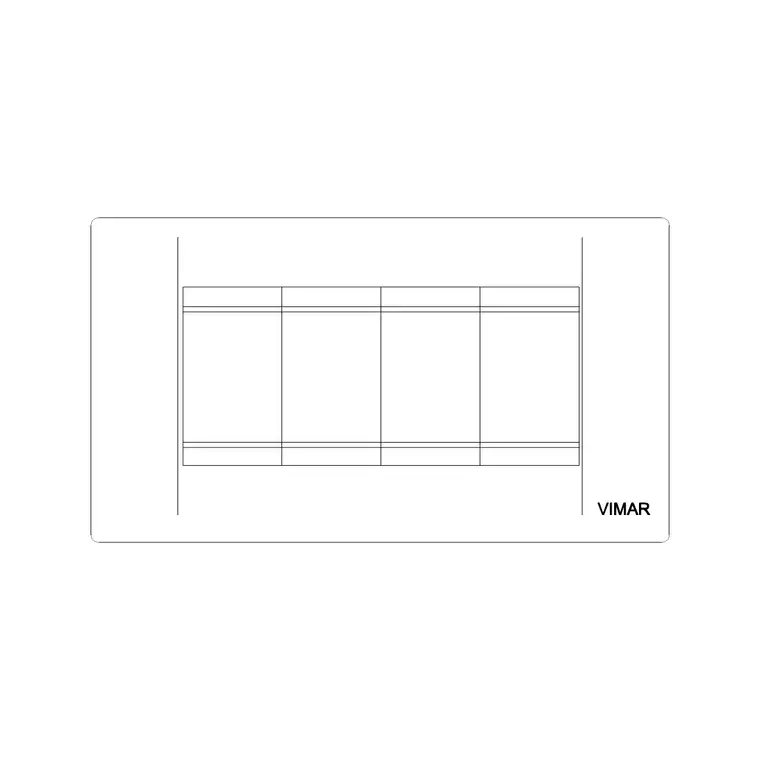
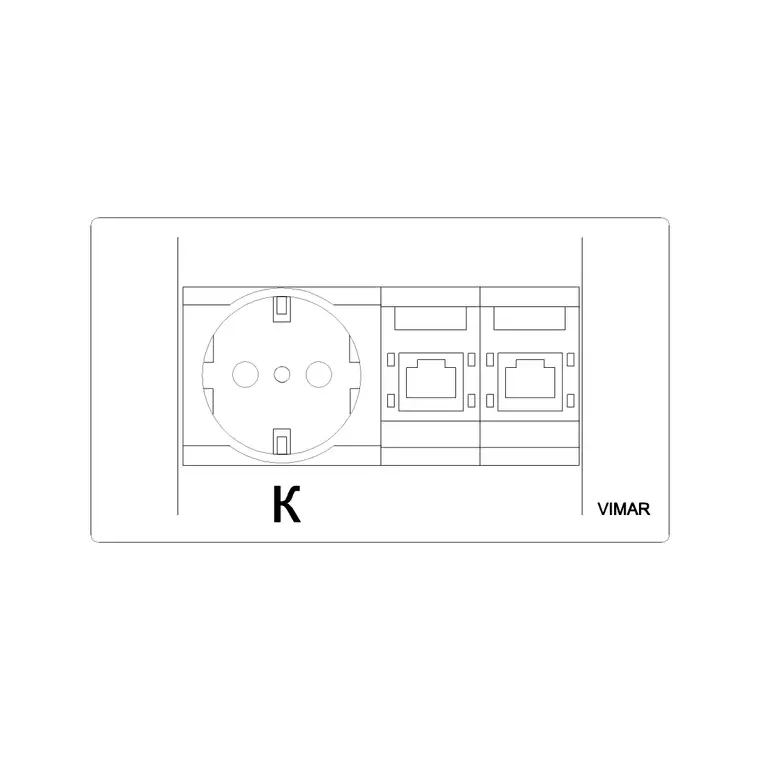
The block is the plan footprint of an in-surface power and data module: the rectangular or circular cut-out in the worktop, with the socket and data apertures indicated. Variants cover flush plates, flip-up lids and pop-up towers, all of which occupy a defined area of the table top that you need to coordinate with the table structure.
Keeping the cubby on its own services or small-power layer means it reads clearly over the furniture without merging into the table outline. Like a socket symbol, a cable cubby block is kept clean rather than over-detailed, but it carries enough to mark the cut-out position and size accurately so a joiner can set out the aperture and an electrician can plan the route to it.
Typical sizing to design around
Use these ranges as a guide. In-table power modules are commonly drawn with a footprint somewhere around 200 to 400 mm long and 80 to 200 mm wide for a linear flip-up unit, while circular pop-up grommets are often in the region of 80 to 120 mm in diameter. The exact size depends heavily on how many sockets and data ports the module carries, so a six-way unit takes more room than a single socket and data point.
When you place a cubby, allow clearance beneath the table for the cable route and any below-desk power supply, and keep the cut-out clear of the table's main structural rails. These are typical planning ranges rather than fixed specifications; cable cubbies and table power modules vary widely by manufacturer, so confirm the exact module footprint, the cut-out size and the cabling route against the product data before you commit the table detail.
How to insert and coordinate the cubby
The block is full size in millimetres. Insert at scale 1 in a millimetre drawing, 0.001 in a metre drawing, or set INSUNITS to millimetres on an imperial template so AutoCAD rescales on insertion. Run INSERT or drag the DWG from a tool palette, pick an insertion point on the table surface, and rotate to align the module with the table.
Place the cubby where users actually reach it — typically along the centreline of the table or at intervals down a long boardroom table — and check it clears the table base and any beams below. Because each cubby is a single block reference you can array several down a large table, and an edit to the block definition with BEDIT updates every module at once if you change the unit type. Show the cut-out on the joinery drawing and the connectivity on the small-power and data plans.
Where cable cubby blocks are used
Cable cubbies belong on meeting and conference tables, training-room tables, touchdown benches and any worksurface where users plug in laptops and devices without running leads to the wall. They are a fixture of modern boardrooms, video-conference rooms and flexible meeting spaces where technology sits at the table.
Because the block is free and licence-clear it carries from concept to construction. Use it to show, early on, that a meeting table will be properly powered and connected, then keep the same geometry as you coordinate the table joinery, the AV, the under-floor or under-table cabling and the small-power schedule. The cubby that proved the table was connected is the one the joiner cuts and the electrician wires.
Coordinating table power with the floor and AV
A cable cubby is a coordination point between furniture, electrical and AV. The module on the table connects down to a floor box or a wall feed, so place the cubby block on the table and the matching floor-box or socket blocks beneath to show the full route from the desktop to the supply. Aligning the cubby with the AV connection keeps the table's technology tidy and reachable.
Keep the cubby, the table, the floor boxes and any AV on separate layers so a joinery drawing, a small-power plan, a data plan and an AV plan all come from one model. Tag the cubby with a block attribute capturing the module type and the number of power and data outlets, and that information drops into the schedules the furniture supplier, electrician and AV integrator each rely on.
Free download
Browse the full library — DWG & DXF, no signup.
Questions
Frequently asked
What is a cable cubby in CAD terms?+
It is the in-surface power and data module set into a meeting or conference table top. The block shows the cut-out footprint and the socket and data apertures so you can coordinate the joinery aperture and the cable route to it.
Is the cable cubby socket block free for commercial use?+
Yes. It downloads free in DWG, with DXF where available, and is cleared for commercial projects with no signup, no watermark and no attribution requirement.
How big is a cable cubby cut-out?+
Linear flip-up modules are commonly around 200 to 400 mm long and 80 to 200 mm wide, and circular grommets often 80 to 120 mm in diameter, depending on the number of outlets. Confirm the exact footprint against the product you specify.
How does the cubby connect to power?+
The module routes down through the table base to a floor box or wall feed. Place the cubby block on the table and a floor-box or socket block beneath to show the full route, and keep them on a services layer for the small-power plan.
Related downloads
Blocks for this guide
Related categories
Related guides
Block landing
Free Office Chair CAD Blocks — DWG Download
Download free office chair CAD blocks in DWG and DXF — task chairs, swivel chairs and executive seats drawn in plan and elevation, AutoCAD 2004+, no signup.
Block landing
Free Lighting Fixtures CAD Blocks — DWG Download
Download free lighting fixtures CAD blocks in DWG and DXF — chandeliers, wall lights, downlights and pendants in plan and elevation for AutoCAD.
Block landing
Free Office Desk CAD Blocks — DWG Download
Free office desk CAD blocks in DWG and DXF — straight desks and desk-with-chair units in plan and elevation for AutoCAD. No signup, commercial OK.