Block landing · basketball cad block dwg
Free basketball CAD block in DWG
By Sumana Kumar · Published 16 Jan 2023 · Updated 15 Feb 2026
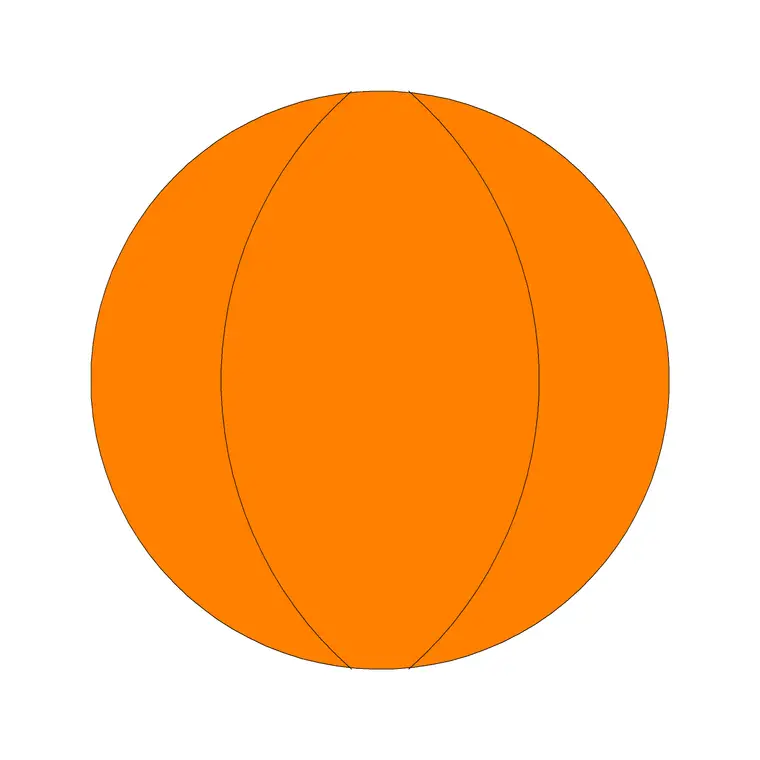
A basketball CAD block is a sports prop that instantly tells the reader of a drawing what a space is for. It is a round ball drawn with the curved seam lines that make a basketball recognisable, ready to place in a gym, sports hall, court layout, locker room or sports-retail display. This page offers it as a free DWG, ready for AutoCAD and any compatible viewer.
It is free for personal and commercial work — no signup, no watermark, no attribution. Like other small object blocks, it belongs on the accessories or equipment layer and is there to give context, not to carry structure. A single well-placed ball does more to communicate the use of a sports space than a paragraph of notes.
What the basketball block depicts
The block is a circle marked with the characteristic basketball seam pattern — the curved channel lines that divide the surface into panels. That seam line work is the detail that separates it from a plain circle or a football, so the ball reads correctly the moment it lands on the sheet.
A ball is effectively the same from every direction, so this single block serves as a plan symbol on a court layout or an elevation prop on a shelf or in a rack. You do not need separate views, which keeps the block light and quick to place.
Typical sizing to design around
A regulation men's basketball is roughly 240 mm in diameter, with women's and youth balls a little smaller, down toward 230 mm and below for junior sizes. Treat those as ranges and scale the block to the level of play you are drawing.
Scaling a round object is simple: SCALE from the centre so the ball grows evenly. If you are dressing a sports-shop display that mixes ball types, scale a copy of the football block and this basketball block to their correct relative sizes so the display reads accurately.
Where a basketball block is used
Use it in indoor and outdoor court layouts, gymnasium and sports-hall plans, school and college PE drawings, locker-room and equipment-store layouts, fitness-centre interiors and sports-retail elevations. On a site plan it can mark an outdoor half-court or play zone.
Used with restraint, the ball labels the activity without a text callout. Pair it with the football and other equipment blocks to dress a multi-sport hall, a coaching store or a retail wall so the drawing communicates its purpose at a glance.
How to insert and scale the block
The DWG is drawn full size in millimetres. Insert at scale 1 in a millimetre drawing, 0.001 in a metre template, or set INSUNITS to millimetres so AutoCAD rescales on insertion. Run INSERT, browse to the file and pick the centre of the ball as the insertion point.
Place it on a floor line, a shelf or a rack, or as a plan marker on a court, then SCALE from the centre for a different size. Because it inserts as one block reference, populating a ball rack or a display takes a few quick copies. If you would rather size the ball on the way in, set the X and Y scale in the INSERT dialog before picking the insertion point so it lands correctly first time. Keeping the centre as the base point through any scale change keeps the seam lines evenly spaced, which matters when the ball sits next to a football block at its true relative size.
Using it as a plan symbol
On a court layout the basketball can act as a small symbol that marks where play happens, alongside the court markings themselves. Keep such symbols at a single, consistent scale across the sheet so they read as a notation system rather than random props.
In an elevation — a sports-shop wall, a locker-room shelf, an equipment store — scale the ball realistically against the furniture it sits on. As with any prop, mixing plan-symbol scale and realistic-prop scale on one drawing looks like an error, so decide which role the ball is playing on each sheet.
Layering and reuse
Keep sports balls and equipment on a dedicated accessories or equipment layer so you can freeze them for a clean technical drawing and thaw them for a furnished or merchandised view. A distinct colour and lineweight stops them competing with court dimensions and structural lines.
When you build a sports-retail shelf or an equipment rack — basketballs, footballs, shoe boxes — select it and WBLOCK it as one reusable display unit. That cluster then dresses the next gym or retail project in a single insertion, ready to tweak.
File format, compatibility and licensing
You get the basketball as a native DWG, so it inserts directly with no import or conversion. It opens in current AutoCAD and AutoCAD LT, in BricsCAD and DraftSight, and in free online DWG viewers for previewing. Where a DXF is supplied as well, it gives you a reliable fallback for software that reads that interchange format more cleanly.
Licensing is simple and permissive: the block is free for personal and commercial drawings, with no signup, no watermark and no attribution required. Gym and court layouts, fitness-centre interiors, sports-retail elevations and PE drawings can all use it without paperwork. The seam line work and scale are yours to adjust, and whatever you produce is cleared for use in any project, commercial included.
Free download
Browse the full library — DWG & DXF, no signup.
Questions
Frequently asked
Is the basketball CAD block free for commercial use?+
Yes. It is a free DWG download with no signup, no watermark and no attribution, cleared for commercial project drawings.
How is the basketball drawn so it doesn't look like a plain circle?+
It carries the characteristic curved seam lines of a basketball, which divide the surface into panels and make it read correctly as a basketball rather than a generic ball.
Can I scale it for junior or women's ball sizes?+
Yes. SCALE the block from the centre to match the level of play. Treat any diameter as an adjustable range rather than a fixed figure.
Will it open in AutoCAD LT and free viewers?+
Yes. The DWG targets AutoCAD 2004 and later, opening in AutoCAD, AutoCAD LT, BricsCAD, DraftSight and free online DWG viewers.
Related downloads
Blocks for this guide

Popular blocks to download
Related categories
Related guides
Block landing
Free Classical Column CAD Blocks — DWG Download
Download free classical column CAD blocks in DWG — shaft, capital and base drawn in elevation and plan for AutoCAD. No signup, free for commercial use.
Block landing
Free Greek & Ionic Column CAD Blocks — DWG
Free Greek and Ionic column CAD blocks in DWG — fluted shafts and volute capitals drawn in elevation for AutoCAD. No signup, free for commercial use.
Block landing
Free Decorative Arch CAD Blocks — DWG Download
Download free decorative arch CAD blocks in DWG — round, segmental and classical archways drawn in elevation for AutoCAD. No signup, free for commercial use.