Block landing · ball point pen cad block dwg
Free ball point pen CAD block in DWG
By Saumyajit Maity · Published 28 Dec 2022 · Updated 16 Jun 2026
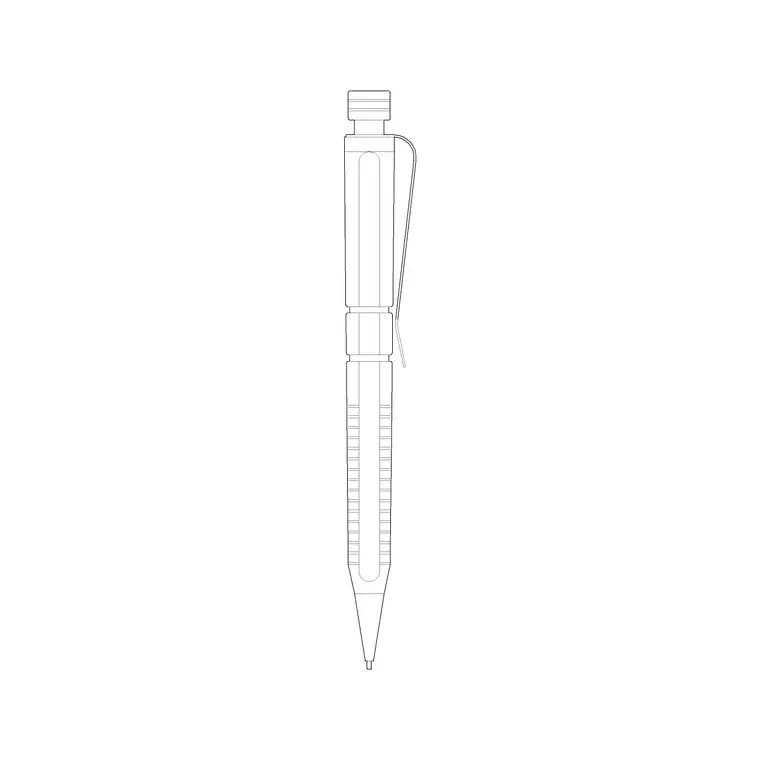
A ball point pen CAD block is one of the smallest but most relatable props you can add to a desk in an interior drawing. It is a slim pen — barrel, clip and tip — drawn to lie on a work surface and tell the reader that the desk is in use. This page offers it as a free DWG, ready for AutoCAD and any compatible viewer, alongside the other writing-instrument blocks in the library.
The block is free for personal and commercial drawings, with no signup, no watermark and no attribution. It lives on the accessories or styling layer with the calculator, book and spectacles props you add once the furniture is placed. A pen left on a desk is a tiny detail, but it is exactly the kind of touch that makes an office or study elevation feel lived-in rather than staged.
What the ball point pen block shows
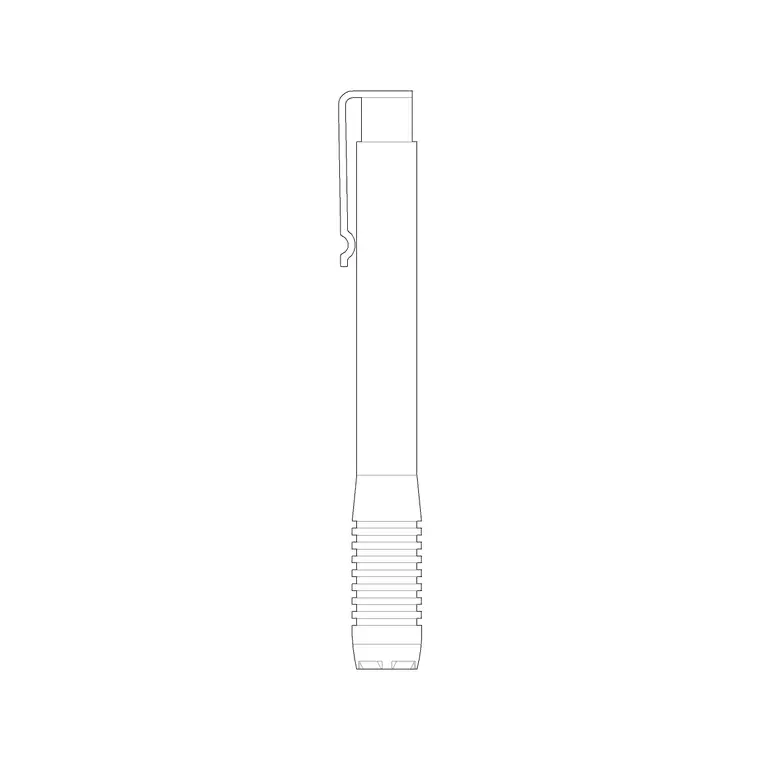
The block is a slim pen drawn lengthwise: the barrel, the pocket clip, the tapered tip and sometimes a cap line. That long, thin silhouette with the clip is what reads as a pen at small scale on a sheet, distinguishing it from any other slender object on the desk.
It is a top-view prop, made to lie flat on a desk or in a pen tray. Because it is a single block reference, you can rotate it to any angle so it looks casually set down, and copy it to make a small group of pens in a holder or across a stationery display.
Typical sizing to design around
A standard ball point pen is commonly somewhere around 140–150 mm long and 8–12 mm across the barrel. Treat those as ranges — a slim fashion pen is thinner, a chunky marker thicker — and scale the block to the writing instrument you are showing.
Because a pen is tiny against a desk, place it where it still reads at plot scale, near the front edge or beside a notepad. SCALE from the centre if you need a different length. On a desk vignette the pen is a finishing accent, so keep it subtle rather than oversized.
Where a pen block is used
Use it in office and home-office desk layouts, study and home-study elevations, reception and counter drawings, classroom and library desks, and stationery or gift-shop retail displays. Anywhere a work surface should read as occupied, a pen left on the desk does it instantly.
It pairs naturally with the calculator, book, spectacles and other desk props in the same library. A notepad with a pen across it, or a pen beside a calculator, builds the small details that make a workstation believable in a furniture, fixtures and equipment drawing.
How to insert and place the block
The DWG is drawn full size in millimetres. Insert at scale 1 in a millimetre drawing, 0.001 in a metre template, or set INSUNITS to millimetres so AutoCAD rescales on insertion. Run INSERT, browse to the file and pick the centre of the pen as the insertion point.
Lay it flat on the desk surface near a notepad or the other props, and rotate it a few degrees so it looks set down rather than aligned to the grid. Because it inserts as a single block reference, you can copy several pens into a holder or a display tray in a moment.
Building a desk vignette
A single pen is a small accent; it works best as part of a desk group. Combine it with a notepad, a calculator, a book and spectacles to dress a study or office desk so the elevation reads as a space in use. Lay the pen across a pad or beside the keyboard as someone would actually leave it.
Keep the desk props on a styling layer so you can freeze them for a clean furniture plan and thaw them for the dressed presentation. When a desk vignette works, WBLOCK the props as one reusable cluster and drop it onto the next desk across a floor in a single move.
Pens, pencils and other writing instruments
This ball point pen is one of several writing-instrument blocks in the library, which also includes a pencil and other pen styles. Mixing a pen, a pencil and a marker in a desk pot reads more naturally than three identical pens, so reach for the related blocks when you dress a holder.
For a stationery or gift-shop display, line up the different writing instruments along a shelf or in trays at consistent scale so they read as a product range. Keeping them all on the same accessories layer lets you freeze or thaw the whole display together for technical and presentation versions of the drawing.
File format, compatibility and licensing
The pen is a native DWG, so this tiny prop inserts straight into a desk vignette without any conversion. It opens in current AutoCAD and AutoCAD LT, in BricsCAD and DraftSight, and in free online DWG viewers for a quick preview. Where a DXF is supplied, it gives a fallback for software that prefers that interchange format.
The licence is as plain as the object: free for personal and commercial use, no signup, no watermark and no attribution. An office fit-out, a study elevation or a stationery-shop display can all use the pen without paperwork. You can edit the barrel, recolour it or scale it for a slimmer or chunkier instrument, and whatever you produce is cleared for any project drawing.
Free download
Browse the full library — DWG & DXF, no signup.
Questions
Frequently asked
Is the ball point pen CAD block free for commercial use?+
Yes. It is a free DWG download with no signup, no watermark and no attribution, cleared for commercial project drawings.
What view is the pen drawn in?+
It is a top-view desk prop — a slim pen with barrel, clip and tip — made to lie flat on a desk surface or in a pen tray in plan and styled desk views.
How big should the pen be?+
A standard ball point pen is commonly around 140–150 mm long; scale the block from the centre to suit a slimmer or chunkier instrument. Treat dimensions as adjustable ranges.
Will it open in free viewers and AutoCAD LT?+
Yes. The DWG targets AutoCAD 2004 and later, opening in AutoCAD, AutoCAD LT, BricsCAD, DraftSight and free online DWG viewers.
Related downloads
Blocks for this guide
Related categories
Related guides
Block landing
Free Classical Column CAD Blocks — DWG Download
Download free classical column CAD blocks in DWG — shaft, capital and base drawn in elevation and plan for AutoCAD. No signup, free for commercial use.
Block landing
Free Greek & Ionic Column CAD Blocks — DWG
Free Greek and Ionic column CAD blocks in DWG — fluted shafts and volute capitals drawn in elevation for AutoCAD. No signup, free for commercial use.
Block landing
Free Decorative Arch CAD Blocks — DWG Download
Download free decorative arch CAD blocks in DWG — round, segmental and classical archways drawn in elevation for AutoCAD. No signup, free for commercial use.