Curated pack · free tree cad blocks
30 free tree CAD blocks for AutoCAD in 2026
By Saumyajit Maity · Published 6 Mar 2024 · Updated 9 Feb 2026
Thirty trees is roughly the planting palette a real site plan needs: a handful of structural shade trees, some ornamentals, a few conifers for evergreen mass, and enough variety that an avenue doesn't read as one symbol stamped fifty times. This round-up pulls together 30 free tree CAD blocks in DWG and DXF — plan-view canopies for site and landscape plans, plus elevation trees for street sections and building elevations. Each one is drawn to scale and cleared for commercial use, with no signup and no watermark.
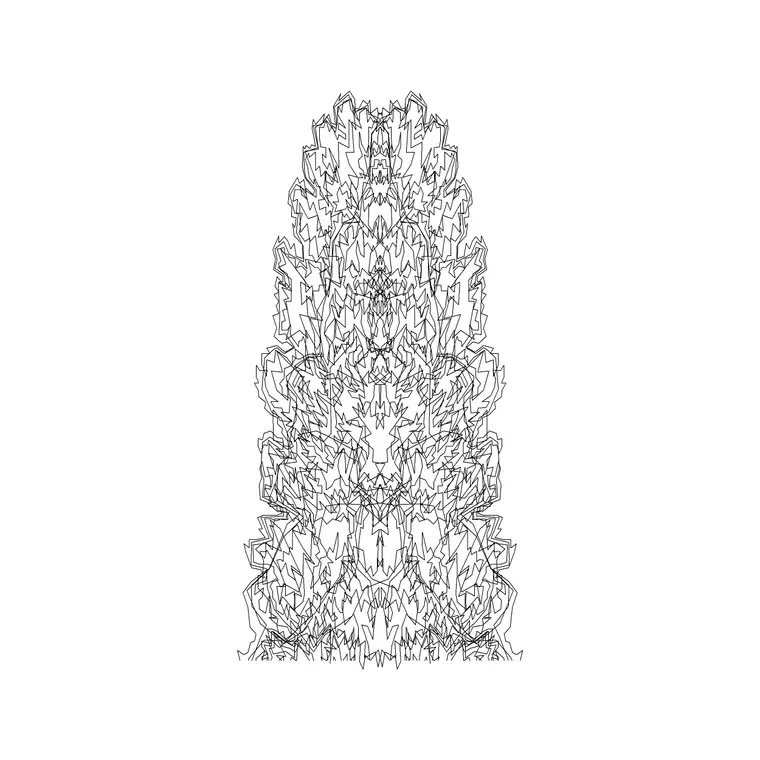
The set is deliberately mixed. Some symbols are simple — a stylised circle with a light radial texture that reads cleanly at 1:500 — while others are detailed enough to carry character at 1:100. That range is the point: a planting plan needs both the quiet background trees and the few specimen trees that anchor the design.
What follows is a guide to using the whole set rather than a list of thirty filenames. We cover what's in the pack, how to scale a canopy to a believable mature spread, and how to keep the trees on a planting layer so you can switch between a clean structural plan and a fully dressed landscape from one drawing.
What the 30-tree set covers
The collection breaks down into four working groups. Plan-view broadleaf trees — oaks, maples, generic deciduous canopies — drawn from above as the rounded, textured shapes you array along avenues and scatter across parkland. Conifers and evergreens, narrower and often shown with a spikier outline so they read differently from the broadleaf trees on the same plan. Ornamental and small trees for courtyards, front gardens and tight urban beds. And a parallel set of elevation trees — the same families seen from the side — for sections and presentation views.
Mixing detailed and simple symbols inside one set is intentional. On a busy masterplan you want the plain canopies; on a detailed planting plan you want the richer ones. Having both means you match the symbol to the drawing scale instead of fighting a single over-detailed block.
How to use the whole set, not just one block
The trick with a 30-block set is to treat it as a kit, not a grab-bag. Pick two or three structural trees for the big moves, one or two ornamentals for accent, and one conifer for evergreen mass — then reuse that small palette across the scheme so the drawing stays coherent. A planting plan with thirty different symbols looks chaotic; one with four symbols, varied in scale and rotation, looks designed.
Insert each block, then vary it slightly between instances — a small rotation here, a 10–15% scale change there — so a group of the same species reads as natural rather than rubber-stamped. For a formal avenue, do the opposite: keep the scale and spacing identical so the row reads as deliberately urban.
Scaling trees to a believable canopy
Trees vary enormously, so scaling is where a planting plan earns credibility. Use these reference spreads as a guide rather than gospel: small ornamental tree 2–4 m across, medium tree 5–8 m, large shade tree 8–12 m, mature forest tree 12 m and beyond. If a block was drawn at a 4 m canopy and you need 8 m, insert it and run SCALE with the trunk as the base point and a factor of 2.
Decide early whether you are drawing the planting at planting-year size or at design-year (mature) size — most landscape plans show mature spread so the client sees the scheme as intended. Whatever you choose, keep it consistent across the drawing so the canopies relate honestly to the paths and buildings around them.
Plan symbols vs elevation trees
For site plans and masterplans you work in plan: canopies seen from above, positioned against paths, boundaries and buildings, then path-arrayed along avenues. The plan blocks are the workhorses of any landscape drawing.
For street sections, building elevations and presentation boards you switch to the elevation trees in the set — the same families drawn from the side at believable heights so they sit correctly against the architecture. A few of the blocks ship both views in one DWG, so a single download covers the plan and the matching section. Keep plan and elevation symbols on separate layers if you build a drawing that uses both, so each reads cleanly when you plot.
Keeping 30 blocks on a tidy planting layer
With a set this size, layer discipline is what stops the drawing turning to mud. Put every tree on a dedicated planting layer — L-PLANT is a common convention — so the landscape information has its own colour, lineweight and on/off control. Freeze that layer and you have a clean structural plan; thaw it and you have the full landscape drawing, from the same file.
Go one step further and split structural planting (the big shade trees that shape the scheme) onto one layer and ornamental or shrub planting onto another. Then a single drawing can produce a concept plan, a detailed planting plan and a 'mature' view just by controlling which layers show. Set that convention up once, save it into your template, and every new landscape drawing starts from the same structure.
Where these tree blocks fit in a drawing set
Tree blocks rarely travel alone. Pair this set with paving and hard-landscape blocks for the ground plane, with people and scale-figure blocks to give the drawing human scale, and with the outdoor category for fences, benches and street furniture. Together they let you build a complete external-works drawing from one free, consistent library.
Because everything is licence-clear, the same thirty trees carry from an early concept sketch through to a coordinated landscape drawing — and into student portfolios and competition boards where paying for a tree library makes no sense. Download the ones that suit your scheme, save them into a project planting folder, and you have a reusable kit for every site plan that follows.
Free download
Browse the full library — DWG & DXF, no signup.
Questions
Frequently asked
Are all 30 tree blocks free for commercial use?+
Yes. Every tree block downloads free in DWG and, where available, DXF, with no signup, no watermark and no attribution requirement, and all are cleared for commercial project use.
Do the blocks include both plan and elevation trees?+
Yes. The set mixes plan-view canopies for site and landscape plans with elevation trees for street sections and building elevations. Several individual blocks ship both views in the same DWG.
How do I scale a tree block to the right canopy size?+
Insert the block, then run SCALE with the trunk as the base point and a factor that brings the canopy to the species' mature spread — for example a factor of 2 to take a 4 m canopy to 8 m.
Why mix simple and detailed tree symbols in one set?+
So you can match the symbol to the drawing scale. Simple canopies read cleanly on large masterplans at 1:500; detailed canopies show species character on plans at 1:100. Using the wrong one for the scale makes the drawing either bland or muddy.
Which AutoCAD versions open these tree blocks?+
The DWG files target AutoCAD 2004 and later, so they open in current AutoCAD, AutoCAD LT, BricsCAD, DraftSight and free DWG viewers without conversion.
Related downloads
Blocks for this guide

Popular blocks to download
Related categories
Related guides
Curated pack
Free Landscape & Tree DWG Pack — Plan & Elevation
A free landscape and tree DWG pack — trees, palms, shrubs and potted plants in plan and elevation for AutoCAD site plans. DWG and DXF, no signup, commercial-use OK.
Curated pack
Free Landscape CAD Block Pack — DWG & DXF
A free landscape CAD block pack in DWG and DXF — trees, shrubs, fences, paving, lighting and figures for AutoCAD landscape plans. No signup, commercial-use OK.
Curated pack
Free Garden CAD Block Pack — DWG Download
A free garden CAD block pack in DWG and DXF — trees, shrubs, fences, a swing, a BBQ and paving for residential garden plans. No signup, commercial OK.