Block landing · 3 shutter openable window cad block
Free 3 shutter openable window CAD block in DWG in 2026
By Sumana Kumar · Published 12 Feb 2025 · Updated 26 Jan 2026
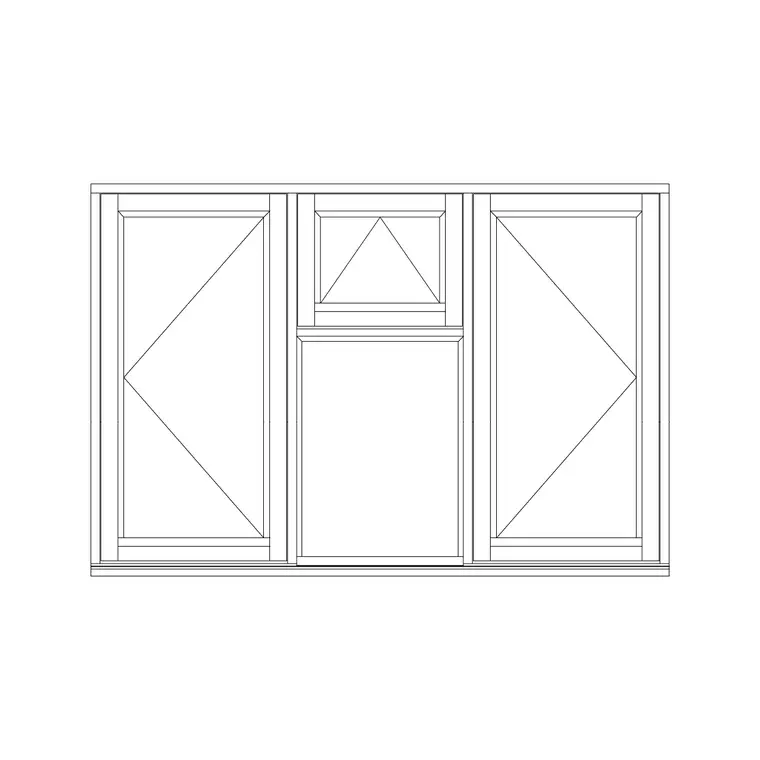
A three-shutter openable window — three vertical panels side by side, the shutters hinged to swing open — is a staple of residential and commercial elevations where a wide opening needs ventilation across its whole width. Drawing the three leaves, their frame divisions and the swing consistently every time is exactly the kind of repetitive work a CAD block removes. This page offers a free 3 shutter openable window CAD block in DWG.
The block is drawn to a believable window module in plan and elevation, with the three shutters, the mullions between them and the openable indication, so it reads correctly when you scale it into a real elevation or floor plan. Use it on house and apartment elevations, plans and window schedules, and crosslink to the windows category for single, double and sliding variants. It is free for personal and commercial use, with no signup or watermark.
What a 3 shutter openable window block shows
A three-shutter openable window divides a wide opening into three vertical leaves separated by mullions, with the shutters hinged so they swing open for ventilation. In elevation the block draws the outer frame, the two mullions, the three shutter panels and the glazing, plus the hinge side and an opening indication so it is clear the window is openable rather than fixed. In plan it shows the frame in the wall and the leaf swing.
The download carries the frame, glazing and swing on sensible layers so you can control the line work, screen back the glass, or freeze the swing arc for a clean elevation. Because it is true vector geometry it scales to your opening size and prints crisply at elevation and detail scales.
Openable shutters versus fixed panels
In a three-shutter window the leaves can be any mix of openable and fixed. A common arrangement makes the outer two openable for cross-ventilation while the centre stays fixed, but all three can open, or the centre can open with fixed sides — the choice depends on the room and the elevation. This block represents the openable shutters so the drawing communicates that the window ventilates.
Where a project mixes openable and fixed leaves, the elevation should make the difference legible, usually by showing the opening indication only on the leaves that move. Keeping the swing on its own layer lets you adjust which leaves read as openable without redrawing the frame, so one block serves several configurations.
Typical window sizes to design around
Window dimensions are governed by the room, the wall and the standard sizes a supplier offers, so a three-shutter window is naturally a wider opening split into three sensible leaves. The overall width, the height to the head and the sill height above floor all come from the elevation and the room behind it, and the leaf widths follow from dividing the opening into three.
Treat these as design-around ranges and confirm the actual window size, sill height and opening direction against your project and the chosen product before relying on the block for set-out. The block is drawn to a believable module so that, scaled into a real elevation, the proportions and the leaf widths read correctly.
How to insert and place the window
The block is in millimetres. Insert at scale 1 in a millimetre drawing, 0.001 in metres, or set INSUNITS so AutoCAD rescales automatically. On an elevation, snap the window into the opening you have drawn in the wall, aligning the sill to the right height above the finished floor line. On a plan, place the frame within the wall thickness and check the leaf swing against the room.
If your opening differs from the block, scale it to fit the structural opening, then verify the leaf widths and the head and sill heights still make sense. Keep the opening indication facing the way the shutters actually swing, and add the window to your schedule with its reference, size and opening type so the drawing and the schedule agree.
Where 3 shutter windows are used
Three-shutter openable windows suit living rooms, bedrooms and larger rooms in houses and apartments, offices and commercial frontages, and anywhere a wide, well-ventilated opening is wanted. The three-leaf division gives generous glazing and cross-ventilation while keeping each shutter a manageable size to operate.
Pair the block with wall, sill, lintel and reveal details to complete the opening, and bring in single, double or sliding windows from the windows category where the elevation needs variety. On an elevation, a correctly-proportioned three-shutter window helps the façade read as a real, buildable design rather than a row of generic rectangles.
Layering, schedules and reuse
Put the window on a dedicated windows or openings layer, keeping the frame, glazing and swing separable so you can produce a clean elevation, a glazing plan and a schedule from the same geometry. An annotation layer for the window reference and dimensions keeps the labels controllable.
Because windows repeat across a building, a tuned three-shutter block is worth saving to your project library: once its size and opening type match your specification, WBLOCK it so every instance of that window type is identical and the schedule count is reliable. Tagging each window with a type reference lets you extract a window schedule straight from the drawing instead of counting by eye.
Free download
Browse the full library — DWG & DXF, no signup.
Questions
Frequently asked
Is the 3 shutter openable window block free for commercial use?+
Yes. It downloads free in DWG with no signup, no watermark and no attribution requirement, and it is cleared for commercial project work.
Does the block include both plan and elevation?+
It is drawn to read in both: the elevation shows the three shutters, mullions, glazing and opening indication, and the plan shows the frame in the wall with the leaf swing. Insert whichever view your drawing needs.
Can I make some leaves fixed instead of openable?+
Yes. The swing indication is on its own layer, so you can show only the leaves that actually open — for example outer leaves openable with a fixed centre — without redrawing the frame. Match the elevation to your specified configuration.
Can I resize it for a different opening?+
Yes. Scale the inserted block to fit your structural opening, then check that the three leaf widths and the head and sill heights still make sense. Confirm the final size and opening direction against your project and the chosen product.
Related downloads
Blocks for this guide
Related categories
Related guides
Block landing
Free Casement Window CAD Blocks — DWG Download
Free casement (openable) window CAD blocks in DWG — side-hung sashes in plan, elevation and section for AutoCAD. No signup, free for commercial use.
Block landing
Free Single-Shutter Window CAD Blocks — DWG
Free single-shutter window CAD blocks in DWG — one-panel openable sashes in elevation and plan for AutoCAD. Left/right-hung, no signup, commercial OK.
Block landing
Free Double-Shutter Window CAD Blocks — DWG
Free double-shutter window CAD blocks in DWG — two-leaf openable windows with glass, in elevation and plan for AutoCAD. No signup, commercial-use OK.