Explainer · 2d vs 3d cad blocks
2D vs 3D CAD blocks: which one do you actually need? in 2026
By Saumyajit Maity · Published 12 May 2024 · Updated 30 Apr 2026
When you download a CAD block, it is almost always one of two kinds: a flat 2D block made of lines and arcs that lives on a single plane, or a 3D block that has real depth and can be orbited and rendered. They look similar in a thumbnail but behave completely differently once they are in your drawing, and reaching for the wrong one can either bloat your file or leave you unable to do the visualisation you needed.
This guide explains what separates a 2D block from a 3D block, how each affects file size and drawing performance, and — the practical question — which one to download for the work in front of you. The short version: for production drawings, schedules and printed sheets, 2D blocks are usually the right choice; for visualisation, walkthroughs and clash-checking, you want 3D. The blocks on this site are 2D, drawn in plan, elevation or section, which is what the overwhelming majority of drawing work actually calls for.
What a 2D CAD block is
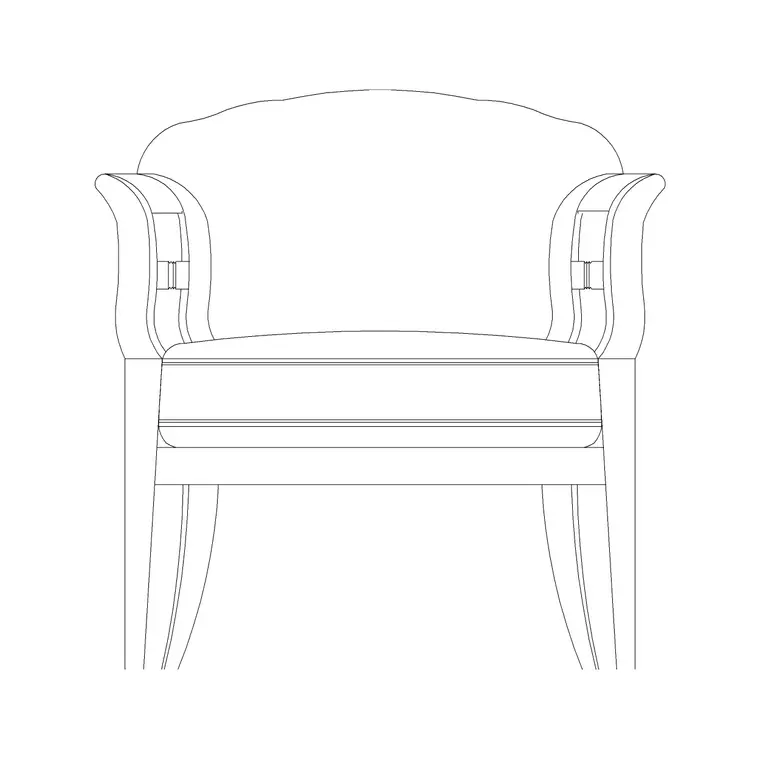
A 2D CAD block is a flat symbol built from two-dimensional geometry — lines, polylines, arcs, circles, hatches and text — all sitting on a single plane, almost always the XY plane (Z = 0). A plan-view chair, an elevation of a door, a section through a bath: each is a 2D block. It has no depth you can orbit around; rotate the view into 3D and a 2D block simply appears as a flat card standing on edge.
The whole point of a 2D block is to represent one view of an object as cleanly and lightly as possible. It is the unit of the traditional drafting process, the thing you array across a floor plan, and it prints as crisp linework at any scale because it is pure vector geometry.
What a 3D CAD block is
A 3D CAD block carries real depth. It is built from 3D geometry — solids, surfaces or meshes — so the object exists in space and can be viewed from any angle, orbited, sectioned live and rendered with materials and lighting. A 3D chair is a true model of the chair; spin the view and you see its back, its legs and its seat from underneath.
3D blocks are what you use when the deliverable is a visual: a rendered interior, a massing study, a walkthrough, or a coordination model where you need to see whether a duct clashes with a beam. They carry far more information than a 2D symbol, which is exactly why they are heavier and slower.
File size and performance
The difference in weight is the practical reason the choice matters. A 2D block stores a handful of flat entities, so a plan with hundreds of 2D furniture blocks stays light and pans smoothly. A 3D block stores a full solid or mesh, often with many faces, so a scene full of detailed 3D blocks can balloon in size and start to lag when you orbit or regenerate.
There is also the redraw cost. 2D linework regenerates almost instantly; complex 3D meshes have to be re-tessellated and shaded. If you only ever need a printed plan and you load it up with heavy 3D models, you pay all that performance cost for visual richness the printout never shows. Matching the block type to the deliverable keeps drawings responsive.
When to use 2D blocks
Reach for 2D blocks for the bulk of everyday drawing work. Floor plans, furniture layouts, setting-out drawings, elevations, sections, details, schedules and any sheet that will be printed at a fixed scale are all 2D territory. A 2D plan-view tree, a 2D elevation sofa, a 2D window symbol — these give you clean, scalable, lightweight linework that reads correctly on paper.
2D blocks are also the most compatible. Because they are simple geometry, they open reliably in older AutoCAD, in AutoCAD LT (which has limited 3D), and in free DWG viewers. That portability is why downloadable block libraries — including this one — are built in 2D: a 2D block works for the widest range of people and software.
When to use 3D blocks
Switch to 3D blocks when the output is a model rather than a sheet. Rendered visualisations and client presentations need 3D furniture, fixtures and trees so the scene reads convincingly with light and shadow. Massing and design studies need 3D massing blocks. Coordination and clash detection need 3D models so overlapping objects can actually be found in space.
The trade-off is effort and weight: 3D blocks take longer to build, are larger to store, and demand more from your hardware. A common professional workflow is to keep the production drawing set in 2D and build a separate, lighter 3D model only for the views that genuinely need it, rather than modelling everything in 3D just in case.
Can you mix the two?
Yes, and people do all the time. A single project often carries a 2D set for construction documentation and a parallel 3D model for visualisation, sometimes from the same software. Some blocks are even authored so that a 2D representation shows in plan while a 3D body shows in a model view, but that is an advanced setup rather than the norm for downloadable libraries.
The practical advice is to decide what the drawing is for before you download. If you are producing a plan, an elevation or a printed sheet, grab the 2D block — it is lighter, more compatible and exactly what the sheet needs. If you are building a render or a coordination model, source a 3D model instead. Because the blocks here are 2D, they slot straight into the documentation side of that split, ready to insert at true scale in plan, elevation or section.
Free download
Browse the full library — DWG & DXF, no signup.
Questions
Frequently asked
Are the CAD blocks on this site 2D or 3D?+
They are 2D — flat blocks drawn in plan, elevation or section, built from clean vector linework. That makes them light, scalable, and compatible with everything from current AutoCAD to AutoCAD LT and free DWG viewers, which is what most drawing work needs.
Can I use a 2D block in a 3D model?+
You can place it, but it stays flat — a 2D block has no depth, so in a 3D view it appears as a flat card on a single plane. For a true 3D scene you need 3D models. Use 2D blocks for plans, elevations, sections and printed sheets.
Why is my drawing slow after adding lots of blocks?+
Heavy 3D blocks are the usual culprit — solids and meshes are far more demanding to redraw and store than flat 2D geometry. If you only need a printed plan, swap detailed 3D blocks for 2D equivalents and performance usually recovers.
Is a 2D block lower quality than a 3D one?+
No — they answer different questions. A 2D block is the right, high-quality tool for documentation: it prints as crisp linework at any scale. A 3D block is right for visualisation. Neither is 'better'; the better one is whichever matches your deliverable.
Related downloads
Blocks for this guide

Related categories
Related guides
Explainer
Plan vs Elevation vs Section Explained
Plan vs elevation vs section explained simply — what each architectural view shows, how they differ, when to use each, and how they read together in a drawing set.
Explainer
What Is a Floor Plan? A Clear Explanation
What is a floor plan? A clear explanation of what it shows, the cut height, the symbols it uses, how to read one, and how it differs from other drawings.
Explainer
What Is an Elevation Drawing? Explained
What is an elevation drawing? A clear explanation of what it shows, exterior vs interior elevations, how it differs from a plan, and how to read one.