Curated pack · pine tree cad blocks
20 free pine tree CAD blocks in DWG and DXF in 2026
By Sumana Kumar · Published 11 Dec 2024 · Updated 20 Apr 2026
Pine and other conifers carry a distinct silhouette that ordinary deciduous tree symbols cannot stand in for, which is exactly why a dedicated set is worth keeping in your library. This collection gathers 20 free pine tree CAD blocks in DWG and DXF — tall narrow firs, broader spruces and rounded ornamental pines drawn in elevation, plus simplified plan-view canopies for site layouts. Each file is drawn to scale and free for personal and commercial work, with no signup, no watermark and no attribution.
The pack is built for landscape architects, urban designers and architects who need believable evergreen planting on elevations, street sections and site plans. Because conifers hold their shape and colour through the year, designers reach for them on screening lines, boundary belts and as vertical accents — and a correctly-proportioned block makes that reading instant on the drawing.
Use the elevation blocks where the tree is seen face-on, such as a building elevation or a road section, and the plan blocks where you are stamping a canopy onto a site plan from above. Mixing a few species and heights across a planting line keeps the drawing from looking rubber-stamped.
What's in the pine tree pack
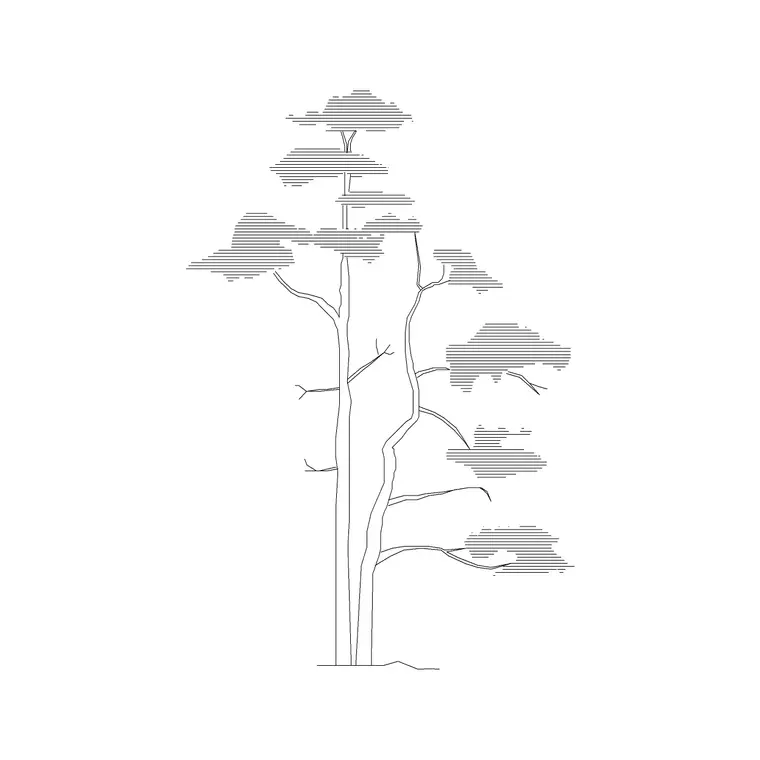
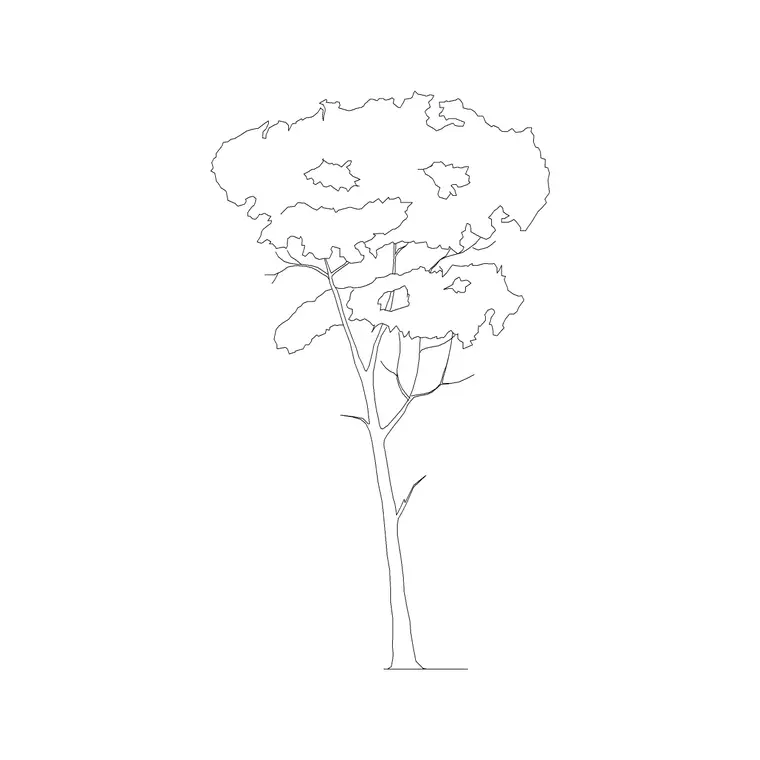
The 20 blocks span the conifer shapes you actually draw. Tall columnar pines and firs give you the narrow, spire-like silhouette used for screening and vertical emphasis. Broader spruce and cedar forms cover the classic triangular evergreen outline. A handful of rounded and umbrella pines round out the set for Mediterranean and ornamental schemes.
Most files are elevation symbols, since pines are most often shown from the side where their tapering profile reads clearly. Where a plan-view block is included, it is a simplified textured canopy you can array along a planting line. Together the mix lets you carry a single species language from a presentation elevation through to the coordinated site plan.
Typical pine proportions to design around
Conifers vary widely by species and age, so treat these as planning ranges rather than fixed numbers. Ornamental and young pines often sit in the 3-6 m height band with a 2-4 m spread; mature firs and spruces commonly reach 12-20 m with a 4-8 m spread; some forest pines go taller still. The defining trait is that the spread stays narrow relative to height, which is why a pine reads as vertical on the page.
When you scale a block, match the height to your design intent and let the narrow canopy follow. A common mistake is scaling a pine to a broadleaf's spread, which flattens the silhouette and loses the evergreen character. Keep the trunk centred on the planting point so the canopy grows symmetrically when you resize.
How to use the set on a drawing
Insert the blocks with the INSERT command or by dragging the DWG onto the drawing, picking the trunk base as the insertion point. The blocks are drawn in millimetres, so set INSUNITS to millimetres (or insert at scale 0.001 in a metre template) to land them at true size.
Put the trees on a dedicated planting layer such as L-PLANT so you can freeze them for a clean structural drawing and thaw them for a fully landscaped view. For a screening belt, use a path array along the boundary line; for a formal avenue, a rectangular array keeps spacing even. To avoid a stamped look, copy a few different species blocks down the line and nudge the scale and rotation of each slightly.
Per-shape notes: firs, spruces and ornamentals
Columnar firs are your go-to for tight screening where a broadleaf would overhang a path or boundary; their narrow base means you can plant them close together. Triangular spruces suit larger open settings — parks, campuses, rural site edges — where the full evergreen pyramid has room to read.
Umbrella and stone pines carry a flatter, spreading crown on a clear trunk, which makes them useful for car parks and plazas where you want canopy shade without a dense screen at eye level. Choosing the right shape per situation, rather than repeating one symbol, is what makes a planting plan look considered rather than filled.
Plan symbols vs elevation symbols
On a site or landscape plan you work from above, so a plan-view conifer is a textured circular or star-edged canopy that marks the trunk position and approximate spread. These are what you array along planting lines and count for a planting schedule. Keep them light in lineweight so the planting layer does not overpower the hardscape.
Elevation symbols come into their own on building elevations, street sections and presentation boards, where the tree is seen side-on and its tapering profile does the work. Drawing the same scheme in both views from this pack keeps the species reading consistent between your technical plan and your presentation elevation.
Where pine blocks get used
Pine and conifer blocks turn up across landscape and architectural sets: residential garden plans, boundary and screening belts, park and campus masterplans, ski-resort and mountain-context drawings, and any street section where evergreen structure matters. They pair naturally with the broadleaf trees, shrubs and potted plants in the trees-and-plants category to build a varied planting palette.
Because the files are free and licence-clear, they suit student landscape portfolios, competition boards and fast concept site plans as readily as production drawings. The same block carries from an early sketch to a coordinated planting drawing, so you are not redrawing the evergreens at every stage of the project.
Free download
Browse the full library — DWG & DXF, no signup.
Questions
Frequently asked
Are these pine tree CAD blocks free for commercial use?+
Yes. All 20 pine and conifer blocks download free in DWG and, where available, DXF, with no signup, no watermark and no attribution. They are cleared for commercial project use.
Do the blocks include plan and elevation views?+
The pack is mostly elevation symbols, since pines read best from the side, with simplified plan-view canopies included where available. Each block's page lists the views it ships with.
What size should I scale a pine block to?+
Match the height to your design intent — roughly 3-6 m for young or ornamental pines and 12-20 m for mature firs and spruces — and let the narrow canopy follow. Keep the trunk centred so it scales symmetrically.
Will the files open in AutoCAD LT and free DWG viewers?+
Yes. The DWG files target AutoCAD 2004 and later, which opens in current AutoCAD, AutoCAD LT, BricsCAD, DraftSight and free online DWG viewers.
Related downloads
Blocks for this guide


Related categories
Related guides
Curated pack
Free Landscape & Tree DWG Pack — Plan & Elevation
A free landscape and tree DWG pack — trees, palms, shrubs and potted plants in plan and elevation for AutoCAD site plans. DWG and DXF, no signup, commercial-use OK.
Curated pack
Free Landscape CAD Block Pack — DWG & DXF
A free landscape CAD block pack in DWG and DXF — trees, shrubs, fences, paving, lighting and figures for AutoCAD landscape plans. No signup, commercial-use OK.
Curated pack
Free Garden CAD Block Pack — DWG Download
A free garden CAD block pack in DWG and DXF — trees, shrubs, fences, a swing, a BBQ and paving for residential garden plans. No signup, commercial OK.