Curated pack · north arrow cad blocks
20 free north arrow CAD blocks in DWG and DXF in 2026
By Saumyajit Maity · Published 11 Apr 2025 · Updated 2 May 2026
Every site plan and most floor plans carry a north arrow, and it is one of those small symbols that you should never be redrawing by hand. This collection gathers 20 free north arrow CAD blocks in DWG and DXF — clean simple arrows, decorative star and sun points, compass dials and modern minimal marks — drawn ready to drop into any drawing, free for personal and commercial use with no signup or watermark.
A north arrow is a conventional symbol, so the job of the block is to give you a clear, professional mark you rotate to true north and place in a consistent spot. The variety here lets you match the symbol to the drawing's character — a restrained arrow for a technical site plan, a decorative compass for a presentation board, a minimal mark for a clean modern sheet.
The pack suits architects, surveyors, planners and drafters preparing site plans, location plans, floor plans and landscape drawings. Pair the north arrow with the scale bar, level and other annotation symbols in the building-symbols category to build a consistent drawing convention.
What's in the north arrow pack
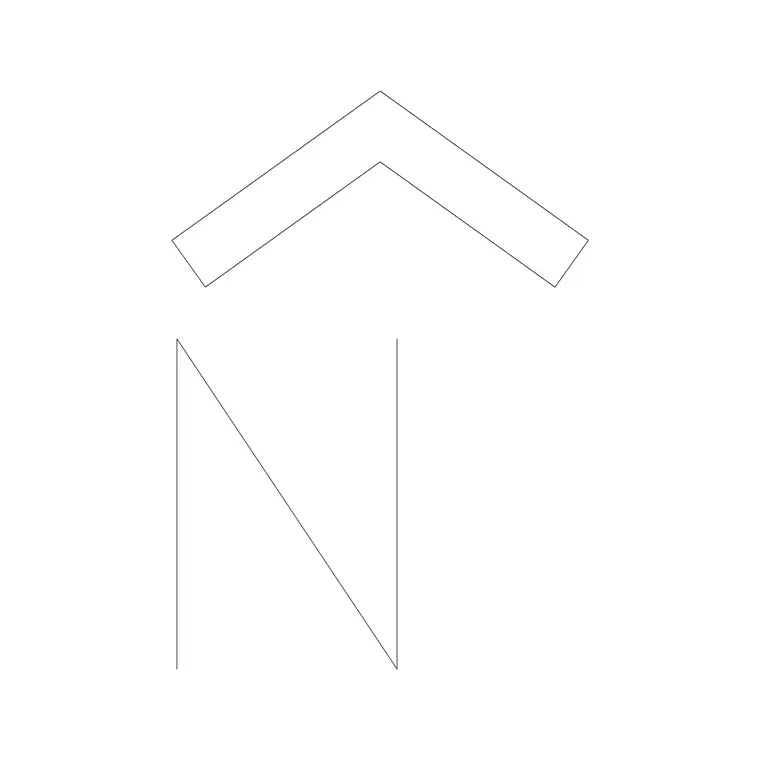
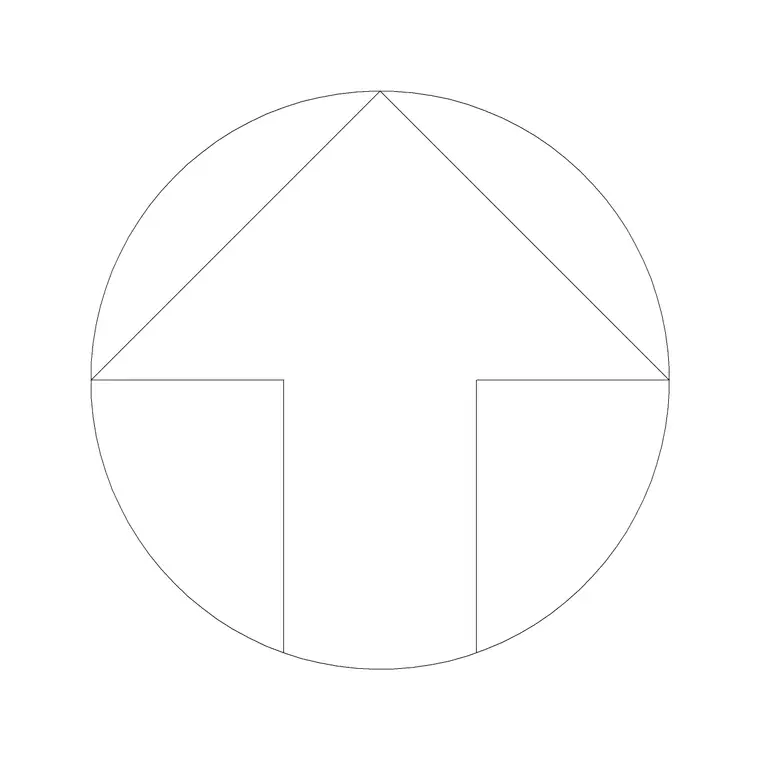
The 20 blocks span the styles you choose between: plain triangular and line arrows for technical drawings, filled solid arrows for bold sheets, star and sun-style compass points for presentation work, dial and compass-rose marks for survey and location plans, and minimal modern marks for clean contemporary sheets.
Because a north arrow is a single symbol you place once or twice per sheet, the value of a set is choice and consistency — picking one style and using it across a drawing set keeps the documents looking coordinated. Keeping the chosen mark as a block also means you can swap the whole project's north symbol by editing one definition if the house style changes.
Sizing and placing a north arrow
A north arrow is sized to read clearly at the plotted scale, not to a real-world dimension, so think in terms of paper size. It wants to be large enough to read at a glance but small enough not to dominate the sheet — typically a modest mark in a corner of the drawing or beside the title block. Place it consistently in the same position across every sheet so a reader always finds it in the same spot.
Because the symbol's size relates to the printed sheet rather than the model, insert it in paper space (the layout) where it plots at a fixed size regardless of the viewport scale. That keeps the arrow the same size on every drawing even when the plans are at different scales.
How to rotate the arrow to true north
The one thing that matters with a north arrow is that it points the right way. Insert the block with INSERT or by dragging the DWG, then rotate it so it aligns with true north for your site. If your drawing is set out on a survey grid, rotate the arrow to match the grid's north; if the building is drawn square to the page but sits at an angle on site, the arrow rotates to show that true orientation.
A reliable workflow is to insert the arrow, then use the ROTATE command and either type the known bearing or pick two points along a known north-south line. Once placed and rotated in the layout, the arrow stays fixed while the plan beneath it can be drawn however suits the sheet.
Per-style notes: simple, decorative and compass
Simple line and triangular arrows are the default for technical site and floor plans, where the symbol should inform without drawing attention. Solid filled arrows suit bolder sheets and smaller scales where a thin line would be lost.
Star, sun and compass-rose styles belong on presentation drawings, masterplans and competition boards, where the north mark is part of the graphic language of the sheet. Dial and survey-style compasses suit location and topographic plans that carry a surveyed orientation. Modern minimal marks suit clean contemporary documents. Choosing a style that matches the drawing's tone, then using it consistently, is what makes a set look professionally coordinated.
North arrows in the wider drawing convention
A north arrow rarely travels alone: it sits with the scale bar, the title block, the level and grid references and the drawing's other conventions. Keeping these annotation symbols together on a dedicated layer in the layout — and reusing the same blocks across the project — gives a drawing set its consistent, readable language.
Because the arrow is a block, you can build it into a sheet template so it appears, correctly placed, on every new layout. Then the only per-drawing task is rotating it to the site's true north. That small discipline removes one of the most common sources of inconsistency across a drawing package.
Where north arrow blocks are used
North arrows appear on virtually every coordinated drawing: site and location plans, floor plans, landscape and external-works drawings, masterplans, survey drawings and presentation boards. They pair with the scale bars, levels, grid bubbles and other annotation in the building-symbols category to complete a sheet's conventions.
Free and licence-clear, the blocks suit student drawing sets and competition boards as well as production documents. One north arrow block carries across an entire drawing package, so the orientation symbol is consistent from the first sketch plan to the final issued sheet.
Free download
Browse the full library — DWG & DXF, no signup.
Questions
Frequently asked
Are the north arrow CAD blocks free for commercial use?+
Yes. All 20 north arrow blocks download free in DWG and, where available, DXF, with no signup, watermark or attribution, cleared for commercial project use.
How do I rotate a north arrow to true north?+
Insert the block, then use the ROTATE command and either type the known bearing or pick two points along a north-south line. Rotating it in the layout keeps the arrow fixed while the plan beneath can be drawn to suit the sheet.
What size should a north arrow be?+
Size it to read clearly at the plotted scale rather than to a real dimension. Place it in paper space so it plots at a fixed size on every sheet regardless of the viewport scale.
Can I open the files in AutoCAD LT or free viewers?+
Yes. The DWG files target AutoCAD 2004 and later, opening in current AutoCAD, AutoCAD LT, BricsCAD, DraftSight and free online DWG viewers.
Related downloads
Blocks for this guide

Related categories
Related guides
Curated pack
20 Free Fence CAD Blocks — DWG Download in 2026
Download 20 free fence CAD blocks in DWG and DXF — iron, metal and garden boundary fences in elevation for site plans and details. No signup, commercial OK.
Curated pack
15 Free Gate CAD Blocks — DWG Download in 2026
Download 15 free gate CAD blocks in DWG and DXF — single and double metal, ornamental and main-entrance gates in elevation for site plans. No signup.
Curated pack
Free Landscape & Tree DWG Pack — Plan & Elevation
A free landscape and tree DWG pack — trees, palms, shrubs and potted plants in plan and elevation for AutoCAD site plans. DWG and DXF, no signup, commercial-use OK.