Curated pack · free chair cad blocks
20 free chair CAD blocks for AutoCAD in 2026
By Sumana Kumar · Published 19 Apr 2025 · Updated 18 Feb 2026
Chairs are the single most-repeated object in almost any drawing set, which is exactly why a varied, ready-scaled selection is worth keeping in your library. This round-up pulls together 20 free chair CAD blocks in DWG and DXF — dining chairs, side chairs, armchairs, stacking chairs and lounge seats — each drawn at true millimetre size and ready to drop into AutoCAD 2004 or later. Everything here is free for personal and commercial work, with no signup, no watermark and no attribution required.
The collection deliberately mixes plan-view chairs (the footprint you array around a table) with side-elevation chairs (the seated profile you place in an interior elevation). Because they are correctly scaled, you can check the distance between a chair and the table edge, the pull-out space behind a seat, and the run of a row of theatre or waiting-room chairs the moment they land on the page.
Think of these 20 as a starter kit rather than a finished set: keep the few you reach for daily on a tool palette, and explode or recolour the rest to match a project's drawing standards.
What's in the 20-chair round-up
The selection spreads across the chair types a layout actually needs. Dining and side chairs make up the bulk, because they are what you array four, six or eight to a table. Armchairs and tub chairs cover lounge, reception and breakout settings where the wider footprint matters for clearance. Stacking and folding chairs handle halls, classrooms and event spaces where seating is laid out in dense rows. A handful of accent and occasional chairs round things off for residential interiors.
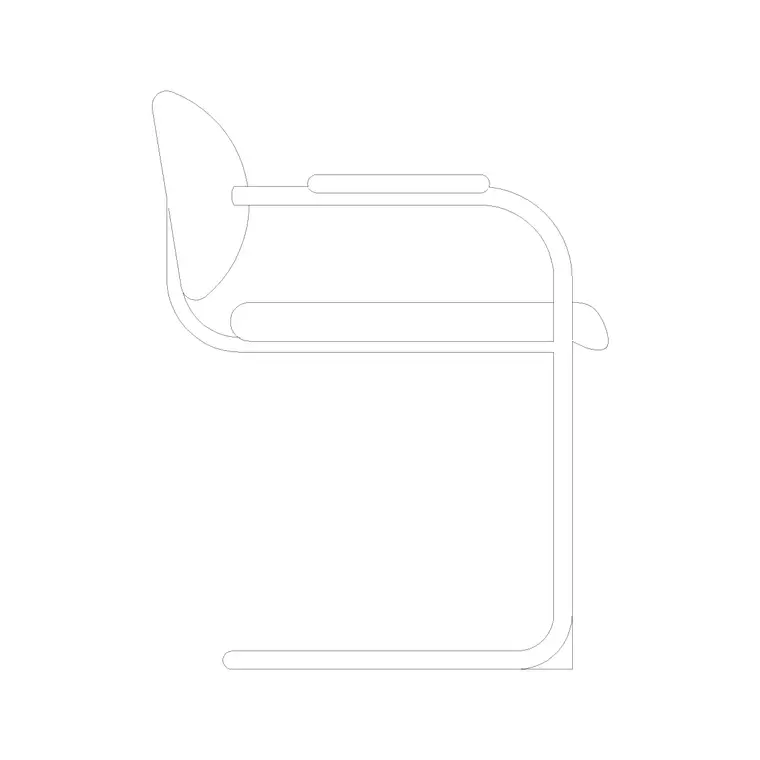
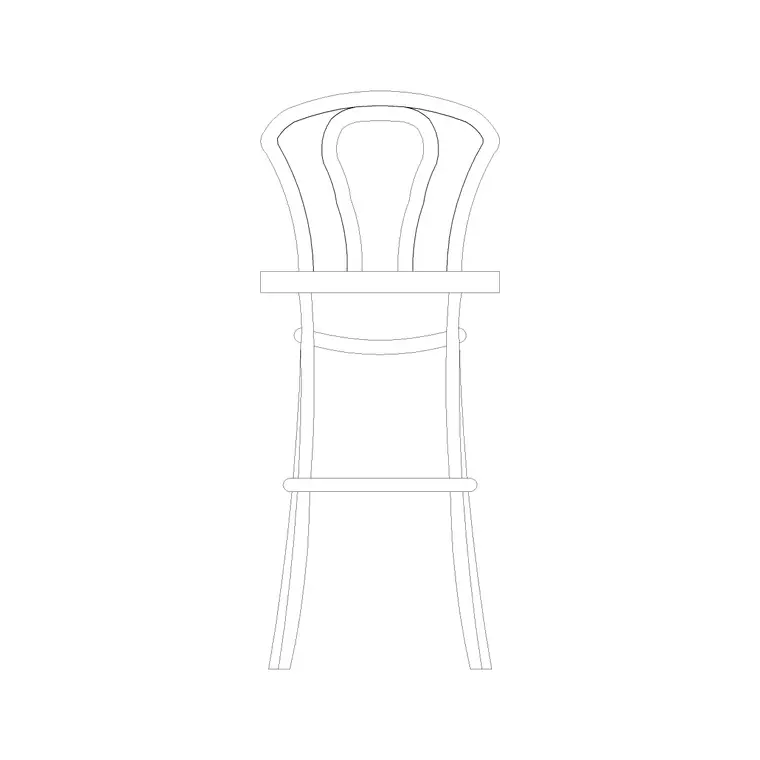
Most blocks are supplied in plan view for space planning. A useful subset — including the side-elevation chair blocks here — is drawn as a seated side profile, which is what you want when you are detailing a desk, a dining setting or a window seat in elevation rather than from above.
Plan footprint vs side-elevation profile
The two views answer different questions. A plan chair shows the seat and back outline seen from above, so you read its footprint and the space it occupies around a table. That is the block you copy around a dining or conference table and the one that governs whether people can actually pull their chairs out.
A side-elevation chair shows the seat height, back height and the rake of the backrest. Reach for it when you draw an interior elevation, a section through a dining room, or a furniture layout that needs to show seated posture. Several blocks in this round-up ship the side profile specifically so you are not stuck drawing a chair freehand into an elevation.
Typical chair dimensions to design around
Keep these ranges in mind when you space a layout. Seat height sits around 430-480 mm from the floor for a standard dining or side chair. Seat width and depth are usually in the 400-500 mm range. Overall plan footprint, including the back legs, is commonly 450-550 mm square, growing to 600-700 mm wide once armrests are added.
For circulation, allow roughly 500-600 mm of pull-out space behind a dining chair so a person can sit and rise, and more where that space doubles as a walkway. Drawn to these figures, the blocks let you confirm that a table seats the number you intend without anyone's chair clashing with the wall or the next setting.
Arraying chairs around a table
The fastest way to seat a table is to insert one chair, position it cleanly against one edge, then array the rest. For a rectangular table, a rectangular or path array down each long side keeps the spacing even; for a round table, a polar array around the table centre distributes chairs at equal angles. Set the array count to the seat number and let AutoCAD do the spacing.
Keep the chairs on their own furniture layer so you can toggle them off for a clean table-only plan, and so a furniture schedule can count them later. When a setting is finalised — table plus its chairs — you can WBLOCK the whole arrangement as a single reusable unit and drop complete dining or meeting settings into a layout in seconds.
Where the chair blocks get used
Chairs turn up in nearly every drawing type: residential dining rooms, restaurant and cafe layouts, conference and meeting rooms, waiting and reception areas, classrooms, auditoria and event spaces. The plan blocks populate furniture layouts; the side-elevation blocks fill interior elevations and sections.
Pair the chairs with the dining-table, sofa and stool blocks elsewhere in this furniture round-up series to build a complete seating layer from a single, consistent library. Because the blocks are free and licence-clear, the same chair carries from an early concept plan through to a coordinated FF&E drawing without any redrawing.
Tidying chairs onto the right layer
A small discipline pays off across a whole project: put every chair on a dedicated furniture or seating layer rather than leaving it on layer 0. Give that layer its own colour and lineweight, and you can produce a clean structural plan by freezing the furniture and a fully furnished plan by thawing it, from one drawing.
If you tag each chair block with a simple attribute — a type code, say — you can extract a seating schedule straight out of the drawing, which is exactly the count a procurement or FF&E spreadsheet wants. With 20 chair variants on hand, the habit that matters most is naming them clearly so the right chair is always one search away.
Free download
Browse the full library — DWG & DXF, no signup.
Questions
Frequently asked
Are all 20 chair blocks really free?+
Yes. Every chair block downloads free in DWG and, where available, DXF, with no signup, no watermark and no attribution requirement. They are cleared for commercial project use.
Do the chairs come in plan or side view?+
Both. Most are plan-view footprints for space planning, and a subset is drawn as a seated side elevation for interior elevations and sections. The views are listed on each block's download page.
What scale are the chair blocks drawn at?+
Full size in millimetres. Insert at scale 1 in a millimetre drawing, 0.001 in a metre drawing, or set INSUNITS to millimetres so AutoCAD rescales automatically on insertion.
How do I quickly seat a round table with chairs?+
Insert one chair against the table edge, then use a polar array around the table centre with the count set to the number of seats. AutoCAD distributes equal-angle copies, so the chairs land evenly spaced.
Related downloads
Blocks for this guide

Related categories
Related guides
Curated pack
Free Office CAD Block Pack — DWG & DXF
Free office CAD block pack in DWG and DXF — desks, workstations, conference tables and reception furniture in plan view. No signup, commercial-use OK.
Curated pack
Free Reception Area CAD Block Pack — DWG
Free reception area CAD block pack in DWG and DXF — reception desks, waiting seating and scale figures for lobby layouts. No signup, commercial-use OK.
Curated pack
Free Restaurant CAD Block Pack — DWG & DXF
Free restaurant CAD block pack in DWG and DXF — dining tables, chairs, bar stools and high chairs for cafe and restaurant layouts. No signup, commercial OK.