Block landing · 2 person workstation cad block dwg
2 person workstation CAD block in DWG and DXF in 2026
By Sumana Kumar · Published 31 Aug 2025 · Updated 18 Jan 2026
A two-person workstation is the smallest repeating unit in most open-plan office layouts, which is why having a clean, correctly-scaled block on hand pays off so quickly. This 2 person workstation CAD block is drawn at true millimetre dimensions in plan view, ready to drop straight into AutoCAD 2004 or later. The file is free for personal and commercial work, with no signup, no watermark and no attribution required.
Designers reach for the twin-desk unit when they want to fill a floor plate fast without redrawing a desk for every seat. Because the block already carries two work positions, a shared spine or partition and the space the chairs occupy, you can copy it down a bench run or array it across a bay and read your circulation and density at a glance. Pair it with the other office blocks on the site to build a complete furniture layer in minutes rather than hours.
What a 2 person workstation block contains
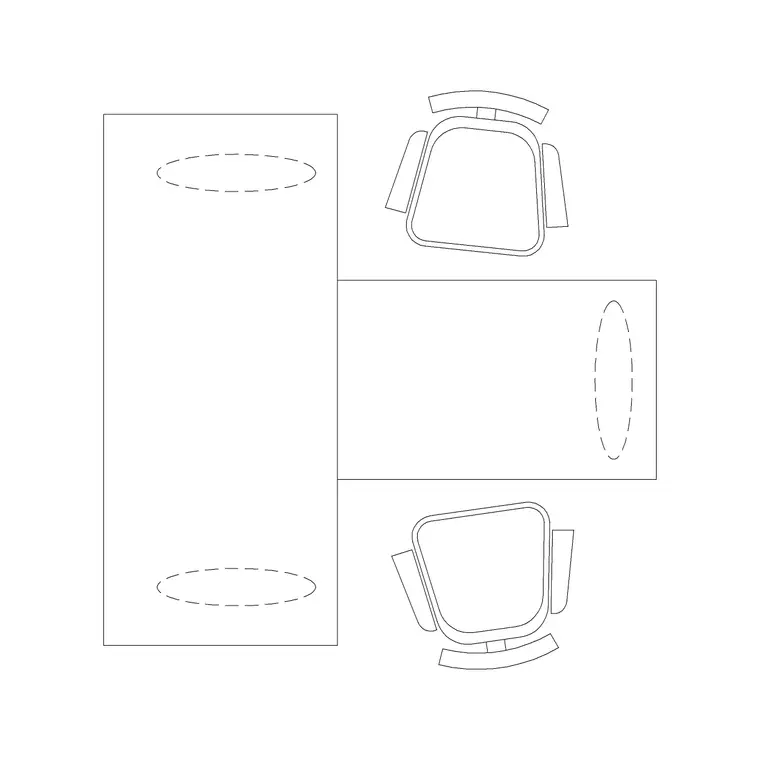
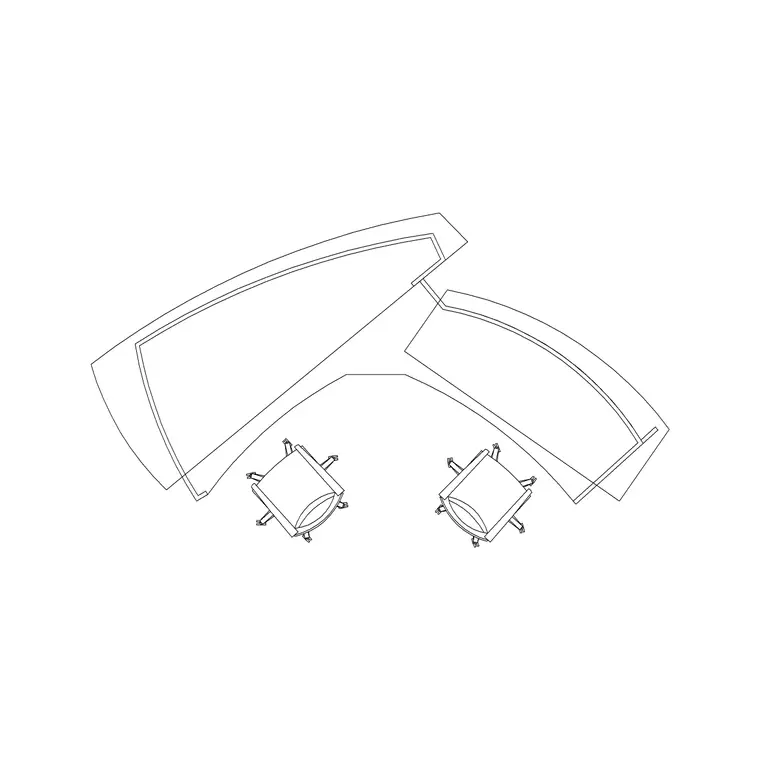
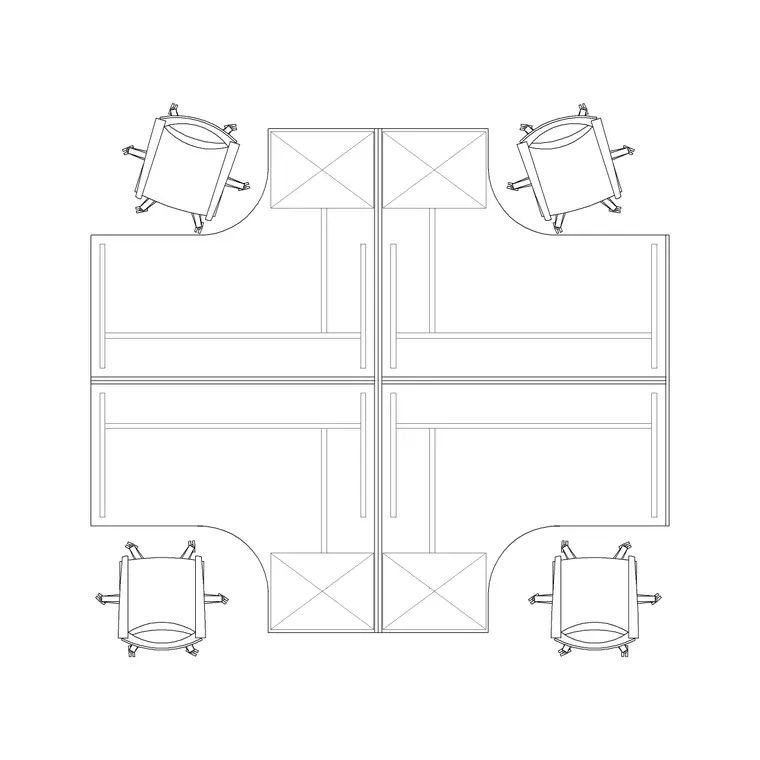
The plan view in this block shows two desk surfaces, the shared central element they sit against, and the seat positions for two chairs. Most twin units are drawn either back-to-back, where the two users face away from each other across a low screen, or side-by-side along a common worktop. The block here keeps the desk outlines, the screen or spine, and any modesty panel on sensible layers so you can recolour or freeze a part without disturbing the rest.
A realistic twin workstation also hints at where the cabling spine and any pedestal storage live, because those are what really govern how the units pack together. When you insert the block you are not just placing two rectangles; you are placing a working footprint that already accounts for the gap a person needs to pull a chair out and sit down.
Typical sizing to design around
Reach for these ranges when you check a layout. A single desk position is commonly drawn between 1200 and 1600 mm wide and 700 to 800 mm deep, so a back-to-back twin unit lands somewhere around 1200 to 1600 mm wide overall and roughly 1400 to 1650 mm front-to-front once you account for both depths and the central spine. A side-by-side twin run is closer to 2400 to 3200 mm long on a single 700 to 800 mm deep worktop.
Leave clearance behind each seat so users can stand without colliding: around 900 to 1000 mm of clear floor per person is a sensible working figure, more where the space behind doubles as a walkway. These are typical planning ranges rather than fixed specifications, so confirm the exact dimensions against your own furniture schedule and the manufacturer data for the desking system you intend to specify.
How to insert and scale the block
The block is drawn full size in millimetres. If your drawing is set up in millimetres, insert at scale 1 and the twin desk lands at real size. Working in metres? Insert at scale 0.001. On a US imperial template, set your INSUNITS to millimetres so AutoCAD rescales on insertion, which avoids the classic units mismatch where a desk arrives microscopic or building-sized.
Run INSERT (or drag the DWG from a tool palette), pick an insertion point, and rotate to suit the bay orientation. Because the unit comes in as a single block reference you can copy it down a run, and a later edit to the block definition with BEDIT updates every instance at once. To populate a bench of, say, eight desks, array four copies of the twin unit rather than placing eight separate desks.
Where the twin workstation is used
The two-person unit is the backbone of open-plan offices, call centres, co-working floors, design studios and back-office bays where density matters and people work shoulder to shoulder. It also suits small private offices that need to seat two, shared home-office setups and training rooms laid out in pairs.
Because it is licence-clear and free, the same block carries from an early concept plan through to a coordinated furniture, fixtures and equipment drawing. Drop it into a stack plan to test how many seats a floor holds, then keep the very same geometry as you detail the bay, add power and data, and produce the furniture schedule. You are not redrawing the desk at each stage; you are reusing one trustworthy unit.
Keeping the workstation on the right layer
Put the workstation on a dedicated furniture layer rather than leaving it on layer 0. Giving the desking its own colour and lineweight lets you produce a clean architectural plan by freezing the furniture and a fully furnished plan by thawing it, both from one drawing with no duplicate geometry. Keep the chairs on a separate layer again so you can toggle seating independently of the desks.
If you tag each twin unit as a block with a simple attribute, such as a desk count or a department code, you can extract a furniture schedule straight from the drawing. That turns the layout into a live count of how many seats each zone holds, which is exactly the data a space planner or facilities team wants. When a bay is finalised, WBLOCK the furnished twin unit, with chairs and pedestals, as one reusable assembly and array it across the next floor in seconds.
Free download
Browse the full library — DWG & DXF, no signup.
Questions
Frequently asked
Is the 2 person workstation CAD block really free?+
Yes. The twin workstation downloads free in DWG, with DXF where available. There is no signup, no watermark and no attribution requirement, and it is cleared for commercial project use.
What size is a two person workstation drawn at?+
It is drawn full size in millimetres. Single desk positions typically run 1200 to 1600 mm wide and 700 to 800 mm deep, so a back-to-back twin lands around 1400 to 1650 mm front-to-front. Confirm exact figures against your own furniture schedule.
Is it back-to-back or side-by-side?+
The block is supplied in plan view and is most useful as a back-to-back twin, where two users face away across a low screen. You can mirror or rearrange the desk outlines to make a side-by-side pair if your bench system runs that way.
Will it open in older AutoCAD or a free DWG viewer?+
Yes. The DWG targets AutoCAD 2004 and later, which opens in current AutoCAD, AutoCAD LT, BricsCAD, DraftSight and free DWG viewers such as Autodesk's online viewer.
Related downloads
Blocks for this guide
Related categories
Related guides
Block landing
Free Office Chair CAD Blocks — DWG Download
Download free office chair CAD blocks in DWG and DXF — task chairs, swivel chairs and executive seats drawn in plan and elevation, AutoCAD 2004+, no signup.
Block landing
Free Lighting Fixtures CAD Blocks — DWG Download
Download free lighting fixtures CAD blocks in DWG and DXF — chandeliers, wall lights, downlights and pendants in plan and elevation for AutoCAD.
Block landing
Free Office Desk CAD Blocks — DWG Download
Free office desk CAD blocks in DWG and DXF — straight desks and desk-with-chair units in plan and elevation for AutoCAD. No signup, commercial OK.