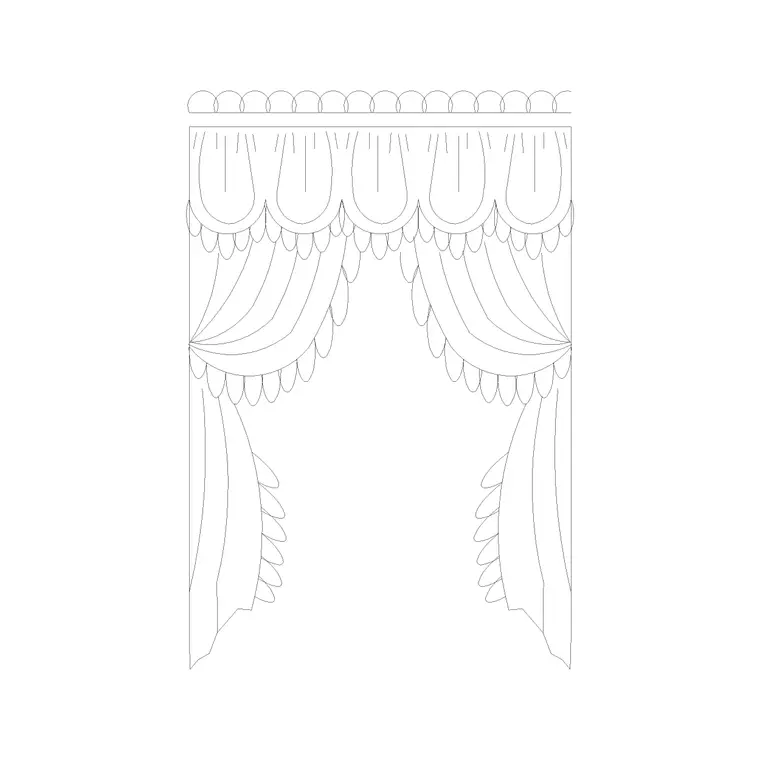
Accessories · elevation · Free DWG block
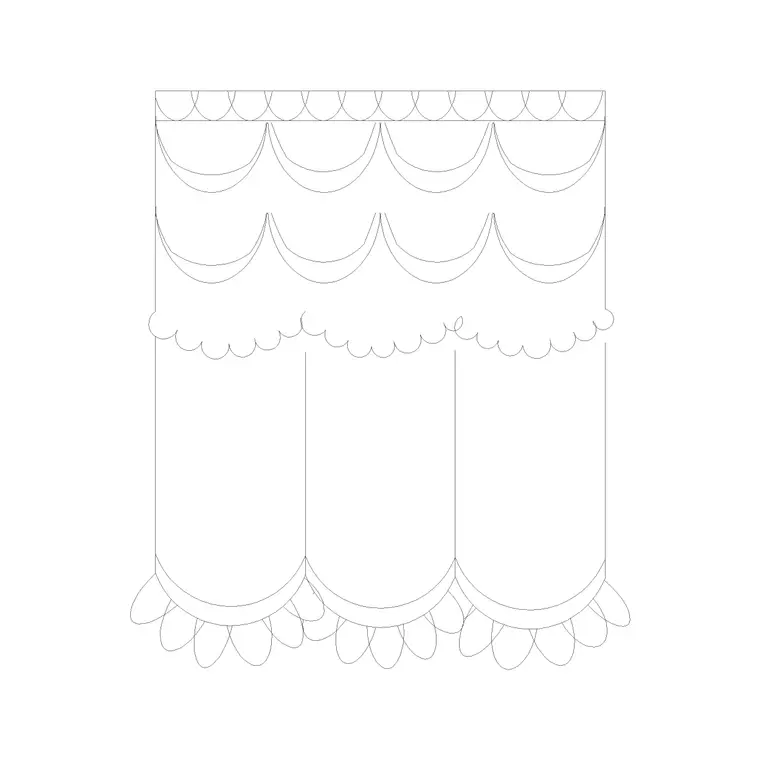
Curtain Elevation (22)
Add this curtain elevation (22) to your library — a free accessory block you can drop straight into an interior layout, styling plan or detail drawing. The linework is clean, closed and drawn to scale, so the block sits neatly in your file without bloating it. It is drawn in elevation view, so it lines up with the rest of your drawing set and stays consistent from sheet to sheet. Placed in a layout it adds a believable, well-scaled detail to an interior, saving you from redrawing a curtain elevation (22) from scratch every time. Files are provided in DWG, ready to open in AutoCAD and most CAD software. It is one of the more popular blocks in our accessories library, free for personal and commercial use with no signup required.
Free for commercial use · no login
- Format
- DWG
- File size
- 84 KB
- AutoCAD
- 2004 and later
- Views
- elevation
- Units
- Millimeters (mm)
- License
- Free · commercial OK
Where you’ll use it
In your drawings
The curtain elevation (22) block suits interior layouts, styling and decor plans, retail displays and presentation drawings. Because it ships with elevation view, you can reuse the same block across the drawings that need it and keep your set consistent. Drop it onto a dedicated accessories layer so it stays easy to manage as your project grows.
Dimensions & scale
Sizing & units
Accessories are small, so they are sized to the typical real object — verify the footprint against the surface they sit on. The block is drawn at 1:1 in millimeters, so insert it at scale 1 and adjust only if your drawing uses different units.
How to insert in AutoCAD
Using the Curtain Elevation (22) block
Download the DWG file and open it in AutoCAD (2004 or later) or any DWG-compatible CAD app. Use the INSERT command — or simply copy and paste — to place the curtain elevation (22) into your drawing, then position, rotate and mirror it to suit your layout. Keep your drawing units set to millimeters and insert at scale 1 so it matches real-world size. Move it onto a dedicated accessories layer to keep your file tidy.
Questions
Frequently asked
Is the curtain elevation (22) CAD block free for commercial use?+
Yes. The curtain elevation (22) block is free to download and use in both personal and commercial projects on CADBlockDWG, with no attribution required and no signup.
What file formats does the curtain elevation (22) download include?+
This accessory block is available in DWG. DWG opens directly in AutoCAD and most CAD software; you can export to DXF from AutoCAD if you need a more portable exchange format.
Which views and dimensions does the curtain elevation (22) include?+
It is supplied with elevation view, drawn to scale so the block lines up across your drawing set.
Is this a 2D or 3D accessory block?+
It is a 2D block intended for interior layouts and similar drawings. It is drawn at 1:1 in millimeters, so it reads at true scale once inserted.
How do I insert the curtain elevation (22) into AutoCAD?+
Download the DWG file, open it in AutoCAD 2004 or later, and use the INSERT command (or copy and paste) to drop it into your drawing. With units set to millimeters, insert at scale 1, then rotate, mirror and re-layer it to match your accessories layout.
More from Accessories
Related blocks
Guides & how-tos
Related searches