Explainer · what is a cad symbol library
What is a symbol library in CAD?
By Saumyajit Maity · Published 29 May 2025 · Updated 7 Mar 2026
A symbol library in CAD is a curated, reusable collection of blocks — doors, windows, furniture, fixtures, trees, electrical symbols and the like — that you insert into drawings instead of redrawing them each time. Rather than draw a sofa from scratch on every project, you keep one good sofa block in a library and drop it in whenever you need it. The library is the difference between drawing everything once and drawing everything again and again.
This page explains what a symbol library is, how it relates to blocks and tool palettes, why it is one of the biggest time-savers in CAD, and how to build and organise your own. A well-stocked, well-organised library is one of the quiet markers of an efficient draughtsperson, and assembling one from free, scaled blocks is straightforward.
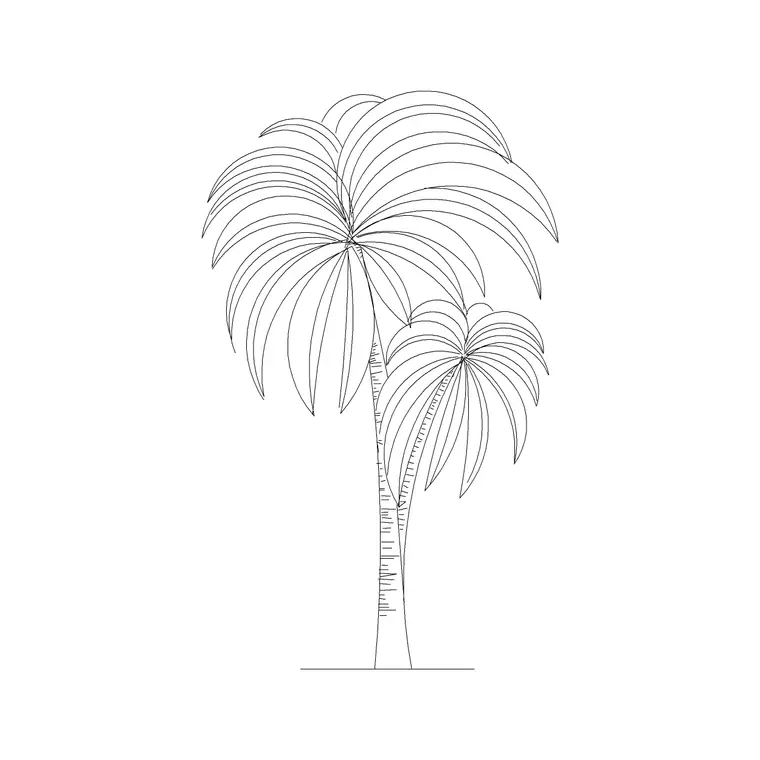
The categories on this site — furniture, trees-and-plants and the rest — are effectively a ready-made symbol library you can draw from to populate your own.
Symbols, blocks and the library
In CAD, a symbol is a standard graphical representation of a real object or concept — a door swing, a window, a power socket, a tree canopy. A block is how AutoCAD stores a symbol: a named, reusable group of geometry you insert as a single object. A symbol library is simply a managed collection of those blocks, kept somewhere you can reach them across projects.
The library can take several forms: a folder of DWG files, blocks stored inside a single "block library" drawing, or symbols organised on tool palettes. Whatever the storage, the idea is the same — define a symbol once, keep it in the library, and reuse it without redrawing. The library turns a pile of one-off drawings into an asset you build on over time.
Why a symbol library saves so much time
The time saving compounds. Drawing a detailed, correctly-scaled chair once might take a few minutes; inserting it from a library takes a couple of seconds. Across the hundreds of symbols in a typical drawing set, that difference is the bulk of a draughtsperson's productivity. A good library means the repetitive drawing is already done.
There is a consistency dividend too. When everyone on a team inserts the same door, window and furniture blocks from a shared library, every drawing looks coherent and reads the same way. Standardised symbols also make a project easier to check and to hand over, because a reviewer recognises the symbols at a glance rather than decoding a fresh interpretation on every sheet.
Tool palettes: the library at your fingertips
AutoCAD's Tool Palettes (TOOLPALETTES) turn a symbol library into a click-and-drag panel. You drag a block onto a palette once, and from then on you drag it from the palette straight into any drawing, pre-scaled and on the right layer if you set those properties on the palette tool.
Palettes can be organised into tabs by discipline or category — a furniture tab, a planting tab, an electrical tab — so the symbol you want is always a click away. You can also share palettes across a team so everyone works from the same set. This is the most ergonomic way to use a library day to day: no browsing folders, no INSERT dialog, just drag and drop.
DesignCenter and external references
AutoCAD's DesignCenter (ADCENTER) is another route into a library: it lets you browse the blocks, layers, and styles inside any drawing on your system and drag them into the current file. Point it at a block-library drawing and you can pull individual symbols out as needed without opening the source file fully.
For symbols that change — a standard detail that might be revised — some teams keep them as external references (xrefs) so an update to the master propagates everywhere it is referenced. Most furniture and entourage symbols, though, are stable and live happily as plain blocks. The right mechanism depends on whether a symbol is fixed (a block) or likely to be revised centrally (an xref).
Building your own symbol library
Start small and grow it. Each time you draw a symbol you are likely to reuse — a particular sofa, a tree you like, a custom fitting — write it out as a block with WBLOCK to a dedicated library folder, named clearly. Over a few projects you accumulate a personal library of the symbols you actually use, which is far more useful than a giant generic set.
Draw library symbols cleanly: on layer 0 with ByLayer properties so they inherit your layers on insertion, full size in real units, with a sensible insertion point (often the centre or a logical reference corner). Seeding the library from a free, scaled source like this site's furniture and trees-and-plants categories gets you a usable base quickly, which you then refine with your own additions.
Organising a library so you can find things
A library is only useful if you can find a symbol fast. Organise by discipline and type — furniture, planting, sanitary, electrical, vehicles — mirroring the way you think when you need a symbol. Consistent file naming (object first, then view, then a variant) makes folders browseable and palettes self-explanatory.
- Keep symbols in clearly-named folders or a block-library drawing - Put your most-used symbols on tool palettes for drag-and-drop - Draw them on layer 0, ByLayer, full size, with sensible insertion points - Grow the library from real reuse rather than hoarding everything
A tidy, lived-in library beats a vast unsorted one every time, because the value of a symbol library is realised only at the moment you can put your hand on the right symbol without hunting.
Free download
Browse the full library — DWG & DXF, no signup.
Questions
Frequently asked
What is the difference between a symbol and a block?+
A symbol is the standard graphical representation of an object (a door, a tree, a socket). A block is how AutoCAD stores that symbol — a named, reusable group of geometry you insert as one object. A symbol library is a managed collection of such blocks.
How is a symbol library different from a tool palette?+
The library is the collection of symbols; the tool palette is one convenient way to access it. Dragging blocks onto palettes lets you drop them into drawings pre-scaled and on the right layer, which is the most ergonomic way to use a library.
How do I build my own CAD symbol library?+
Write out symbols you reuse with WBLOCK to a dedicated, well-named folder, drawing them on layer 0 with ByLayer properties at full size. Grow the library from symbols you actually use, and put the most-used ones on tool palettes.
Can I use free CAD blocks as a symbol library?+
Yes. Free, scaled blocks — like this site's furniture and trees-and-plants — make an excellent base library. Download the symbols you need, organise them into folders or palettes, and add your own custom symbols over time.
Related downloads
Blocks for this guide

Popular blocks to download
Related categories
Related guides
Explainer
Are DWG and DXF the Same File? Explained
DWG and DXF are not the same file. Learn the real difference, which one to download for AutoCAD blocks, and when DXF is the safer choice.
Explainer
Why Is My CAD Block a Different Color?
Your CAD block came in red, white or the wrong colour? Learn how ByLayer, ByBlock and hard-coded colours work so you can fix it in AutoCAD.
Explainer
Why Do CAD Blocks Come In on the Wrong Layer?
Inserted a CAD block and it dumped new layers or sat on the wrong one? Learn how block layers work in AutoCAD and how to control where they land.