Block landing · tulip plant in pot cad block
Tulip plant in pot CAD block in DWG
By Sumana Kumar · Published 15 Mar 2022 · Updated 26 Mar 2026
A potted tulip brings a specific kind of life to a drawing: upright stems, distinct cup-shaped blooms and a tidy, seasonal cheerfulness that a generic foliage plant cannot suggest. When an interior elevation needs colour and a sense of spring — a hotel reception, a café table, a styled residential sill — this free tulip plant in pot CAD block is the right symbol. It comes in DWG, drawn in elevation for AutoCAD 2004 or later, free for personal and commercial use, with no signup, no watermark and no attribution.
Unlike a leafy houseplant, a tulip block is read by its flowers. The elevation shows the slim stems rising from the pot and the recognisable bloom heads at the top, so even as a simple line symbol it clearly says flowering plant rather than green foliage. That makes it a useful accent when a scheme needs a touch of seasonal colour or a softer, more decorative note than a structural pot plant.
What the tulip block represents
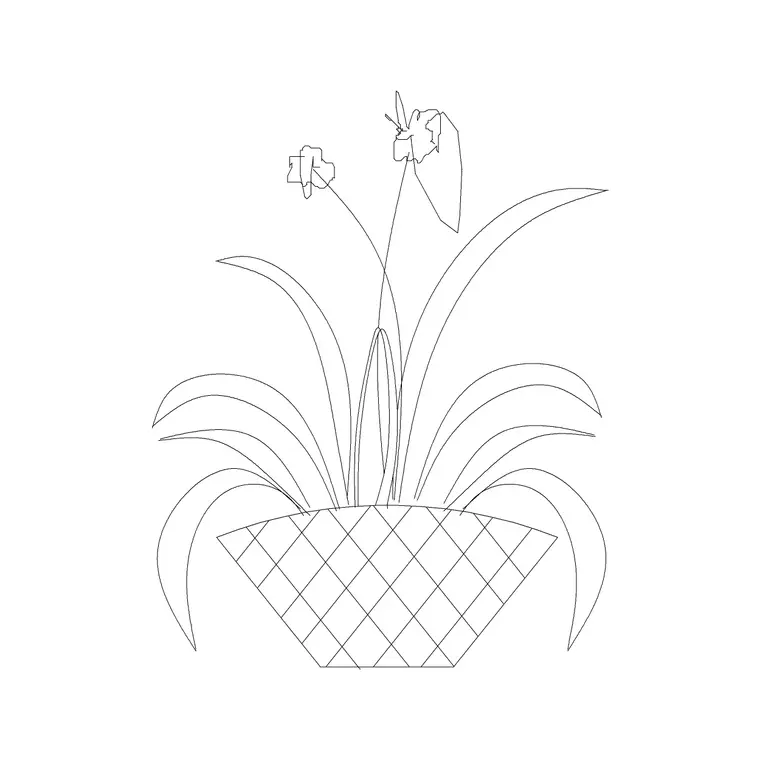
The block draws a compact planter with a cluster of tulip stems rising from it, each topped by the characteristic cupped bloom. The stems are kept slim and slightly varied so the group reads as a real bunch rather than a stiff row, and the flower heads are simplified to a clean outline that holds up at interior-elevation scales.
Leaves are suggested low around the stems where tulip foliage actually sits, which helps the symbol read correctly even before anyone notices the blooms. The pot is modest — tulips are usually shown in a tabletop or low floor container — and the whole thing is built so you can recolour the flowers separately from the stems and pot to tie the accent into a material or mood board.
Views and what's included
This is an elevation block: the potted tulip seen face-on, ready for interior elevations, sections and styled presentation views. The flowering heads only read properly from the side, so elevation is the natural and intended view.
The geometry keeps the flowers, stems and pot on separable linework, which is what lets you screen the pot back, keep the stems fine, and give the blooms a touch of colour or a heavier line so they register as the focal point. It inserts as a single block reference so you can place it on a table or sill and copy it along a run; explode it only if you want to edit individual stems.
Typical sizing to design around
A potted tulip is a small, table-scale plant. As a planning range, the pot is compact, the stems rise a modest amount above the rim, and the overall height stays well within tabletop or low-sill territory rather than floor-feature scale. Use the surface it sits on — a counter, table or windowsill — as your datum and check the bloom height against nearby objects so the cluster looks like a real arrangement, not an oversized shrub.
These are ranges to design within, not fixed numbers on the block. Tulip displays vary from a tight handful of stems to a fuller bunch, so scale the block to suit and, because the elements sit on separable linework, lengthen the stems or widen the cluster by adjusting the scale rather than redrawing.
How to insert and scale it
The DWG is drawn in millimetres. Insert at scale 1 in a millimetre drawing, 0.001 in a metre template, or set INSUNITS to millimetres in an imperial file so the block rescales automatically and the tulips arrive at table scale rather than tree scale.
Use INSERT or drag the file in, and pick the base of the pot as the insertion point so the planter sits cleanly on a table, counter or sill line in your elevation. Snap it to that surface and the arrangement reads correctly. Keep the tulip on a planting or accessory layer so you can freeze the decorative dressing for technical drawings and thaw it for presentation, and give the blooms a colour that carries your accent.
Where potted tulips are used
A tulip block adds a decorative, seasonal note to hospitality and residential interiors: hotel and restaurant tabletops, café counters, reception desks, retail displays and styled residential windowsills and dining tables. It is the accent you reach for when a scheme needs a hint of colour and softness rather than another green structural plant.
It works especially well in groups and runs — a tulip pot repeated down a banquet table or along a retail ledge dresses a presentation elevation quickly. Pair it with vases, tableware and accessory blocks from the trees-and-plants and interior libraries, and copy it along a surface to set a styled, occasion-ready scene.
Using flowering accents without overdoing them
Flowering blocks like tulips are best used sparingly: one or two well-placed pots read as deliberate styling, whereas a tulip on every surface starts to look like clip art. Treat them as the colour accent in an otherwise restrained planting scheme and let structural pots and foliage plants do the heavier work.
Keep the flowers on their own colour so you can dial the accent up for a presentation board and tone it down for a working drawing. If you reuse the tulip pot, leave it as a named block so edits propagate, and WBLOCK a styled cluster — say a tulip pot beside a vase — into your library so a finished decorative vignette is one insertion away on the next hospitality job.
Free download
Browse the full library — DWG & DXF, no signup.
Questions
Frequently asked
What makes a tulip block different from a normal plant block?+
It is read by its flowers. The elevation shows slim stems topped by recognisable cup-shaped blooms, so it clearly says flowering plant rather than green foliage, which makes it the right choice when a scheme needs a touch of seasonal colour.
Is the tulip CAD block free to use commercially?+
Yes. It downloads free in DWG with no signup, no watermark and no attribution, and it is cleared for commercial project drawings as well as personal and student use.
What scale is the block drawn at?+
It is drawn full size in millimetres at table scale. Insert at scale 1 in a millimetre drawing, 0.001 in a metre template, or set INSUNITS to millimetres so AutoCAD rescales it automatically when you place it on a table or sill.
Can I change the flower colour to match my scheme?+
Yes. The blooms sit on their own linework, so you can recolour just the flowers to tie the accent into your material or mood board while leaving the stems and pot as they are.
Related downloads
Blocks for this guide

Related categories
Related guides
Block landing
Free Flower Plant CAD Blocks — DWG Download
Free flower plant CAD blocks in DWG and DXF — flowering annuals and perennials in plan and elevation for AutoCAD landscape plans. No signup, commercial OK.
Block landing
Free Flowering Shrub CAD Blocks — DWG Download
Free flowering shrub CAD blocks in DWG and DXF — ornamental shrubs in plan and elevation for AutoCAD planting and site plans. No signup, commercial OK.
Block landing
Free Herb Plant CAD Blocks — DWG Download
Free herb plant CAD blocks in DWG and DXF — herbs for kitchen gardens, raised beds and planters, in plan and elevation for AutoCAD. No signup, commercial OK.