Block landing · flower plant cad block
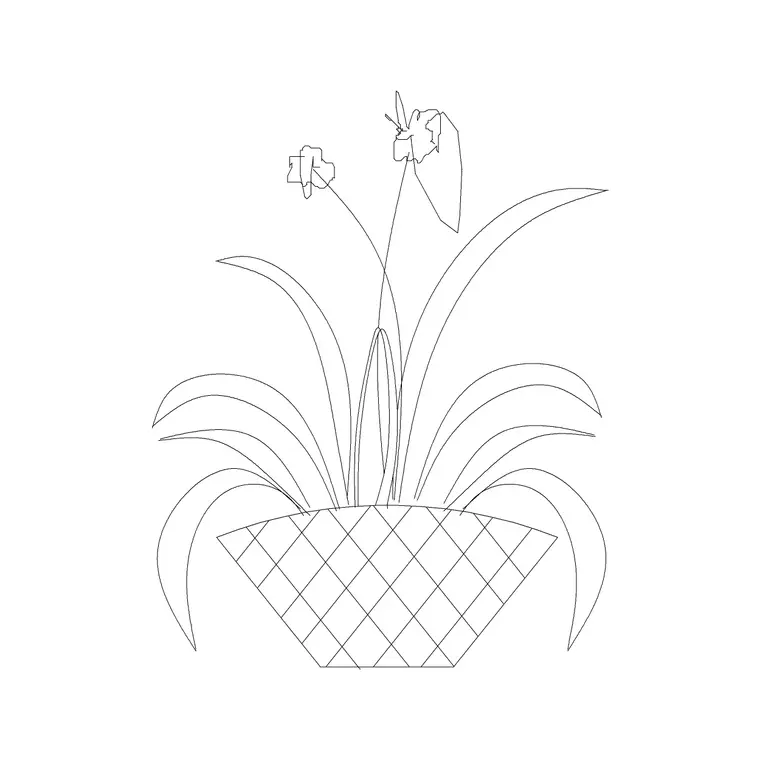
Free flower plant CAD blocks in DWG and DXF
By Saumyajit Maity · Published 13 Jan 2025 · Updated 7 Feb 2026
A single flowering plant block is a small thing, but it does a lot of quiet work on a drawing. It tells the reader where colour sits in a scheme, marks the edge of a bed, and gives a planting plan the texture that makes it read as designed rather than blank. This page collects free flower plant CAD blocks in DWG and DXF — flowering annuals, perennials and bedding plants drawn in plan and elevation, at true millimetre size, ready to insert into AutoCAD 2004 or later. Every file is free for personal and commercial work, with no signup, no watermark and no credit line required.
Reach for these blocks when you are filling a flower bed, edging a path, dressing a courtyard or building a presentation planting plan. Because they are drawn to scale, you can space them at a realistic plant centre — not by eye — so the bed you draw is the bed that actually gets planted.
What a flower plant block actually represents
A flowering plant block is a symbol for a single specimen or a clump, not a literal photograph of petals. In plan it usually reads as a rounded, lobed or star-like outline that suggests foliage and a flower mass seen from above; in elevation it is a low mound or upright stem with a flower head drawn face-on. The point of the symbol is spacing and quantity, so the outline is sized to the plant's spread rather than to a single bloom.
That distinction matters when you place them. You are not drawing one daisy — you are drawing the area one plant will occupy when it has grown in. Keep that in mind and the block does its job: it lets you count plants, set centres and read coverage at a glance.
Views and what each download includes
Most flower blocks ship a plan view, because planting plans are drawn from above. Some also include an elevation or front view for borders shown in section, for raised-bed details and for presentation boards where the planting is seen at eye level.
The blocks are drawn on tidy layers so the foliage outline, any internal flower detail and the centre point can be controlled separately. That means you can simplify a busy symbol for a small-scale plan, or recolour the flower mass to match a planting key, without exploding and redrawing the block.
Typical sizes to space flowers around
Use spread, not flower size, to set spacing. As rough ranges: low bedding annuals (think alyssum or lobelia) sit at roughly 150–250 mm centres; medium bedding (petunias, marigolds) at 250–350 mm; clump-forming perennials at 350–600 mm; larger structural perennials at 600–900 mm or more. A drift of a single species usually wants those plants at one consistent centre so the clump knits together.
These are design ranges to draw against, not fixed rules — the right centre depends on the species, the soil and how quickly you want the bed to fill. Dropping a correctly-sized block in lets you array at the chosen centre and immediately see how many plants the bed needs.
How to insert and array a flower block
The blocks are drawn full size in millimetres. In a millimetre drawing insert at scale 1; in a metre template insert at 0.001, or set INSUNITS to millimetres so AutoCAD rescales automatically on insertion. Run INSERT (or drag the DWG from a tool palette), snap the insertion point to the plant centre, and place the first specimen.
To fill a drift, the fastest route is ARRAY. Use a rectangular array on a triangular offset for a natural-looking block of bedding, or a path array along a border edge to run a single species down the front of a bed. For a looser, less stamped look, copy the block and nudge the scale and rotation of individual plants by a few percent so the drift does not read as a grid.
Where flower blocks are used
Flower plant blocks turn up across landscape and architectural drawing sets: residential garden plans, public realm and park planting, courtyard and roof-terrace schemes, retail and hospitality landscaping, and the bedding details on a civic masterplan. Landscape architects use them to produce planting plans and schedules; architects drop them into site plans to show soft landscape; students lean on them for studio boards where licence-clear planting matters.
Pair them with the trees-and-plants category for the structural trees and shrubs that frame a bed, and with the accessories category when the flowers sit in planters or raised beds rather than open ground.
Turning blocks into a planting schedule
Because each flower is a block reference, you can lean on AutoCAD to count for you. Insert one block type per species and the QSELECT or COUNT tools tell you how many of each you have placed — the basis of a plant schedule a contractor can price and order from. Tag each block with a simple attribute (a species code, say) and you can extract a full schedule straight from the drawing.
Keep every flower on a dedicated planting layer rather than on layer 0. A named layer with its own colour and lineweight lets you freeze the planting to show a clean hard-landscape plan, then thaw it for the full scheme — both from one drawing, with no duplicate geometry. When a drift works well, WBLOCK it as a reusable group and reuse the whole planted area on the next, similar scheme.
Free download
Browse the full library — DWG & DXF, no signup.
Questions
Frequently asked
Are these flower plant CAD blocks free to use commercially?+
Yes. Every flower block downloads free in DWG and, where available, DXF, with no signup, no watermark and no attribution requirement, and they are cleared for commercial project use.
Do flower blocks come in plan or elevation?+
Most are drawn in plan view for planting plans seen from above, and several also include an elevation or front view for borders shown in section and for presentation boards. The available views are listed on each block's download page.
How do I space flowers correctly when arraying the block?+
Space by the plant's spread, not by flower size. Set the array centre to the design spacing for the species — roughly 150–350 mm for bedding annuals and 350–900 mm for perennials — so the drift fills in as the plants grow.
What scale are the flower blocks drawn at?+
Full size in millimetres. Insert at scale 1 in a millimetre drawing, 0.001 in a metre drawing, or set INSUNITS to millimetres so AutoCAD rescales the block automatically on insertion.
Related downloads
Blocks for this guide


Related categories
Related guides
Block landing
Free Flowering Shrub CAD Blocks — DWG Download
Free flowering shrub CAD blocks in DWG and DXF — ornamental shrubs in plan and elevation for AutoCAD planting and site plans. No signup, commercial OK.
Block landing
Free Herb Plant CAD Blocks — DWG Download
Free herb plant CAD blocks in DWG and DXF — herbs for kitchen gardens, raised beds and planters, in plan and elevation for AutoCAD. No signup, commercial OK.
Block landing
Free Cactus & Succulent CAD Blocks — DWG
Free cactus and succulent CAD blocks in DWG and DXF — cacti, agaves and succulents in plan and elevation for AutoCAD xeriscape plans. No signup, commercial OK.