Block landing · plant with flower cad block
Plant with flower CAD block in DWG
By Sumana Kumar · Published 24 Jan 2023 · Updated 31 Mar 2026
A flowering plant says something a green plant cannot: it adds colour, signals care, and gives an interior or a presentation board a finished, welcoming feel. This free plant with flower CAD block captures a potted plant in bloom — foliage plus visible flower heads — in DWG, ready for AutoCAD 2004 or later. It is free for personal and commercial work, with no signup, no watermark and no attribution.
The block sits between a plain foliage plant and a single-species flowering symbol like a tulip or orchid: it is a general blooming pot plant, the kind that brings a splash of colour to a counter, table or floor corner. That makes it the versatile choice when a scheme needs flowers but does not call for a specific identifiable species, letting you add a decorative accent quickly and consistently across a set of drawings.
What the plant with flower block shows
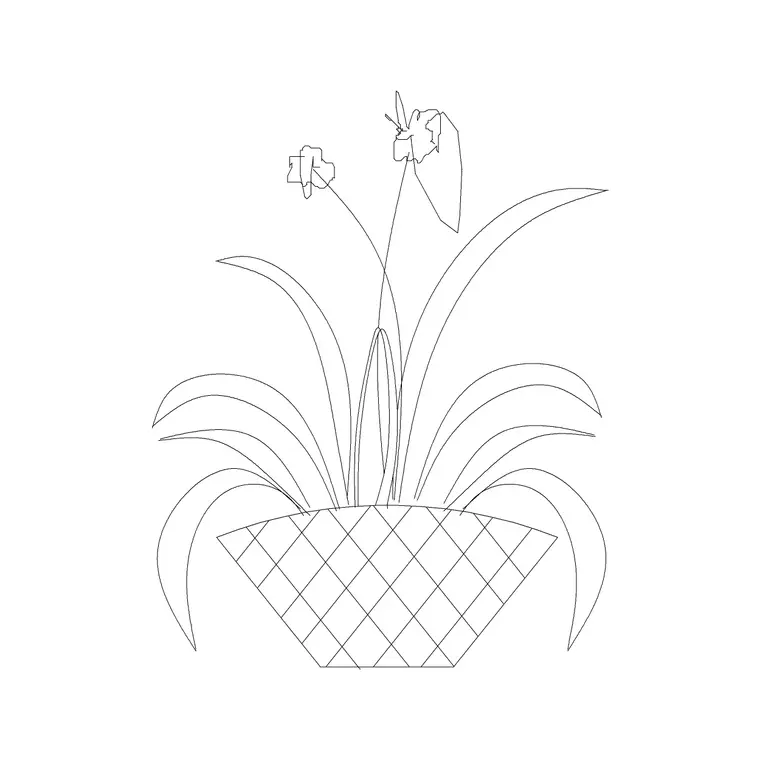
The block draws a potted plant carrying both leaves and a scatter of flower heads, so the symbol reads clearly as something in bloom rather than purely green. The flowers are simplified to recognisable rounded or starred shapes set among the foliage, which keeps the file light while still communicating colour and decoration.
The pot is a straightforward container sized to the plant, and the flowers, foliage and pot sit on separable linework. That layering is what lets you tint the blooms to a scheme accent while keeping the leaves in a neutral green and the pot in its own line, so a single block can be recoloured to suit very different interiors.
Views and what's included
The plant with flower block is supplied to read face-on, the way a flowering plant is seen across a room or on a presentation elevation, so it slots naturally into interior elevations, styled boards and decorative dressing. The blooms register best from this viewpoint.
The geometry separates the flowers from the leaves and the pot so you can treat the colour accent independently — brighten it for a presentation, tone it down for a working drawing, or swap the accent across a scheme. It inserts as a single block reference so you can place and copy it freely; explode it only if you want to rearrange individual blooms for a bespoke look.
Typical sizing to design around
A flowering pot plant is usually a compact, decorative item rather than a structural feature. As a planning range, the pot is modest, the plant sits comfortably at tabletop or low-floor height, and the flowers form a coloured crown over a green base. Use the surface or floor line it stands on as your datum and keep the overall mass tidy — a flowering accent reads best when it is contained, not sprawling.
These are ranges to design within, not fixed numbers on the block. Real flowering plants vary from a small primrose pot to a fuller hydrangea, so scale the block to suit. Because the blooms, foliage and pot sit on separable linework, you can adjust the size or the density of flowers without redrawing the whole symbol.
How to insert and scale it
The DWG is drawn in millimetres. Insert at scale 1 in a millimetre drawing, 0.001 in a metre template, or set INSUNITS to millimetres in an imperial file so AutoCAD rescales the block on insertion and the plant lands at the right, table-friendly size.
Use INSERT or drag the file in, and pick the base of the pot as the insertion point so it sits cleanly on a table, counter or floor line in your elevation. Snap it to that surface and the bloom reads as a real arrangement. Keep the plant on a planting or accessory layer so you can freeze the dressing for technical drawings and thaw it for presentation, and give the flowers an accent colour that ties into the scheme.
Where flowering plant blocks are used
A plant with flower block dresses hospitality and residential interiors above all: hotel and restaurant tables and reception desks, café counters, retail displays, and residential living, dining and kitchen surfaces. It is the go-to when a drawing needs a hint of colour and warmth rather than another structural green plant.
Used in moderation it lifts a whole elevation — one or two blooming pots imply a cared-for, occupied space. Pair it with vases, foliage plants and accessory blocks from the trees-and-plants and interior libraries, and copy it along a counter or table run to set a welcoming, styled scene without redrawing the bloom each time.
Coordinating flower colour across a drawing set
Because the blooms sit on their own line, you can drive their colour from a single layer, which is powerful across a set of elevations: change one layer colour and every flowering plant in the drawing updates to the new accent. That keeps a presentation set consistent and lets you trial different accent palettes in seconds.
Use flowering plants as accents, not wallpaper — a few deliberate pots beat a flower on every surface, which quickly reads as filler. Leave the block named for easy global edits, and WBLOCK a styled grouping — a flowering pot beside a vase or foliage plant — into your library so a coordinated, colourful vignette is one insertion away on the next hospitality or residential job.
Free download
Browse the full library — DWG & DXF, no signup.
Questions
Frequently asked
When should I use a plant with flower block instead of a foliage plant?+
When the drawing needs colour and a cared-for feel but not a specific species. It is a general blooming pot plant, more versatile than a named flower like a tulip or orchid, so it adds a decorative accent that suits many interiors.
Is the block free for commercial drawings?+
Yes. It downloads free in DWG with no signup, no watermark and no attribution, and it is cleared for commercial, personal and student project use alike.
Can I change the flower colour to match my scheme?+
Yes. The blooms sit on their own linework and layer, so you can recolour just the flowers — across the whole drawing at once if you drive them from a single layer — to match the scheme accent while leaving the foliage and pot as they are.
What scale is it drawn at?+
Full size in millimetres, at a compact table-and-floor scale. Insert at scale 1 in a millimetre drawing, 0.001 in a metre template, or set INSUNITS to millimetres so AutoCAD rescales it automatically when you place it.
Related downloads
Blocks for this guide

Related categories
Related guides
Block landing
Free Flower Plant CAD Blocks — DWG Download
Free flower plant CAD blocks in DWG and DXF — flowering annuals and perennials in plan and elevation for AutoCAD landscape plans. No signup, commercial OK.
Block landing
Free Flowering Shrub CAD Blocks — DWG Download
Free flowering shrub CAD blocks in DWG and DXF — ornamental shrubs in plan and elevation for AutoCAD planting and site plans. No signup, commercial OK.
Block landing
Free Herb Plant CAD Blocks — DWG Download
Free herb plant CAD blocks in DWG and DXF — herbs for kitchen gardens, raised beds and planters, in plan and elevation for AutoCAD. No signup, commercial OK.