Block landing · pine tree elevation cad block dwg
Free pine tree elevation CAD block in DWG
By Saumyajit Maity · Published 7 Jan 2026 · Updated 8 Feb 2026
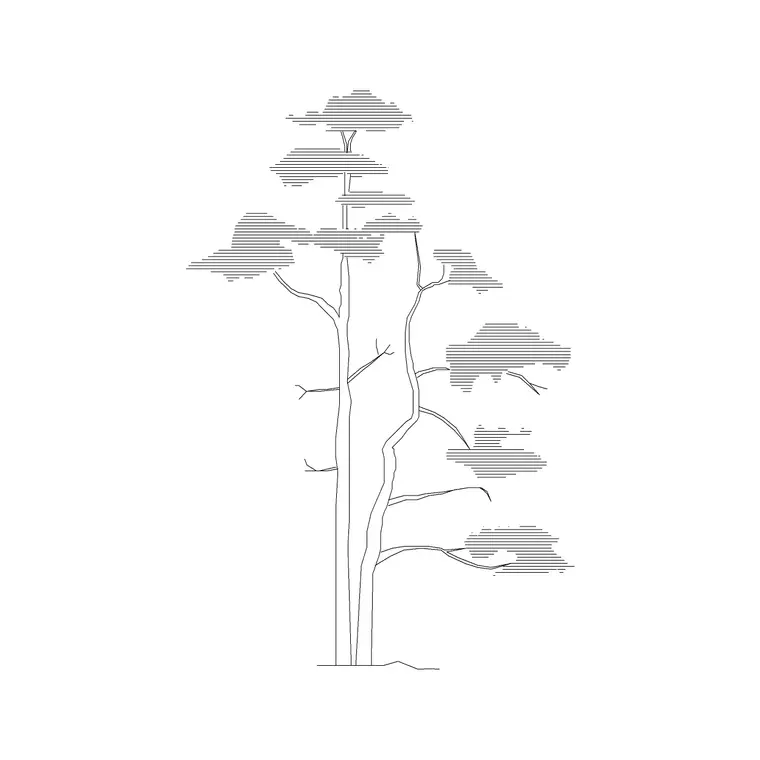
Download a free pine tree elevation CAD block in DWG, drawn as a front-on silhouette with the tall, tapering conical crown that distinguishes a pine from a broadleaf tree. The block is built for facade drawings, street sections and landscape elevations where you need an evergreen that reads instantly as a conifer rather than a generic blob of foliage. It is free for personal and commercial work, with no signup, no watermark and no attribution required.
What a pine tree elevation block actually shows
A pine in elevation has a recognisable shape: a straight central leader, a narrow conical to columnar crown, and tiered or whorled branching that gets shorter towards the top. This block captures that profile so a viewer reads 'evergreen conifer' at a glance, which matters when the rest of your elevation is full of rounded deciduous trees.
The foliage is drawn as layered needle masses rather than the smooth lollipop outline used for a generic shade tree. The trunk shows the slightly flared base and a clear bark line. Because the geometry sits on its own layer, you can recolour the canopy green for a presentation sheet or knock it back to a single pale linework for a working drawing without touching the trunk.
Typical sizing to design around
Pines are tall, slender trees, so the elevation block is drawn taller than it is wide. Landscape pines commonly run anywhere from a young 4-6 m specimen up to mature trees in the 15-25 m range, with crown spreads that stay narrow relative to the height. Use those ranges as a sanity check rather than fixed numbers, and scale the block to the species and age you are showing.
Because the block is a single reference, scaling is one SCALE command away. Pick the trunk base as the base point so the tree grows upward from the ground line you already have, and the canopy stays anchored where you want it on the elevation.
How to insert and place it on the elevation
The block is drawn full size in millimetres. In a millimetre drawing, INSERT at scale 1; in a metre template insert at 0.001, or set INSUNITS to millimetres so AutoCAD rescales automatically and you avoid the classic 'tree the size of the building' error.
Snap the insertion point to your ground or pavement line so the trunk sits exactly on grade. Mirror or copy a few instances and vary the scale slightly between them so a row of pines does not look stamped. Put the trees on a dedicated planting layer such as L-PLANT-ELEV so you can freeze them when you want a clean architectural elevation.
Where pine elevations get used
Pine elevations belong in street sections, parkland and campus boundary drawings, building facade presentations with mature backdrop planting, and ski-resort or alpine context sheets where conifers set the scene. They also read well behind a building as a screen, since the dense evergreen mass holds its form year-round and is useful for showing a planted buffer.
Pair the pine with deciduous elevation trees so your scheme shows seasonal contrast, and combine it with the plan-view conifer block when you need the same species to appear correctly in both your site plan and your elevation set.
Pine vs other conifers in elevation
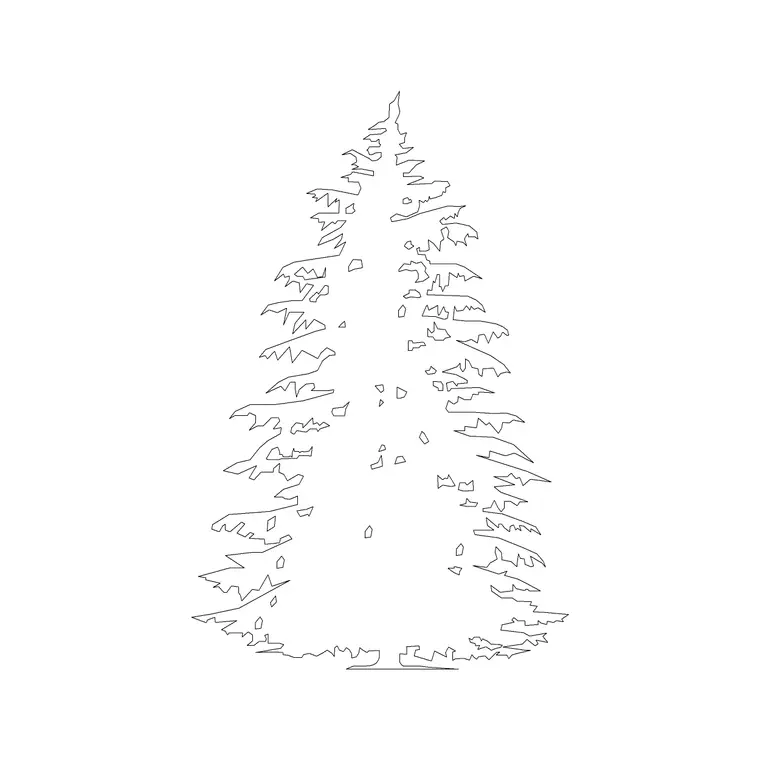
Not every conifer looks the same in profile. A pine tends to be more open and irregular as it matures, sometimes losing its lower branches to leave a clear trunk, whereas a fir or spruce keeps a tight, dense triangle nearly to the ground. If your scheme calls for a strict Christmas-tree triangle, the more formal coniferous elevation block is a better fit; if you want a characterful, slightly windswept evergreen, the pine reads better.
Keep both in your library. Swapping species on an elevation is then just a matter of inserting a different block on the same planting layer, and your linework and layer scheme stay consistent across the sheet.
Keeping the elevation tidy
Trees on an elevation are decoration, not structure, so they should never fight the building linework. Give the planting layer a lighter colour and lineweight than your architectural lines, and consider a screened or halftone plot style so the trees sit visually behind the facade.
If you reuse the same elevation sheet across a project, WBLOCK a small set of your scaled pines together as a single 'planted backdrop' block. Dropping that one block in gives you a consistent treeline on every sheet, and a later edit to the definition updates all of them at once.
Drawing pines in context with buildings
Pines are often used to soften and screen architecture, so think about how the block sits against the building behind it. A tall pine can break up a long blank facade, frame a corner of a structure, or signal a planted boundary at the edge of a site. Placing the trunk a sensible distance off the wall in the elevation keeps the canopy from appearing to grow out of the brickwork, which is a common giveaway of a rushed drawing.
If your elevation shows a building in section as well, drop the pine in at the same station on both so the tree lines up between views. Coordinating the planting across the section and elevation is the kind of small discipline that makes a drawing set look professionally put together rather than assembled from stock parts.
Free download
Browse the full library — DWG & DXF, no signup.
Questions
Frequently asked
Is this pine tree elevation block free for commercial use?+
Yes. It downloads free in DWG with no signup, no watermark and no attribution requirement, and is cleared for both personal and commercial project work.
What view is the pine block drawn in?+
It is an elevation (front-on side view) showing the pine's conical crown and trunk against a ground line, suited to facade drawings and street sections rather than to plan layouts.
How do I change the pine to a different height?+
Insert the block, then run SCALE with the trunk base as the base point and enter a factor — for example 2 to double the height. Or set the scale in the INSERT dialog before you place it.
Will the DWG open in older AutoCAD or free viewers?+
Yes. The file targets AutoCAD 2004 and later, so it opens in current AutoCAD, AutoCAD LT, BricsCAD, DraftSight and free online DWG viewers.
Can I use the pine for a winter or evergreen scene?+
Yes. As an evergreen, a pine keeps its full crown year-round, so the same block reads correctly in both summer and winter elevations without any change.
Related downloads
Blocks for this guide

Related categories
Related guides
Block landing
Free Flower Plant CAD Blocks — DWG Download
Free flower plant CAD blocks in DWG and DXF — flowering annuals and perennials in plan and elevation for AutoCAD landscape plans. No signup, commercial OK.
Block landing
Free Flowering Shrub CAD Blocks — DWG Download
Free flowering shrub CAD blocks in DWG and DXF — ornamental shrubs in plan and elevation for AutoCAD planting and site plans. No signup, commercial OK.
Block landing
Free Herb Plant CAD Blocks — DWG Download
Free herb plant CAD blocks in DWG and DXF — herbs for kitchen gardens, raised beds and planters, in plan and elevation for AutoCAD. No signup, commercial OK.