Block landing · medium potted plant cad block
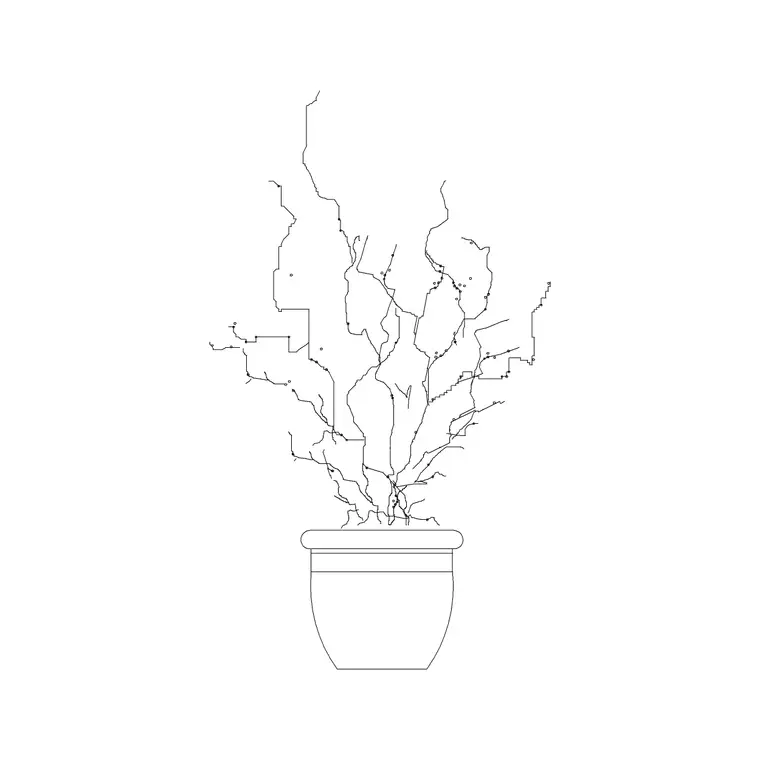
Medium potted plant CAD block in DWG
By Saumyajit Maity · Published 15 Feb 2026 · Updated 16 Jun 2026
A medium potted plant is the workhorse of interior detailing: too small and it disappears against the furniture, too large and it dominates the room, so the mid-height pot is the one designers reach for to soften a reception desk, fill a corner or break up a long run of glazing. This page offers a free medium potted plant CAD block in DWG, drawn in elevation so it drops straight into interior elevations, sections and presentation views in AutoCAD 2004 or later. It is free for personal and commercial work, with no signup, no watermark and no attribution.
The block pairs a believable planter with a foliage mass at a height that suits most rooms — taller than a desktop succulent but shorter than a feature tree. That makes it the natural choice when you want a plant to register in an elevation without forcing you to redraw the canopy every time. Insert it, sit it on the floor line, and the room instantly reads as occupied and lived-in rather than empty.
What a medium potted plant block represents
The block draws a single planter with a leafy mass rising from it, sized for the middle of the indoor-plant range — the kind of plant you would set on the floor beside a sofa or in the gap between two desks. The pot is shown as a tapered or cylindrical container with a visible rim, and the foliage is rendered as a clean silhouette rather than every individual leaf, which keeps the file light and the linework readable at typical interior-elevation scales.
Because it is an elevation block, you see the plant face-on, the way it appears in a wall elevation or a furniture presentation board. The trunk or stem line sits centred over the pot so the whole symbol balances on its base, and the outline is simple enough to recolour, hatch or screen back without fighting a tangle of detail lines.
Views and what's included
This download is an elevation block: the plant and pot seen from the side, ready for interior elevations and sections. That is the view you want when you are drawing a wall face, a reception backdrop or a room section and need greenery to read at human scale.
The geometry is built on sensible layers so you can separate the pot from the foliage — handy when you want the container in a solid line and the leaves screened back, or when you want to swap the pot colour to match a material board. Everything arrives as a single block reference, so you can move, mirror and copy the whole plant as one object and only explode it if you genuinely need to edit the internal lines.
Typical sizing to design around
Treat a medium potted plant as roughly knee-to-hip height overall, with the pot a smaller fraction of that and the foliage making up the rest. As a planning range, the pot diameter usually falls in the small-to-medium planter band while the overall height lands well below a feature tree but clearly above a tabletop plant. Use the floor line in your elevation as the datum and check the top of the foliage against nearby furniture — it should sit somewhere between a chair back and standing eye level for the proportions to feel right.
These are ranges to design within, not fixed specs printed on the block. If your real specimen is leggier or bushier, stretch or scale the block to suit; because it inserts as a single reference you can adjust the X and Y scale independently to slim or fatten the canopy without redrawing it.
How to insert and scale it
The block is drawn in millimetres. In a millimetre drawing, insert at scale 1 and it lands at real size; in a metre template insert at 0.001, and if you work imperial, set INSUNITS to millimetres so AutoCAD rescales the block automatically on insertion. Getting INSUNITS right is what stops a plant arriving microscopic or building-sized.
Run INSERT (or drag the DWG onto the drawing), pick the base of the pot as the insertion point, and snap it to the floor line of your elevation. If the plant needs to read taller or shorter than drawn, scale it about that base point so the pot stays planted on the floor while the foliage grows or shrinks above it. Put the finished plant on a dedicated planting or FF&E layer so you can freeze the greenery for a clean technical drawing and thaw it for the presentation set.
Where medium potted plants get used
This block earns its keep across interior work: reception and lobby elevations, office breakout areas, retail and showroom backdrops, restaurant and café interiors, hotel rooms and residential living spaces. Anywhere a wall elevation looks a little bare, a medium pot adds life and a sense of human scale without the commitment of a full tree.
It also reads well in section drawings, where a row of pots along a glazed façade tells the story of how the space is actually used. Pair it with furniture, lighting and accessory blocks from the trees-and-plants and interior categories to build a fully dressed elevation quickly, then array or copy the pot down a corridor or across a planted ledge to populate a larger scene.
Keeping plant blocks tidy in your drawing
A small discipline pays off: keep all your planting on its own layer rather than mixing it into the architecture. Giving the greenery a distinct colour and lineweight means you can issue a clean structural or coordination elevation by freezing the plants, then a dressed presentation elevation by thawing them — from one drawing, with no duplicate geometry.
If you reuse the same medium pot across a project, leave it as a named block so a single edit to the block definition updates every instance at once. When you have built a nicely proportioned plant you like, WBLOCK it to your office library so it is one search away on the next job, rather than something you redraw from scratch every time a corner needs filling.
Free download
Browse the full library — DWG & DXF, no signup.
Questions
Frequently asked
Is this medium potted plant CAD block free to use commercially?+
Yes. It downloads free in DWG with no signup, no watermark and no attribution requirement, and it is cleared for use in commercial project drawings as well as personal and student work.
Which view does the block come in?+
It is an elevation block — the plant and pot drawn face-on, the way they appear in an interior elevation or section. That makes it ideal for wall elevations and presentation drawings rather than top-down site plans.
How do I change the plant's height to match my real specimen?+
Insert the block, then scale it about the base of the pot. Scaling about the pot base keeps the container planted on the floor line while the foliage grows or shrinks above it. You can also set different X and Y scales to widen or slim the canopy.
Will the DWG open in older AutoCAD or free viewers?+
Yes. The file targets AutoCAD 2004 and later, which opens in current AutoCAD, AutoCAD LT, BricsCAD, DraftSight and free DWG viewers, so colleagues without the newest release can still use it.
Related downloads
Blocks for this guide
Related categories
Related guides
Block landing
Free Flower Plant CAD Blocks — DWG Download
Free flower plant CAD blocks in DWG and DXF — flowering annuals and perennials in plan and elevation for AutoCAD landscape plans. No signup, commercial OK.
Block landing
Free Flowering Shrub CAD Blocks — DWG Download
Free flowering shrub CAD blocks in DWG and DXF — ornamental shrubs in plan and elevation for AutoCAD planting and site plans. No signup, commercial OK.
Block landing
Free Herb Plant CAD Blocks — DWG Download
Free herb plant CAD blocks in DWG and DXF — herbs for kitchen gardens, raised beds and planters, in plan and elevation for AutoCAD. No signup, commercial OK.