How-to guide · how to insert a street light block in autocad
How to insert a street light block in AutoCAD
By Saumyajit Maity · Published 6 Aug 2022 · Updated 19 Mar 2026
A street light, or lighting column, is an external block you set out along a road, a car park or a footpath, and the thing that distinguishes it from interior blocks is that the spacing is the design — columns get arrayed at a regular pitch, and their positions feed the setting-out that the contractor digs to. Inserting one in AutoCAD is the familiar block workflow, but for street lights the array and the column base position carry the weight, so this guide focuses on getting the run set out cleanly in both plan and elevation.
We will use the plan view for the site setting-out and the elevation for the street section or the visual that shows the column height. The catalogue carries street light elevations drawn to scale and free for commercial use. The same steps cover a tall highway column, a mid-height residential lamp post and a low bollard-style amenity light — only the height and the spacing change.
Step 1 — Download the street light block
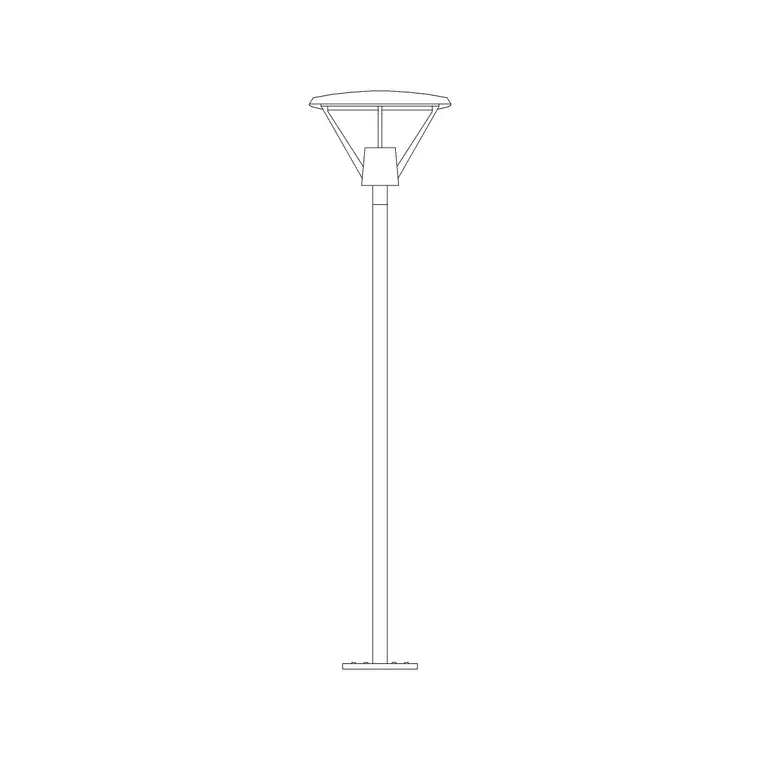
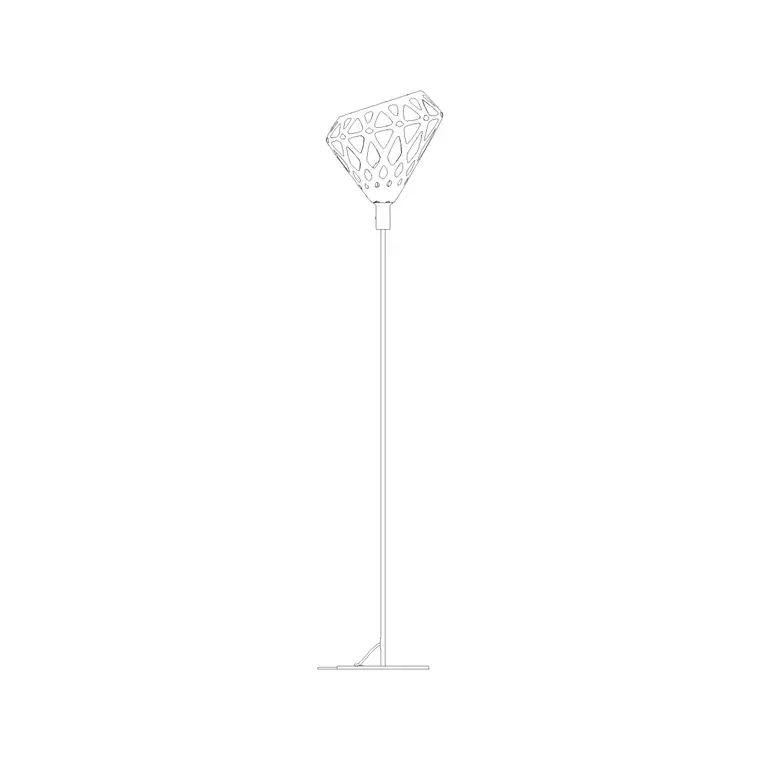
For a site layout, download the plan view — the column base footprint seen from above, often with a small symbol marking the position. For a street section or elevation, grab the elevation, which shows the column and the lantern from the front. The lighting category has street light elevations drawn to scale and free for commercial use.
Save it to a reusable library folder and open it once to find the column base point, since that base is what gets set out and dug. The blocks here are drawn in millimetres.
Step 2 — Set units so the column scales true
Type UNITS and set 'Insertion scale' to Millimeters. Lighting columns range widely — a residential lamp post around 4–6 m, an amenity or footpath column 5–8 m, and a highway column 8–12 m or more — so true units let the elevation read correctly against the buildings and the road.
If the drawing is unitless the block inserts raw and you scale by hand. With INSUNITS set, AutoCAD rescales automatically and the column arrives at its drawn height, ready to set out.
Step 3 — Insert and set out the first column
Run INSERT (or I), or open the Blocks palette, browse to the street light and select it. Keep 'Specify On-screen' on for the insertion point. For a plan layout, snap the column base to the kerb line, a setting-out grid or a chainage point along the road so its position is exact, not approximate. For an elevation, sit the base on the ground line.
The street light comes in as one block reference. Because the base position is what gets dug, place the first column deliberately against a known reference — a kerb radius end, a chainage mark or a property boundary — so the rest of the run can be set out from it.
Step 4 — Array the columns at spacing
Street lights are set out at a regular pitch, so the array is the main event. Use ARRAY — a path array along the road or footpath centreline (or an offset line along the kerb) with the spacing set to your lighting design pitch, which for many residential and amenity schemes falls in a 25–40 m range depending on column height and the lighting class. A path array follows curves and bends so the columns stay evenly spaced around a junction or a sweep.
Keep the spacing tied to the design rather than guessing; the array makes it trivial to adjust the pitch and re-space the whole run at once. Stagger columns to one side, or alternate sides, as the layout requires, and dimension the first few so the setting-out is unambiguous on the drawing.
Step 5 — Layer the lighting and tag the columns
Move the street lights onto an external lighting layer — something like EXT-LITE or E-SITE-LITE — with their own colour and lineweight, so they read clearly and can be frozen for a drainage or levels plan and thawed for the lighting layout. Keeping them off layer 0 is what makes a coordinated external services set possible.
If you tag each column as a block with a reference number attribute, you can extract a column schedule straight from the drawing — a count of columns and their positions that the lighting and civils teams both want. When the run is settled, WBLOCK a typical column-plus-foundation detail for reuse across the scheme.
Pitfalls when setting out street lights
Units lead again: a column the height of a bollard or a tower is an INSUNITS mismatch from Step 2. The second pitfall is guessing the spacing instead of using the design pitch — street lighting spacing is engineered for coverage, so array to the specified pitch and dimension it rather than eyeballing the gaps.
The third is a sloppy base position; because columns are dug to the setting-out, snap the base to the kerb, grid or chainage rather than dropping it near. Finally, keep columns on the external lighting layer and tagged, so they neither vanish on a services print nor get lost when someone needs a column count for the schedule.
Free download
Browse the full library — DWG & DXF, no signup.
Questions
Frequently asked
How do I space street lights evenly along a road?+
Use a path array (ARRAYPATH) along the road or kerb line and set the spacing to your lighting design pitch — often in a 25–40 m range depending on column height and lighting class. A path array keeps columns evenly spaced around curves and junctions.
What height should a street light column be?+
Scale to the design height — roughly 4–6 m for a residential lamp post, 5–8 m for an amenity or footpath column, and 8–12 m or more for a highway column. Set units to millimetres so the elevation reads true against the buildings.
Where should the column base be placed on a plan?+
Snap the column base to the kerb line, a setting-out grid or a chainage point, because that base is what gets set out and dug. Dimension the first few columns so the setting-out is unambiguous.
Can I get a count of how many columns I have placed?+
Yes. Tag each street light block with a reference-number attribute and extract a schedule, or use the count tools to total the block references. That gives the lighting and civils teams the column count they need.
Related downloads
Blocks for this guide
Popular blocks to download
Related categories
Related guides
How-to guide
How to Insert a Tree CAD Block in AutoCAD
Step-by-step guide to inserting a tree CAD block in AutoCAD — download the DWG, set units, use INSERT, scale and place it, then array trees across a site plan.
How-to guide
How to Copy a Block Multiple Times in AutoCAD
Copy a block many times fast in AutoCAD — the multiple-copy COPY mode, the Array suboption for equal spacing, and when to use COPY, arrays or blocks instead.
How-to guide
How to Place Street Lights Along a Road in AutoCAD
Lay out street lights along a road in AutoCAD — path-array lighting columns at the right spacing, stagger or oppose them, and keep them on their own layer.